
Cloud chatbots are convenient until the internet drops, a subscription price rises, or a private document is not something you want to send to a server. Running a model on your own computer removes all three problems at once, and LM Studio is the friendliest way to do it: a free desktop app for finding, downloading, and chatting with open models, with your chats staying on your machine once a model file is on your drive.
The short version: download LM Studio from its official site, install it, open the Discover tab to download a model that fits your memory, load it in the Chat tab, and start typing. A typical 16 GB computer handles a 7B or 8B model comfortably, and the optional local server lets other apps talk to the same model on your own machine.
Before you install: check your computer can run it
Local models live or die on memory, so check the requirements before you download anything. Two limits catch people out: Intel Macs are not supported at all, and Windows PCs need a processor with AVX2 support, an instruction set found in Intel chips from the 4th generation onward and in every AMD Ryzen chip, so most PCs built in the last decade qualify.
| System | What LM Studio needs | What to know |
|---|---|---|
| macOS | Apple Silicon (M1 to M4 or newer), macOS 14.0 or newer, 16 GB RAM recommended | Intel Macs are not supported; an 8 GB Mac can run small models. |
| Windows | x64 with AVX2, or ARM (Snapdragon X Elite), 16 GB RAM recommended, 4 GB dedicated VRAM recommended | A graphics card is optional, but a model runs much faster with one. |
| Linux | x64 or ARM64, Ubuntu 20.04 or newer, shipped as an AppImage |
Storage matters too. Model files are large, often 2 to 20 GB each, so keep at least 30 to 50 GB free before you start. The official system requirements page is the final word if anything here changes in a later release.
Step 1: Install LM Studio on Windows, Mac, or Linux
Installation is a normal app install, with no command line and no account needed for the basic setup. Download LM Studio from the official download page and pick the installer for your system. Avoid third party mirrors.
- Windows: run the .exe installer and follow the prompts.
- Mac: open the .dmg file and drag LM Studio into the Applications folder, the same as any other Mac app.
- Linux: make the AppImage executable, then run it. A .deb package is also available if your system uses Debian style packages.
Open the app after installing. The current version at the time of writing is 0.4.29, released on November 25, 2026.
Step 2: Find and download your first model in the Discover tab
LM Studio does not ship with a model built in. The model is a separate file you download once, after which it stays on your drive and works without internet. The built in downloader pulls models from Hugging Face, the main public library of open models.
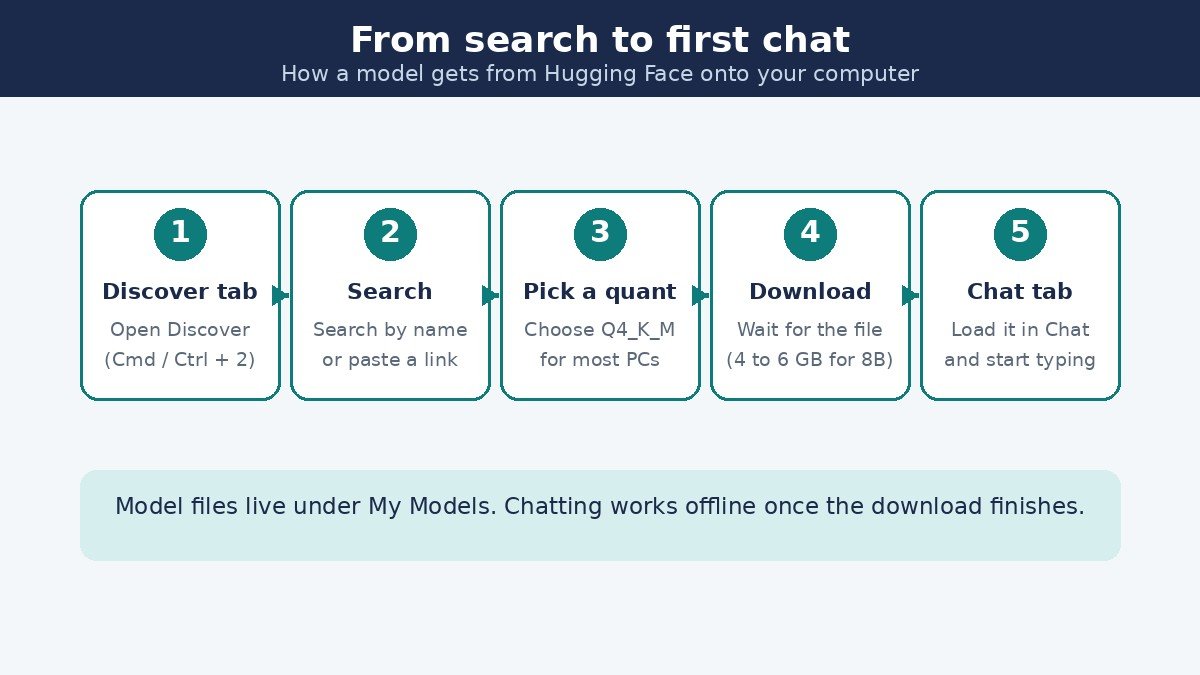
Open the Discover tab with Command and 2 on a Mac, or Control and 2 on Windows and Linux. Search by a model family name such as Qwen, Gemma, or Llama, by a specific user and model name, or by pasting a full Hugging Face link into the search bar. Opening a result shows its download options.
Each model usually offers several download options with names like Q4_K_M, Q5_K_M, and Q8_0. These are the same model compressed to different degrees, a technique called quantization: a lower number means a smaller file and lower memory use at the cost of a little answer quality. The official docs suggest a 4-bit option, such as Q4_K_M, or higher if your machine can run it.
Pick the option that fits your hardware, click Download, and wait. A 7B or 8B model at Q4_K_M is roughly 4 to 6 GB, so on a slow connection this can take a while. A 20B model can pass 12 GB, and a 70B model can pass 40 GB, which is why the size decision matters before you click. Downloaded models live under My Models.
Which model should you pick for your hardware?
The most common beginner mistake is downloading the biggest model first and then wondering why it crawls or refuses to load. Model size is measured in billions of parameters, written as B, and at the usual 4-bit quantization a model needs roughly 0.6 GB of memory per billion parameters, plus a few extra gigabytes of headroom for the conversation itself. That headroom, called the KV cache, grows as the chat gets longer.
| Your hardware | A sensible first model | What it is good for |
|---|---|---|
| 8 GB RAM, no dedicated graphics card | A 3B or 4B model at Q4_K_M, such as Gemma 4 E2B or Qwen3 4B | Short drafts, summaries, and simple questions |
| 16 GB RAM, or an 8 GB graphics card | A 7B or 8B model at Q4_K_M, such as Llama 3.1 8B or Qwen3 8B | Everyday chat, writing help, and light coding help |
| 32 GB RAM, or a 16 GB graphics card | A 14B model at Q4_K_M, such as Qwen3 14B, or a 27B model on a 24 GB card | Longer documents and more reliable coding help |
Start smaller than you think you need. A fast 8B model you actually use beats a slow 32B model you abandon, and you can always download a bigger one later. Qwen models are strong general purpose picks and a good default for a first download, Llama models are solid all rounders, and Gemma models are efficient on modest hardware. For the full numbers behind these tiers, our VRAM sizing guide for local AI models works through the figures model by model.
Step 3: Load the model and start your first chat
Downloading a model does not run it. Loading is the separate step that puts the model into memory so it can answer.
- Open the Chat tab in the left sidebar.
- Click the model selector at the top and choose the model you downloaded.
- Click Load, or press the load button beside the model name.
- Type a short test question in the chat box and press Enter, such as asking for a three sentence summary of a topic you know well.
Once a model is loaded, your chats run entirely on your machine, with no internet connection needed: you can switch on airplane mode and keep chatting. The only things that need internet are downloading a new model, checking for app updates, and searching for models in the Discover tab, which queries Hugging Face.
Step 4: Make the GPU do the work with hardware offload
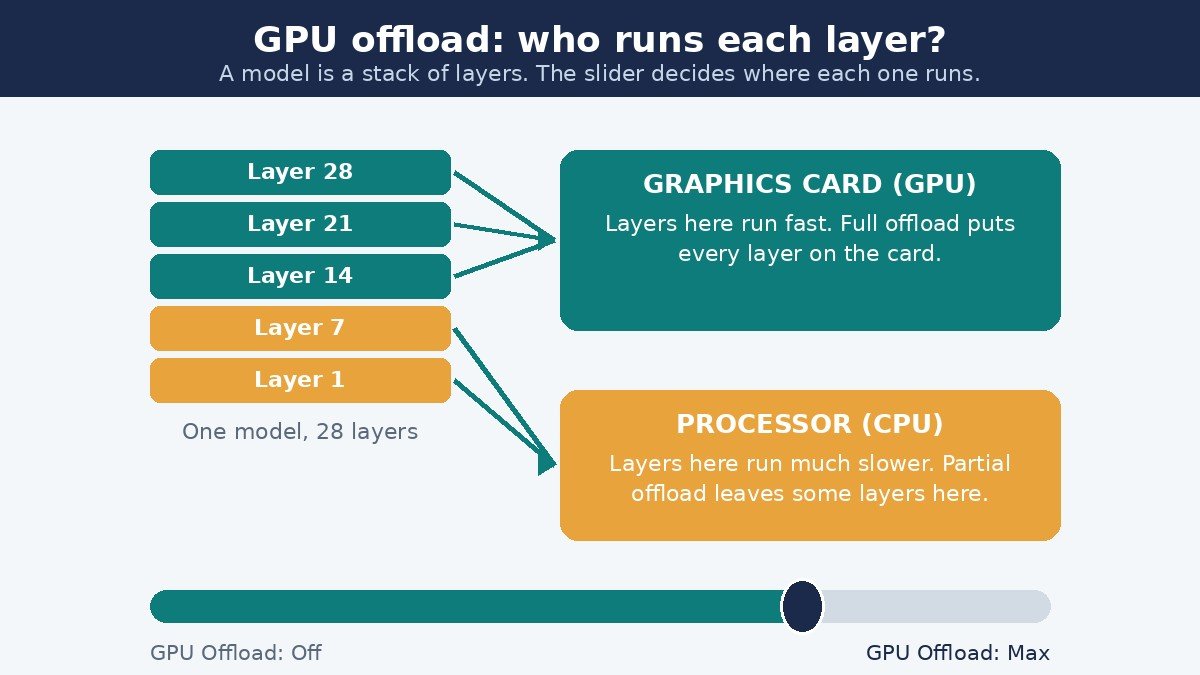
This is the setting that separates a fast setup from a frustrating one. A language model is built from a stack of layers, and each layer can run either on the graphics card, where it is fast, or on the processor, where it is much slower. Hardware offload, sometimes called GPU offload, decides how many layers move onto the graphics card: get it right and answers arrive several times faster, leave it wrong and an expensive graphics card sits idle.
LM Studio normally detects your graphics card and picks a matching engine, or runtime, automatically: CUDA for NVIDIA cards, Metal or MLX on Apple Silicon Macs, and Vulkan or ROCm for AMD cards. On a Windows or Linux PC with a separate graphics card, the GPU Offload control in the model load settings is the one to check.
- Before loading a model, open its load settings and find GPU Offload.
- Set it to the maximum your card can hold if the model fits in your graphics card memory. That is the fastest setup.
- If the model is bigger than your graphics card memory, use a partial offload: some layers run on the card and the rest fall back to system RAM.
- Keep the context length in mind: a model that fits at 4,096 tokens of context may not fit at 32,768, so shorten it if a model fails to load.
How do you know it worked? Open Task Manager on Windows, or Activity Monitor on a Mac, while the model is answering. If the graphics card shows real activity, the offload is doing its job. If it sits at zero while the processor is maxed out, the model is running on the processor. One detail in recent versions matters: since the 0.4 redesign, LM Studio ships its inference engines as runtime downloads, so a fresh install can end up with no GPU runtime at all. Press Control and Shift and R, or Command and Shift and R on a Mac, to open the Runtime page and check the right runtime is installed and selected.
Step 5: Turn on the local server so other apps can use your model
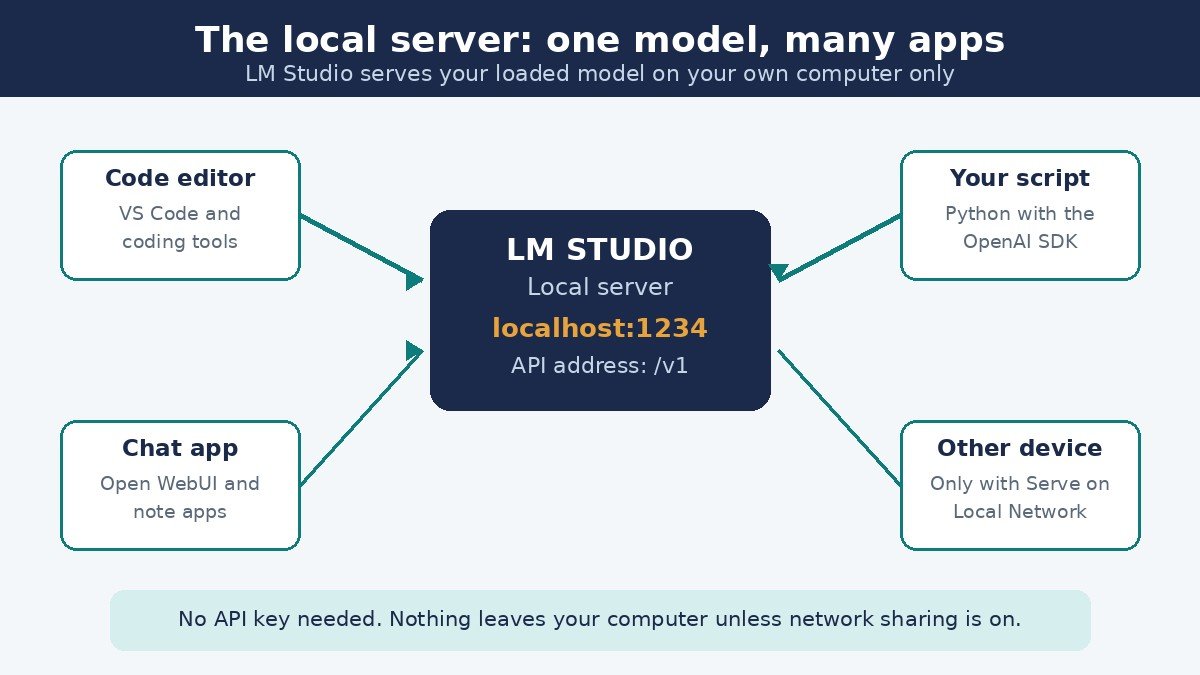
Chatting inside LM Studio is only half the story. The local server turns your loaded model into a private service on your own computer that other programs can talk to, using the same style of API that cloud chatbots use, so a coding editor or a small script can send prompts to it without anything leaving your machine.
- Load a model in LM Studio first. The server can only serve a model that is actually loaded.
- Open the Developer tab in the left sidebar and find the server settings.
- Switch the server on. It listens on http://localhost:1234 by default, and the API address apps need is http://localhost:1234/v1.
- In the other app, choose an OpenAI compatible provider and set its base URL to http://localhost:1234/v1. No real API key is needed, though some apps ask for one anyway, in which case any placeholder text works.
- Pick the loaded model by name in that app, then send a test prompt to confirm the connection.
Two options in the server settings deserve a careful look. Serve on Local Network opens the server to other devices on your home network, but it also means anyone on that network could reach it, so only switch it on when you need it and on a network you trust. Enable CORS lets websites and browser based tools call the server, which some web apps require, but only enable it for a tool you trust. By default the server only listens on your own machine. If port 1234 is already taken, change it in the server settings and use the new port in the other app’s address.
When something goes wrong
Most LM Studio problems have a small set of causes.
The model will not download, or the download stalls
Check the internet connection first, since the Discover tab and downloads both need it, even though chatting does not. A download that stalls partway can be a crowded Hugging Face server or a connection that dropped, so pause and resume it, or cancel and restart it. If the drive is nearly full, the download can fail without a clear message, so check the free space first.
The model will not load, or LM Studio says it is too large
This is almost always a memory problem, not a broken model. Pick a smaller model or a lower quantization, such as Q4_K_M instead of Q8_0, and try again. Shortening the context length in the load settings frees a surprising amount of memory, so drop it to 4,096 tokens as a test.
The GPU is idle and answers are slow
Start on the Runtime page, with Control and Shift and R on Windows or Linux, or Command and Shift and R on a Mac. If the selected runtime is the CPU only build, nothing will run on the graphics card no matter what the offload slider says, so install the CUDA runtime for an NVIDIA card or the Vulkan runtime for an AMD card, select it, then unload and reload the model. Next, raise the GPU Offload setting toward the maximum, and update the graphics driver from the card maker’s own site.
Another app cannot reach the local server
Confirm the server is running in the Developer tab and that a model is loaded. Check the address in the other app carefully: it should be http://localhost:1234/v1, including the /v1 at the end, which is the part people miss most often. If the other app reports a connection refused error, try changing the port in the server settings and updating the address to match. If the other app runs on a different device, remember that localhost only means the same machine: switch on Serve on Local Network and use the computer’s network address instead.
LM Studio or Ollama: which one fits you?
LM Studio is not the only way to run models offline. Ollama is the best known alternative, and the two tools share the same underlying engine for most models, so the difference is the experience around it. LM Studio is the GUI first choice: you browse and download models inside the app and adjust settings with sliders, for anyone who prefers not to touch a terminal. Ollama is the command line first choice: lighter, scriptable, and easy to run as a background service, for developers who live in a terminal. Our Ollama guide for running local AI models on your PC walks through that route step by step.
LM Studio turns a job that used to need a terminal and a research session into something close to installing any other app: download it, pick a model that fits your memory, load it, and chat. The parts worth spending time on are the model choice and the GPU offload setting, because those two decisions decide whether the experience feels fast or frustrating. Get a small model running first, confirm the graphics card is doing the work, and only then try a bigger model or switch on the local server.

- How to Run AI Models Offline With LM Studio (Step-by-Step Guide) - November 28, 2026
- How to Fix an External Drive Not Showing Up on Windows 11 [Fix] - November 27, 2026
- How to Fix a Black Screen With Cursor After Login on Windows 11 (5 Fixes) - November 26, 2026