
Running an AI model on a home computer comes down to one question first: does the model fit in the memory available to the graphics processor? If it fits, answers arrive at a comfortable speed. If it does not fit, part of the model spills into system memory and everything slows down.
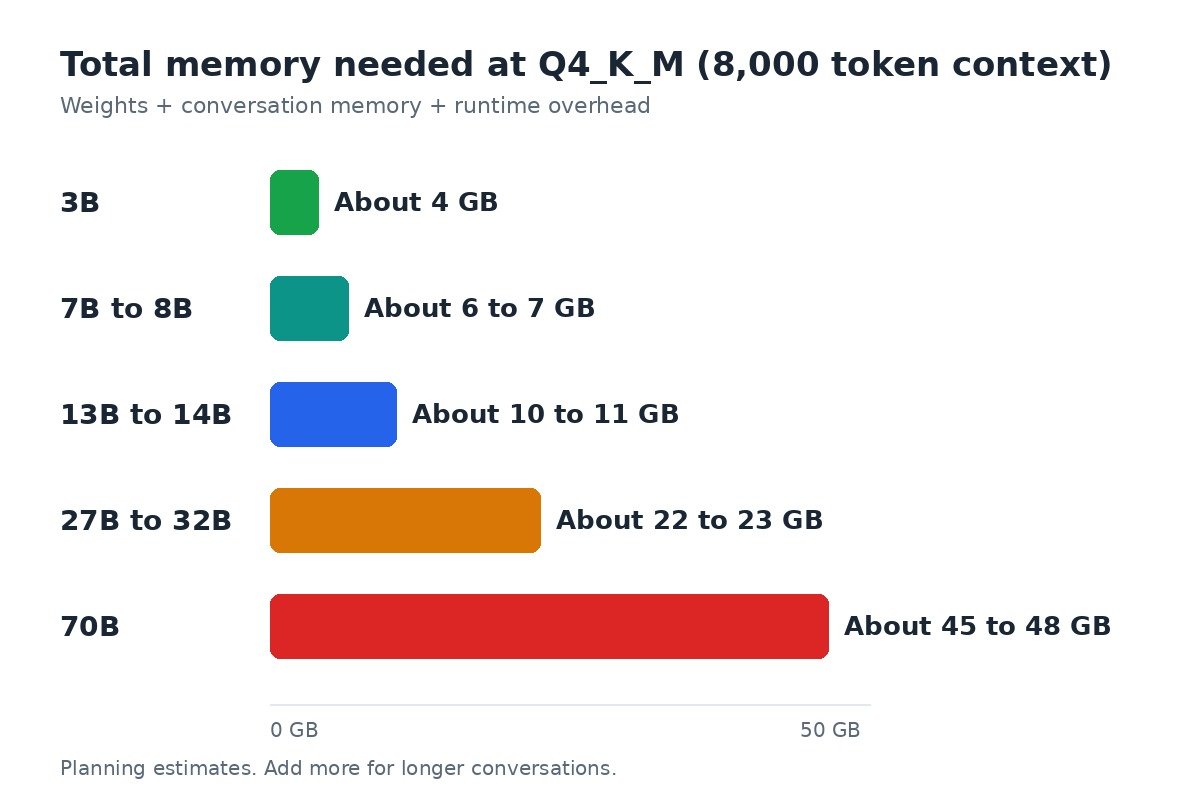
The short version is simple. At the widely used Q4_K_M quantisation, budget about 0.6 GB of memory for every billion parameters, then add room for the conversation and the software. An 8 billion parameter model needs about 6 to 7 GB in total, a 32 billion parameter model needs about 22 to 23 GB, and a 70 billion parameter model needs about 45 to 48 GB. The sections below show where those numbers come from.
The Decision Table: Model Size and Quantisation Against Memory Needed
Find the model size in the left column, then read across to the quantisation level planned for it. The figures are total memory needed with an 8,000 token context window, including weights, conversation memory, and about 1 to 2 GB for the runtime and the operating system.
| Model size | Q4_K_M (4 bit, the usual default) | Q8_0 (8 bit, near full quality) | FP16 (16 bit, full precision) | Fits comfortably on |
|---|---|---|---|---|
| 3B | About 4 GB | About 5 GB | About 8 GB | Any 8 GB GPU or 8 GB Mac |
| 7B to 8B | About 6 to 7 GB | About 10 to 11 GB | About 18 GB | 8 GB GPU at Q4, 12 GB GPU at Q8 |
| 13B to 14B | About 10 to 11 GB | About 17 GB | About 30 GB | 12 GB GPU at Q4, 24 GB GPU at Q8 |
| 27B to 32B | About 22 to 23 GB | About 37 GB | About 67 GB | 24 GB GPU at Q4 |
| 70B | About 45 to 48 GB | About 77 GB | About 143 GB | 48 GB card or 64 GB Mac |
| 120B mixture of experts | About 70 to 75 GB | About 125 GB | About 235 GB | A single 80 GB card at 4 bit only |
The 120B row describes a mixture of experts model such as gpt-oss-120b, where only a fraction of the parameters works on each token, yet every parameter still has to sit in memory. The model publisher states that gpt-oss-120b fits on a single 80 GB GPU.
How the Calculation Works: Weights, Conversation Memory, and Overhead
Total memory has three parts. The model weights are the largest part, usually 70 to 75 percent of the total. The conversation memory, known as the KV cache, holds the context of the current chat and grows as the conversation gets longer. The runtime overhead covers the inference software, the graphics driver, and the desktop, and it usually takes 1 to 2 GB.
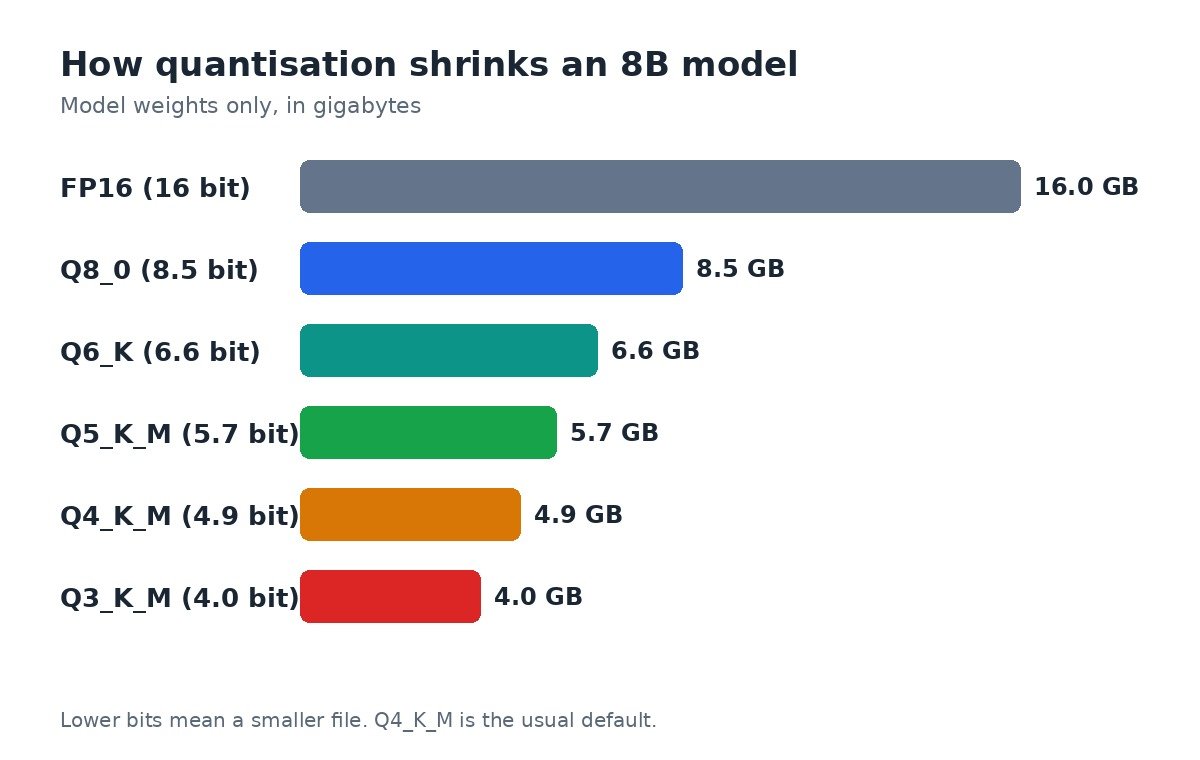
The weights follow one formula: parameters in billions multiplied by bits per weight, divided by 8, gives the size in gigabytes. At full 16 bit precision, each parameter takes 2 bytes, so an 8 billion parameter model needs 16 GB for its weights alone. At 8 bit precision it needs about 8.5 GB, and at the common 4 bit Q4_K_M level about 4.9 GB. Published quantisation figures list Llama 3.1 8B at Q4_K_M as 4.9 GB, and Llama 3.1 70B at Q4_K_M as 43.1 GB.
Worked Example: An 8B Model
Take an 8 billion parameter model at Q4_K_M. The weights take 8 multiplied by 4.89, divided by 8, which is 4.9 GB. An 8,000 token conversation adds roughly 1 GB, and overhead adds 1 to 2 GB, giving a total of about 6 to 7 GB. That is why an 8 GB graphics card runs an 8B model well, while the same model at full 16 bit precision needs about 18 GB.
Worked Example: A 70B Model
Take Llama 3.1 70B at Q4_K_M. The weights alone take about 43 GB, and the total reaches about 45 to 48 GB with an 8,000 token context. That is why a 70B model needs a 48 GB workstation card, two 24 GB cards, or a Mac with 64 GB of unified memory.
Context length is the part people underestimate. Doubling the context window roughly doubles the conversation memory, while the weights stay exactly the same. Long document work and long coding sessions are where this bites first.
Quantisation: The Lever That Changes Everything
Quantisation stores each model weight in fewer bits. A model trained at 16 bit precision can be compressed to 8 bit, 6 bit, 5 bit, or 4 bit, and each step down shrinks the file and the memory it needs. The trade is a small loss of accuracy, and for most everyday uses the loss at 4 bit is hard to notice. That is why Q4_K_M is the default download in Ollama and the format most local AI apps suggest first.
| Format | Bits per weight | Memory per billion parameters | 8B model weights | When to choose it |
|---|---|---|---|---|
| FP16 | 16.0 | 2.00 GB | 16.0 GB | Reference quality, or fine tuning |
| Q8_0 | 8.5 | 1.06 GB | 8.5 GB | Accuracy matters most |
| Q6_K | 6.56 | 0.82 GB | 6.6 GB | Near lossless, smaller file |
| Q5_K_M | 5.70 | 0.71 GB | 5.7 GB | Spare memory, extra accuracy |
| Q4_K_M | 4.89 | 0.61 GB | 4.9 GB | The default for most home setups |
| Q3_K_M | 4.00 | 0.50 GB | 4.0 GB | Squeezing a larger model into fixed memory |
The bits per weight figures come from the llama.cpp quantisation documentation, measured on an 8B model. Q4_K_M is not a flat 4 bits per weight. It averages 4.89 bits because attention layers and some other tensors stay at higher precision.
For general chat, drafting, summarising, and coding help, Q4_K_M is the sensible starting point. For work where small errors cost real time, such as long reasoning chains, step up to Q5_K_M or Q6_K if the memory allows it. Q3_K_M buys a little extra room at a visible cost in quality, and it suits experimentation more than daily use.
One warning applies here. A 4 bit GGUF file, a 4 bit MXFP4 file such as the one used by the gpt-oss models, and a 4 bit NVFP4 file on newer NVIDIA hardware all store weights at roughly 4 bits, but they are different formats. Download the format that matches the app being used.
What Happens When the Model Does Not Fit: Spilling and the Speed Cost
A model that is larger than the available graphics memory does not always refuse to run. Ollama and LM Studio can split it, keeping as much as possible on the graphics card and moving the rest into system memory, where the processor handles it. This is called offloading, and it is the reason a 32B model can appear to run on a 16 GB card. It runs, but the part in system memory has to travel across the PCIe bus for every token, and the processor works through it far more slowly.
The speed cost depends on how much spills over. A small spill, a layer or two, is noticeable but usable. A large spill, half the model or more, turns a chat that should feel instant into one where each sentence arrives word by word with long pauses. The practical rule is simple: a spill of more than a few gigabytes means the model is too large for that card at that quantisation.
System memory matters even when the model fits on the card. The operating system, the browser, and other apps still need their share. A computer with 16 GB of system memory and an 8 GB graphics card runs an 8B model comfortably, but a second large model loaded at the same time eats into the headroom. For a 32B model that spills, 32 GB of system memory is a more realistic floor.
NVIDIA, AMD, and Apple Silicon: What Each Kind of Memory Means
The three hardware families handle memory in different ways. A graphics card has its own pool of memory, called VRAM, which nothing else on the computer can use. An Apple Silicon Mac has one shared pool, called unified memory, which the processor, the graphics processor, and every app draw from together.
NVIDIA: The Widest Choice of VRAM Sizes
NVIDIA cards cover the widest range of memory sizes, and they are the best supported option for local AI apps, with CUDA acceleration in Ollama and LM Studio. The current desktop range, from the specification page published by NVIDIA, runs from 8 GB on the RTX 5050 and RTX 5060, through 12 GB on the RTX 5070 and 16 GB on the RTX 5070 Ti, RTX 5080, and the 16 GB version of the RTX 5060 Ti, up to 32 GB on the RTX 5090. Second hand, the RTX 4090 has 24 GB and the RTX 4080 Super has 16 GB.
For local AI, the memory size matters more than the model name. An RTX 5060 Ti with 16 GB runs a 14B model at Q4 far better than a faster card with only 8 GB, because the larger model fits and the smaller one spills. A 24 GB RTX 3090 or RTX 4090 remains a strong choice for a 32B model. Laptop versions usually carry less memory than the desktop card with the same name, so check the exact laptop specification.
AMD: Plenty of Memory, With a Compatibility Check First
AMD cards often give more memory for the money. The RX 9070 and RX 9070 XT both ship with 16 GB of GDDR6 memory, and the older RX 7900 XTX ships with 24 GB, which makes it a useful card for a 32B model at Q4. The RX 7900 XT sits between them at 20 GB.
The check before buying an AMD card is software support. Ollama supports AMD graphics cards, and LM Studio runs on them through Vulkan, but support for a specific card and driver version should be confirmed before spending money. A card with generous memory is no help if the app in use cannot address it properly.
Apple Silicon: One Shared Pool Instead of Two
Apple Silicon Macs use unified memory, a single pool shared by the processor and the graphics processor. There is no separate VRAM to fill: a Mac with 64 GB of unified memory can load a 70B model at Q4, something that needs a 48 GB workstation card on a desktop PC. The catch is that the same pool also serves macOS, the browser, and every other app, so the whole 64 GB is never available to the model.
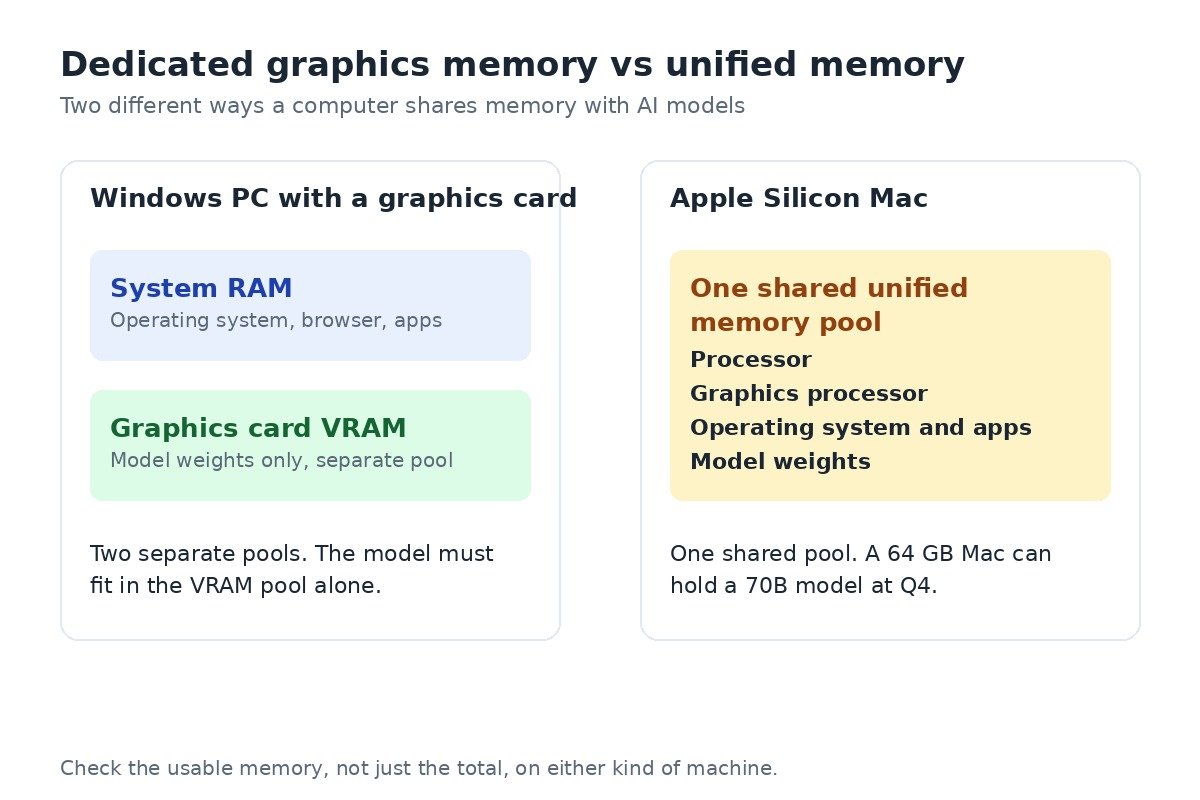
As a starting point, 16 GB of unified memory is the practical minimum for local AI on a Mac, and it runs 7B to 8B models well. A 24 GB or 32 GB Mac opens up 14B models and some 32B models at Q4, and a 64 GB Mac handles 70B models at Q4. Memory bandwidth also matters for speed: the M4 Pro reaches 273 GB/s, and the M4 Max reaches up to 546 GB/s. LM Studio and Ollama both require macOS 14 or later on Apple Silicon.
Pick Your Size in Four Steps
- Check the memory available. On Windows, open Task Manager, go to the Performance tab, and read the dedicated GPU memory figure. On a Mac, open About This Mac, then subtract several gigabytes for macOS and open apps.
- Choose the job first, then the model size. Short everyday chat and drafting work well on a 7B to 8B model. Coding help, long documents, and harder reasoning benefit from a 14B model. A 27B to 32B model is the step up for stronger answers, if the memory is there.
- Run the calculation at Q4_K_M. Multiply the parameter count by 0.61 to get the weights in gigabytes, then add 1 GB for a short conversation and 1 to 2 GB for overhead. If the total is under the budget from step one, the model fits. If it is over, drop to a smaller model first.
- Try one small model first. Download a 7B or 8B model and run a normal conversation. If it answers quickly and the memory reading stays comfortable, step up one size and compare. The Ollama model library lists the download size of every model before it is pulled.
Sizing is only half the job. Once the size is chosen, the install guide covers getting Ollama installed, pulling the first model, and running it. How to run local AI models on your PC with Ollama is the guide to follow next.
Mistakes That Waste Memory
- Buying a faster card with less memory. A slower card with 16 GB beats a faster card with 8 GB, because the model that fits always beats the model that spills.
- Downloading the full precision version by habit. The FP16 file of an 8B model is 16 GB, more than three times the Q4_K_M file. Unless the work genuinely needs full precision, the extra memory buys almost nothing.
- Setting a huge context window and forgetting it. A 128,000 token context on a 32B model can need more memory than the weights themselves.
- Keeping two large models loaded at once. Unload the model that is not in use.
- Judging a Mac by its total memory. A 16 GB Mac is not the same as a PC with a 16 GB graphics card, because macOS and every open app share the same pool.
For most people, the answer is an 8B model at Q4 on an 8 GB card, or a 14B model at Q4 on a 12 GB or 16 GB card. Those two setups cover everyday chat, drafting, and coding help without spilling. Step up to 32B when the hardware already has 24 GB, and treat 70B as a project for a machine with 48 GB of graphics memory or 64 GB of unified memory.

- How Much VRAM Do You Need to Run Local AI Models (With Sizing Table) - November 27, 2026
- How to Clone an SSD to a Larger SSD on Windows 11 (Free Tools) - November 26, 2026
- How to Turn Off Copilot in Microsoft Edge (4 Switches) - November 25, 2026