
You are sitting with friends, someone new tries to join your Wi-Fi, and your iPhone lights up: do you want to share the Wi-Fi password? Maybe you do, and you tap Share Password without thinking. Maybe you do not, and the prompt keeps interrupting you anyway. Either way, the prompt feels like something you should be able to switch off, and the frustrating truth is that Apple gives you no dedicated switch for it. There is no toggle labelled “stop asking to share Wi-Fi passwords” anywhere in Settings. But you can still stop the prompt, once you understand what triggers it.
Why your iPhone asks in the first place
Wi-Fi password sharing is a convenience feature built on proximity. When another Apple device near you tries to join a network your iPhone is already connected to, your iPhone offers to send the password over an encrypted connection, so the other person never sees the actual password. It only happens when several conditions are all true at once: the other device is an Apple device, both devices have Wi-Fi and Bluetooth switched on, both are unlocked and close together, and each person is saved in the other’s Contacts with the email address or phone number they use for their Apple ID. Miss any one of those, and the prompt never appears.
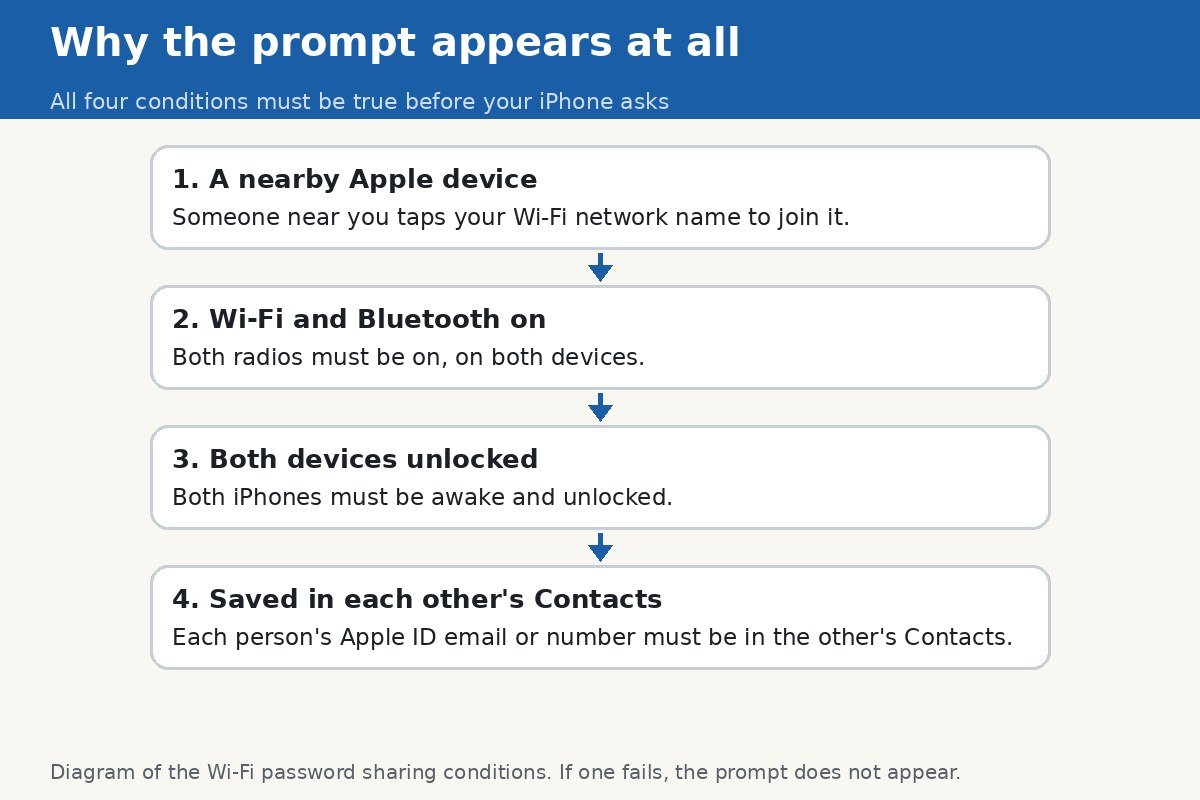
That list is also the key to stopping the prompt, because every fix in this guide works by breaking one of those conditions on purpose. There is no off switch, but there are several honest ways to make the prompt stop appearing, and which one fits depends on whether you want a temporary silence or a permanent one.
The honest limit: there is no off switch for this prompt
It is worth saying this plainly, because plenty of guides imply otherwise. Turning off Ask to Join Networks in Settings, Wi-Fi does not stop this prompt: that setting controls whether your iPhone asks you about joining new networks, not whether it offers your password to others. Do Not Disturb and Focus modes do not suppress it either. AirDrop settings do not control it. If a guide tells you a single toggle fixes this, it is describing a different prompt. The fixes below are the real ones, and they come with trade-offs you should know before choosing.
Stop the prompt: turn off Bluetooth
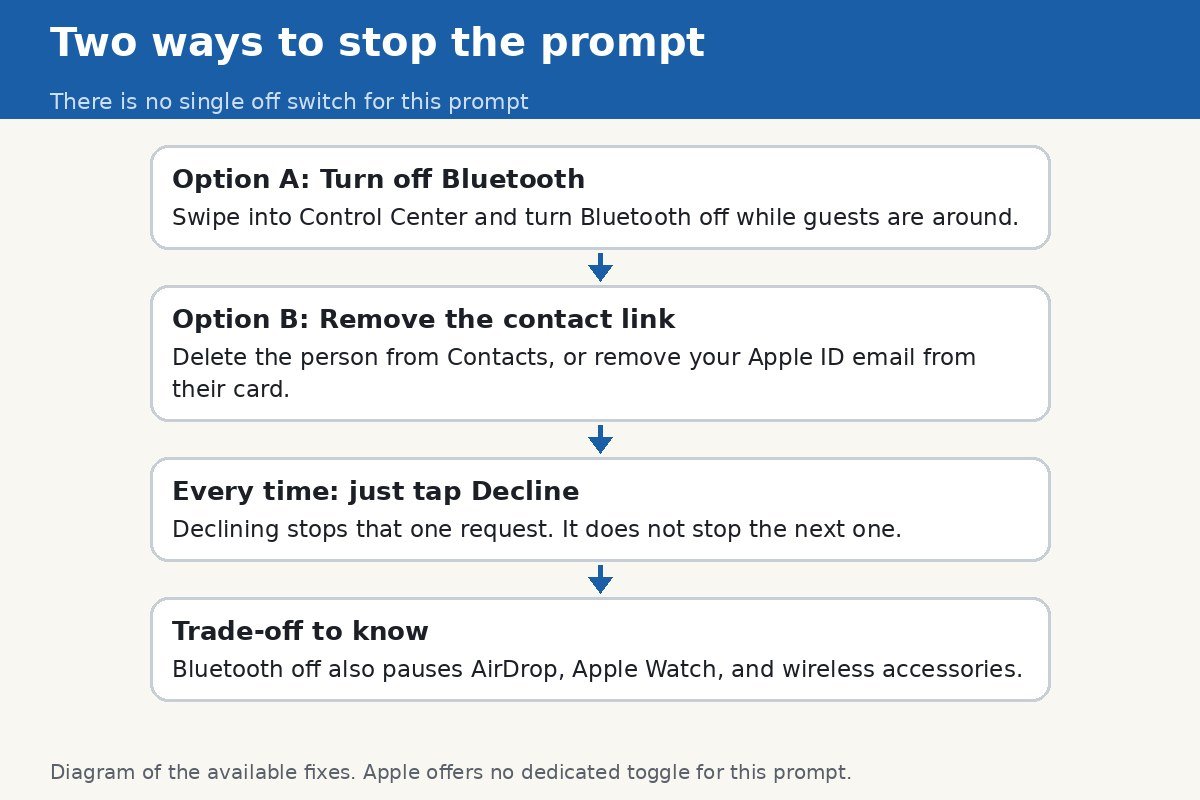
The quickest temporary fix is to turn off Bluetooth on your iPhone. The sharing handshake travels over Bluetooth, so with Bluetooth off, your iPhone cannot detect the nearby device asking for the password, and the prompt cannot appear. Swipe down from the top right corner to open Control Center and tap the Bluetooth icon to turn it off, or go to Settings, Bluetooth, and switch it off there. Note the difference: turning Bluetooth off from Control Center only disconnects accessories until the next day in some iOS versions, while switching it off in Settings turns it off fully. For a gathering that lasts an evening, either is enough.
The trade-off is real, so weigh it. Bluetooth off also pauses AirDrop, your Apple Watch connection, wireless headphones, and any other Bluetooth accessory until you switch it back on. That makes this the right fix for a party or a visit, and the wrong fix as a permanent setting. If you only need quiet for an evening, Bluetooth off is the simplest answer in this whole guide.
Stop the prompt permanently: break the contact link
For a permanent fix, break the condition that makes your iPhone trust the other device: the mutual Contacts entry. The prompt only appears for people whose contact card holds your Apple ID email or phone number, and whose card you hold in return. If you remove the person from your Contacts, or remove your Apple ID email from their contact card, your iPhone no longer recognises them as someone to share with, and the prompt stops for that person. This is the fix to use when one particular person keeps triggering the prompt and you do not want to keep declining it.
Obviously, deleting a contact has side effects beyond Wi-Fi: you lose their details for calls and messages too. A lighter version of the same fix is to edit the contact card so it no longer contains the email address or number tied to their Apple ID, while keeping their ordinary phone number. That breaks the sharing match without deleting the person. If the requester is a family member whose details you do not want to touch, skip this fix and use the Bluetooth option, or the guest network option below.
Just need it to go away right now
If the prompt is on your screen at this moment, tap Decline. That ends this one request and nothing is shared. Understand what Decline does not do: it does not block the person, it does not change any setting, and it does not stop the prompt from appearing again the next time they tap your network. Decline is a dismissal, not a fix. It is the right move when you simply do not want to share right now, and the wrong thing to rely on if the prompt keeps coming back.
When it keeps appearing for a device you do not recognise
A prompt for an unfamiliar device deserves a closer look, because the feature is designed so strangers cannot trigger it. If a device you do not know is asking, the most likely explanations are mundane: a family member’s old device still signed into your Apple ID, a shared family contact card that holds your email, or a guest whose phone holds your details from an earlier exchange. Check Settings, then your name at the top, and look at the device list under your Apple ID. Any device you do not recognise should be removed from your account, and if you suspect your Apple ID itself is in other hands, change its password.
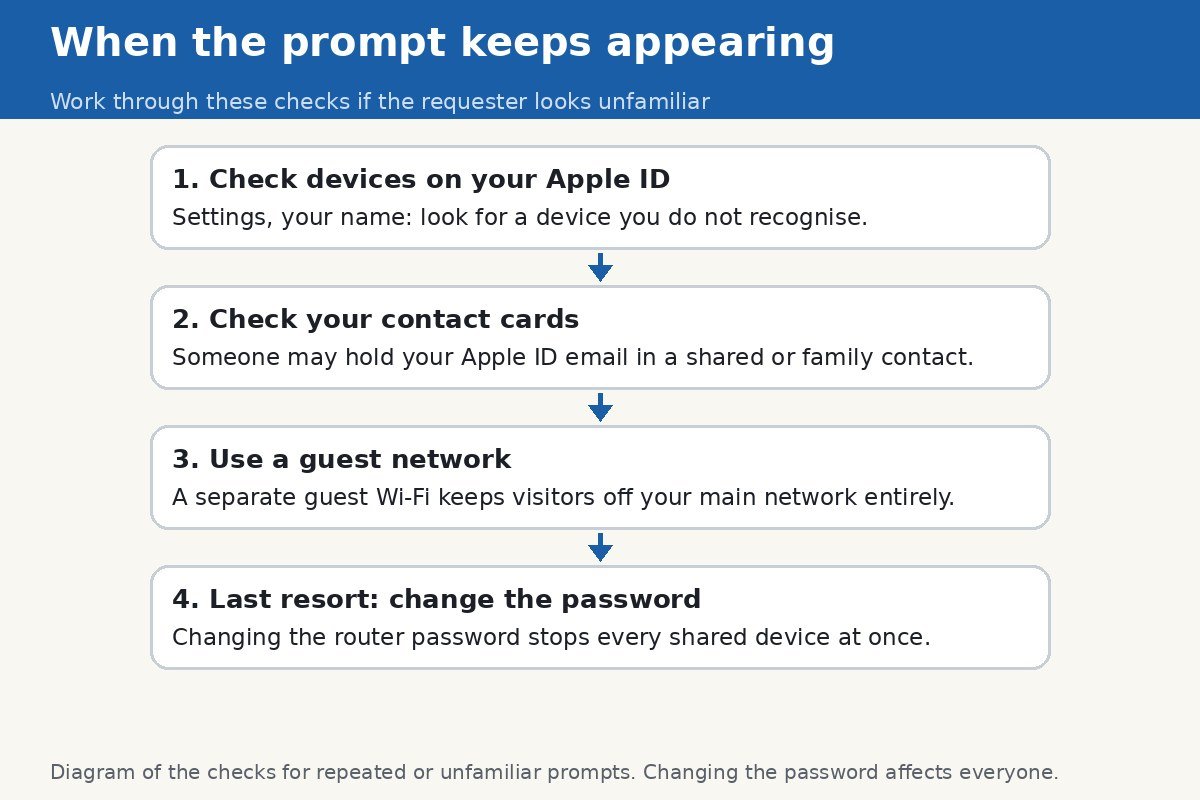
If the prompt still appears after those checks, and you cannot identify the requester at all, the last resort is to change your Wi-Fi password at the router. That stops every device that received the password before, shared or typed, and forces everyone to reconnect. It is disruptive, since every device in the house needs the new password, so treat it as a last resort, not a first step. Before that, the guest network option below usually solves the underlying problem with far less fuss.
A cleaner way to share with guests
If the real problem is that guests keep needing your Wi-Fi, the best fix is to stop sharing your main network at all. Most modern routers offer a guest network: a separate Wi-Fi name with its own password, isolated from your main network and your shared devices. Guests connect to the guest network, your iPhone never gets asked about your main password, and you can change or switch off the guest password any time without touching your own devices. It is a small amount of router setup for a permanent end to the prompts.
For guests with non-Apple phones, the proximity prompt never worked anyway, since sharing is Apple device to Apple device only. For them, the modern route is a QR code: on iOS 18 and later, the Passwords app holds your saved Wi-Fi networks, and you can show a QR code for a network that a guest scans to join, without anyone reading the password aloud. That avoids both the prompt and the awkward moment of spelling a long password across the room. A current guide to sharing Wi-Fi passwords from an iPhone confirms the same requirements: both devices signed into iCloud, saved in each other’s Contacts, Bluetooth on, and close together.
So the short answer to the question behind this guide: you cannot switch this prompt off, but you can starve it. Bluetooth off silences it for an evening, breaking the contact link silences it for one person permanently, and a guest network removes the reason anyone asks in the first place. Pick the one that matches how long you want the quiet to last.

- How to Stop Your iPhone From Asking to Share a Wi-Fi Password - October 30, 2026
- How to Turn Off Auto Brightness on Your Mac - October 28, 2026
- How to Rebuild the Spotlight Index on Mac - October 25, 2026