
Journaling Suggestions are the moments your iPhone picks out for you to write about: a walk you took, a photo from the weekend, a song you played on repeat, or a call with someone you care about. They appear in the Journal app, and in other journaling apps that support the feature, as starting points for a new entry. They help when they match your day, and annoy when they surface places you would rather forget or people you would rather not revisit. You can stop them, or stop only the parts you dislike. The catch is that the controls live in three separate places, and most guides show only one. This guide covers all three. The steps follow Apple’s own documentation for iOS 26, current as of November 2026. The feature arrived with the Journal app in iOS 17.2, so the paths below work on iOS 17.2 and later.
What turning off suggestions does, and does not, do
Before changing anything, it helps to know exactly what you are switching off. Journaling Suggestions is a system service, not the Journal app itself. It gathers moments from your day, such as workouts, photos, places, media, contacts, and logged moods, and offers them as writing prompts. Turning it off stops the iPhone from building and offering those prompts. It does not delete the Journal app, it does not delete any entry you already wrote, and it does not stop you from opening Journal and writing a blank entry whenever you like.
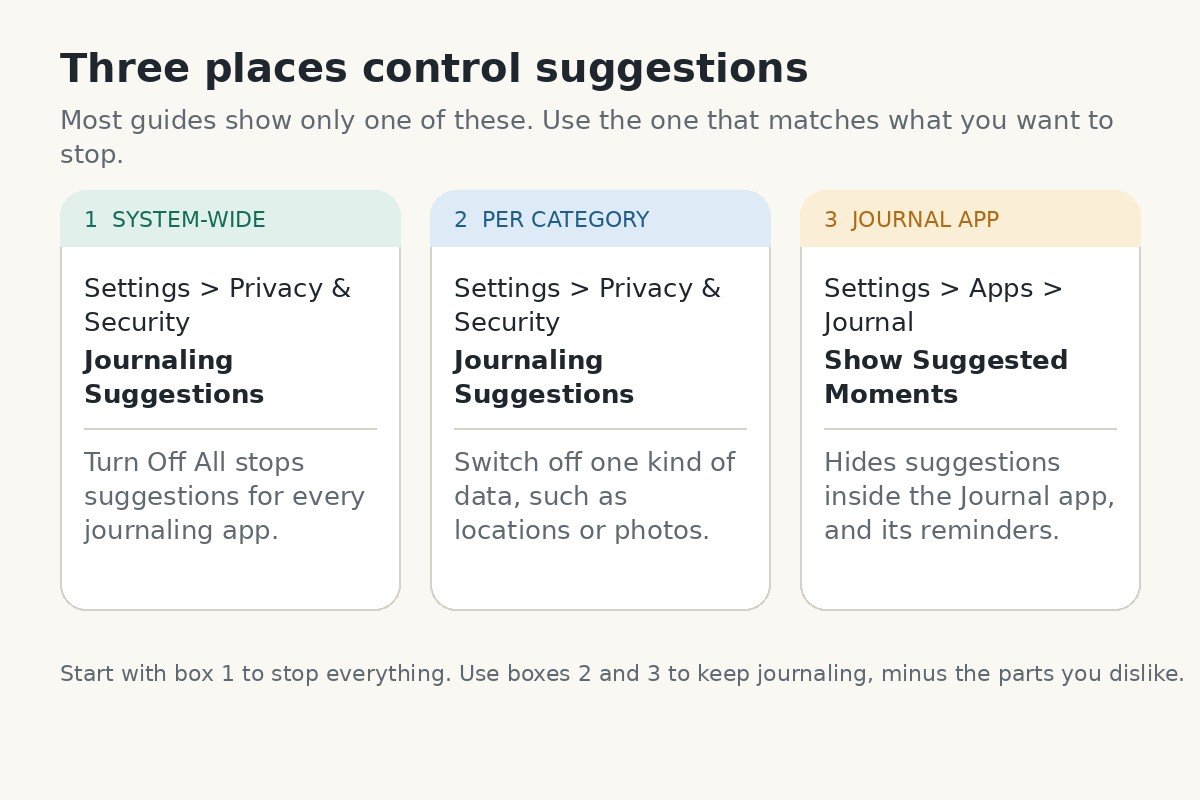
The three controls do different jobs. The system-wide switch stops suggestions for every journaling app at once, including third-party apps such as Day One. The per-category switches stop only one kind of data from feeding suggestions, so you can keep photo prompts while dropping location prompts. The Journal app switches only change what you see inside Apple’s own Journal app. If you use only the app switch and wonder why another journaling app still shows suggestions, that is why. You changed one app, not the service underneath it.
Turn off all Journaling Suggestions at once
This is the fastest route. One switch stops suggestions for every journaling app on the phone, and it takes less than a minute.
- Open the Settings app on your iPhone.
- Tap Privacy and Security.
- Tap Journaling Suggestions.
- Tap Turn Off All at the bottom of the screen, then confirm when your iPhone asks. New suggestions stop being made for every journaling app straight away.
Apple documents this path in its guide to changing Journal settings on iPhone, and confirms the choice applies to all journaling apps using the service. If you use Day One or another supported journal app alongside Apple’s Journal, you do not need to repeat the switch in each app.
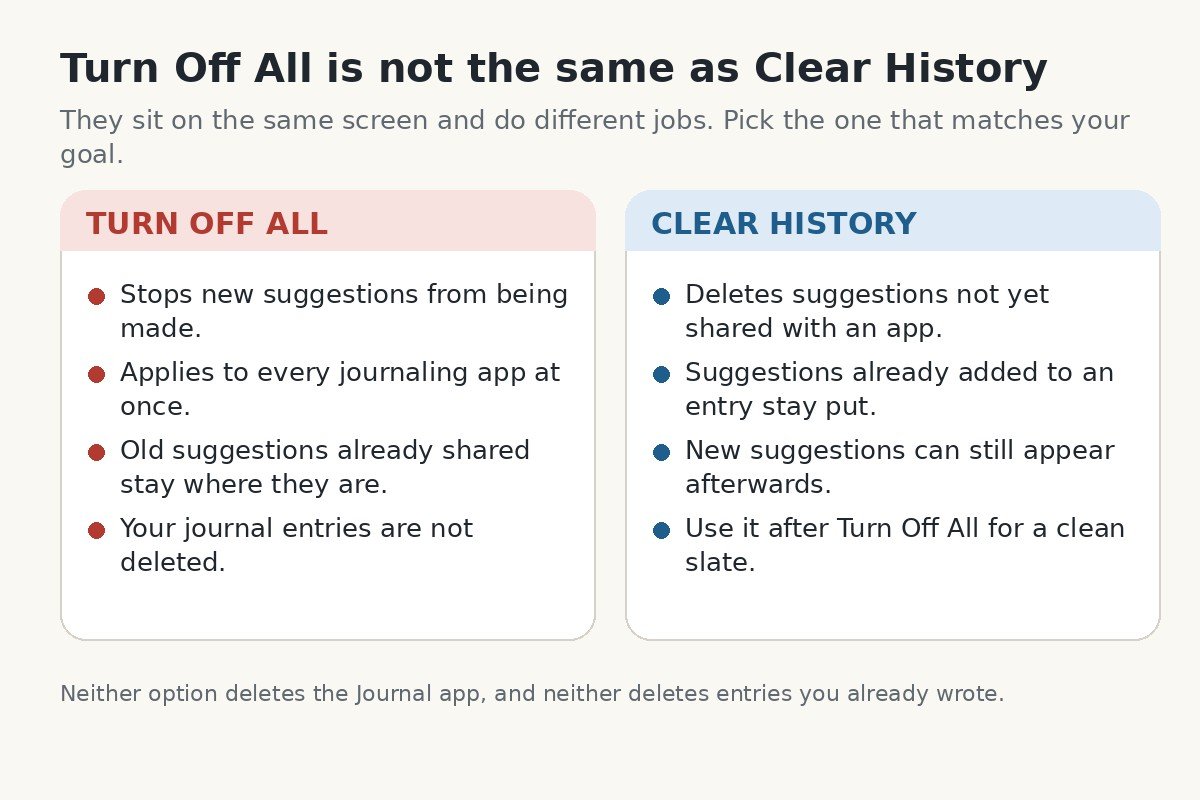
Turning everything off does not remove suggestions already sitting in your apps. If one you dislike is waiting in Journal, touch and hold it and remove it. To clear the stored history, use Clear History on the same screen, explained in the privacy section below. Do not mix the two buttons up: Turn Off All stops future suggestions, Clear History deals with the ones already made. To turn suggestions back on later, return to the same screen and switch the categories back on.
Turn off only the kinds of suggestions you dislike
Some people like the photo prompts but not the location prompts, or workout memories but not reminders of people they spoke to. For that, you do not need the big off switch. The same screen holds a separate switch for each kind of data the feature draws on. Turn one off and that kind of suggestion stops, while the rest keep working. Your choice applies to every journaling app, just like Turn Off All.
- Open Settings, then Privacy and Security, then Journaling Suggestions, as in the section above.
- Look at the list of categories near the top of the screen.
- Tap the switch next to any category you want to stop, so it turns grey. Leave the ones you like switched on.
| Category | What it feeds into suggestions | Turn it off if |
|---|---|---|
| Activity | Workouts, routes, duration, calories, heart rate | Unwanted exercise prompts |
| Media | Podcasts and songs you listened to | Unwanted listening history |
| Contacts | People you texted, called, or FaceTimed | Unwanted people prompts |
| Photos | Photos, people and pets in them | Unwanted photo memories |
| Significant Locations | Places you visit often | Unwanted place prompts |
| State of Mind | Moods and emotions logged in Health | Unwanted mood prompts |
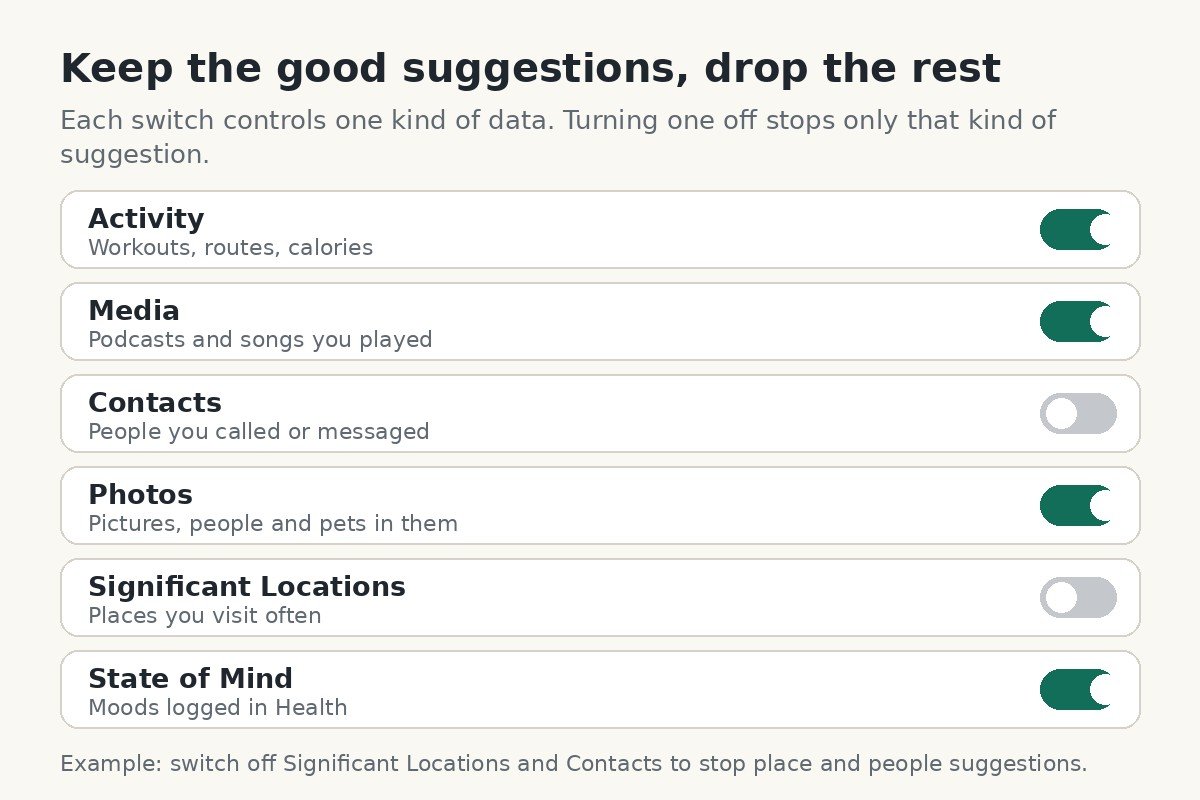
Two categories deserve a special mention. Significant Locations is behind most “you were here” prompts, so if place suggestions bother you most, that single switch fixes most of the problem. Contacts is behind prompts built around people. There is no switch for one single person, so if one contact keeps appearing, turn off Contacts, or remove that person’s suggestions by touching and holding them in the app. If a person keeps appearing through photos, turn off Photos as well.
One more switch sits on the same screen: Prioritize Moments with Contacts. When it is on, your iPhone uses Bluetooth signals to count how many of your mutual contacts are nearby, and ranks moments spent with people higher. Apple says names and locations are never shared, only the number of nearby contacts, and that number stays on your device. If you would rather the phone did not factor nearby people into its ranking, switch it off.
Stop suggestions inside the Journal app itself
Even with the system service left on, you can change how Apple’s own Journal app behaves. This is the right level if you still want suggestions in another journaling app, but you want Apple’s Journal to open to a blank page instead of a row of suggested moments. The setting lives in the app’s own section of Settings, not under Privacy and Security.
- Open Settings on your iPhone.
- Scroll down and tap Apps, then tap Journal in the app list.
- Turn off Show Suggested Moments. New entries will now open without a row of suggested moments above the keyboard.
On iOS 18 and earlier, the same switch was called Skip Journaling Suggestions, and it worked the other way round: you switched it on to skip suggestions. If an older guide tells you to turn on Skip Journaling Suggestions and your phone shows Show Suggested Moments instead, that is the newer label for the same job. Just switch it off.
The Journal app has its own reminders too, separate from suggestions. If the app keeps nudging you to write, open Settings, then Apps, then Journal, then Notifications, and switch off Journaling Schedule and Keep Your Streak. The first stops the daily writing reminder, the second stops the streak counter. You can also reach the same switches from inside the Journal app, through its menu, then Notifications.
Suggestion prompts can also arrive as notifications. To stop those, go to Settings, then Notifications, then Journaling Suggestions, and switch off Allow Notifications. The same control is also under Settings, then Privacy and Security, then Journaling Suggestions, then Notifications. That stops the interruptions, but not the suggestions themselves, so pair it with one of the switches above if you want them gone entirely. If you want a calmer Lock Screen in general, our guide to turning off Live Activities on the iPhone Lock Screen covers the other feature that keeps updating it through the day.
What stays private, and what Clear History really deletes
Suggestions can feel intrusive because they show how much your phone notices. Apple says they are put together on your iPhone, using information stored on the device, and only you can see them before you choose to share one with a journaling app. Sharing happens only when you pick a moment and add it to an entry.
Clear History deletes the history of suggestions not yet shared with a journaling app. That is the whole job, and the limit matters. It does not delete suggestions you already added to an entry, it does not delete your journal entries, and it does not stop new suggestions from being made afterwards. Tap Turn Off All first, then Clear History, so nothing new is made and the backlog is gone too. Apple explains both buttons on its Journaling Suggestions and privacy page.
If you use iCloud, your suggestions are encrypted in transit and at rest, and stay in step across your iPhone and iPad. With two-factor authentication and a passcode set, they are end-to-end encrypted in iCloud, so even Apple cannot read them. To stop suggestions on your iPad, switch off sync under Settings, then your name, then iCloud, then See All, then Journaling Suggestions.
One last note: switching off suggestions does not switch off the underlying data. Turning off Significant Locations here stops places from feeding suggestions, but your iPhone still records significant locations for other features unless you change that separately under Settings, then Privacy and Security, then Location Services, then System Services.
If suggestions are still showing up
Most of the time, one of the switches above ends the problem straight away. If suggestions are still appearing, the cause is usually a second switch you have not reached yet, or a suggestion made before you switched things off. Match your symptom to its fix below.
| What you still see | Likely cause | Fix |
|---|---|---|
| Suggestions in another journaling app | You only changed the Journal app setting | Use Turn Off All under Privacy and Security |
| Suggestions still in the Journal app | Show Suggested Moments is still on | Switch it off under Settings, Apps, Journal |
| Old suggestions are still listed | They were made before you switched off | Tap Clear History, then remove leftovers by touch and hold |
| Only place suggestions remain | Significant Locations is still on | Switch it off on the Journaling Suggestions screen |
| Only people suggestions remain | Contacts or Photos is still on | Switch off Contacts, and Photos if they come from pictures |
A few extra checks help when the obvious switches look right. First, check you are on iOS 17.2 or later, under Settings, then General, then About. If the entry is missing on a supported version, install any pending update and look again. Second, these settings are per iPhone. If you also see suggestions on an iPad on the same Apple Account, switch off syncing in iCloud settings. Third, if a third-party journaling app keeps showing its own prompts, check that app’s own settings, since some apps add their own reminders on top of Apple’s service.
Journaling Suggestions are easy to live with once they only show what you actually want to write about, and easy to switch off entirely when they do not. The system-wide switch silences them everywhere, the category switches keep the good ones, and the Journal app settings finish the job with a quiet blank page and no daily nudge.

- How to Turn Off Journaling Suggestions on iPhone - November 18, 2026
- How to Turn Off Video Call Effects on Samsung Galaxy - November 17, 2026
- How to Turn Off Edge Lighting on a Samsung Galaxy Phone - November 16, 2026