
Live Activities are the cards that track a delivery, a ride, a workout, or a score on your iPhone Lock Screen, updating in real time without opening the app. To hide them from the Lock Screen for every app at once, open Settings, tap Face ID and Passcode, enter your passcode, scroll to Allow Access When Locked, and turn off Live Activities. The switch takes effect immediately: activities already running disappear from the Lock Screen, and no new ones appear there. Your apps keep working normally, and ordinary notifications are not affected.
Turn off Live Activities on the Lock Screen
- Open the Settings app.
- Tap Face ID & Passcode. On a Home-button iPhone, tap Touch ID & Passcode instead.
- Enter your passcode when asked.
- Scroll down to the Allow Access When Locked section.
- Turn off Live Activities.
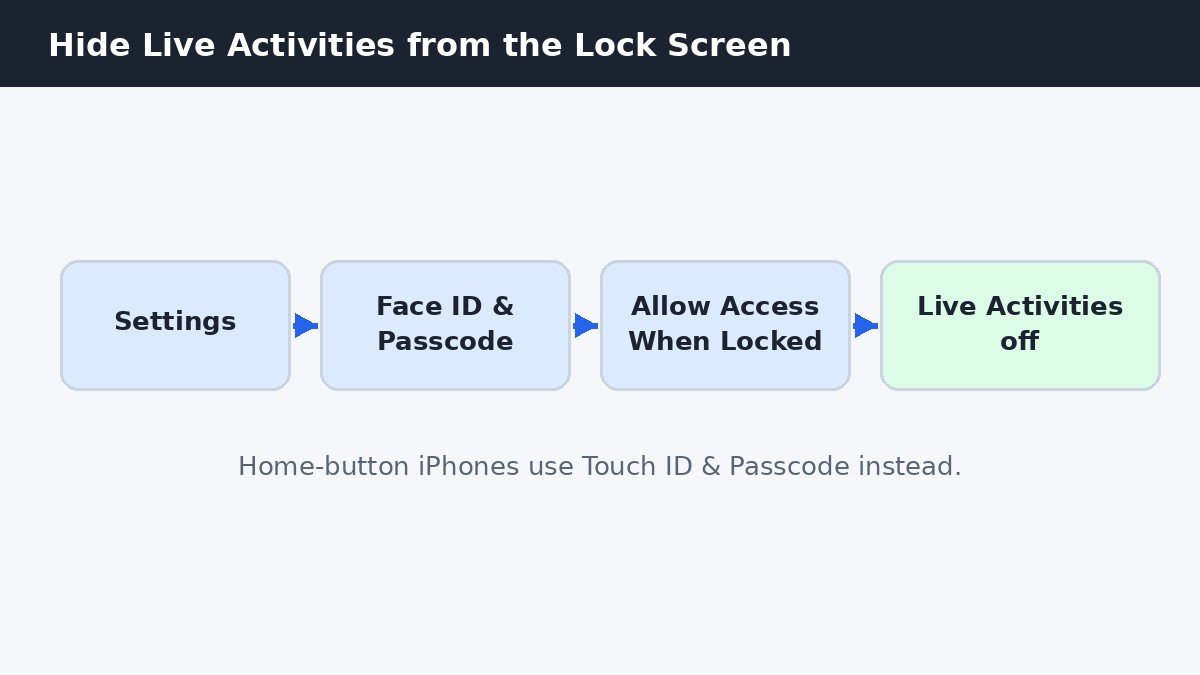
This switch controls the Lock Screen only, and it covers every app at once, which is why it is the right first stop. If you turn it back on later, Live Activities return to the Lock Screen exactly as before, with no setup to repeat. On iPhones with Dynamic Island, the same switch also affects whether activities show there while the phone is locked, since the island and the Lock Screen share the locked view.
Turn them off for one app only
If one app is the problem, a delivery app that will not stop updating or a sports app that fills the screen every weekend, you do not have to switch everything off. Open Settings, tap Apps, tap the app by name, then tap Live Activities, and turn the switch off. That app stops showing Live Activities anywhere, while every other app keeps theirs. Apple documents this per-app route in its iPhone user guide, on the page about viewing and controlling Live Activities on the Lock Screen, which also notes that not every app offers a Live Activities setting at all.
Global off or per-app off: which to pick
| Method | What it stops | Best for |
|---|---|---|
| Face ID & Passcode switch | All Live Activities on the Lock Screen | A clean Lock Screen, privacy on a shared phone |
| Per-app switch | That one app, everywhere | One noisy app while keeping the rest |
| Swipe left, then Clear | One running activity, right now | A single delivery or game you are done watching |
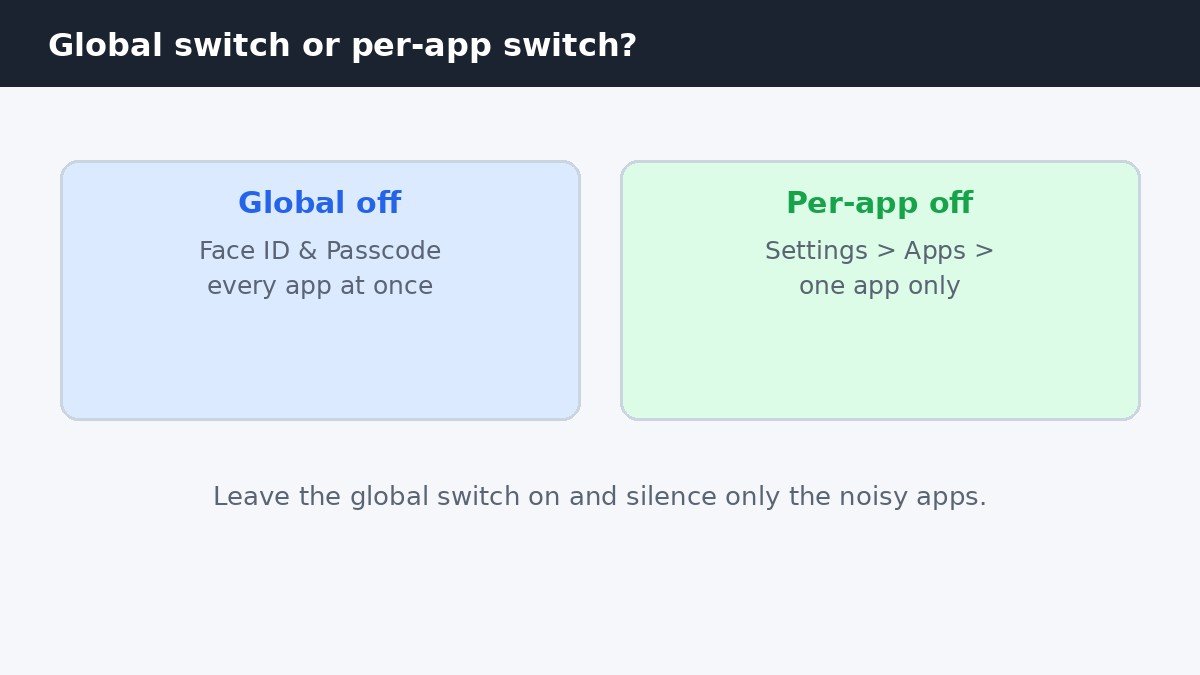
The three methods stack neatly: the global switch is the blanket, the per-app switch is the scalpel, and swiping is the one-off. A good everyday setup is to leave the global switch on and silence only the apps that annoy you, so a food delivery or a taxi still tracks on the Lock Screen while a sports app stays quiet. Change the setup any time your habits change: none of these switches deletes data or signs you out of anything.
Dismiss one activity without turning anything off
Sometimes the activity itself is finished and you just want it gone. On the Lock Screen, swipe left on the Live Activity card and tap Clear. That ends that one activity and removes its card, while the app keeps its permission to start the next one. On an iPhone with Dynamic Island, you can also long-press the activity in the island and dismiss it there. Neither gesture changes any setting, so the next delivery or workout starts a fresh card as usual.
What turning them off does not stop
Turning off Live Activities does not stop ordinary push notifications. A delivery app can still send you a message saying the food has arrived, a sports app can still send a final-score alert, and your timers and alarms keep working exactly as before. What disappears is only the live-updating card itself. Timers are a useful example: the countdown card leaves the Lock Screen, but the alarm still sounds at the end, because alarms and Live Activities are separate features.
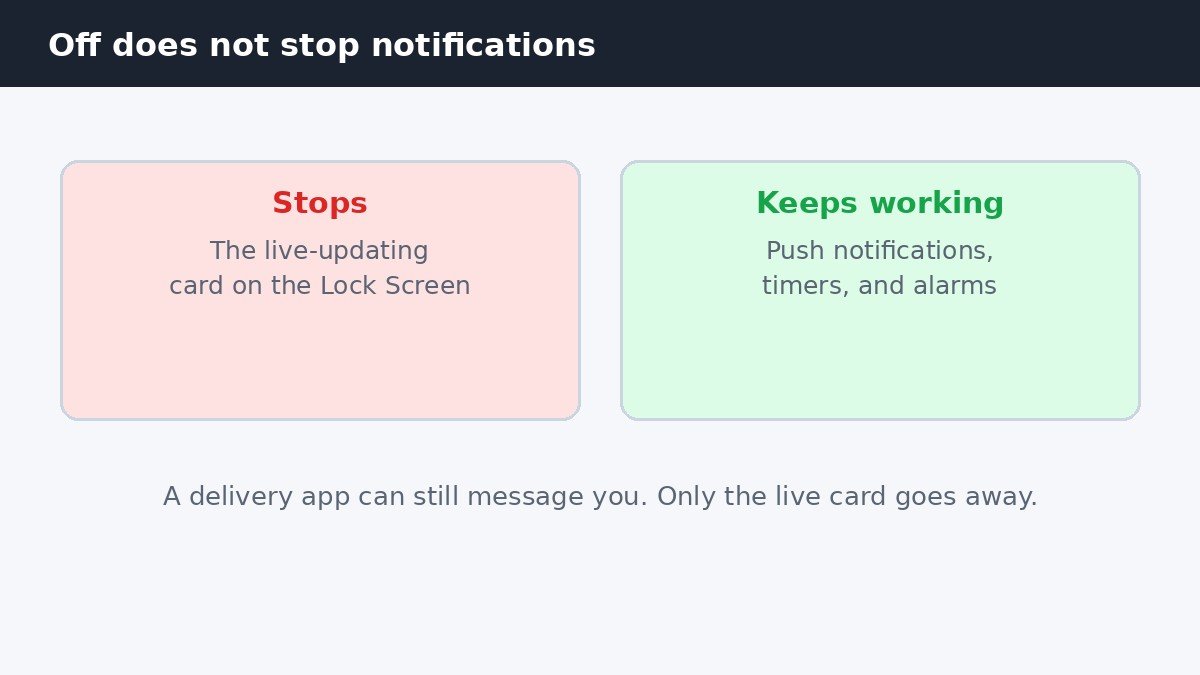
Two limits are worth knowing before you go looking for a setting that does not exist. Live Activities need iOS 16.1 or later, so on an older iPhone the switches simply are not there, and updating the phone is the only way to get them. And no setting can force an app to offer Live Activities: the app itself has to support the feature, so if your favourite app has no Live Activities switch in its settings, that app does not offer them yet. If your Lock Screen still lights up at night after turning Live Activities off, that is usually StandBy, a separate feature that turns the phone into a bedside clock while charging: our guide to turning off StandBy mode on iPhone covers that switch.
The Lock Screen should show what you asked it to show, and nothing else. One switch hides every live card at once, one switch per app silences the noisy ones, and a swipe clears the single card you are done with. Pick the level that fits how you use the phone, and the Lock Screen goes back to being a clock, a date, and the notifications you actually want.

- How to Turn Off Live Activities on the iPhone Lock Screen - November 5, 2026
- How to Stop Windows 11 From Rearranging App Windows When a Monitor Wakes Up - November 4, 2026
- How to Turn Off Search Highlights in Windows 11 - November 3, 2026