
You open the Mail app and instead of your inbox you get a pop-up: “Cannot Verify Server Identity.” It usually means your iPhone or iPad cannot confirm that your email server is who it claims to be, and in most cases the fix takes under five minutes.
What this error actually means
When you check email, your device talks to a mail server over an encrypted connection. That connection is vouched for by a security certificate. If the certificate is expired, names the wrong server, or your device’s clock is off, your iPhone refuses to trust it and shows this warning.
Do not tap through the warning without thinking. It is a security feature, not a bug. In rare cases it can signal that something on the network is intercepting your connection, so it pays to fix the underlying cause rather than dismiss it.
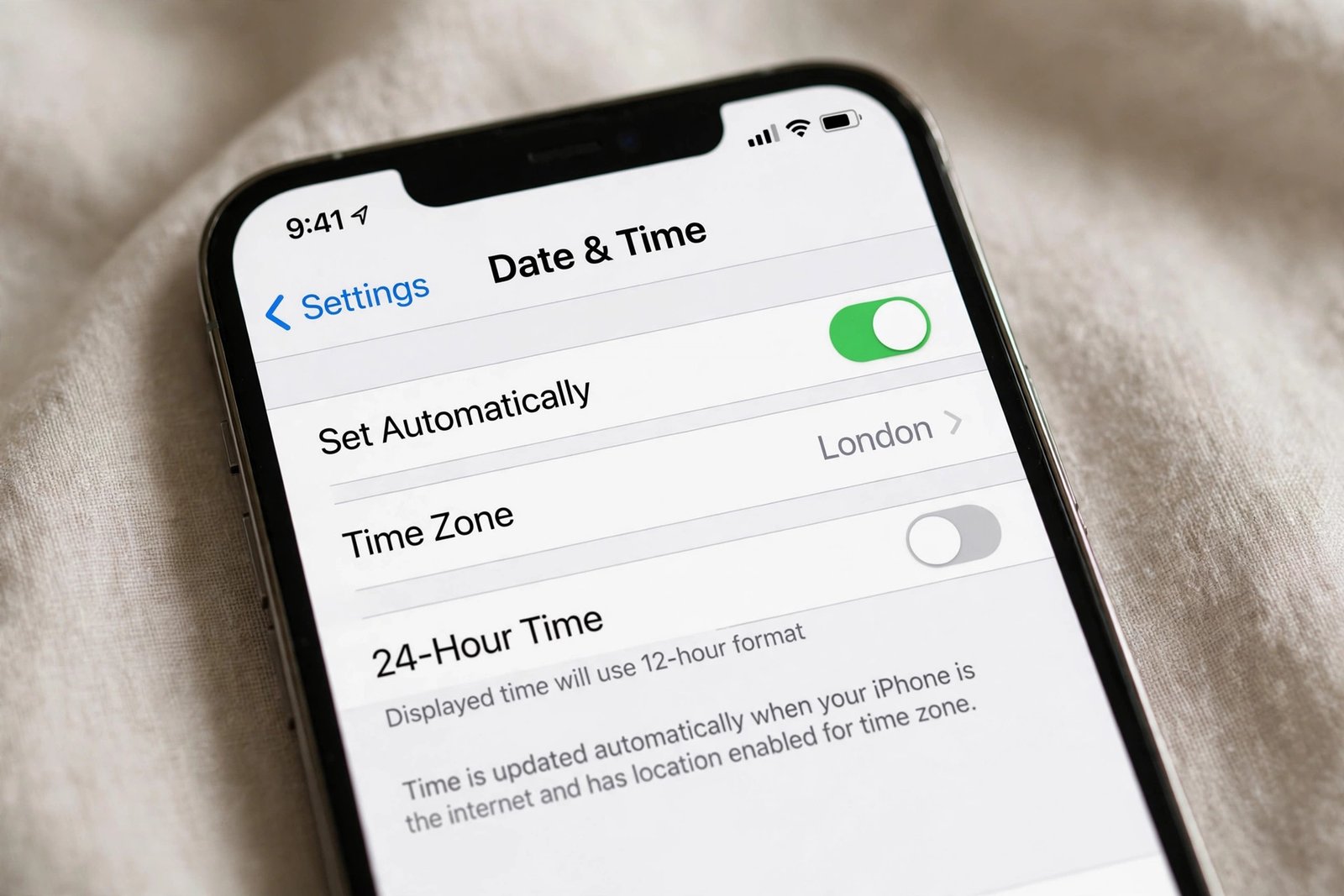
Fix 1: Check your date and time first
This is the single most common cause. Certificates are only valid for a specific date range, so if your iPhone’s clock is wrong, every certificate looks suspicious.
- Open Settings and tap General.
- Tap Date and Time.
- Turn on Set Automatically. If it is already on, toggle it off and back on to force a refresh.
Now open the Mail app again. If the error is gone, you are done.
Fix 2: Restart your iPhone or iPad
A quick restart clears temporary glitches in the Mail app and network services. Hold the side button and either volume button, slide to power off, wait a few seconds, then power back on. This sounds too simple, but it clears a surprising number of certificate warnings.
Fix 3: Delete and re-add the email account
If the error appears for one specific account, the saved server settings or cached certificate may be stale. Removing the account and adding it fresh forces your device to download a clean certificate.
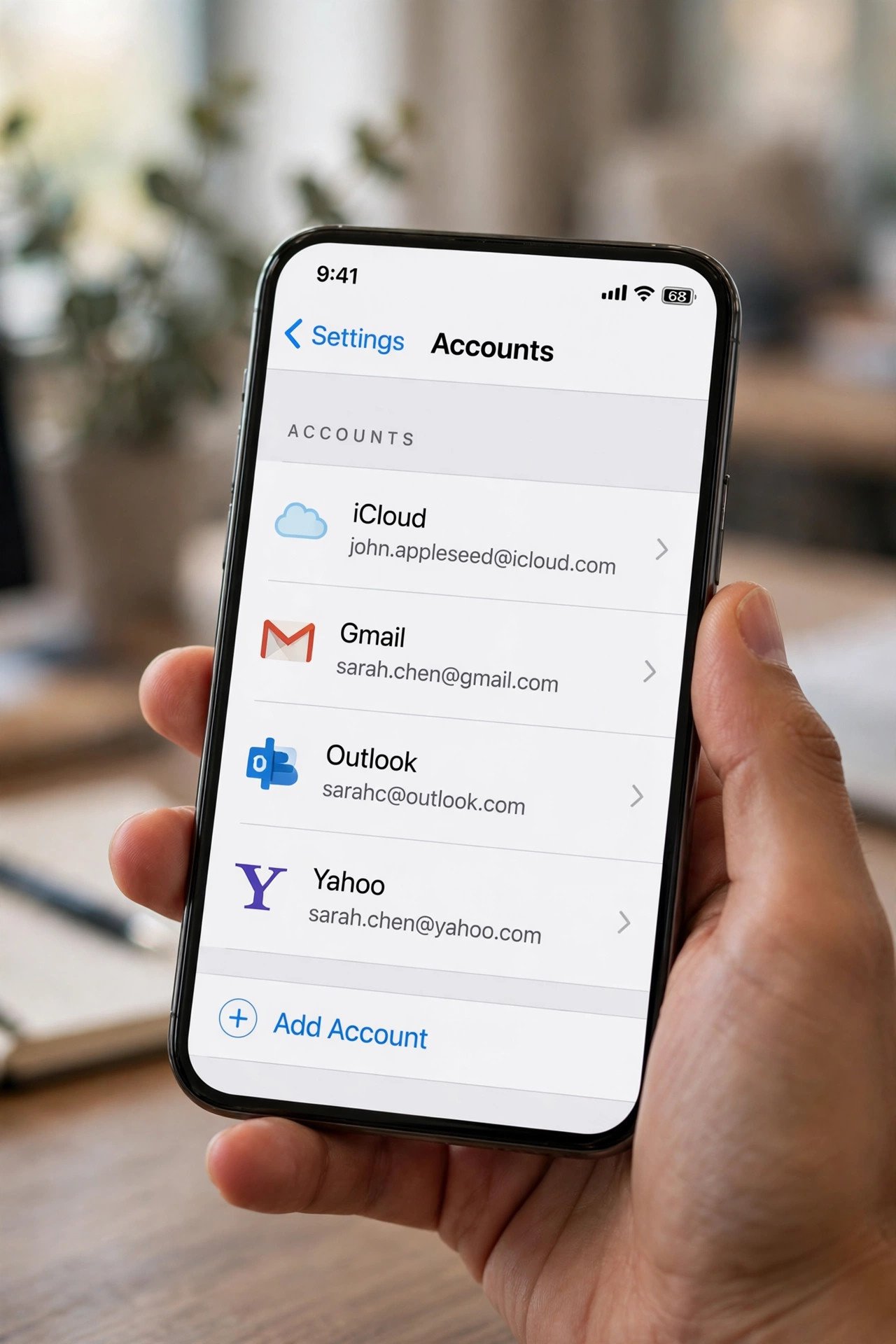
- Go to Settings, Mail (or Apps, then Mail on newer iOS), and tap Mail Accounts.
- Tap the account that is causing the error.
- Tap Delete Account and confirm. Your messages stay on the server, so nothing is lost.
- Go back, tap Add Account, and set the account up again.
Fix 4: Reset your network settings
Corrupted network settings and cached certificates can also trigger the warning. A reset clears Wi-Fi passwords and Bluetooth pairings but leaves your photos, apps, and data untouched.
- Go to Settings, General, Transfer or Reset iPhone.
- Tap Reset, then Reset Network Settings.
- Enter your passcode and confirm. Reconnect to Wi-Fi and test the Mail app.
Fix 5: Update to the latest iOS or iPadOS
Apple ships updated certificate trust data and security fixes in software updates. Running an old iOS version means your device may distrust servers that are perfectly fine. Go to Settings, General, Software Update and install anything waiting. Fone.tips has a longer 2026 walkthrough of this error with screenshots for each step.
When the problem is on the server side
If every fix above fails, the mail server’s certificate itself may be the issue. This is common with small business or custom-domain email, where the incoming server is set to something like mail.yourdomain.com but the certificate actually belongs to the hosting company.
- Ask your email provider for the correct incoming and outgoing server hostnames, and update them under Settings, Mail, Mail Accounts, then the account’s server settings.
- If you manage the server yourself, check that its certificate has not expired and that it covers the exact hostname you use. Geeky Gadgets covers the same fix sequence with extra detail on the network reset step.
- On public Wi-Fi, some hotspots intercept connections, which also triggers this warning. Switch to cellular data and see if the error disappears.
You may see advice online to turn off “Use SSL” for the account. That removes the warning, but it also removes the encryption protecting your email. Treat it as a last resort for troubleshooting only, never as a permanent fix.
Quick recap: fixes in order
| Order | Fix | What it solves |
|---|---|---|
| 1 | Set date and time to automatic | Wrong clock making certificates look invalid |
| 2 | Restart the device | Temporary Mail or network glitches |
| 3 | Delete and re-add the account | Stale cached certificates and server settings |
| 4 | Reset network settings | Corrupted network and certificate caches |
| 5 | Update iOS or iPadOS | Outdated certificate trust data |
| 6 | Correct server hostnames | Certificate names not matching the server |
For most people, the date-and-time check or a fresh account setup ends the story. If you also deal with messages that arrive late or never sync, read how to fix Gmail not syncing on iPhone. And if the error appeared right after a fresh setup or eSIM change, activating eSIM on iPhone the right way avoids half these network hiccups. For voicemail quirks on the same device, see how to save voicemail on iPhone.

- How to Fix the Windows 11 Taskbar Auto-Hide Problem - October 24, 2026
- How to Fix a Laptop Camera Not Working in Windows 11 - October 23, 2026
- How to Fix the Brightness Slider Missing in Windows 11 - October 22, 2026