
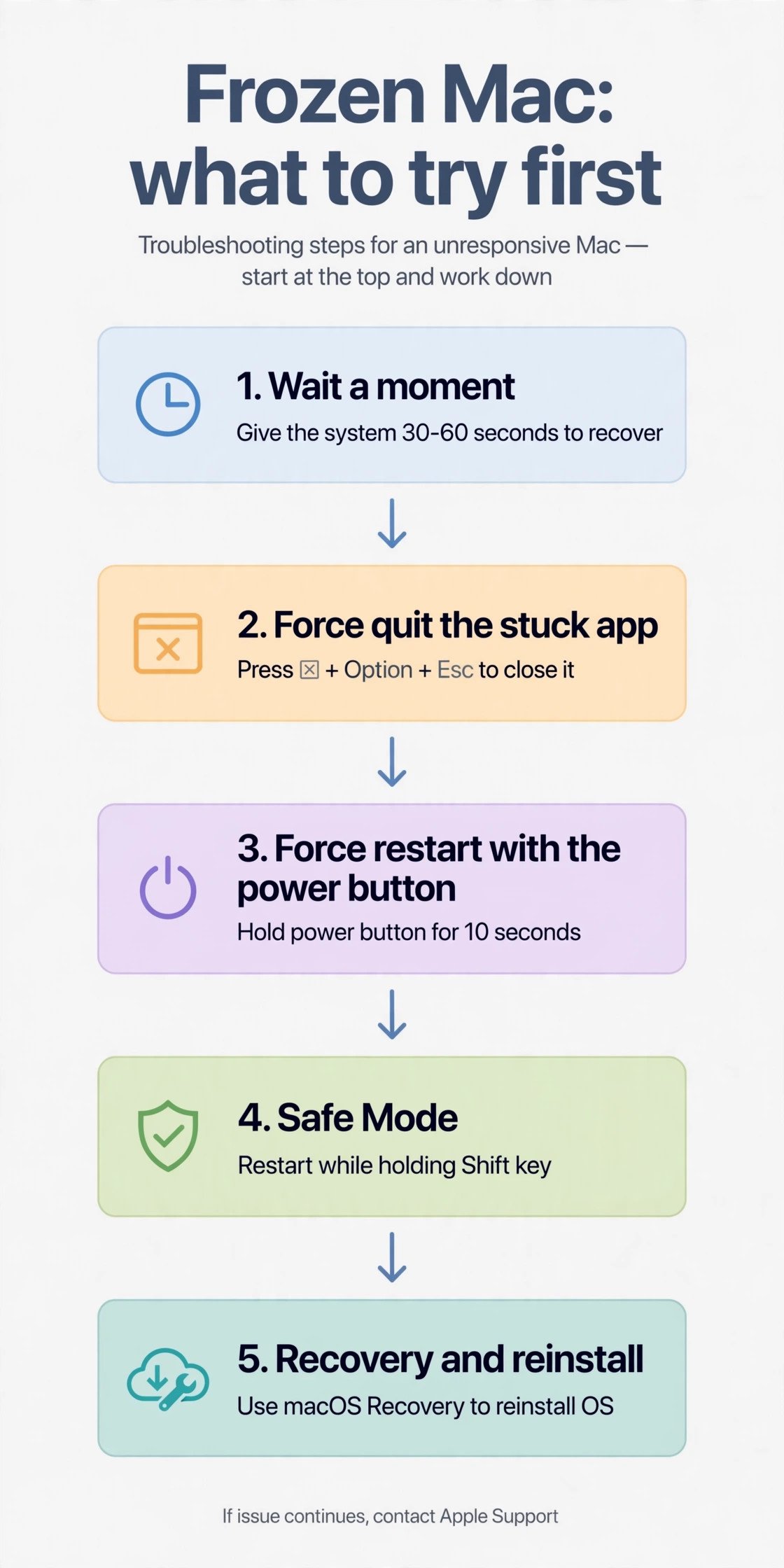
A frozen Mac is one that stops responding to input: the cursor will not move, keys do nothing, and the screen sits still. The fix is almost never the power button first. There is a ladder of gentler steps that protect your unsaved work, and you should climb it in order. Here it is.
Key Takeaways
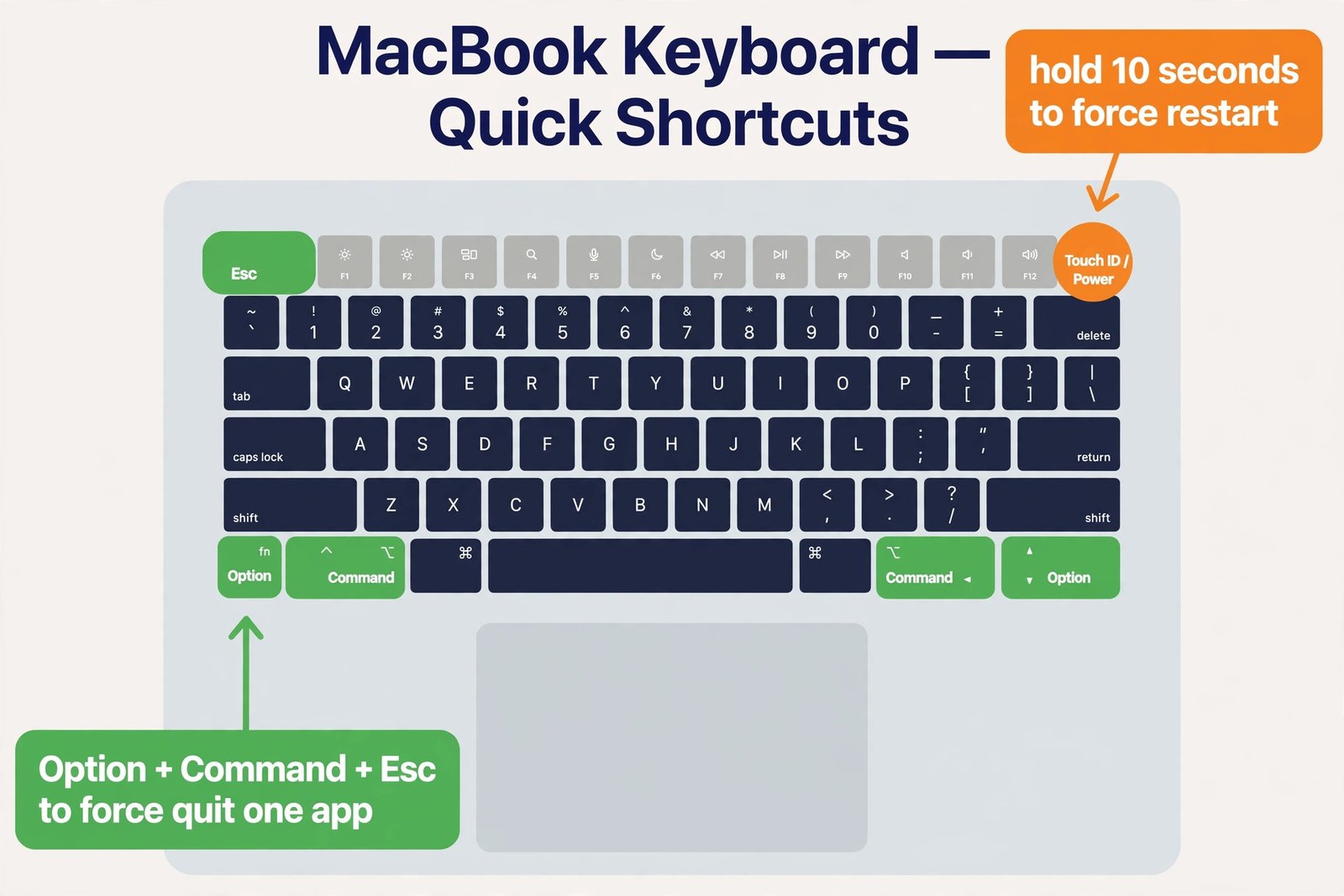
- Spinning beach ball in one app? Force quit that app with Option+Command+Esc. Nothing on screen moves at all? Then it is time for a force restart.
- A force restart means holding the power or Touch ID button for about 10 seconds, on both Apple Silicon and Intel Macs.
- Freezes that keep coming back are a symptom, not bad luck. Update macOS, free up disk space, and run First Aid before assuming the worst.
First, the Gentle Checks
Do not reach for the power button yet. A Mac that looks frozen is often just busy. A demanding app, a large file operation, or a macOS update can make the machine appear dead for a minute or two. Give it a short wait first, especially if you see an update or install in progress. Then try these, in order:
- Unplug peripherals. A misbehaving external drive, hub, or display can lock up the whole system. Disconnect everything except the charger and see if the Mac wakes up.
- Try the Apple menu. If the menu bar still responds, choose Apple menu > Restart. This is the safest restart because macOS asks apps to save first.
- Check whether it is just the browser. A single frozen tab can make the whole machine feel stuck. If Safari or Chrome is the only problem, our guide on how to fix a slow web browser covers it without a restart.
Fix 1: Force Quit the Stuck App
When this works: one app shows the spinning beach ball or “Not Responding,” but the rest of the Mac still reacts.
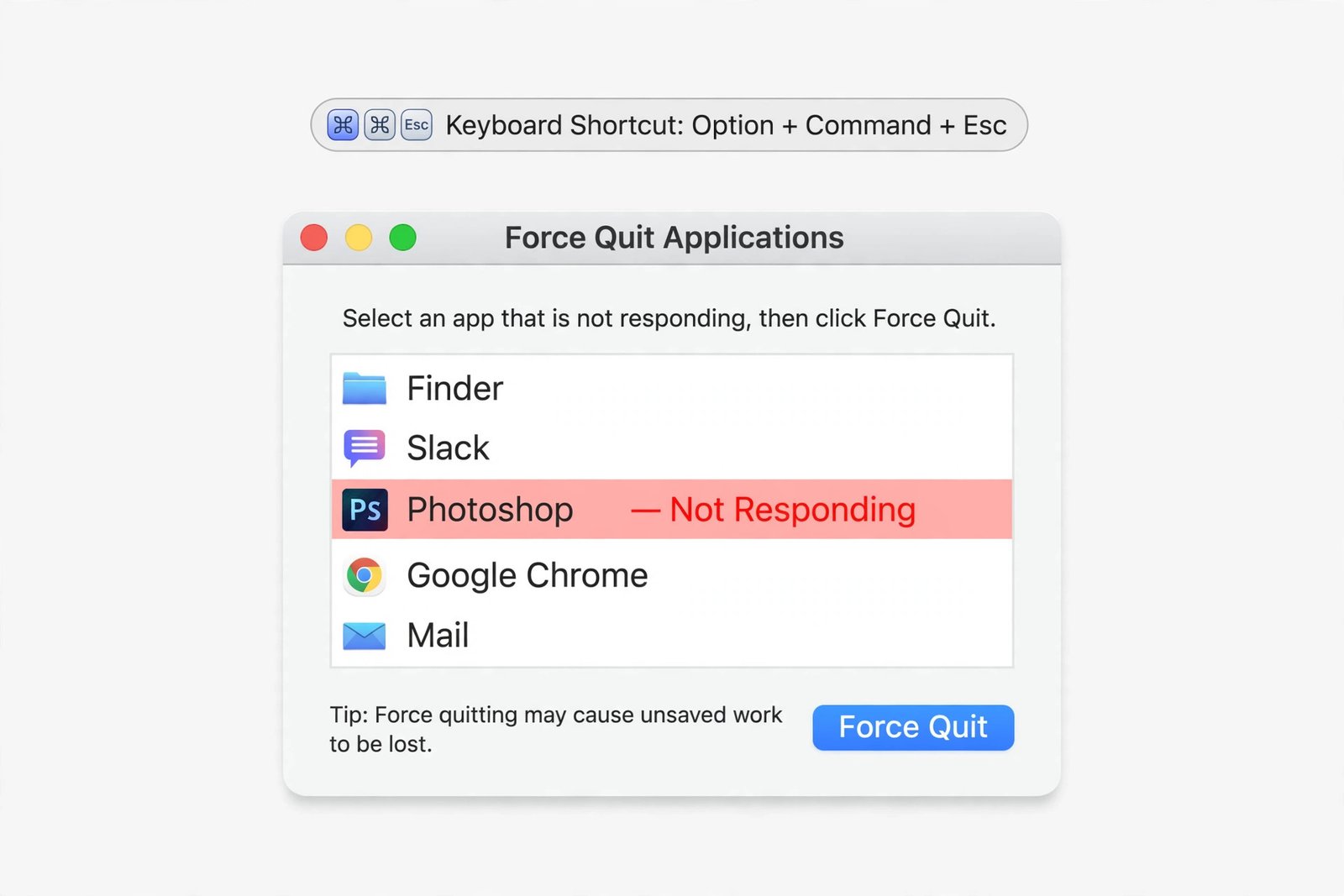
- Step 1: Press Option+Command+Esc to open the Force Quit Applications window.
- Step 2: Select the frozen app. It may show “Not Responding” next to its name.
- Step 3: Click Force Quit, then confirm.
The app closes immediately without saving, but the rest of your work is untouched. You should now be able to keep working. If the Dock still responds, you can also right-click the frozen app’s icon and choose Force Quit directly.
Fix 2: Force Restart With the Power Button
When this works: nothing responds. The cursor does not move, keyboard shortcuts do nothing, and the screen is frozen solid.
- Step 1: Press and hold the power button for about 10 seconds until the screen goes black. On MacBooks with Touch ID, the Touch ID button is the power button.
- Step 2: Wait a few seconds.
- Step 3: Press the power button once to turn the Mac back on.
This is the same on Apple Silicon (M1, M2, M3, M4) and Intel Macs. It cuts power without saving, so treat it as a last resort for the moment, not a habit. You should now see the normal login screen. If the Mac boots back into the same frozen state, move to Fix 3.
Fix 3: Start in Safe Mode
When this works: the Mac freezes during or shortly after login, which points to a login item or third-party extension.
Safe Mode loads only the essentials and skips login items. On Apple Silicon: shut down, press and hold the power button until startup options appear, select your disk, hold Shift, and click Continue in Safe Mode. On Intel: restart and hold Shift until the login window appears. If the Mac runs fine in Safe Mode, a login item or background app is the cause. Remove suspects from System Settings > General > Login Items and restart normally.
Fix 4: Run Disk Utility First Aid From Recovery
When this works: freezes keep returning and you suspect disk trouble.
On Apple Silicon: shut down, press and hold the power button until startup options appear, choose Options, then Continue. On Intel: restart and hold Command+R. Open Disk Utility, select your startup disk, and click First Aid. Let it finish. If First Aid reports errors it cannot repair, your drive may be failing, and a repair shop visit beats any software trick. For drive-health tools and next steps, see our roundup of the best hard drive repair software.
Fix 5: Update or Reinstall macOS
When this works: the freezes started after an update or keep surviving everything above.
Check System Settings > General > Software Update and install whatever is pending. Apple folds stability fixes into point releases, and as of October 2026 macOS Tahoe is on 26.7.1. If the system is already current, reinstall macOS from the same Recovery screen used in Fix 4. Reinstalling does not touch your files and often clears the deep corruption that causes repeated freezes.
Match the Symptom to the Fix
| What you see | What it means | Do this |
|---|---|---|
| One app beach-balls, rest of Mac fine | Stuck app | Fix 1: force quit the app |
| Nothing moves at all | System frozen | Fix 2: force restart |
| Freezes during or after login | Bad login item or extension | Fix 3: Safe Mode, then remove it |
| Freezes keep coming back | Disk or system corruption | Fix 4: First Aid, then Fix 5: reinstall |
| Clicking sounds from the Mac | Possible hardware failure | Back up now, see Apple Support |
Frequently Asked Questions
Will a force restart delete my files?
No. It only loses unsaved work in open apps. Your saved files, photos, and documents are untouched. That is why force quitting a single app is always preferable when it is an option.
My Mac freezes every day. What should I do?
Daily freezes are a symptom. Update macOS, make sure at least 10 to 20 percent of your disk is free, and check Activity Monitor for a process eating CPU or memory. If those are clean, run Apple Diagnostics. On Apple Silicon, hold the power button to reach startup options, release it, then press Command+D. On Intel, restart and hold D.
Is it bad to force restart often?
Occasional force restarts are harmless. Doing it daily risks corrupting open files over time and, more importantly, it means you are ignoring the real cause. Use the ladder above to find and fix that cause instead.
TechnoWifi’s restart guide covers the same power-button sequence with model-specific notes, and Apple’s Activity Monitor documentation explains how to quit a misbehaving process without restarting at all.

- How to Fix Windows 11 Search Not Finding Files - October 24, 2026
- How to Fix Windows 11 Clock Showing the Wrong Time - October 23, 2026
- How to Fix File Explorer Slow to Open in Windows 11 - October 22, 2026