
Key Takeaways
- Removing a printer in System Settings > Printers & Scanners deletes the printer entry and its queue, not the driver software.
- The standard removal takes under a minute. The deeper Reset printing system option wipes every printer and queue, so only use it for stubborn cases.
- Leftover drivers live in the /Library/Printers folder if you need to clean them out manually.
A printer you no longer own still sitting in the list is annoying. Worse, a broken printer entry can block the working one from printing at all. Here is how to uninstall a printer from your Mac cleanly, from the quick removal to the full reset for printers that refuse to leave.
How to Remove a Printer in System Settings
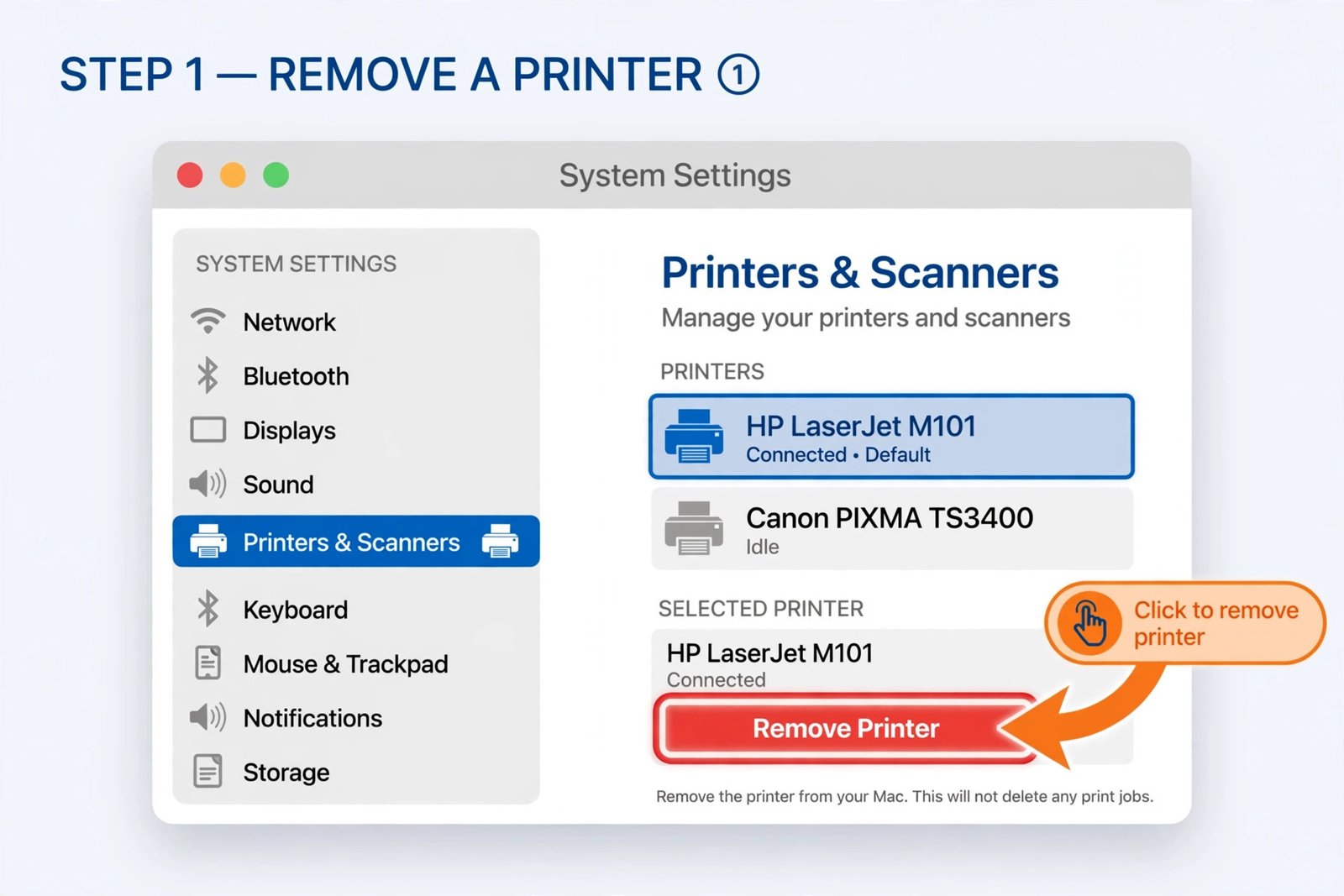
This is the normal method, and it covers almost every case: old printers, duplicates, and printers you want to re-add fresh.
- Step 1: Click the Apple menu and open System Settings.
- Step 2: Click Printers & Scanners in the sidebar.
- Step 3: Select the printer you want to remove from the list on the right.
- Step 4: Click Remove Printer, then confirm by clicking Delete Printer.
The printer disappears from the list immediately, along with its print queue. This only affects your Mac. If it was a network printer, nobody else on the network is affected. If that printer was your default, macOS picks another printer as the default automatically. You can change it with the Default printer pop-up menu in the same pane.
If It Will Not Go Away: Reset the Printing System
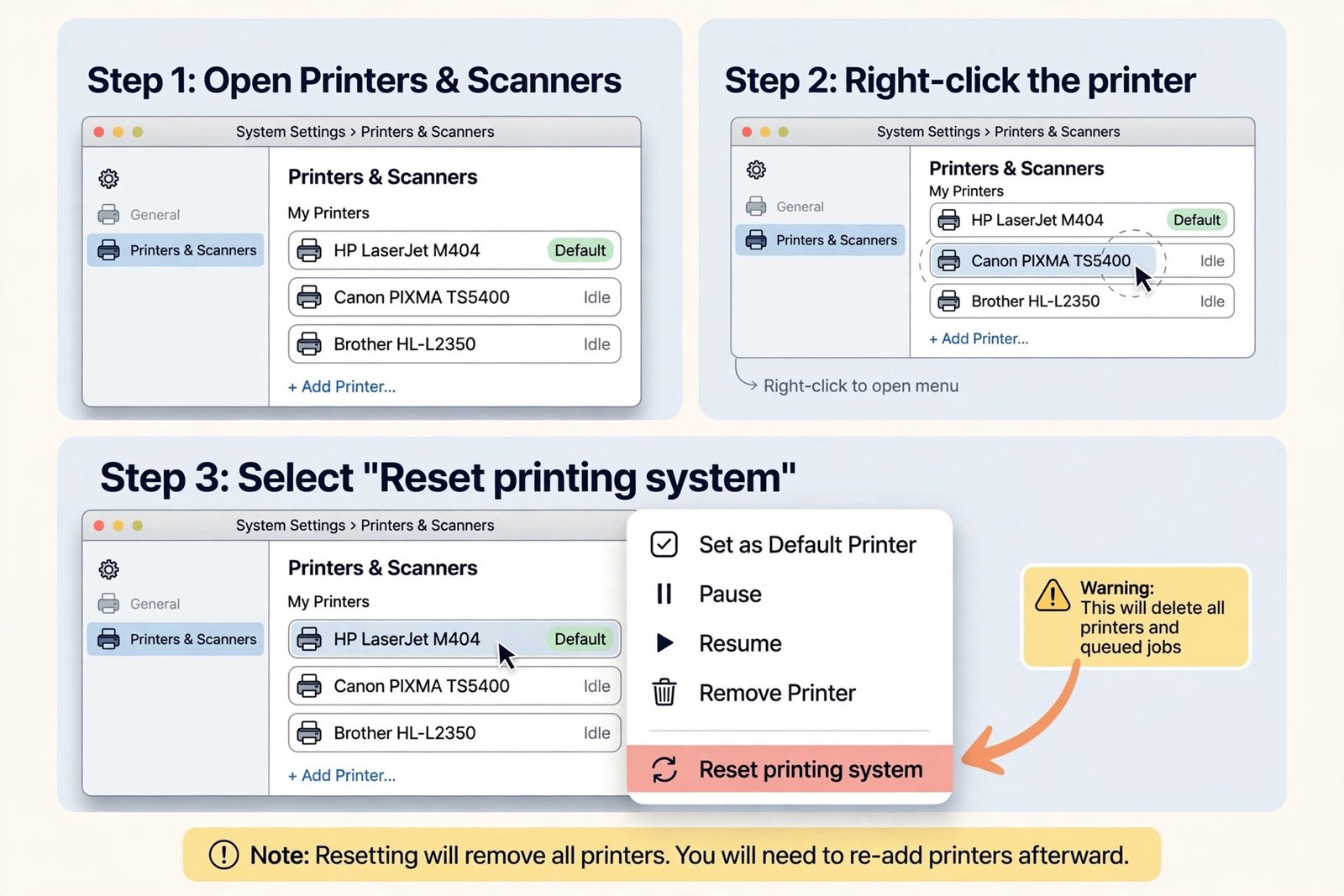
Sometimes a printer reappears, shows as offline forever, or leaves ghost jobs stuck in the queue. When removal plus re-adding does not fix it, reset the entire printing system. This is also the fix people reach for after a macOS upgrade breaks printing.
Warning: this removes every configured printer, clears all print queues, and resets the CUPS print server behind the scenes. You will re-add your working printers afterward, so only do this when one printer is not enough.
- Step 1: Open System Settings > Printers & Scanners.
- Step 2: Control-click (or right-click) anywhere in the printers list on the right side.
- Step 3: Choose Reset printing system from the context menu and enter your administrator password when asked.
- Step 4: Re-add your printers with the Add button. If your printer supports it, choose AirPrint in the Use menu instead of the vendor driver. Driverless printing avoids most of the driver conflicts that made the reset necessary.
How to Remove Leftover Printer Software
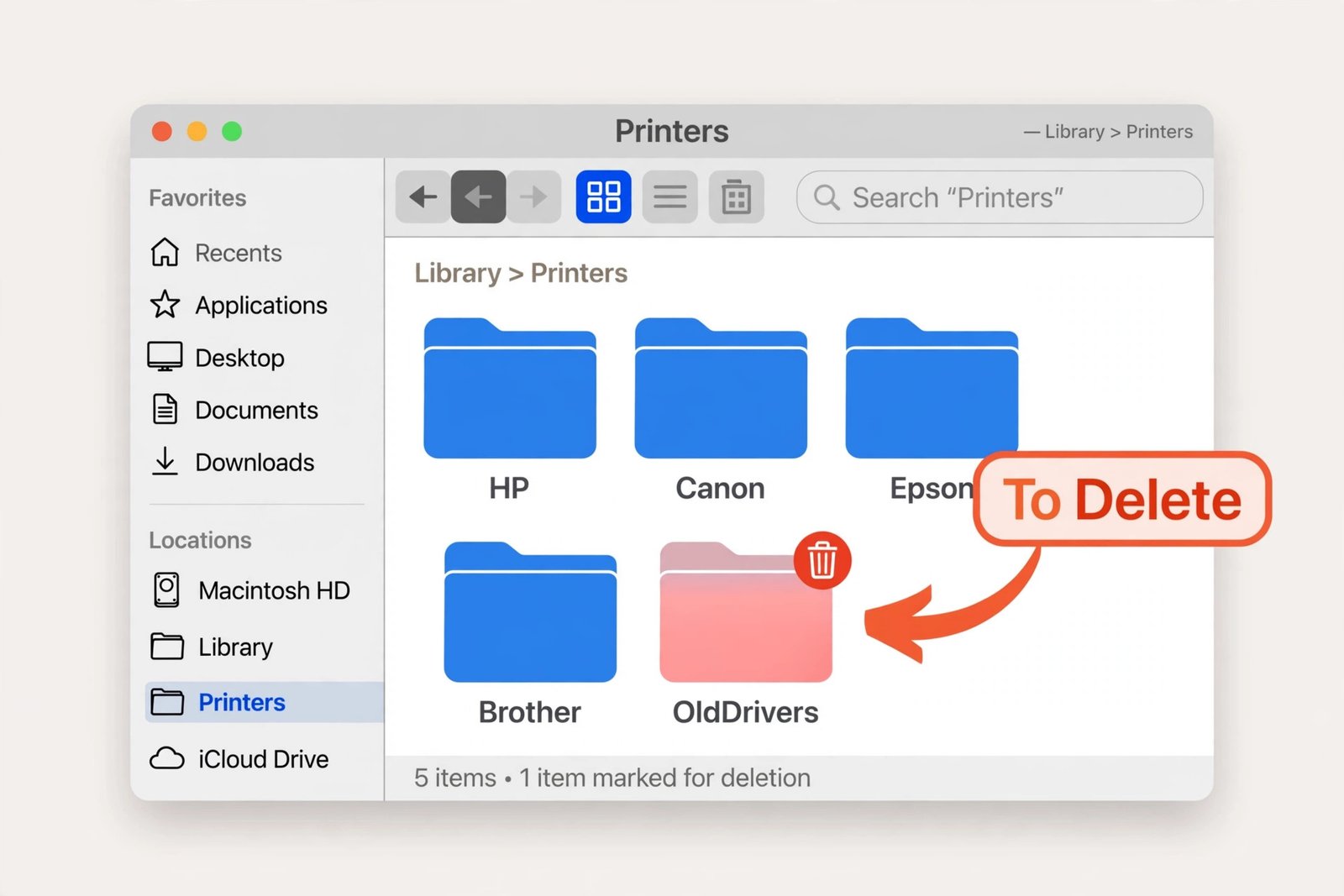
Removing the printer entry does not uninstall the vendor’s driver software, which lives on in the system Library. You usually do not need to touch it. But if you are chasing a driver conflict, or you want the manufacturer’s files gone entirely, here is where they are:
- Step 1: In Finder, click Go > Go to Folder and type /Library/Printers.
- Step 2: Delete the folder named after the printer maker (for example, the HP or Canon folder). You will need your administrator password.
- Step 3: Empty the Trash and restart your Mac.
Delete only the vendor folders you recognize. Leave anything labeled Apple or CUPS alone. If you prefer the Terminal, you can remove a vendor’s folder with a sudo rm command, but the Finder route above is safer for most people.
A Clean Printer List
Start with the standard removal in Printers & Scanners. It takes seconds and solves the “printer I no longer own” case completely. Reach for the printing system reset only when a printer misbehaves across removals and re-adds, and clean out /Library/Printers only when you suspect a genuine driver conflict. Re-add with AirPrint where possible, and your printer list stays short and boring, which is exactly what you want.
Frequently Asked Questions
Does removing a printer uninstall its driver?
No. The printer entry and its queue are deleted, but the driver software stays in /Library/Printers. Remove it manually with the steps above if you need it gone.
Why does the printer keep coming back after I remove it?
Network printers with Bonjour or AirPrint can be rediscovered automatically. If it reappears, the Mac is finding it on the network again, which is normal. Turn off the printer or remove it from the network if you truly want it gone.
I removed my default printer. What happens now?
macOS selects another printer as the default on its own. Open Printers & Scanners and pick your preferred one from the Default printer menu if it chose wrong.
Apple documents the Printers & Scanners pane in its official Mac printing guide, and Zone of Mac’s Tahoe printer guide covers the reset-printing-system route with Tahoe-specific notes.

- How to Fix Windows 11 Search Not Finding Files - October 24, 2026
- How to Fix Windows 11 Clock Showing the Wrong Time - October 23, 2026
- How to Fix File Explorer Slow to Open in Windows 11 - October 22, 2026