
Android Studio is the official IDE for Android development, and installing it on Windows is straightforward if you prepare your PC first. Most installation headaches come from one of three things: not enough free disk space, virtualization turned off in the BIOS, or downloading the wrong channel. This guide covers all of it, step by step.
What Android Studio Installs on Your PC
Downloading Android Studio gives you more than an editor. Understanding the pieces helps when something goes wrong later.
- The IDE itself, built on JetBrains IntelliJ IDEA, where you write Kotlin and Java code.
- The Android SDK, which includes platform files, build tools, and command-line utilities.
- The Android Emulator, a virtual phone for testing apps without a physical device.
- The JetBrains Runtime, a bundled Java runtime. You do not need to install Java separately for normal Android development.
Check Your PC Against the Requirements
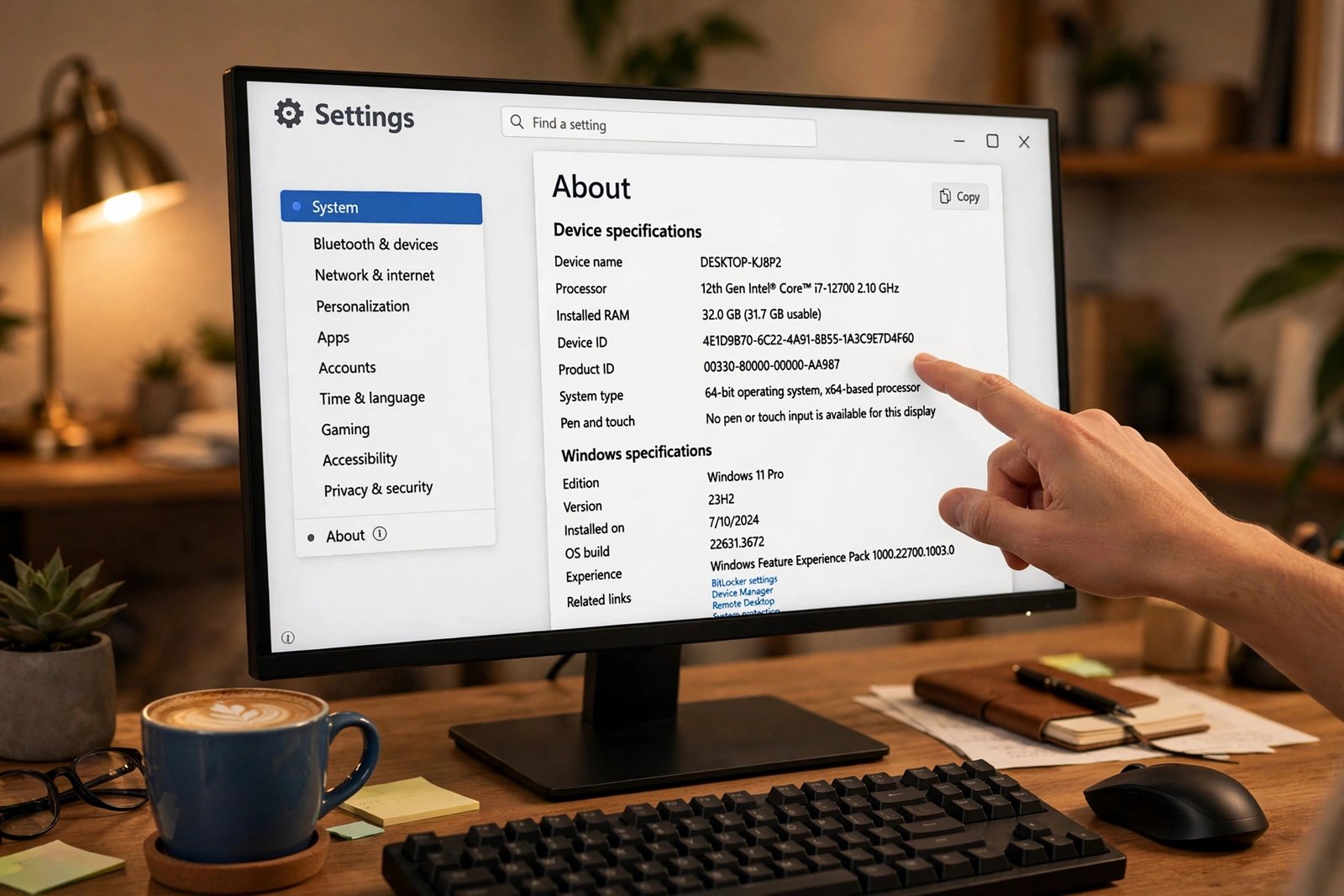
Android Studio will technically launch on modest hardware, but the emulator and Gradle builds will feel painful without enough RAM and an SSD. Check this table before downloading.
| Component | Minimum | Recommended |
|---|---|---|
| Operating system | Windows 10 or 11, 64-bit | Windows 11, 64-bit |
| RAM | 8 GB | 16 GB or more |
| Disk space | 8 GB free | 30 GB free on an SSD |
| CPU | 64-bit x86 processor | Multi-core with virtualization support |
| Display | 1280 x 800 | 1920 x 1080 or higher |
The disk space number surprises people. The IDE itself takes a few gigabytes, emulator system images add several more, and the Gradle dependency cache keeps growing with every project. That is why Google suggests an SSD with plenty of free space rather than treating 8 GB as a real plan.
Enable Virtualization in Your BIOS
This step is easy to skip and hard to diagnose later. The Android Emulator needs hardware virtualization, called Intel VT-x on Intel PCs and AMD-V or SVM on AMD PCs. Without it, the emulator runs unbearably slowly or refuses to start.
- Restart your PC and press the BIOS key during startup, usually Delete, F2, or Esc depending on your manufacturer.
- Look under Advanced, CPU Configuration, or Security for Intel Virtualization Technology or SVM Mode.
- Set it to Enabled, save, and exit.
- Back in Windows, open Task Manager, go to the Performance tab, and confirm it says Virtualization: Enabled.
Download the Stable Release
Google publishes Android Studio in several channels: Stable, Beta, Canary, and Dev. For real work, always choose Stable. In 2026 the stable line includes releases like Quail 1, with support for the Android 16 SDK. Download only from the official Android Developers site so you get a genuine installer.
- Go to the official Android Studio download page and choose the Windows installer.
- Accept the terms and save the .exe file to your Downloads folder.
- Do not download Android Studio from random file mirrors. Unofficial installers are a common source of malware.
Run the Installer
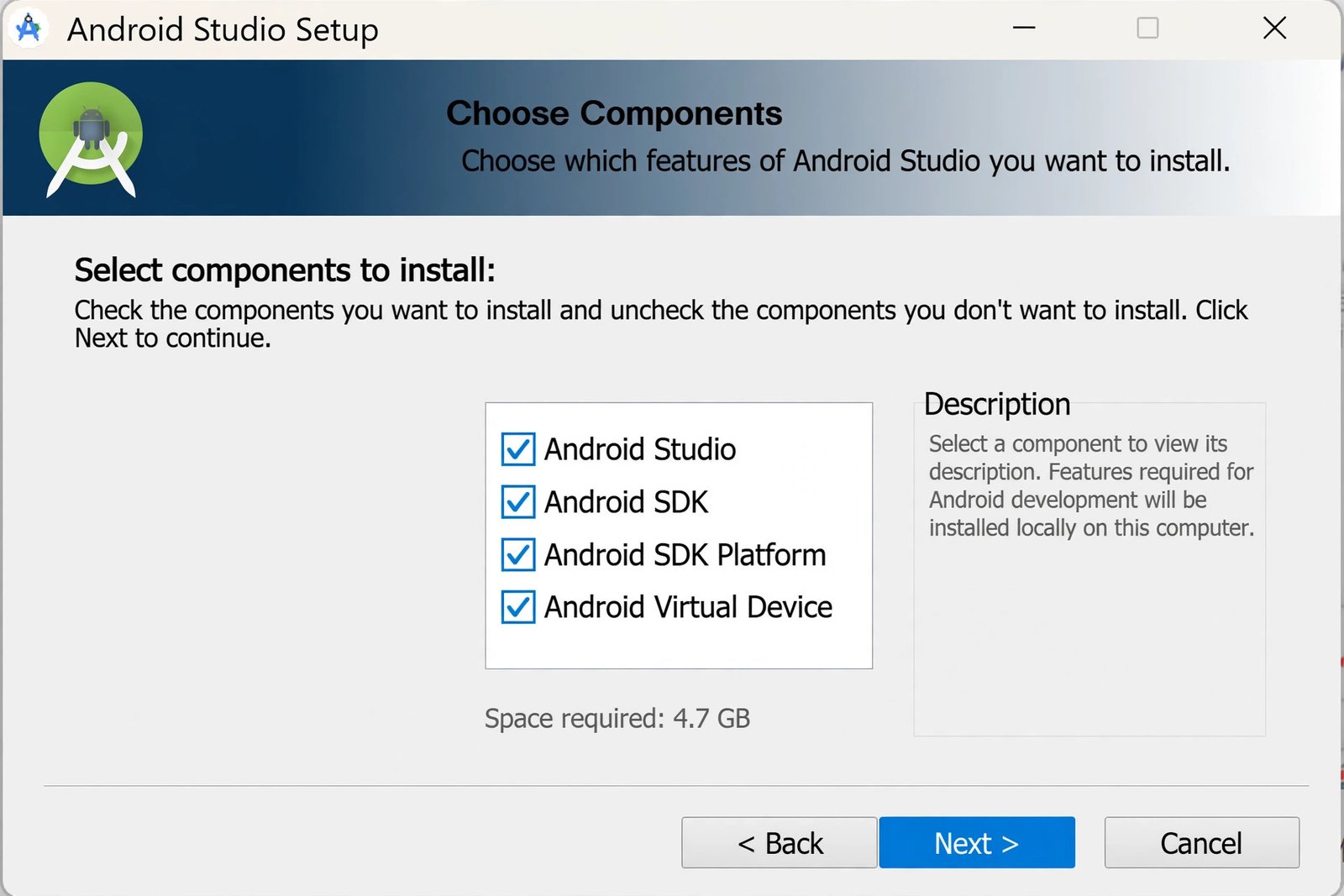
The setup wizard does most of the work. The one decision that matters is which components you select.
- Double-click the downloaded .exe and follow the wizard.
- On the component screen, make sure these are checked: Android Studio, Android SDK, Android SDK Platform, Android Virtual Device, and Performance (Intel chip) if it appears.
- Keep the default install location unless you have a reason to change it. The default keeps paths short and avoids permission problems.
- Finish the wizard and launch Android Studio. The first launch downloads additional SDK components, which can take a while depending on your connection.
Configure the SDK After First Launch
Once the welcome screen appears, spend five minutes on the SDK before creating your first project. Missing platform packages are the most common cause of failed first builds.
- Open Settings (the gear icon) and go to Android SDK.
- Under SDK Platforms, check the latest Android API level and at least one previous version for compatibility testing.
- Under SDK Tools, confirm Android SDK Build-Tools, Android SDK Platform-Tools, and Android Emulator are installed.
- Click Apply and let the downloads finish.
Create a Test Project
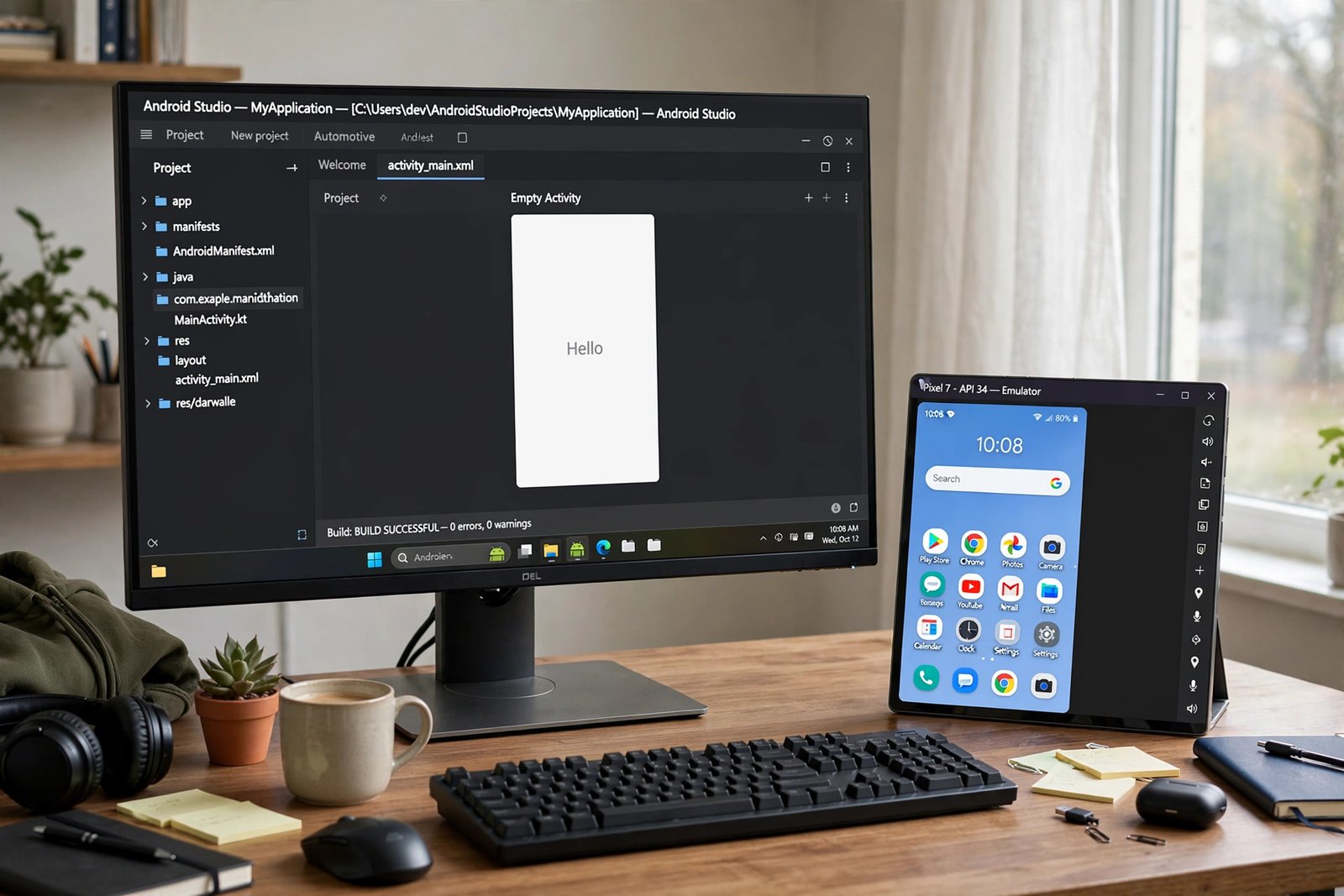
Before importing real code, verify everything works with a blank project. Click New Project, choose the Empty Views Activity template, and let the first Gradle sync complete. If the project builds and the emulator launches, your installation is healthy.
Common Installation Problems
If something fails, the table below covers the issues that come up most often on Windows.
| Problem | Likely cause | Fix |
|---|---|---|
| Emulator will not start or is extremely slow | Virtualization disabled | Enable VT-x or AMD-V in BIOS |
| Gradle sync fails on first project | Missing SDK platform or build-tools | Install them from Settings > Android SDK |
| Installer reports not enough disk space | SDK and images need more room | Free 30 GB on an SSD before retrying |
| “JDK not found” or Java errors | Custom JDK path conflict | Switch back to the bundled JetBrains Runtime in Project Structure |
| AVD Manager shows no system images | Images were not downloaded | Download a Google Play system image from the SDK Manager |
Tips for a Smooth Setup
- Use the Stable channel only. Beta and Canary builds are for testing, not for learning or shipping apps.
- Keep Android Studio on your fastest drive. Gradle builds on a mechanical hard drive are several times slower.
- Close browsers and other heavy apps while the emulator runs on 8 GB of RAM. Memory pressure is the top cause of sluggish sessions.
- Update SDK components from inside the IDE rather than downloading them manually. The SDK Manager keeps versions consistent.
For a second opinion on the 2026 setup flow, the practical 2026 setup guide on Medium and the Techbloat Windows 11 walkthrough cover the same steps with screenshots. Once you are up and running, you may also like how to become a DevOps engineer, the best Linux distros for programming, and the best barcode scanner apps for Android.

- How to Fix a Laptop Camera Not Working in Windows 11 - October 23, 2026
- How to Fix the Brightness Slider Missing in Windows 11 - October 22, 2026
- How to Stop Phone Link From Opening on Startup in Windows 11 - October 21, 2026