
Microsoft Teams opens on its own every time you sign in because it is set to auto-start when it is installed. The quickest fix: open Teams, click your profile picture, choose Settings, go to General, and turn off Auto-start Teams. If Teams still appears after a restart, switch it off under Apps, Startup in Windows Settings, and check Task Manager. The steps below walk through all three switches, then cover why Teams keeps coming back.
Turn off auto-start inside Teams
Teams has its own startup switch, and it is the first place to check. Open the app, click your profile picture in the top right corner, or the three-dot menu next to it, and choose Settings. Go to the General tab and look under System for the switch called Auto-start Teams. Turn it off. Older versions used the label Auto-start application, so do not worry if the wording on your screen differs.
- Open Microsoft Teams and sign in if needed.
- Click your profile picture, or the three-dot menu beside it, and choose Settings.
- Go to the General tab.
- Under System, turn off Auto-start Teams.
- If you also see Open application in background, turn that off too, so Teams does not keep running after you close its window.
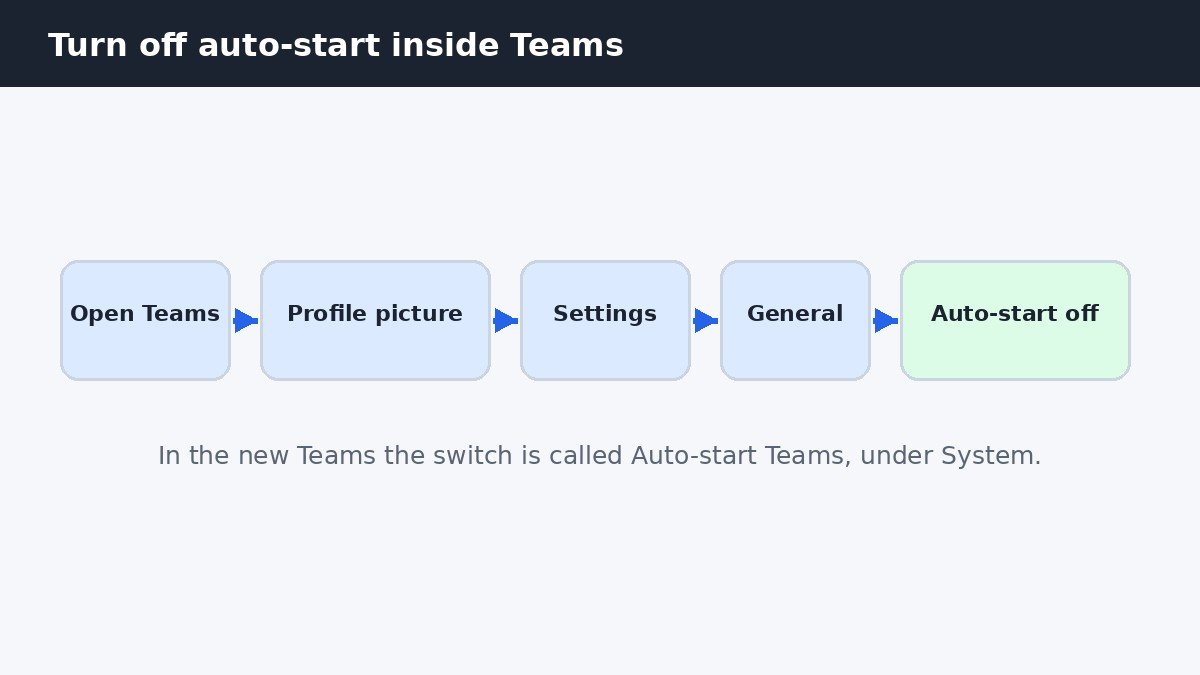
Close the Settings panel. There is no save button, so the change applies at once. If Teams still opens at the next sign-in, move on to the Windows-level switches below, because the in-app setting alone does not always win.
Switch it off in Windows Settings
Windows keeps its own list of apps that launch at sign-in, and Teams registers itself there too. Press Windows key plus I, then go to Apps and choose Startup. Find Microsoft Teams in the list and set its switch to Off. This route works even when Teams will not open, and it stops the app at the system level.
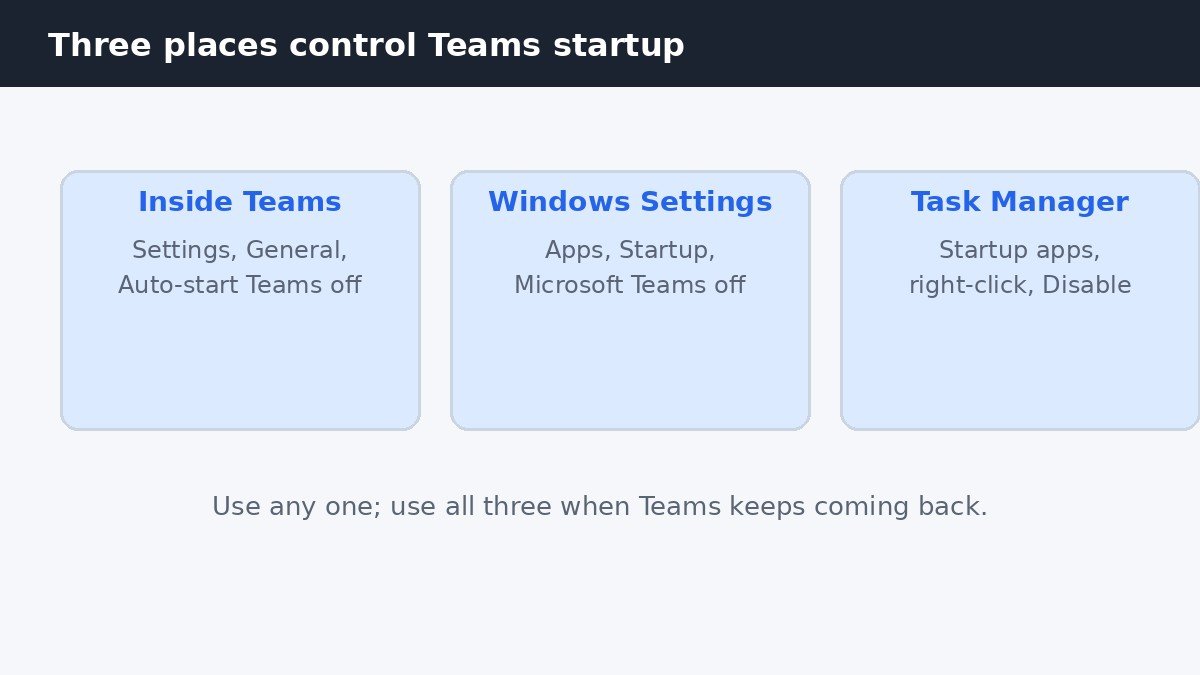
If you see two Teams entries, one for the older classic Teams and one for the new Teams, turn both off. Leaving one enabled is a common reason the fix seems to fail. Microsoft’s own guide to startup apps covers the same Settings page and the Task Manager route. The same startup list holds other apps too. If Phone Link also opens when you sign in, this guide to stopping Phone Link from opening on startup walks through the same page for that app.
Disable it in Task Manager
Task Manager shows the same startup list as Settings, plus a Startup impact rating that shows how much each app slows your sign-in. Press Ctrl, Shift, and Esc together to open Task Manager, then choose Startup apps in the left sidebar. Find Microsoft Teams, select it, and choose Disable at the top of the window, or right-click it and choose Disable. Check that the Status column now reads Disabled.
Restart your PC to confirm it. Teams should stay closed until you open it yourself. Your chats, meetings, and files are all still there when you launch it from the Start menu.
Why Teams keeps coming back
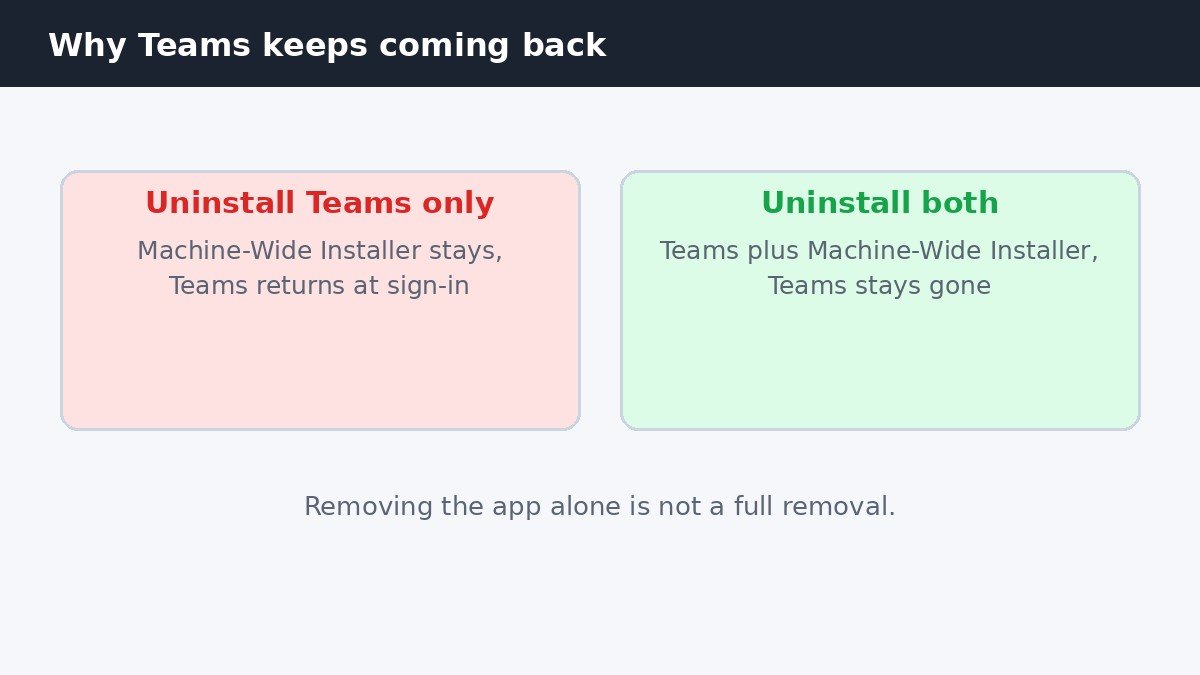
If you turned every switch off and Teams still returns, three things are usually behind it. The first is the Teams Machine-Wide Installer. On many PCs, Teams arrives as two entries: the app itself and a background installer that puts Teams back for every user at sign-in. If you uninstalled only the app, that installer quietly restores it. To remove Teams fully, open Settings, Apps, Installed apps, and uninstall both Microsoft Teams and Teams Machine-Wide Installer. If Teams came with Microsoft 365, an Office repair or reinstall can bring it back, because the Office deployment includes Teams.
The second cause is the Chat button. Older Windows 11 builds shipped with a Chat icon tied to the personal version of Teams. Hiding it clears the taskbar but does not stop Teams from opening at startup. Right-click an empty spot on the taskbar and choose Taskbar settings, or open Settings, go to Personalization, then Taskbar, and under Taskbar items switch Chat to Off. On newer builds the Chat button is gone and Teams appears as an ordinary pinned app, so right-click it and choose Unpin from taskbar. Microsoft’s guide to managing the Chat icon explains the personal and work versions.
The third cause is updates. A major Teams or Windows update can restore the auto-start setting, so after a big update reopen Teams, go to Settings, General, and check that Auto-start Teams is still off. A quick check takes seconds and saves another morning closing the same window.
| What is happening | What to do |
|---|---|
| Teams opens at sign-in | Turn off Auto-start Teams in Settings, General |
| Setting is off but Teams still opens | Switch it off in Apps, Startup and Task Manager |
| Teams returns after you uninstalled it | Uninstall Teams Machine-Wide Installer as well |
| Chat icon sits on the taskbar | Turn Chat off in Personalization, Taskbar |
When the setting is greyed out on a work PC
On a work or school computer, the auto-start switch can be greyed out or flip itself back on. That means your IT department enforces the setting with a policy, and no change you make will stick while it applies. The fix is to ask your IT admin to change it for you. Admins control it with a policy called Prevent Microsoft Teams from starting automatically after installation, so naming it helps them find it fast.
Do not edit the registry or local policy on a managed device. A policy refresh will undo the change anyway, and changing managed settings can break rules your workplace relies on. If the PC is your own and the switch is greyed out, check that you are signed in with an administrator account, since a standard account can be blocked from changing startup settings.
Should you stop Teams from opening at startup?
For most people, yes. Teams is a heavy app to load at sign-in, and unless your first job each morning is a Teams call, it mostly adds waiting time and a window to close. Stopping it does not uninstall anything, delete any chats, or change your account. Teams opens normally from the Start menu, and turning the switches back on restores the old behaviour.
The one trade-off is notifications. While Teams is closed, you will not get call or message alerts on your desktop, so if you rely on Teams to catch urgent messages, either leave it running or open it when your workday starts. For everyone else, turning off auto-start makes sign-in faster and the desktop quieter, and the app is still one click away when it is needed.

- How to Stop Microsoft Teams From Opening on Startup in Windows 11 - November 12, 2026
- How to Turn Off Do Not Disturb in Windows 11 - November 11, 2026
- How to Turn Off Google Assistant on Samsung Galaxy - November 10, 2026