
You tick “Remember me” in Remote Desktop Connection, but Windows throws it straight back: your system administrator does not allow the use of saved credentials. It is not a typo in your password, and retyping it will not help. Here is what the error actually means and the exact Group Policy fix that gets saved credentials working again.
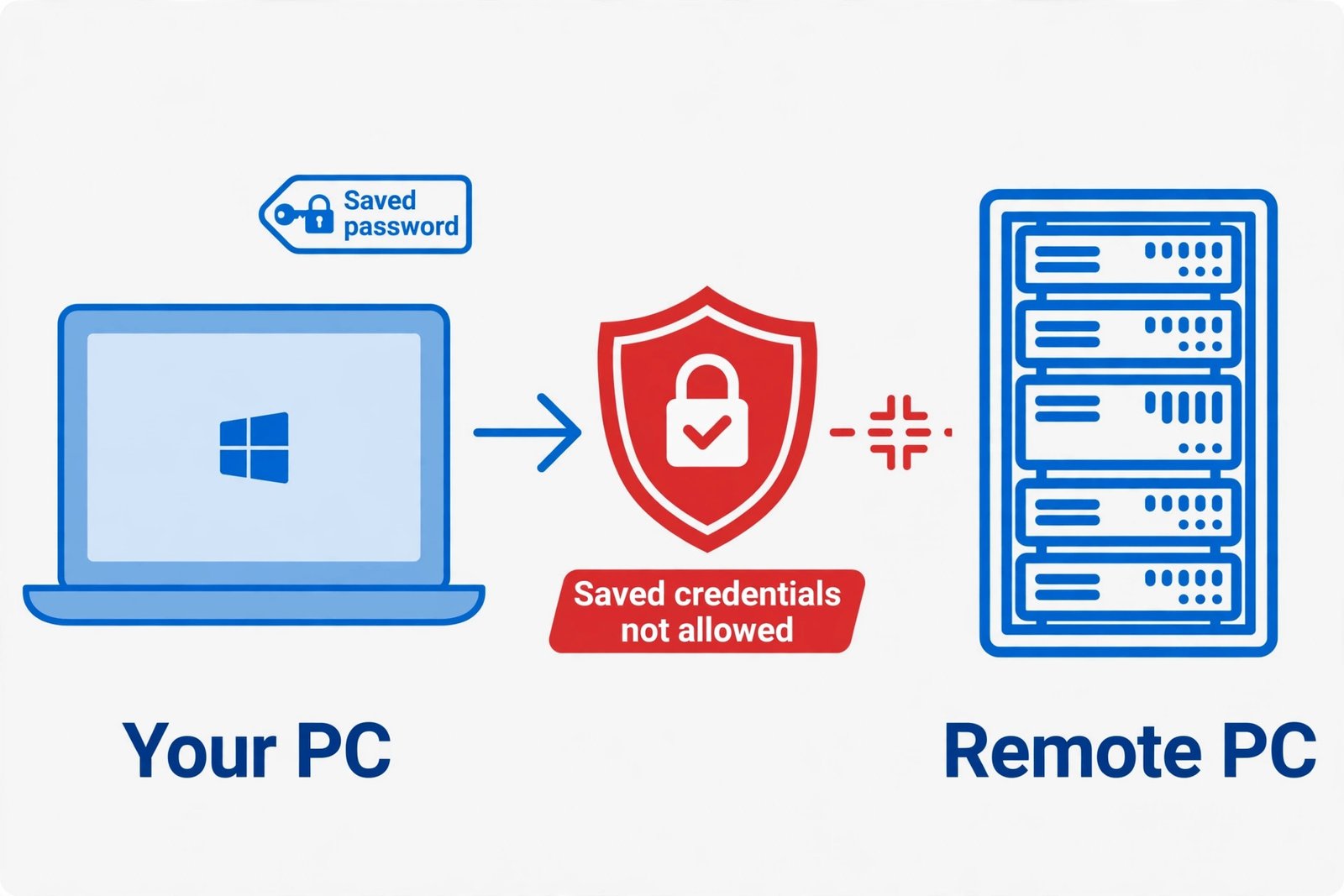
What the error is telling you
Your credentials did not work. Your system administrator does not allow the use of saved credentials to log on to the remote computer because its identity is not fully verified. Please enter new credentials.
The key phrase is “its identity is not fully verified.” When you connect to a server in another domain, over a VPN, or by IP address, Windows often falls back to NTLM authentication instead of Kerberos. In that situation the default policy refuses to hand your stored password to a server it cannot fully verify. Your credentials are fine. It is the delegation rule that is stopping you.
Why this happens
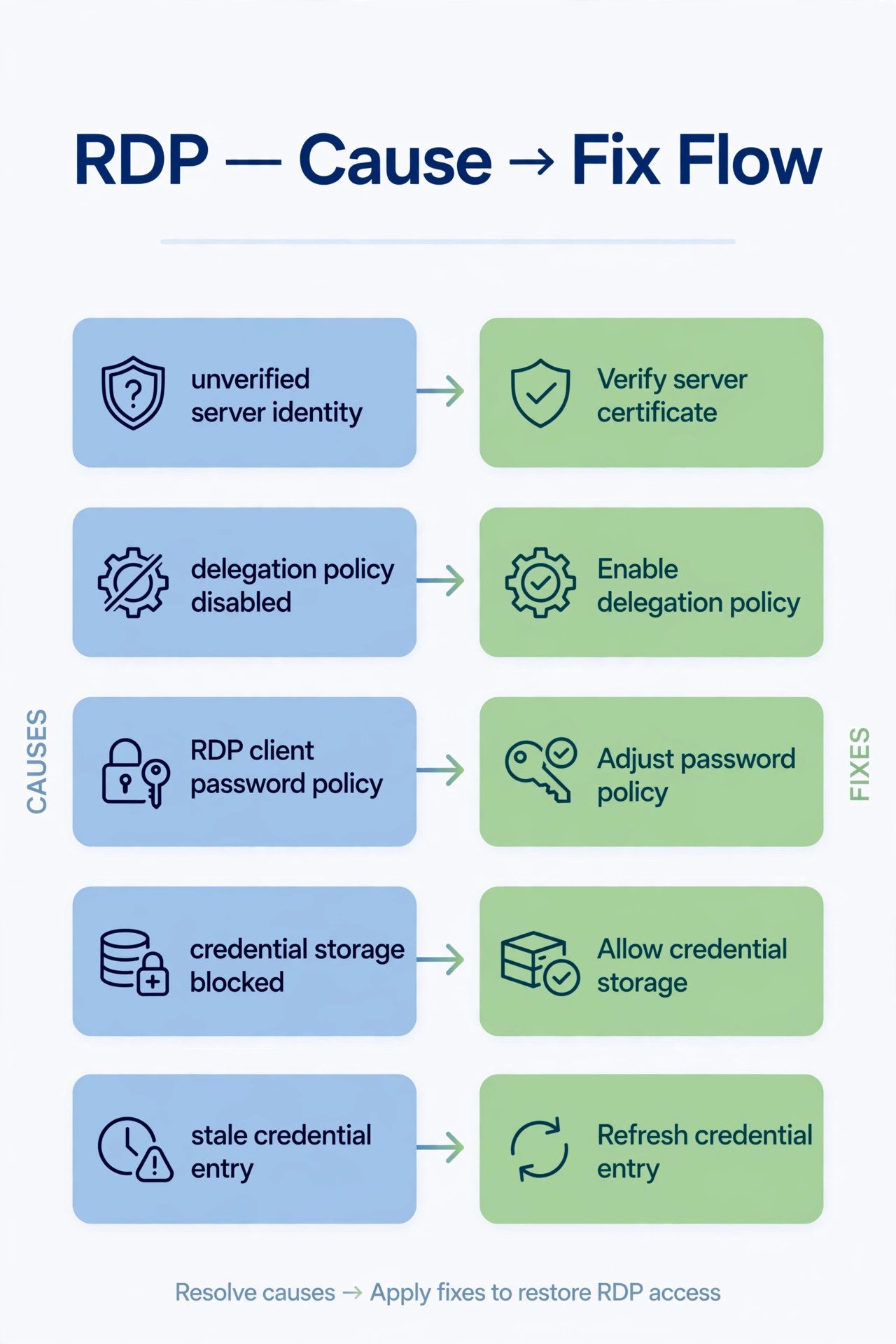
- You are connecting to a machine Windows cannot fully verify: a different domain, a workgroup server, or an IP address instead of a hostname.
- The local policy Allow Delegating Saved Credentials (and its NTLM-only variant) is not enabled, so saved passwords are blocked.
- A separate RDP client policy, “Do not allow passwords to be saved,” is turned on.
- Windows is blocked from storing network credentials at all by a security policy.
- A stale or corrupted credential entry in Credential Manager is getting in the way.
Fix 1: Enable credential delegation in Group Policy
This is the fix that resolves the error for most people. You are telling Windows which servers are allowed to receive your saved credentials.
- Press Win + R, type gpedit.msc, and press Enter. (The Group Policy Editor only exists on Windows Pro, Enterprise, and Education. Home users: skip to the registry section below.)
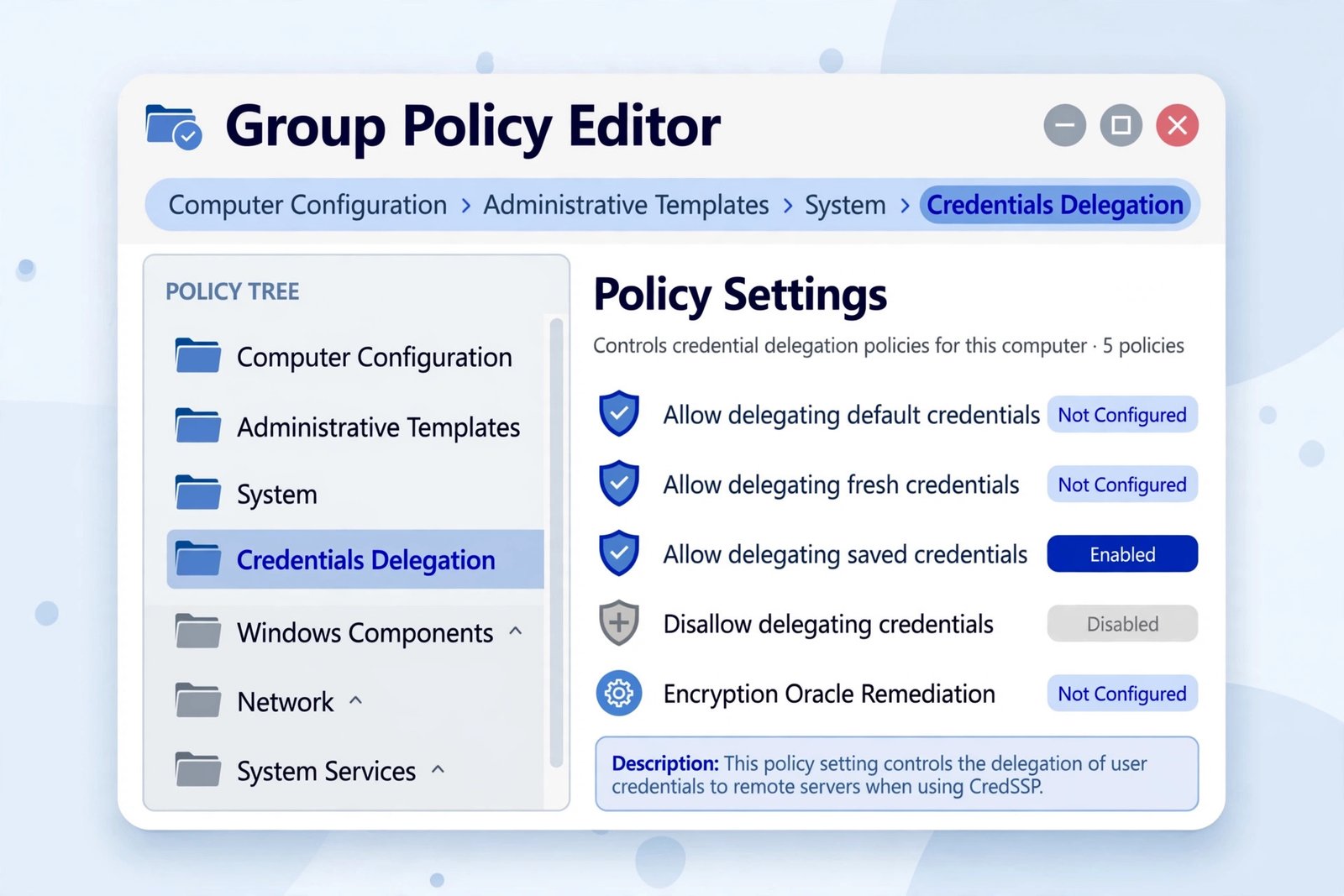
- Navigate to Computer Configuration > Administrative Templates > System > Credentials Delegation.
- Double-click Allow Delegating Saved Credentials with NTLM-only Server Authentication.
- Set it to Enabled, click the Show button next to “Add servers to the list,” and add the value TERMSRV/*. Click OK.
- Do the same for Allow Delegating Saved Credentials: Enabled, Show, add TERMSRV/*.
- Open Command Prompt and run gpupdate /force, or restart your PC.
- Connect again and tick the option to save your credentials. The error should be gone.
The value TERMSRV/* permits saved credentials for any server you connect to over RDP. If this is a work computer, check with your IT admin before using a wildcard; you can also list specific servers, like TERMSRV/fileserver01.
Fix 2: Check the RDP client’s own password policies
Even with delegation allowed, the Remote Desktop client itself may be told not to save passwords. In the same Group Policy Editor, go to Computer Configuration > Administrative Templates > Windows Components > Remote Desktop Services > Remote Desktop Connection Client. Set Do not allow passwords to be saved to Disabled (or Not Configured), and leave Prompt for credentials on the client computer at Not Configured. Run gpupdate /force again.
Fix 3: Make sure Windows can store network credentials at all
One more policy can block everything silently. In Group Policy Editor, go to Computer Configuration > Windows Settings > Security Settings > Local Policies > Security Options. Find Network access: Do not allow storage of passwords and credentials for network authentication and set it to Disabled. If this was enabled, no application could save network passwords, RDP included.
Fix 4: Clear the stale credential in Credential Manager
Sometimes an old or corrupted entry blocks new saves. Press Win + R, type control keymgr.dll, and open Credential Manager. Look under Windows Credentials and Generic Credentials for entries starting with TERMSRV/ for your server, remove them, then reconnect and save your credentials fresh. If Windows keeps throwing odd connection errors beyond this one, our guide to fixing the RPC server unavailable error (1722) covers similar territory.
Fix 5: Check the September 2026 update angle
If Remote Desktop was saving credentials fine and suddenly broke, check your update history. Microsoft acknowledged Remote Desktop connectivity problems after the September 2026 security updates and published a temporary Group Policy mitigation for managed machines. Install the latest cumulative update first; on a company PC, ask your admin about the official mitigation rather than editing policies yourself. If the connection itself feels flaky, resetting your network settings in Windows 11 can rule out the network layer.
Windows 11 Home: the registry workaround
gpedit.msc does not exist on Windows Home, but the same settings live in the registry. Open Registry Editor (regedit), go to HKEY_LOCAL_MACHINE\SOFTWARE\Policies\Microsoft\Windows\CredentialsDelegation (create the key if it is missing), and add two DWORD values: AllowSavedCredentials set to 1, and AllowSavedCredentialsWhenNTLMOnly set to 1. Export the key first as a backup, then restart your PC.
Our take: when not to do this
On your own home PC, enabling credential delegation is reasonable and safe. On a shared computer, a public machine, or a work laptop managed by IT, leave it off: saved RDP credentials on a machine other people touch are a genuine risk, and your IT admin disabled them for a reason. Convenience is only worth it on hardware you control.

- How to Fix Windows 11 Search Not Finding Files - October 24, 2026
- How to Fix Windows 11 Clock Showing the Wrong Time - October 23, 2026
- How to Fix File Explorer Slow to Open in Windows 11 - October 22, 2026