
You plug in a USB-to-serial adapter and Windows hands it COM17, while your radio programmer, Arduino IDE, or 3D-printer software is still listening on COM3. The fastest fix takes under a minute: open Device Manager, expand Ports (COM & LPT), right-click your device, choose Properties, go to Port Settings, click Advanced, and pick an unused number from the COM Port Number dropdown. Everything below covers what to do when that is not enough.
Why Windows Keeps Climbing to Higher COM Numbers
Every time you plug a serial device into a different USB port, or Windows sees it as a new device instance, it assigns a fresh COM number instead of reusing the old one. Windows tracks these assignments in a registry database called the COM Name Arbiter. Old entries stick around even after the device is long gone, which is why the numbers keep climbing and why some programs refuse to connect to anything above COM9 or COM10.
Fix 1: Reassign the Port Number (the 60-Second Fix)
This solves the problem for most people. You are not changing anything permanent, just telling Windows which number to hand your device.
- Press Windows key + R, type
devmgmt.msc, and press Enter to open Device Manager. - Expand Ports (COM & LPT). If you do not see this section at all, click View and choose Show hidden devices.
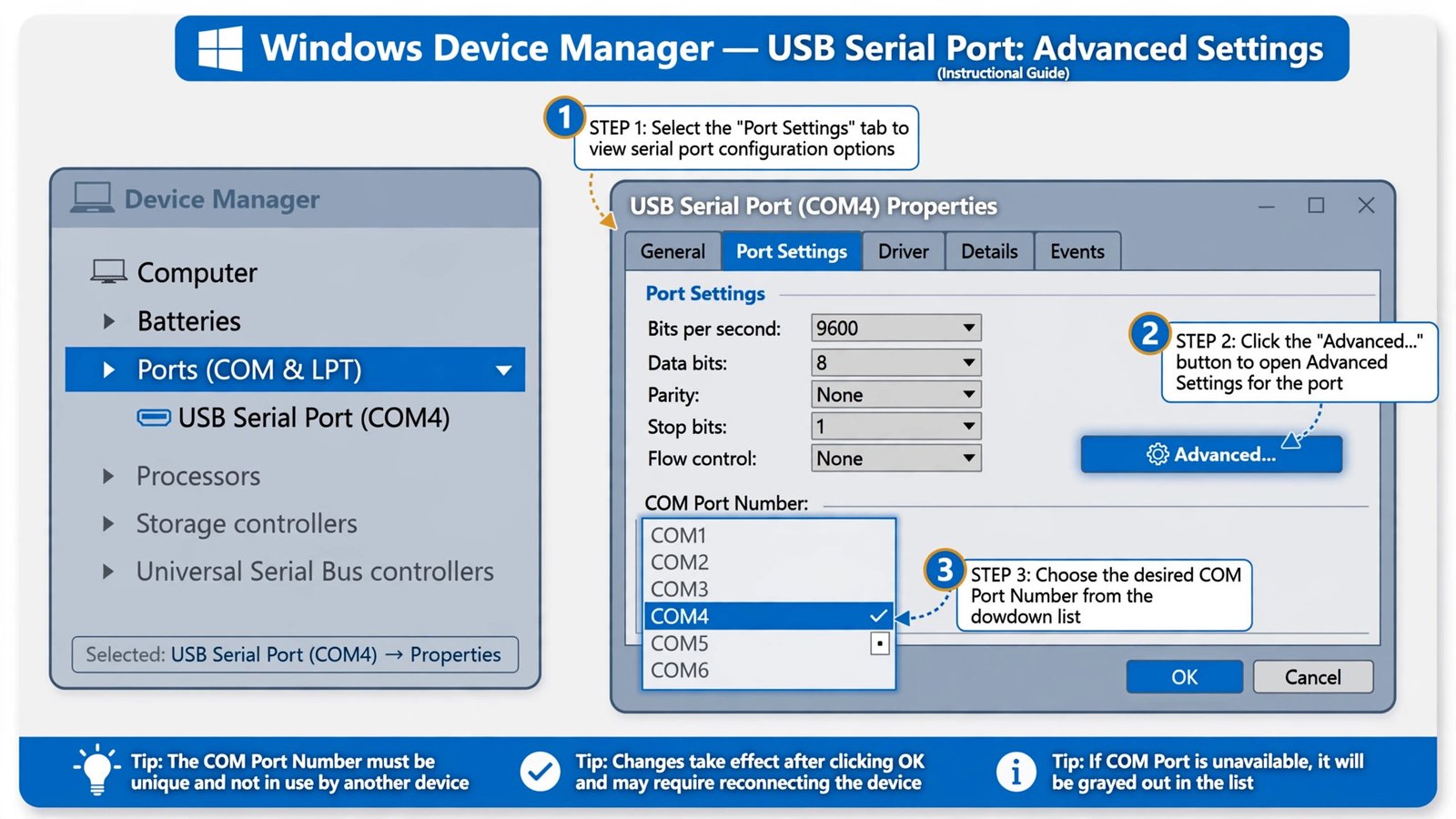
- Right-click your device (it may say “USB Serial Port”, “Communications Port”, or the chip maker’s name) and choose Properties.
- Open the Port Settings tab and click Advanced.
- In the COM Port Number dropdown, choose an unused number. Numbers in the list marked as “in use” may still be safe to pick if the device that used them is gone, but low free numbers are the safest bet for older software.
- Click OK, then unplug and reconnect your device so the new number takes effect.
Fix 2: Remove Ghost Ports That Block the Number You Want
Sometimes the dropdown shows a number as “in use” even though no device is connected. Those are ghost entries from devices you no longer own, and clearing them out is cleaner than fighting with them.
- In Device Manager, click View and turn on Show hidden devices.
- Expand Ports (COM & LPT). Grayed-out entries are disconnected devices Windows still remembers.
- Right-click each grayed-out port you no longer need and choose Uninstall device.
- Restart your PC, plug your device back in, and use Fix 1 to assign the number you want.
If your port never shows up in the first place, not even as a hidden device, the problem is usually the driver, not the port number. You likely need the driver that matches the chip inside your cable: FTDI, Prolific PL2303, Silicon Labs CP210x, or WCH CH340. If Windows flags the device as an unknown USB device, walk through how to fix the unknown USB device error first, because no amount of port resetting will help until Windows can talk to the cable itself.
Fix 3: Reset the Whole COM Database in the Registry
When you have burned through dozens of COM numbers and want a completely fresh start, you can clear the COM Name Arbiter’s record. This frees every number back to zero, so the next devices you plug in start from COM1 again.
Clearing this database affects every serial device on the PC. Unplug all USB serial devices first, and back up the registry before you change anything.
- Press Windows key + R, type
regedit, and press Enter. Confirm the admin prompt. - Navigate to
HKEY_LOCAL_MACHINE\SYSTEM\CurrentControlSet\Control\COM Name Arbiter. - In the right pane, right-click the ComDB value and choose Modify.
- Select the entire Value data and delete it, then type zeros for every byte (each byte shows as
00). A completely zeroed ComDB means no port numbers are reserved. - Click OK, close the editor, and restart your computer. All COM port assignments are now free, and Windows will re-enumerate connected serial devices from COM1 upward.
HKEY_LOCAL_MACHINE\SYSTEM\CurrentControlSet\Control\COM Name Arbiter
Value: ComDB (REG_BINARY) - set every byte to 00, then restart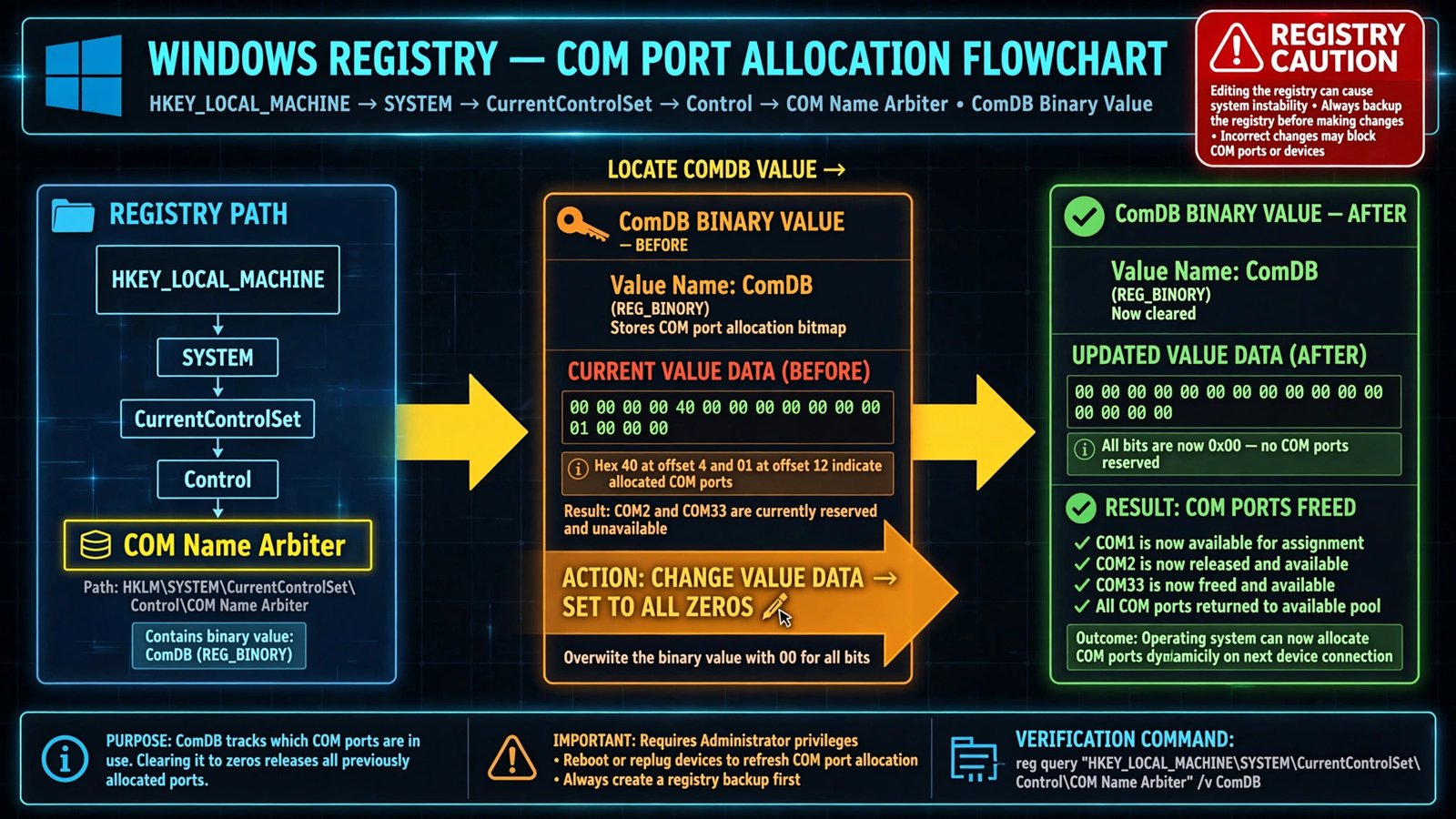
Fix 4: Force a Fresh Enumeration of Your USB Serial Device
If Windows keeps assigning a weird number or the device behaves erratically, start its identity over from scratch.
- Unplug the device and any USB hubs in the chain. Plug it directly into a USB port on the PC.
- In Device Manager, right-click the device under Ports (COM & LPT) or under Universal Serial Bus controllers and choose Uninstall device. If offered, tick the box to delete the driver software.
- Restart the PC, install the correct vendor driver for your chip (FTDI, Prolific, Silicon Labs, or WCH), then plug the device back in and check which COM number appears.
If Windows seems to ignore the cable entirely, the USB port itself may be the issue. The guide to enabling or disabling USB ports covers the Device Manager side of that, even on newer systems the steps are the same. Microsoft’s own Q&A on missing COM ports also confirms that the Ports node only appears when a real serial device has a working driver.
Our Take: Reassign First, Reset Only When the Numbers Run Wild
For a single device that got a silly number, Fix 1 is all you need and takes less than a minute. Reach for the registry reset only when you have cycled through dozens of numbers or your lab PC has years of ghost entries. And if your software is hard-coded to a specific port, do the assignment while the device is plugged into the USB port you will always use, since Windows may give it a different number on a different port.

- How to Fix an SD Card Not Detected on Windows 11 - October 25, 2026
- How to Fix Windows 11 Search Not Finding Files - October 24, 2026
- How to Fix Windows 11 Clock Showing the Wrong Time - October 23, 2026