
You plug in a USB drive, a mouse, or your phone, and Windows greets you with a yellow warning in Device Manager: Unknown USB Device (Device Descriptor Request Failed). The device does not work, and the message explains nothing. Here is what that error actually means and how to fix it, starting with the simplest checks.
What This Error Means
When you connect a USB device, Windows asks it to identify itself. That identification is called the device descriptor. If the device never answers, because of a driver problem, a power issue, or a failing port, Windows gives up and shows this error. The fix depends on which of those is going on, so work through the steps below in order.
Start With the Physical Checks
It is tempting to jump straight into drivers and settings, but a surprising number of these errors are hardware problems. Rule them out in two minutes.
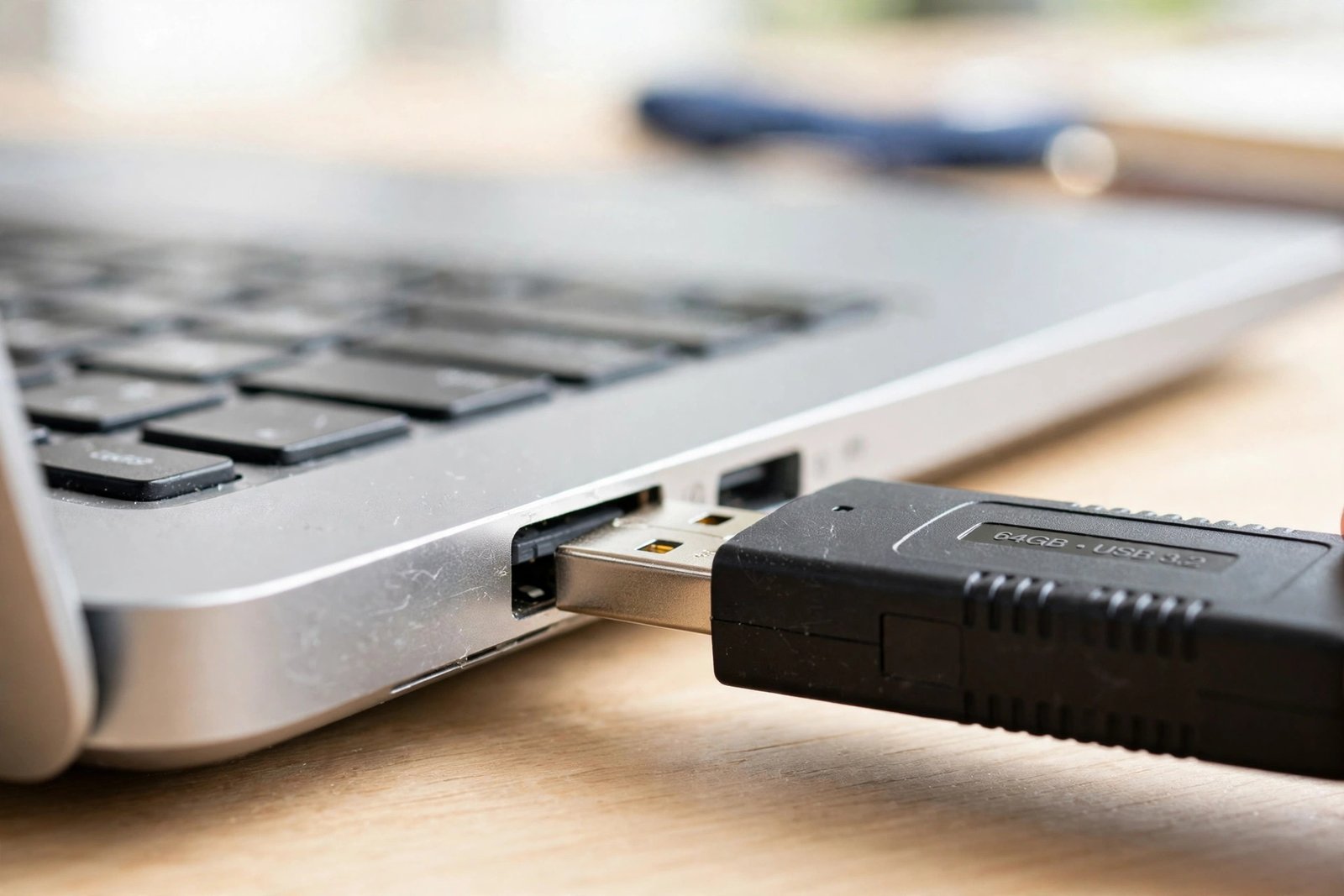
- Unplug the device, wait a few seconds, and plug it back in firmly. A loose connection is enough to break the handshake.
- Try a different USB port on the computer, ideally one on the opposite side or directly on the motherboard for desktops.
- If you are using a USB hub, connect the device directly to the PC instead. Underpowered or faulty hubs are a classic cause.
- Test the device on another computer. If it fails there too, the device itself is probably dead and no software fix will help.
Fix 1: Reinstall the USB Device Driver
Corrupted drivers are the most common software cause. Removing the failed entry lets Windows detect the hardware fresh on the next boot.
- Press Windows + X and choose Device Manager.
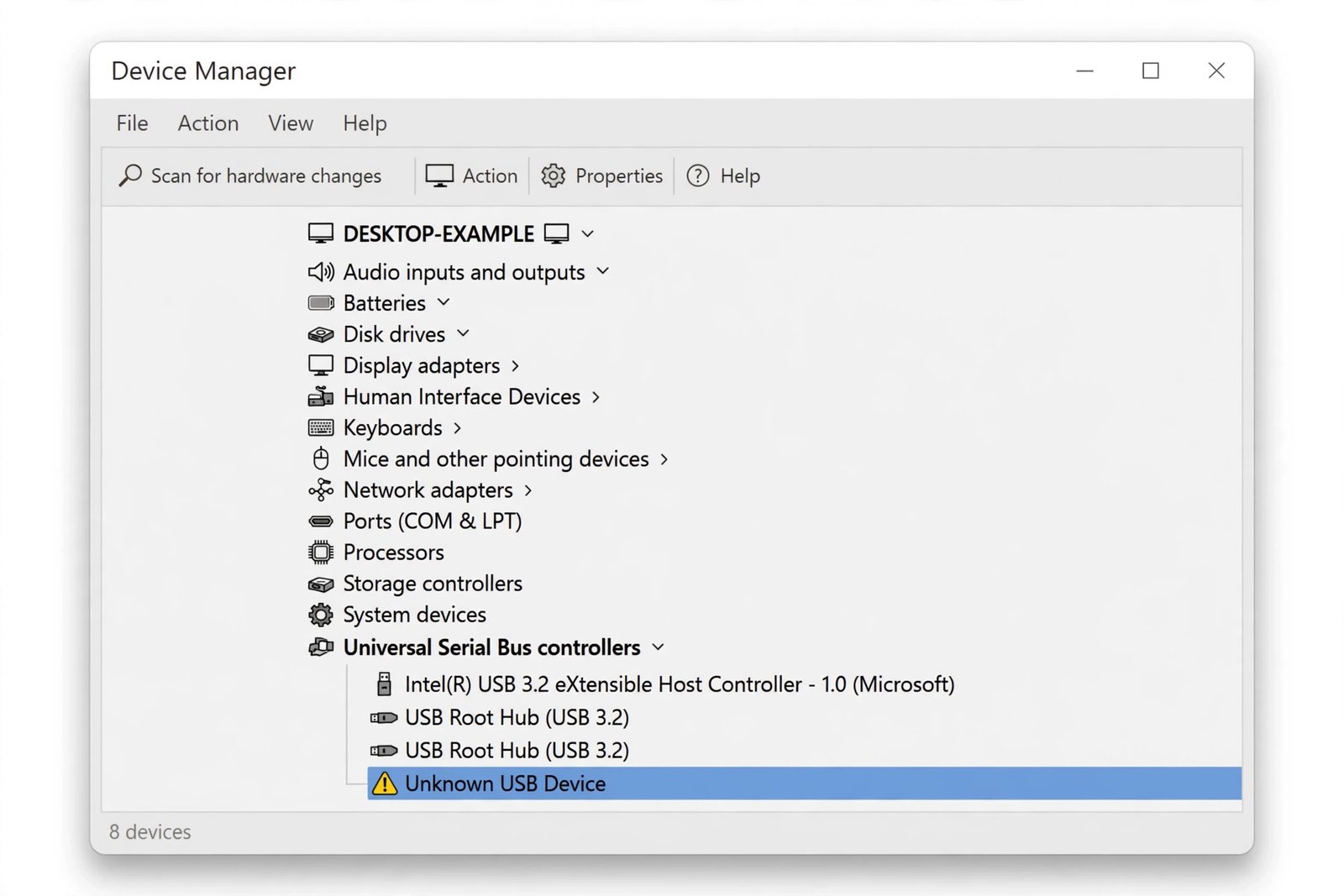
- Expand Universal Serial Bus controllers.
- Right-click Unknown USB Device (Device Descriptor Request Failed) and choose Uninstall device.
- Unplug the USB device, restart your computer, then plug the device back in. Windows reinstalls the driver automatically.
Fix 2: Update the USB Root Hub Drivers
If reinstalling the device entry did not help, the problem may sit one level deeper, in the drivers that power the ports themselves.
- In Device Manager, expand Universal Serial Bus controllers again.
- Right-click each USB Root Hub entry and choose Update driver, then Search automatically for drivers.
- If your PC has several USB Root Hub entries, repeat for each one, then restart.
Fix 3: Disable USB Selective Suspend
Windows can put idle USB ports into a low-power state to save energy. Sometimes a port never wakes up properly, and the next device you plug in fails to identify itself.
- Open Control Panel and go to Power Options.
- Next to your active plan, click Change plan settings, then Change advanced power settings.
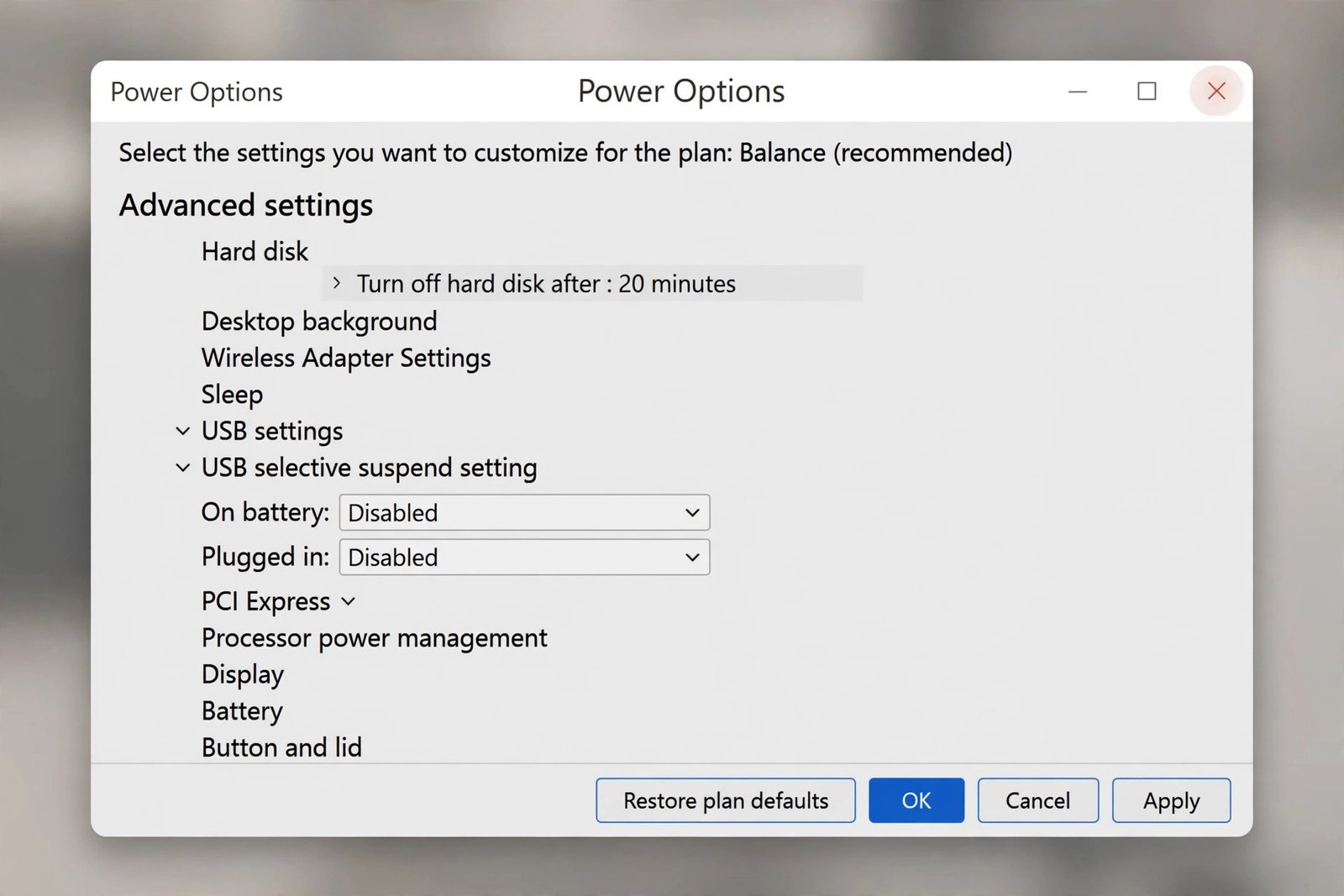
- Expand USB settings, then USB selective suspend setting.
- Set both On battery and Plugged in to Disabled, click Apply, then OK.
- Restart and reconnect the device.
Fix 4: Turn Off Fast Startup
Fast Startup can skip full hardware initialization during boot, which sometimes leaves USB devices in a half-initialized state.
- Open Control Panel > Power Options and click Choose what the power buttons do.
- Click Change settings that are currently unavailable.
- Uncheck Turn on fast startup (recommended), click Save changes, and restart.
Fix 5: Run the Hardware Troubleshooter and Update Windows
Windows still ships troubleshooting tools that can detect USB controller problems automatically. Go to Settings > System > Troubleshoot > Other troubleshooters and run the relevant hardware troubleshooter. While you are at it, install any pending Windows updates from Settings > Windows Update, since driver fixes often arrive through them.
Fix 6: Disable Enhanced Power Management in the Registry
This is the advanced fix, and it helps when Windows aggressively manages power for a specific USB device. Back up your registry or create a system restore point before editing anything here.
- In Device Manager, right-click the failed USB device, choose Properties, go to the Details tab, and copy the Device instance path.
- Press Windows + R, type regedit, and press Enter.
- Navigate to HKEY_LOCAL_MACHINE\SYSTEM\CurrentControlSet\Enum, paste the device path to jump to the right key, and open its Device Parameters subkey.
- Right-click in the right pane, choose New > DWORD (32-bit) Value, name it EnhancedPowerManagementEnabled, and set its value to 0.
- Close the Registry Editor and restart your computer.
This registry method is documented in detail on Kapil Arya’s site, and The Windows Club lists further options including chipset driver updates from your motherboard manufacturer.
When It Is a Hardware Problem
If every fix above fails and the device also fails on another computer, the device itself has likely failed. If the device works elsewhere but no port on your PC accepts it, the USB controller or motherboard may be at fault. In that case, check your BIOS or UEFI for USB settings, and consider a professional repair rather than more software tweaks. Related reading: how to enable or disable USB ports in Windows, how to resolve the no battery detected error, and how to keep Num Lock on after startup.

- How to Stop Android Auto-Connecting to Open Wi-Fi Networks - October 24, 2026
- How to Stop iPhone Apps Asking for Ratings and Reviews - October 23, 2026
- How to Turn Off HDR in Windows 11 When Colors Look Washed Out - October 22, 2026