
An honest note before we start: Windows 7 reached its end of life on January 14, 2020. It no longer receives security updates, and Microsoft’s own advice is to move to a supported version of Windows. If you are still on Windows 7 because of old hardware or legacy software, the safest long-term move is upgrading, not hardening. That said, plenty of machines are still out there, so here are four working methods to enable or disable USB ports on Windows 7, from quickest to strongest.
All four methods need an administrator account. Pick one method and stick with it; combining them is how people lock themselves out of their own keyboards.
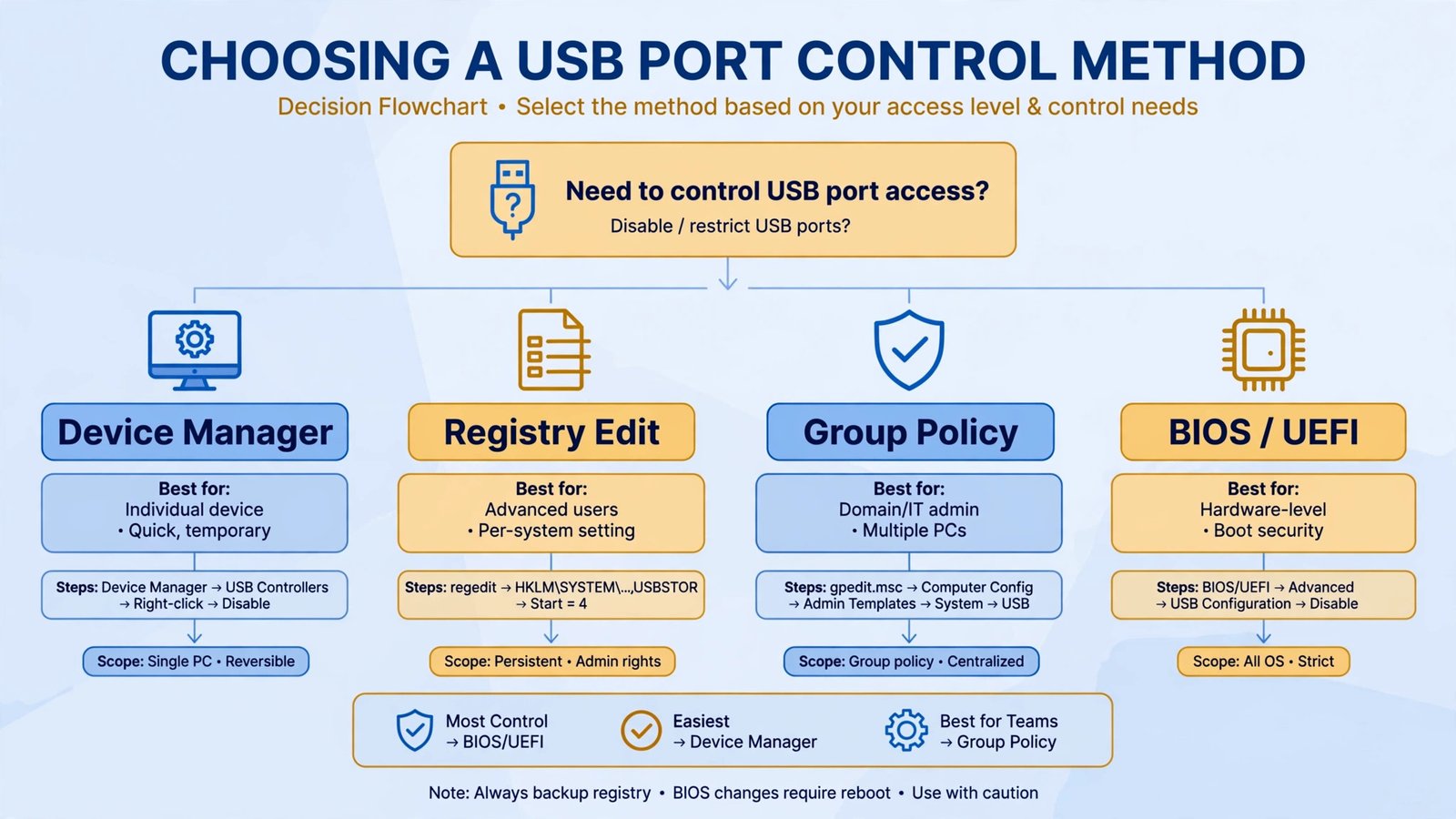
Method 1: Disable USB devices in Device Manager
The fastest reversible method. Good when you want to block USB devices right now and might change your mind later.
- Press Windows key + R, type
devmgmt.msc, and press Enter. - Expand Universal Serial Bus controllers.
- Right-click each USB Root Hub (and any USB Mass Storage Device) and choose Disable. Confirm the warning.
- To re-enable, right-click the same entries and choose Enable.
Method 2: Block USB storage with a registry edit
This is the classic sysadmin method: it stops the USB storage driver from starting, which blocks flash drives and external hard disks. Back up the registry first (in Registry Editor: File, then Export).
- Press Windows key + R, type
regedit, and press Enter. - Navigate to
HKEY_LOCAL_MACHINE\SYSTEM\CurrentControlSet\Services\USBSTOR. - Double-click the Start value. Set it to 4 to disable USB storage, or 3 to re-enable it. Click OK and restart.
Prefer a file? Save the following as disable-usb.reg, double-click it, and confirm. Change the 4 to a 3 for the re-enable version.
Windows Registry Editor Version 5.00

[HKEY_LOCAL_MACHINE\SYSTEM\CurrentControlSet\Services\USBSTOR]
"Start"=dword:00000004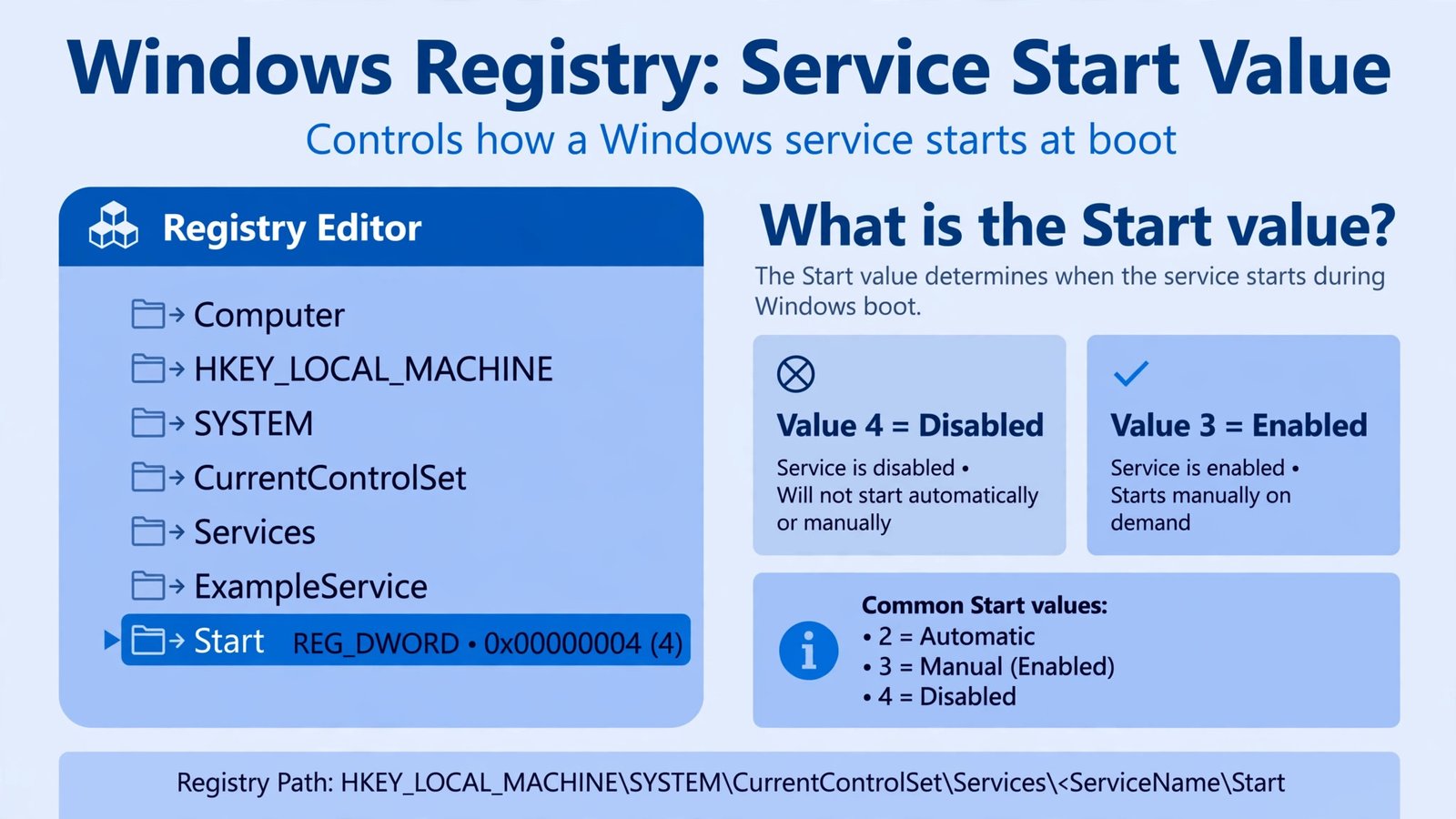
Method 3: Use Group Policy (Pro, Ultimate, and Enterprise only)
Windows 7 Professional, Ultimate, and Enterprise include the Group Policy Editor, which can deny USB storage access cleanly. This does not exist on Windows 7 Starter or Home editions; use Method 2 there instead.
- Press Windows key + R, type
gpedit.msc, and press Enter. - Go to Computer Configuration, then Administrative Templates, then System, then Removable Storage Access.
- Double-click Removable Disks: Deny write access to block copying files to USB drives, or Deny read access to block them entirely. Set it to Enabled and click OK.
- Set both back to Not Configured to undo.
Method 4: Disable USB ports in the BIOS
The nuclear option, and the only one that blocks everything, including USB keyboards and mice. Use it on kiosk or lab machines, not on your daily driver.
- Restart the PC and press Del, F2, or F10 during boot to enter the BIOS or UEFI setup.
- Find the Advanced or Integrated Peripherals section and locate the USB Controller or USB Ports setting.
- Set it to Disabled, save, and exit. Re-enable from the same screen if you ever need USB back.
Warnings before you start
Back up the registry before editing it. In Registry Editor, click File, then Export, and save a copy. A wrong edit in the wrong key can stop Windows from booting.
The USBSTOR registry trick blocks USB storage devices only: flash drives and external disks. USB keyboards and mice keep working because they use different drivers. If you must block those too, the BIOS method is the only one that does.
If Windows is already misbehaving with USB hardware, see our guide to the unknown USB device error before changing anything. And remember why you are doing this: on an OS without security patches, controlling USB access is one layer of defense, which is why our cybersecurity basics still matter for older machines.
Verdict
For most people, Method 2 (registry) is the sweet spot: one value, easy to reverse, survives reboots. Use Method 1 if you only need a temporary block, Method 3 if you manage several Windows 7 Pro machines, and Method 4 only for locked-down kiosks. And one last honest word: none of these methods make Windows 7 safe to use online in 2026. If the machine touches the internet, upgrading it is the real fix.

- How to Fix the Windows 11 Taskbar Auto-Hide Problem - October 24, 2026
- How to Fix a Laptop Camera Not Working in Windows 11 - October 23, 2026
- How to Fix the Brightness Slider Missing in Windows 11 - October 22, 2026