
To turn off Enhance pointer precision in Windows 11, open Settings, go to Bluetooth & devices, then Mouse, and switch Enhance pointer precision to Off. The change applies right away, with no restart needed. If your PC lacks that switch, use the classic Mouse Properties window instead.
Enhance pointer precision is the name Windows gives to mouse acceleration. It is switched on by default, and most people never notice it. But if your aim in a game feels different from one match to the next, or your cursor sometimes overshoots a small button, this setting is often the reason.
What Enhance pointer precision actually does
When Enhance pointer precision is on, Windows changes how far the pointer travels based on how fast you move the mouse, not only on how far you move it. A quick flick sends the cursor much farther than a slow drag over the same distance. Microsoft describes it as making the pointer more accurate during slow movement.
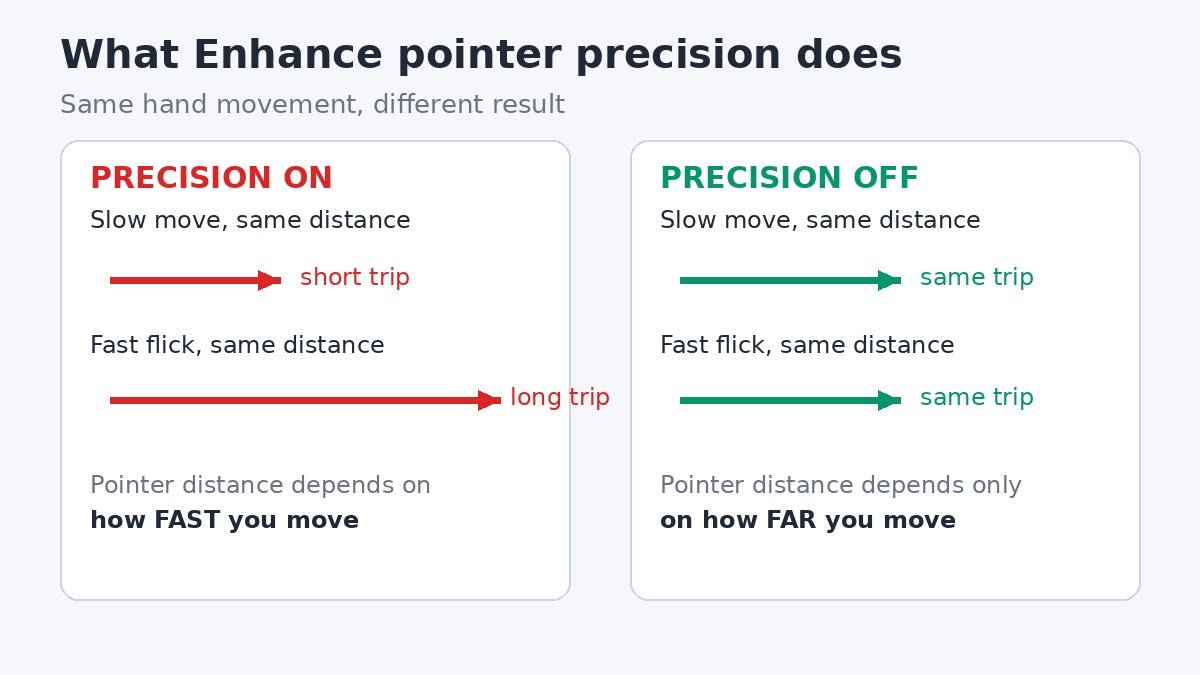
The problem is that the same hand movement no longer gives the same result. Gamers call this a broken sense of muscle memory, because the pointer distance depends on speed as well as distance. Designers hit the same issue when they need steady, repeatable strokes in photo editing or drawing software. Turning the setting off restores a direct one to one relationship: the pointer always travels the same distance for the same hand movement.
That does not mean the setting is bad for everyone. For browsing, email, and office work, many people prefer it on, because slow movements stay gentle for precise clicks while fast movements still cross a large screen quickly. The right choice depends on what you do most.
Turn it off in Settings
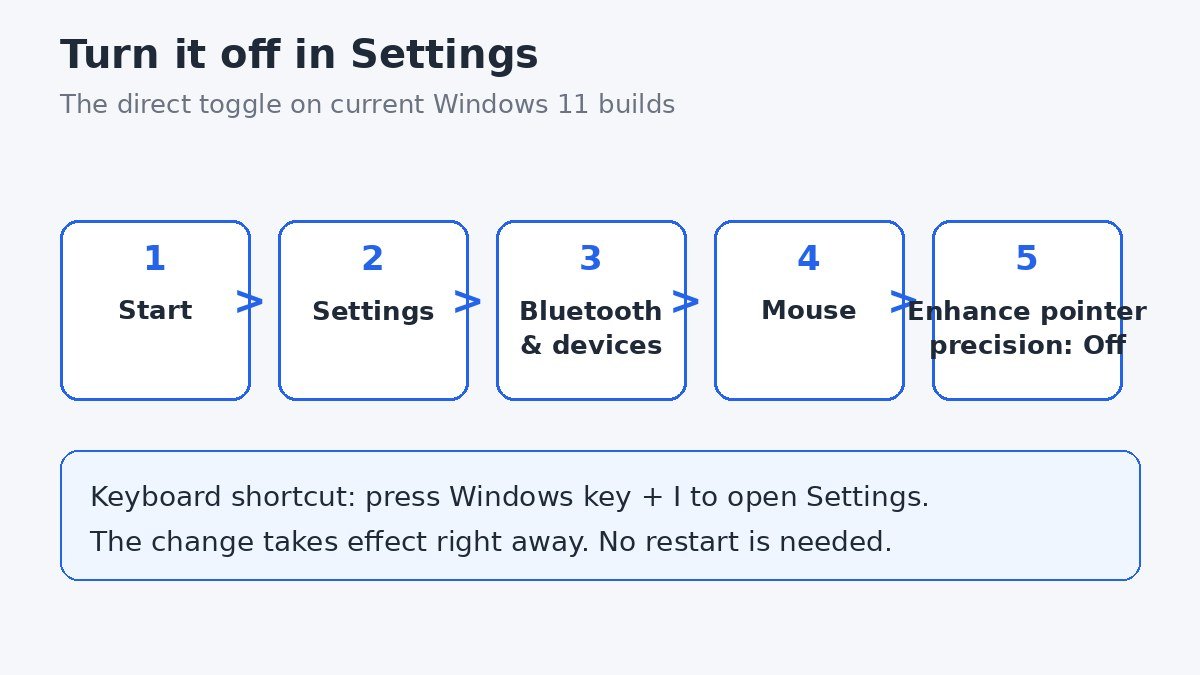
Current Windows 11 builds put the Enhance pointer precision switch right on the Mouse page in Settings. This is the fastest way to turn it off, and it takes less than a minute.
- Press the Windows key + I to open Settings.
- Select Bluetooth & devices in the left hand menu, then select Mouse.
- Find Enhance pointer precision on the Mouse page and switch it to Off.
- Close Settings. There is no save button, and the change takes effect immediately.
Microsoft documents this path in its guide to changing mouse settings, which also covers pointer speed and scrolling. If you do not see the switch on your Mouse page, your build keeps the setting in the classic window instead, so use the method in the next section. The same page also controls the scroll wheel. If scrolling ever feels backwards, our guide to reversing mouse scroll direction on Windows 11 walks through that setting step by step.
One detail to note: the Mouse pointer speed slider does not turn acceleration on or off. It only sets how fast the pointer moves overall, while Enhance pointer precision controls whether speed changes the distance. Leave the slider where it is unless you have a separate reason to change it.
Use the classic Pointer Options window
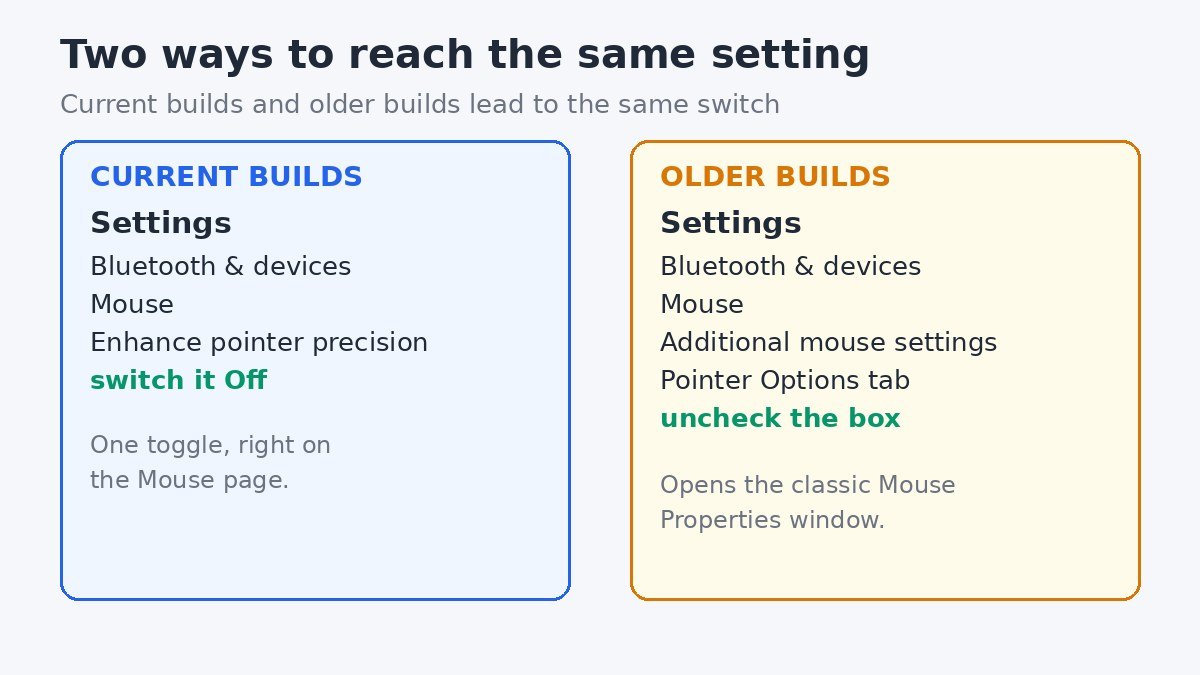
Older Windows 11 builds keep the setting in the classic Mouse Properties window. This route changes exactly the same switch as the Settings toggle, so use whichever one your PC shows.
- Press the Windows key + I to open Settings.
- Select Bluetooth & devices, then select Mouse.
- Under Related settings, select Additional mouse settings. The Mouse Properties window opens.
- Select the Pointer Options tab.
- Under Motion, clear the Enhance pointer precision checkbox.
- Select Apply, then select OK.
If you use a mouse with its own software, such as Logitech G Hub or Razer Synapse, check its settings as well. Manufacturer software can apply its own acceleration or override the Windows setting.
Stop it turning itself back on with the registry
Most people never need this section. But some users report that Enhance pointer precision switches itself back on after a Windows update or a driver update. The registry holds the values that decide whether acceleration is active, so editing them is the fallback when the checkbox will not stay off. Back the registry up first.
Before you change anything, back up the key you are about to edit. Microsoft explains how to back up and restore the registry in Windows, and the process takes less than a minute. In Registry Editor, right click the Mouse key, choose Export, and save the file somewhere safe.
- Press the Windows key + R, type regedit, and press Enter. Select Yes if User Account Control asks for permission.
- In the address bar at the top of Registry Editor, paste HKEY_CURRENT_USER\Control Panel\Mouse and press Enter.
- Double click MouseSpeed and set its value data to 0.
- Double click MouseThreshold1 and set its value data to 0.
- Double click MouseThreshold2 and set its value data to 0.
- Close Registry Editor, then sign out and sign back in, or restart your PC, so Windows reloads the values.
Setting all three values to 0 removes the speed based adjustment from the pointer. To turn acceleration back on, set MouseSpeed to 1, MouseThreshold1 to 6, and MouseThreshold2 to 10. Ticking the checkbox again in Mouse Properties is the easier way to undo the change. Do not confuse MouseSpeed with MouseSensitivity: the second one is the pointer speed slider, and changing it will not switch acceleration on or off.
How to check it is really off
After changing the setting, confirm that it actually stuck, especially if it has switched itself back on before. Open the classic window again and look at the checkbox. Go to Settings, Bluetooth & devices, Mouse, then Additional mouse settings, and open the Pointer Options tab. If the box is empty, the setting is off. If it is ticked again, the registry method in the previous section is the next step.
A second check takes a few seconds and needs no menus at all. Put the pointer at the left edge of the screen, then move the mouse the same physical distance twice: once slowly, once with a fast flick. With acceleration off, the pointer should stop in the same place both times. With it on, the fast flick will carry it noticeably farther.
One more thing to keep in mind: some games read the mouse directly and ignore the Windows setting. If your aim still feels inconsistent inside one particular game after turning the setting off, open that game’s own mouse settings and check whether it has its own acceleration or smoothing option.
Should you turn it back on?
There is no single right answer, and it depends on what you spend most of your time doing. The table below is a simple starting point. Try the setting off for a few days before you decide, because the first hour always feels strange.
| What you do most | Best setting to try first |
|---|---|
| First person shooters and competitive games | Off, for consistent aim |
| Photo editing and design work | Off, for steady, repeatable strokes |
| Everyday browsing and office work | On or off, keep whichever feels better |
| Small, precise clicks in spreadsheets and forms | Try off first, switch back if it feels worse |
If you play competitive games, the case for off is the strongest, because the same flick should always land the crosshair in the same place. If you mostly browse and work in documents, the difference is smaller, and some people prefer the help that acceleration gives to slow movements. Either way, the setting costs nothing to try, and switching it back takes the same minute.
Turning off Enhance pointer precision will not make anyone a better player overnight, but it does make the pointer behave the same way every time, and that consistency is the whole point. The setting takes a minute to change, it is easy to reverse, and once it is off you can simply forget about it.

- How to Turn Off Enhance Pointer Precision in Windows 11 - November 14, 2026
- How to Stop iPhone Mirroring Notifications on Mac - November 13, 2026
- How to Turn Off Voice Control on iPhone - November 12, 2026