
Voice Control lets you run your iPhone with spoken commands, but it can also switch itself on at the worst moment, opening apps or tapping buttons as you talk. The fix is quick once you know which Voice Control you have, because Apple uses the name for two different features. If a microphone icon sits in the status bar and your phone reacts to ordinary speech, turn off the Accessibility feature in Settings, Accessibility, Voice Control. If a plain voice screen opens only when you press and hold the Side button or the Home button, that is Classic Voice Control, and it turns off in a different place: Settings, Accessibility, Side Button, then Press and Hold to Speak, then Off. The steps below cover both, plus a pause option for when you want quiet without losing the feature.
Two kinds of Voice Control, and which one is on your iPhone
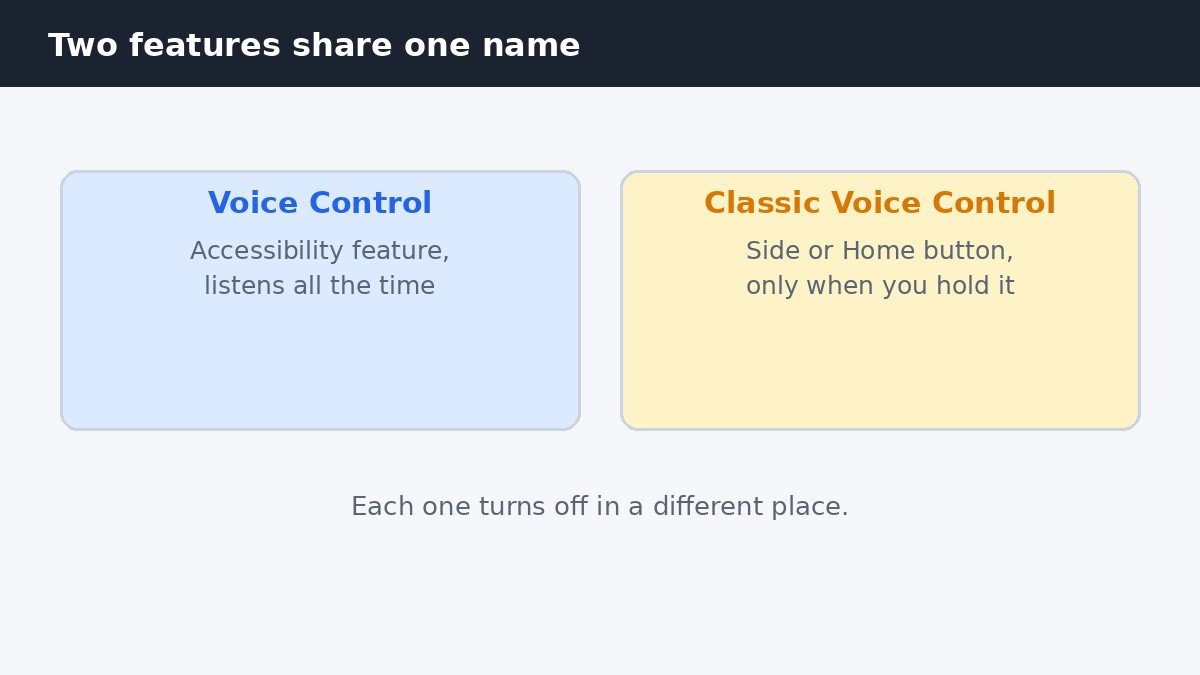
The name causes most of the confusion around this setting. The newer Voice Control is an accessibility feature from iOS 13 that lets you control the whole phone by voice, opening apps, tapping buttons, and dictating text. When it is on, a small microphone icon appears in the status bar, and the phone keeps listening for commands. Classic Voice Control is older and much simpler. It only wakes when you press and hold the Side button, or the Home button on an iPhone with one, and it mainly handles basic commands like calling a contact.
Tell them apart by when the voice screen appears. If it shows up while you are talking, you have the Accessibility feature. If it shows up only after a long press of the button, you have Classic Voice Control. Both fixes take under a minute, and neither one turns Siri off.
Turn off Voice Control in Settings
Use these steps when the microphone icon is in the status bar or the phone reacts to speech on its own. Open Settings, then tap Accessibility. Under Physical and Motor, tap Voice Control, then switch Voice Control off at the top of the screen. The microphone icon leaves the status bar at once. These steps match the layout in iOS 27 as well.
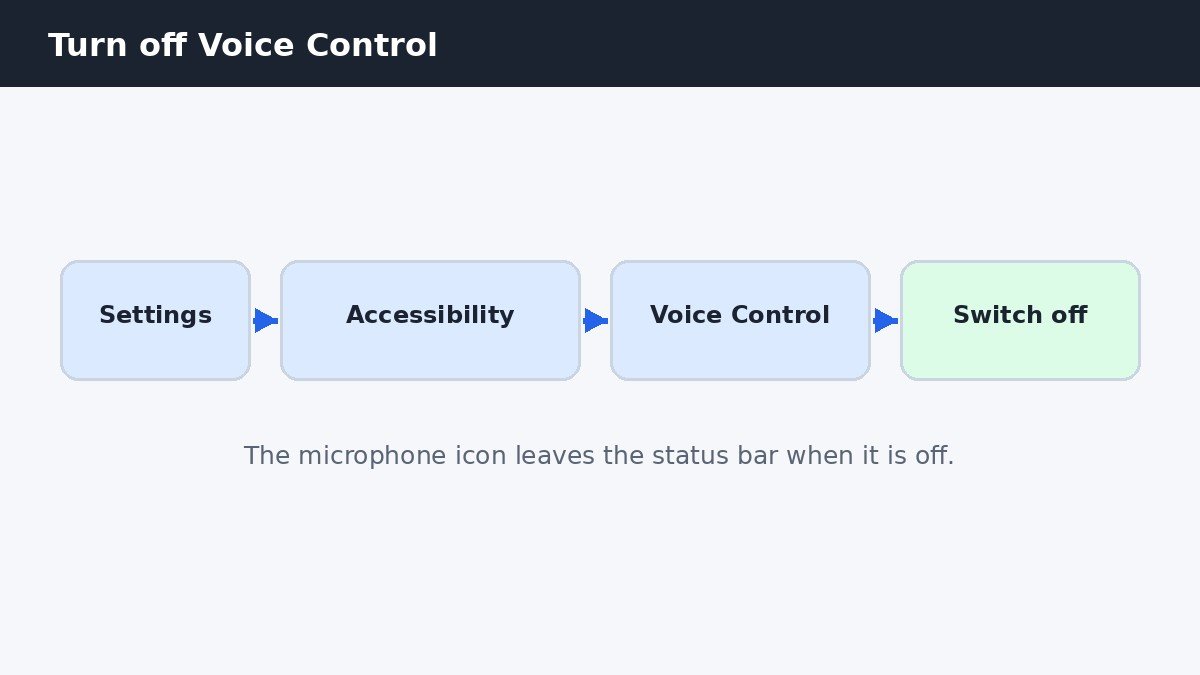
- Open the Settings app.
- Tap Accessibility.
- Tap Voice Control under Physical and Motor.
- Switch Voice Control off at the top of the screen.
There is no save button and no restart, so the change takes effect right away. Say a command out loud and nothing should happen. If the phone still reacts, check the switch again, or try the Classic Voice Control fix below. Apple’s own Voice Control guide lists the same steps.
Turn off Classic Voice Control on the Side or Home button
Use these steps when a voice screen opens only after you press and hold a button. Open Settings, then tap Accessibility. On an iPhone with Face ID, tap Side Button. On an iPhone with a Home button, such as iPhone SE, tap Home Button. Under Press and Hold to Speak, tap Off to make a long press do nothing, or tap Siri to keep Siri on the button.
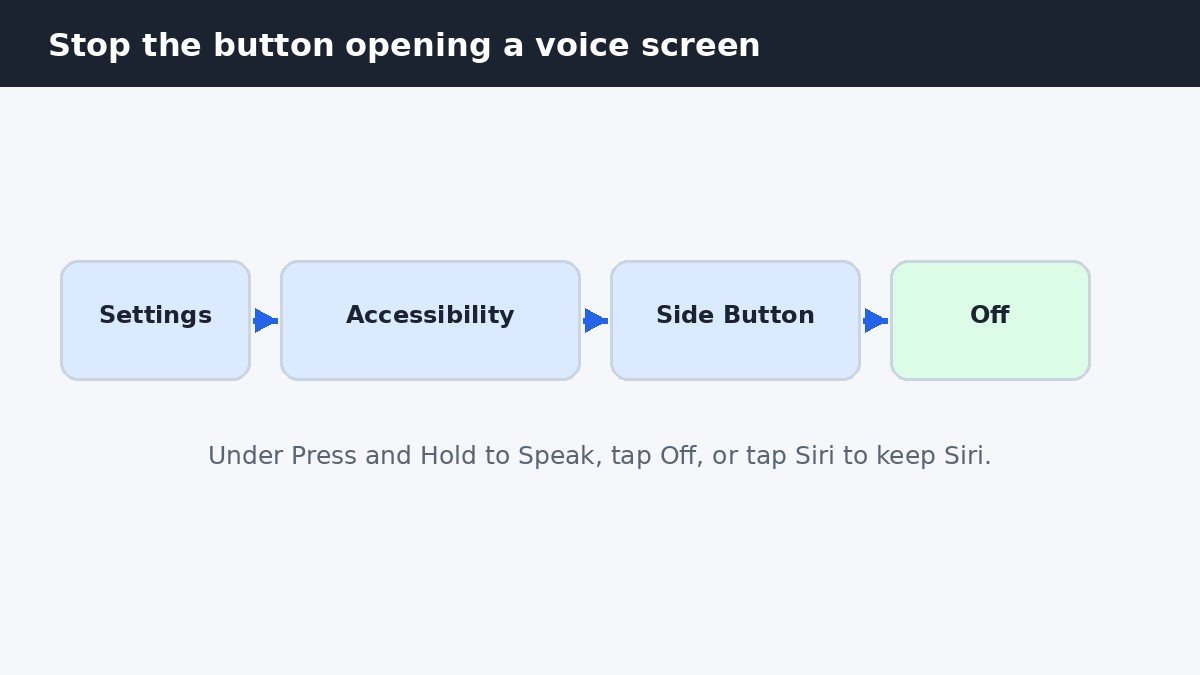
Choosing Off also stops Siri from opening when you hold that button, but you can still call Siri by voice. Choosing Classic Voice Control instead also turns Siri off for that button, which is why some people find Siri has gone missing after picking it. To undo the change, return to the same screen and pick Siri or Classic Voice Control again. The choices can vary by iOS version, and if Classic Voice Control is not listed, Off still stops the long press.
Pause it for a while instead of switching it off
If you use Voice Control sometimes but want quiet now, pausing beats turning it off. Say Stop listening and it stops treating your words as commands. Say Start listening when you want it back. The feature stays on, so your settings are still there when you resume. Apple’s iPhone User Guide lists the same two phrases for pausing and resuming.
Three faster ways do the same job without digging through Settings. If Siri is set up, say Siri, turn off Voice Control. If Voice Control is assigned to the Accessibility Shortcut, triple-click the Side button or the Home button. If you added Voice Control to Control Center, open Control Center and tap its control.
Does turning off Voice Control turn off Siri?
No. Voice Control and Siri are separate features with separate settings, and turning one off leaves the other alone. The only setting that touches Siri is Press and Hold to Speak on the Side or Home button: choosing Off there stops Siri opening from that button, and choosing Classic Voice Control there turns Siri off for the button too. Siri keeps working through its other ways of starting either way.
If Siri Suggestions are the part that bothers you rather than Voice Control, the fix sits in a different place. Those app and contact hints on the lock screen and in search can be switched off on their own, and this guide to turning off Siri Suggestions on iPhone walks through it. That change leaves Voice Control and Siri itself untouched.
| Feature | Where to turn it off | Effect on Siri |
|---|---|---|
| Voice Control (Accessibility) | Settings, Accessibility, Voice Control | None, Siri keeps working |
| Classic Voice Control | Settings, Accessibility, Side Button, Press and Hold to Speak | Off also stops Siri opening from the button |
Voice Control keeps coming back: what to check
If Voice Control switches itself back on, the Accessibility Shortcut is the usual cause. Triple-clicking the Side button or the Home button toggles whatever is assigned to it, and Voice Control is often on that list. Open Settings, Accessibility, Accessibility Shortcut, and deselect Voice Control.
A second cause is Voice Dial. If your iPhone makes calls when you hold a button while it is locked, open Settings, tap Face ID and Passcode, or Touch ID and Passcode on older models, and switch Voice Dial off. That stops voice dialing from the lock screen.
Check the status bar after each change: the microphone icon means Voice Control is still on. Work through the two fixes in order, and the icon should be gone.
Voice Control is useful for the people who need it, and a nuisance for everyone else, mostly because Apple gave two different features the same name. Once you know which one is on your phone, the fix is one switch or one choice on the button screen. Set it the way that suits you, and your iPhone will stop answering words that were never meant for it.

- How to Turn Off Voice Control on iPhone - November 12, 2026
- How to Turn Off Back Tap on iPhone - November 11, 2026
- How to Turn Off Hibernation in Windows 11 - November 10, 2026