
Clipboard history in Windows 11 keeps a list of the last 25 things you copied and shows them when you press Windows key + V. That list is handy when you paste the same address or snippet more than once, but it also means passwords, codes, and private text sit in a list anyone using your PC can open. If you would rather Windows kept nothing, the fix is quick: open Settings, then System, then Clipboard, and set Clipboard history to Off. Windows stops saving new items at once, and the Windows key + V panel goes back to offering to turn history on. The rest of this guide covers the second switch most people miss, how to clear what is already saved, and how to lock it off.
Turn off clipboard history in three steps
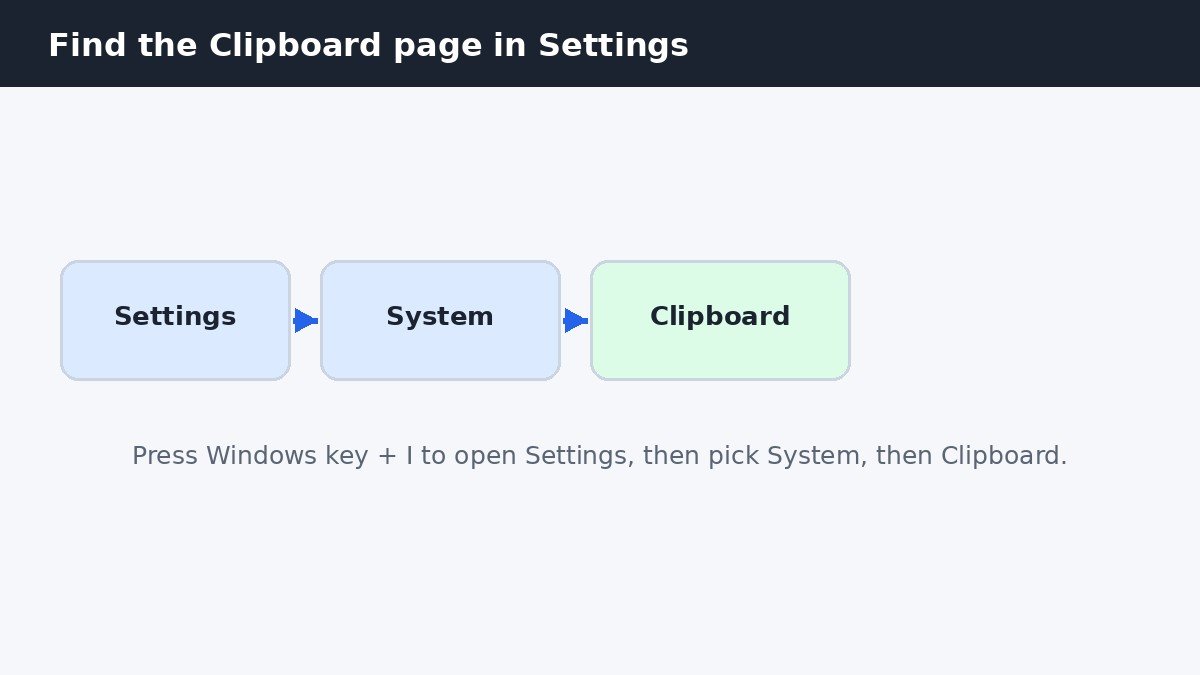
Press Windows key + I to open Settings. Click System in the left column, then scroll down and click Clipboard. Near the top of the Clipboard page, find Clipboard history and set the switch to Off. That is the whole job, and it takes effect at once, with no restart and no save button.
To check it worked, press Windows key + V. Instead of your copied items, the panel now shows a Turn on button. That button is proof history is off, so leave it alone unless you want the feature back. If you press it by accident, history switches on again and starts saving new items, so go back to Settings and switch it off again.
Turn off cloud sync too
Clipboard history and cloud sync are two separate switches on the same page, and turning off the first does not turn off the second. The second switch is called Clipboard history across your devices. When it is on, Windows uploads the text you copy to your Microsoft account so you can paste it on your other PCs, with two choices underneath: Automatically sync text that I copy, or Manually sync text that I copy.
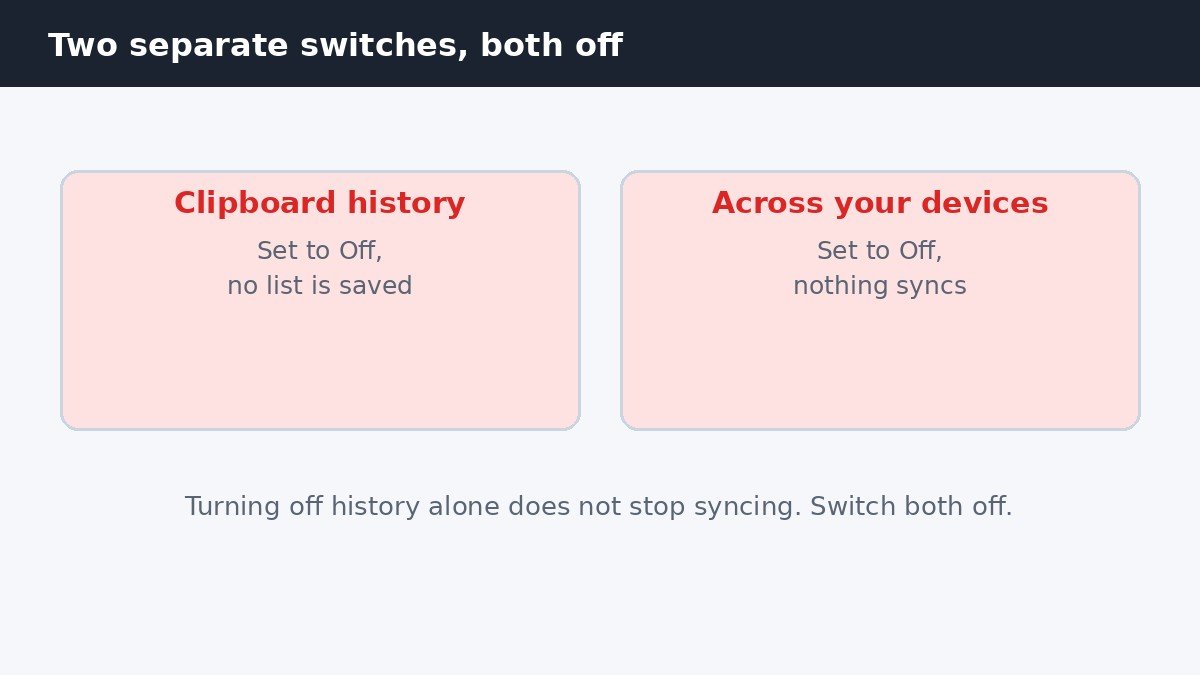
If you turn history off but leave sync on, nothing new gets saved, so nothing new gets uploaded either. Even so, switch sync off as well if you never paste across devices. It removes any doubt about where your copied text goes, and it stops the feature waking up if history gets switched back on later. Microsoft’s own clipboard guide lists the same two toggles and explains the sync options in full.
Note that sync only covers text, not images, and it needs the same Microsoft account or work account signed in on every device. A local account cannot sync at all, so the switch may be greyed out on a PC signed in with one. If the switch is greyed out and the page says some settings are managed by your organization, a work or school policy is controlling it.
Clear what Windows already saved
Turning history off stops Windows saving new items, but it does not delete the list already there. To wipe it, stay on the same Clipboard page and scroll to Clear clipboard data, then select Clear. Microsoft says this clears everything except pinned items, on your device and in the cloud.
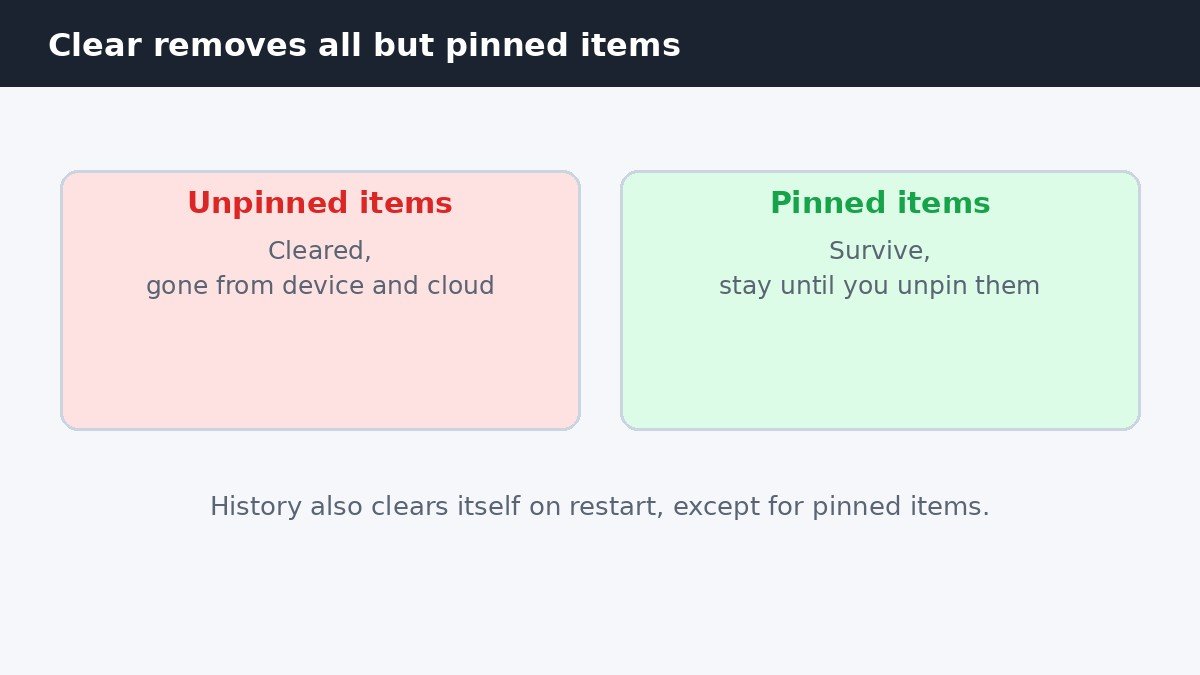
Pinned items are the exception. A pinned item stays put through Clear, through Clear all in the panel, and through a restart. History normally clears itself each time you restart your PC, but pinned items survive that too. If a pinned item holds something private, open Windows key + V, select the three dots next to it, and choose Unpin, then delete it. To remove one item without clearing everything, press Windows key + V, select See more (…) next to the item, and select Delete.
Lock it off so it stays off
The Settings switch works fine on a PC only you use, but anyone with access to your PC can switch it back on. On Windows 11 Pro, Enterprise, or Education, Group Policy can lock it off. Press Windows key + R, type gpedit.msc, and press Enter. Go to Computer Configuration, Administrative Templates, System, OS Policies, then double-click Allow Clipboard History. Select Disabled and click OK. With the policy disabled, the switch in Settings is greyed out and the Windows key + V panel shows no items.
Windows 11 Home does not include the Group Policy Editor, so use the registry instead. Press Windows key + R, type regedit, and press Enter. Go to HKEY_LOCAL_MACHINE\SOFTWARE\Policies\Microsoft\Windows\System, create a DWORD (32-bit) value named AllowClipboardHistory, and set its value data to 0. Close Registry Editor and restart the PC for the change to take hold. Editing the registry can cause problems, so back it up first: in Registry Editor, select File, then Export, and save a copy. To undo the lock later, delete the AllowClipboardHistory value or set it to 1, then restart.
What still works with history off
Turning history off changes very little about everyday copy and paste. Ctrl + C and Ctrl + V keep working exactly as before, and Windows still remembers the last thing you copied. The only thing that changes is the list: Windows key + V no longer shows older items. Microsoft’s clipboard overview describes the same behavior and the same shortcuts.
| Feature | History on | History off |
|---|---|---|
| Copy and paste (Ctrl + C, Ctrl + V) | Works | Works, last item only |
| Windows key + V list | Up to 25 items | Shows a Turn on prompt |
| Cloud sync | Syncs text to other PCs | Nothing to sync |
| Pinned items | Saved across restarts | No items to pin |
Turning history back on later is just as easy: press Windows key + V and select Turn on, or flip the switch in Settings. Items copied while history was off do not appear, so you start with an empty list. The 25 item limit still applies when you switch it back on, and older unpinned items drop off as new ones arrive.
Should you turn it off?
It depends on how you use your PC. If you share the computer, copy passwords or codes, or simply never use the Windows key + V list, turning history off is the safer and simpler choice, and nothing about normal copy and paste changes. If you paste the same snippets all day, keep history on and switch sync off instead, or pick Manually sync text that I copy. Either way, the two switches on the Clipboard page give you the control, and the Clear button wipes the slate when you need it.

- How to Turn Off Clipboard History in Windows 11 - November 12, 2026
- How to Turn Off Handoff on Mac - November 11, 2026
- How to Turn Off Control Center on iPhone Lock Screen - November 10, 2026