
Your iPhone alerts keep popping up on your Mac, even when you are not using iPhone Mirroring. The fastest fix is on the Mac: open the Apple menu, choose System Settings, click Notifications, and turn off Allow notifications from iPhone. That one switch stops every forwarded iPhone alert while leaving iPhone Mirroring itself working. Your iPhone keeps getting its own notifications exactly as before.
This guide walks through that switch, then shows how to silence only certain apps and how to stop an app from the iPhone side. The steps are for iOS 27 and macOS 27, the current versions as of November 2026.
Why your iPhone notifications show up on your Mac
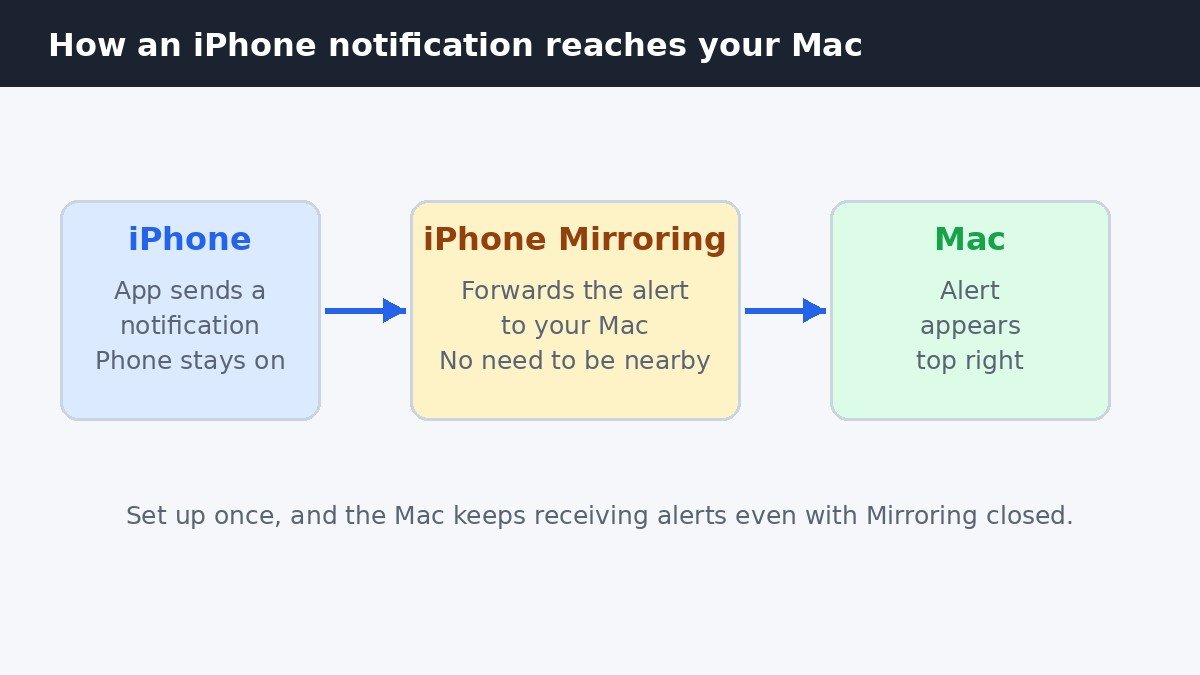
When you set up iPhone Mirroring, your Mac starts receiving your iPhone notifications automatically. This is separate from the mirrored iPhone screen. Once the pairing exists, the Mac forwards alerts even when the iPhone Mirroring window is closed and even when your iPhone is not nearby. The only requirement is that your iPhone is switched on.
That is why closing the mirroring window, locking your iPhone, or walking into another room does not stop the alerts. The forwarding keeps running in the background until you turn it off. Clearing a notification on your iPhone also clears it on your Mac, so the two stay in sync.
The quick fix: turn off iPhone notifications on your Mac
This is the switch most people want. It stops all forwarded iPhone notifications at once, and it does not touch anything else. iPhone Mirroring stays set up, so you can still open your iPhone screen on the Mac whenever you like.
- Click the Apple menu in the top left corner of your Mac screen.
- Choose System Settings.
- Click Notifications in the sidebar.
- Click Allow notifications from iPhone on the right.
- Turn off Allow notifications from iPhone.
The change applies right away, with no restart needed. New iPhone alerts stop appearing on the Mac, while your iPhone carries on as usual.
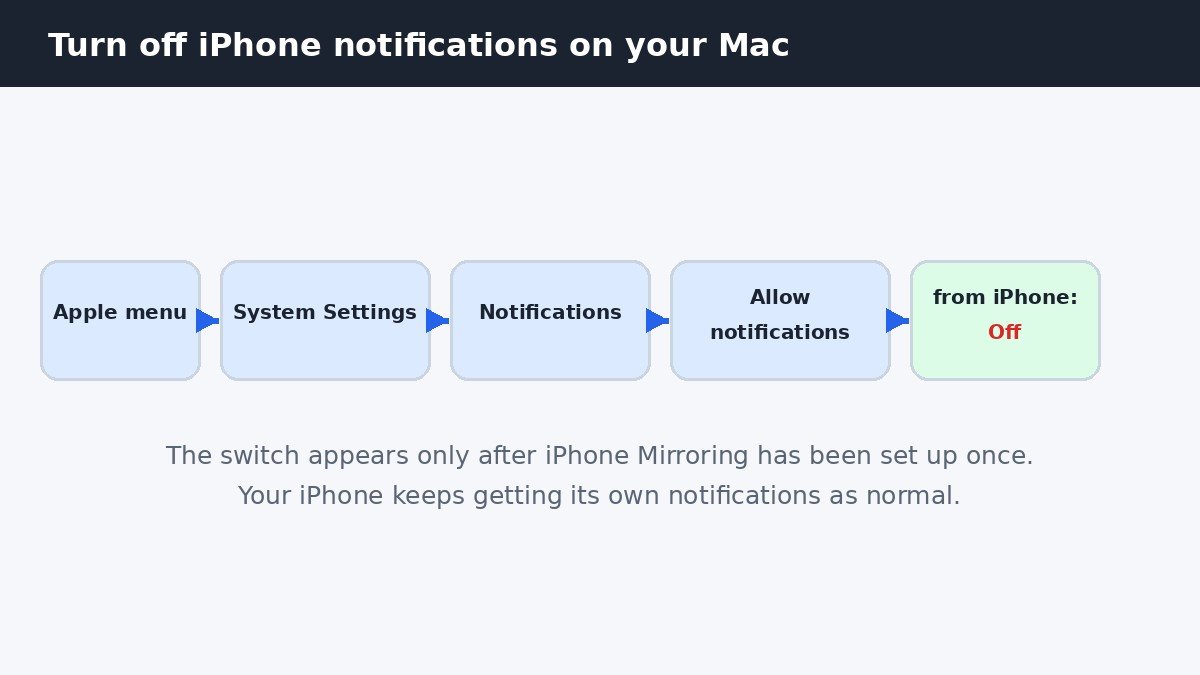
One thing to watch for: this switch only appears after you have set up and used iPhone Mirroring with that Mac at least once. If you do not see it, open the iPhone Mirroring app, connect to your iPhone, then look again. Apple documents this setting in its guide to managing iPhone notifications and Live Activities on Mac.
Silence just some apps, not all of them
Turning off everything is the quick fix, but it is not always the right one. Maybe you want Messages to reach your Mac while you work, but you want your shopping apps and games to stay quiet. The same settings screen lets you pick and choose.
- Go to the Apple menu, then System Settings, then Notifications.
- Click Allow notifications from iPhone.
- Leave the main switch turned on.
- Scroll down to the list headed Mirror iPhone Notifications From.
- Turn off each app you want to silence on the Mac.
Each app in the list has its own switch, so you can keep the alerts you act on and drop the rest. If an app says mirroring is disabled from your iPhone, that means it was switched off on the iPhone side, which the next section covers.
Stop an app from the iPhone side
You can also control this from your iPhone, which is handy when your Mac is not in front of you. The iPhone has a switch for each app that decides whether its alerts are allowed to reach the Mac at all.
- On your iPhone, open Settings.
- Tap Notifications.
- Tap the name of the app you want to silence on the Mac.
- Turn off Show on Mac.
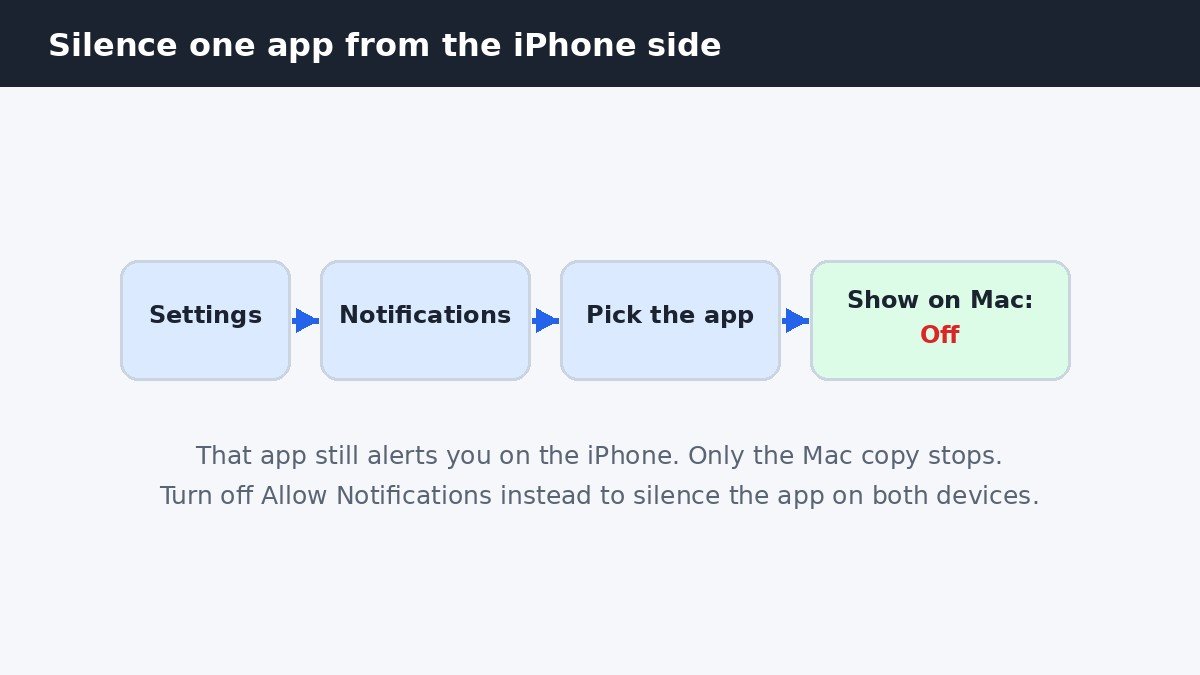
The app still alerts you on your iPhone exactly as before. Only the copy that would have appeared on your Mac is stopped.
Note the difference between the two switches on this screen. Turning off Show on Mac stops the Mac copy only. Turning off Allow Notifications at the top silences the app on both devices. Use that one only when you want the app quiet everywhere. Apple explains both switches in its guide to managing iPhone Mirroring.
Turning off notifications is not the same as turning off Mirroring
This is the point where many guides blur two different things. Stopping the notifications and stopping iPhone Mirroring are separate actions with very different results. Pick the one that matches what you actually want.
| What you do | What stops | What keeps working |
|---|---|---|
| Turn off Allow notifications from iPhone on the Mac | All forwarded iPhone notifications on the Mac | iPhone Mirroring, and iPhone notifications on the phone |
| Turn off Show on Mac for one app on the iPhone | That one app's alerts on the Mac only | The app's alerts on the iPhone, and all other apps on the Mac |
| Revoke iPhone Mirroring access | The mirrored screen, app access, and all forwarded notifications | Nothing on the Mac side, until you set up Mirroring again |
Revoking access is the nuclear option. On the Mac, open the iPhone Mirroring app, choose iPhone Mirroring, then Settings from the menu bar, and click Revoke Access to your iPhone. Or on the iPhone, go to Settings, then General, then AirPlay and Continuity, then iPhone Mirroring, swipe left on the Mac name, and tap Delete. Either way, the pairing is wiped, so using Mirroring again means going through setup a second time. Only do this if you want the whole feature gone.
Quitting the iPhone Mirroring app is different again. It ends the current session only and keeps your saved access, so the next time you open the app it connects straight away. It does not stop forwarded notifications either.
iPhone Mirroring is one of several Continuity features that link your Apple devices together. If the Handoff icons in your Dock bother you too, that is a separate setting, covered in our guide on how to turn off Handoff on Mac.
If the notifications still show up
If you flipped the switch and the alerts keep coming, work through these checks in order.
- Check the badge. Alerts with a small iPhone badge on the app icon are iPhone notifications, and the Allow notifications from iPhone switch controls them. With no badge, the alert is coming from a Mac app, and you need to change that Mac app's own notification settings instead.
- Check each Mac. Allow notifications from iPhone only appears after iPhone Mirroring has been set up and used once with that Mac. If you paired a second Mac, turn it off there too.
- Check Live Activities. On macOS Tahoe 26 and later, Live Activities from your iPhone have a separate switch in the same Notifications screen, called Allow Live Activities from iPhone. If timers, deliveries, and sports scores are the things still appearing, turn that off as well.
- Do Not Disturb is only temporary. It silences the alerts while it is on, including the mirrored ones, but they come back when Focus turns off. It is a good short term fix for a meeting, not a replacement for the real switch.
- Set it at setup next time. If you set up iPhone Mirroring again, Apple asks during setup whether to allow notifications from the iPhone. Choosing Don't Allow keeps the forwarding off from the start.
Your iPhone notifications appear on your Mac because iPhone Mirroring forwards them by design, not because something is broken. The Mac-side switch is the clean fix for most people, the per-app lists handle the noisy few, and revoking access is there only when you want the whole feature gone.

- How to Stop iPhone Mirroring Notifications on Mac - November 13, 2026
- How to Turn Off Voice Control on iPhone - November 12, 2026
- How to Turn Off Back Tap on iPhone - November 11, 2026