
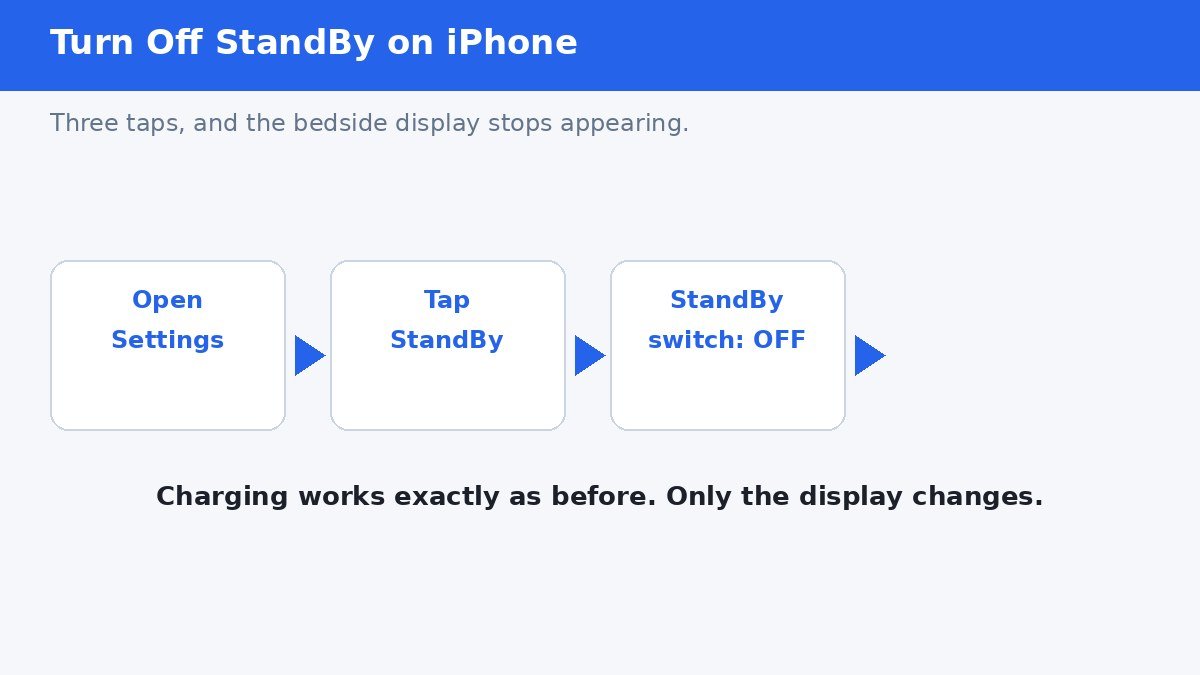
To turn off StandBy mode on iPhone, open Settings, tap StandBy, and switch the StandBy toggle off. From then on, charging your phone sideways shows the normal lock screen instead of the big bedside clock. StandBy is on by default on iPhones running iOS 17 or later, and the Settings, StandBy path is unchanged in the current iOS 27 line, so these steps work on any supported iPhone.
Turn off StandBy in Settings
- Open the Settings app.
- Scroll down and tap StandBy.
- Switch the StandBy toggle at the top to Off.
- That is all. No restart is needed.
To turn StandBy back on later, return to the same switch and turn it on. Your previous StandBy layout, including any widgets and photos you chose, is kept.
What changes when you turn it off
StandBy only appears when three conditions are true at once: the iPhone is charging, it is lying sideways in landscape orientation, and the screen is locked. Turning the switch off removes the bedside display from that situation entirely. Charging itself is untouched, and the phone works exactly as before in every other position.
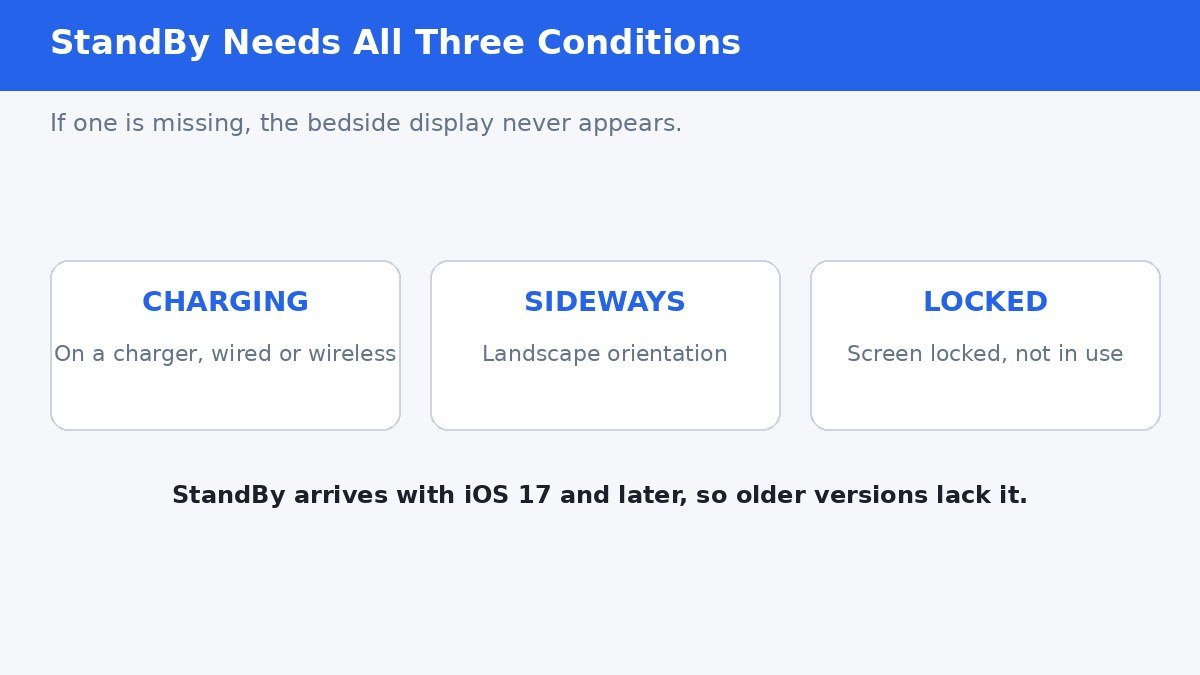
That three-condition rule is also a useful diagnostic. If StandBy never appears even with the switch on, one of the three is usually missing: the phone is upright, it is not charging, or the screen is unlocked.
Keep StandBy but make it quieter
If you like the bedside clock but hate being woken by it, you do not need to turn StandBy off completely. Three settings tame it.
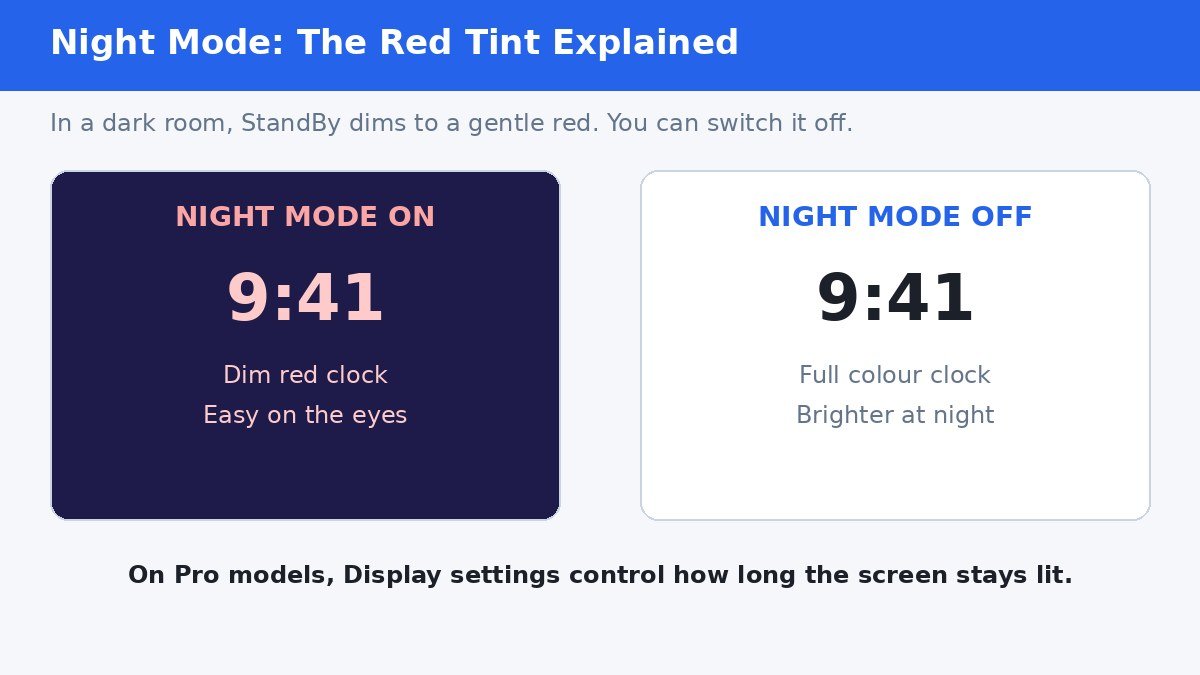
Night Mode is the red tint StandBy takes on in a dark room. On most iPhones it is a toggle inside Settings, StandBy, and switching it off keeps the clock in full colour at night. On Pro models the same screen offers Display options instead, covered below.
- Show Notifications: inside Settings, StandBy, switch off Show Notifications if alerts lighting up the bedside display bother you.
- Night Mode: inside Settings, StandBy, switch off Night Mode to stop the red tint in dark rooms.
- Display timing: on Pro models, go to Settings, StandBy, Display, and under Turn Display Off choose Automatically, After 20 Seconds, or Never, depending on how long the screen should stay lit.
| If this bothers you | Change this |
|---|---|
| The big clock appearing at all | Turn the main StandBy switch off |
| The red tint at night | Switch off Night Mode in StandBy settings |
| Notifications lighting up the screen | Switch off Show Notifications in StandBy settings |
| The screen staying lit all night | On Pro models, set Turn Display Off to Automatically or After 20 Seconds |
Pro models and the always-on difference
On iPhone 14 Pro and later Pro models, StandBy can stay visible all night thanks to the always-on display. That is why Pro models get the Display timing options above, while other iPhones show the simpler Night Mode toggle and dim their screens after a short time. On a non-Pro iPhone, the screen going dark in StandBy is normal behaviour, not a fault, and it saves battery and reduces screen wear.
Low Power Mode also overrides StandBy: with Low Power Mode on, the screen turns off after a short time even on Pro models. If StandBy keeps going dark and you want it lit, check Settings, Battery, and make sure Low Power Mode is off.
If StandBy keeps appearing anyway
- Confirm the switch is really off: open Settings, StandBy, and check the toggle at the top.
- Check that you are not looking at the normal lock screen in landscape, which can look similar on some wallpapers.
- Restart the iPhone once after changing the setting, in case the old behaviour is cached.
- If the switch is off and StandBy still appears, update iOS under Settings, General, Software Update, since a software bug is the remaining likely cause.
StandBy is a genuinely handy feature for a nightstand, but it should never be something you cannot switch off. One toggle in Settings ends it completely, and the quieter middle options cover everyone who likes the clock but not the glow.
## Verification notes (for the publisher, not the article) – Fact verification: Settings, StandBy, main toggle confirmed against multiple current guides including iOS 26 and iOS 27 context; StandBy pane has not moved in the current iOS line. Night Mode toggle, Show Notifications, Display timing options (Automatically, After 20 Seconds, Never), the three activation conditions (charging, landscape, locked), Pro-only always-on difference, and Low Power Mode overriding StandBy all confirmed. StandBy requires iOS 17 or later. One conditional point: the article says the pane is unchanged in iOS 27 based on iOS 27-era guides still showing the same Settings, StandBy path; no verified source showed a move. – Link counts: 0 outbound, 0 internal. No verifiable authoritative link target was available verbatim and no internal targets could be verified without contacting WordPress, so no links were forced. – No em dashes. No first-person testing claims.
- How to Turn Off StandBy Mode on iPhone - November 1, 2026
- How to Turn Off Live Voicemail on iPhone - October 31, 2026
- How to Stop Your iPhone From Asking to Share a Wi-Fi Password - October 30, 2026