
Sensitive Content Warning is the iPhone feature that blurs photos and videos that may contain nudity before you see them. It arrived with iOS 17, it works entirely on your phone, and for adult accounts it is off unless you switched it on. If it is on and you want it gone, the fix takes under a minute: open Settings, then Privacy and Security, then Sensitive Content Warning, and set the switch to Off. That is the whole job for most people. Two things still trip readers up. First, the warning has separate switches for each app, so you can keep it in Messages and drop it in AirDrop. Second, a different feature called Communication Safety can keep warnings appearing on a child’s phone even after the main switch is off. The sections below untangle the two controls, cover the FaceTime change in iOS 26, and explain what turning the warning off does not change.
What Sensitive Content Warning does, and what turning it off changes
When the feature is on, your iPhone checks photos and videos with on-device machine learning before they reach your eyes. Apple states that the analysis happens on the device, so Apple receives no indication that sensitive content was detected and gets no access to the photos or videos. A photo or video that looks like it may contain nudity is blurred, with a warning and a Show button if you decide to view it anyway. You can also block the sender from the same alert, and in Messages or a FaceTime call you can report the sender to Apple. Reporting is the one case where content leaves your phone.
The feature needs iOS 17 or later. It covers the Apple services listed in the table below. Apple also notes that turning it on for your iPhone turns it on for a paired Apple Watch as well, so if warnings still appear on your wrist after you switch the phone off, check the Watch. A newer addition, detection of gore and violence, needs iOS 27 or later, and Apple limits it to FaceTime video messages rather than live calls.
| Where it runs | What you see when it is on |
|---|---|
| Messages | Photos and videos arrive blurred until you tap Show |
| AirDrop | An incoming file is blurred before you accept it |
| FaceTime calls | Video and audio pause when nudity is detected, from iOS 26 |
| Contact Posters | A contact’s poster image is blurred in Phone and Contacts |
| Shared Albums | Shared photos and videos arrive blurred |
| Sharing in some third-party apps | A photo or video is checked when you choose it to share |
Turning the warning off changes one thing only: your iPhone stops checking and blurring this content in those places. It deletes nothing and changes no other setting. Media that was already blurred arrives unblurred from then on. If you change your mind later, the same screen turns it back on, and the per-app switches underneath it come back exactly as you left them.
Turn it off with the master switch
This is the switch that controls the whole feature. One tap stops the blurring everywhere, and the change takes effect straight away, with no restart.
- Open the Settings app on your iPhone.
- Tap Privacy and Security, then scroll down and tap Sensitive Content Warning.
- Set the Sensitive Content Warning switch at the top of the screen to Off. It changes from green to grey.
- Open Messages or ask someone to send you a photo, and check that it now arrives without a blur. If it does, you are done.
Apple documents this path in its guide to Sensitive Content Warning, which also lists every app and service the feature covers. If the Sensitive Content Warning row is missing from Privacy and Security, your iPhone is running software older than iOS 17. Open Settings, then General, then Software Update, and install the latest version.
Turn it off in one app only
You do not have to switch the whole feature off. If the warnings bother you in one place and you are happy with them elsewhere, leave the master switch on and use the per-app switches on the same screen. Each one controls a single service, and turning one off changes nothing in the others.
- Open Settings, then Privacy and Security, then Sensitive Content Warning.
- Leave the main Sensitive Content Warning switch on.
- Scroll to the list of apps and services underneath it, and set the switch to Off for each one you want to exclude.
- Check the app you changed. The warning should be gone there while it works everywhere else.
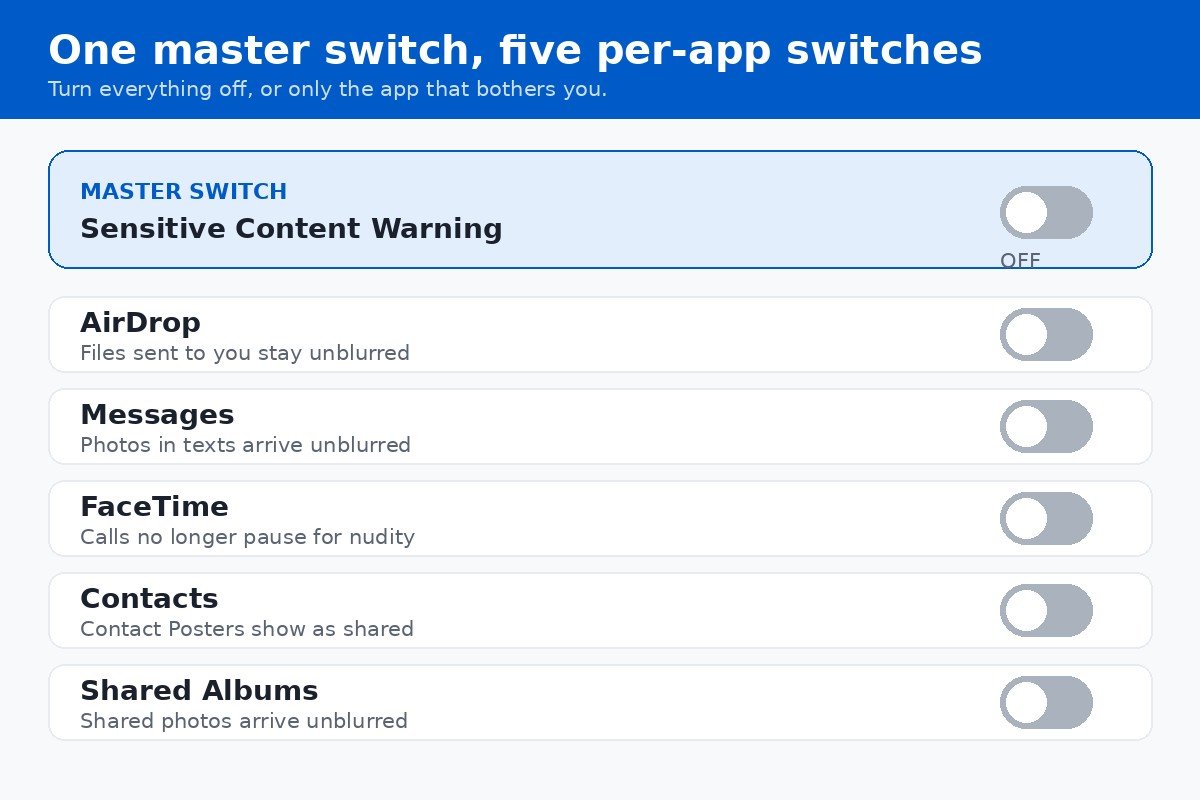
On current iOS the list holds five entries: AirDrop, Messages, FaceTime, Contacts, and Shared Albums. AirDrop is the one people most often want on its own, because a file from a stranger is the classic unwanted surprise, while the same person may still want warnings in Messages. If AirDrop itself is more trouble than it is worth, our guide to turning off AirDrop receiving on iPhone covers stopping incoming files altogether. Contacts covers Contact Posters, the full-screen image a caller shares with you, so switching it off means those posters show as the caller set them.
Why it keeps coming back: Communication Safety
This is the trap most guides skip, and it explains the most common complaint about this feature: you turn the switch off, and the warnings come straight back. The cause is usually a second, separate feature called Communication Safety. It lives in Screen Time, not in Privacy and Security, and it runs its own checks in the same apps: Messages, AirDrop, Contact Posters, FaceTime calls and video messages, Shared Albums, and sharing in some third-party apps. Because it is a separate control, switching Sensitive Content Warning off does nothing to it.
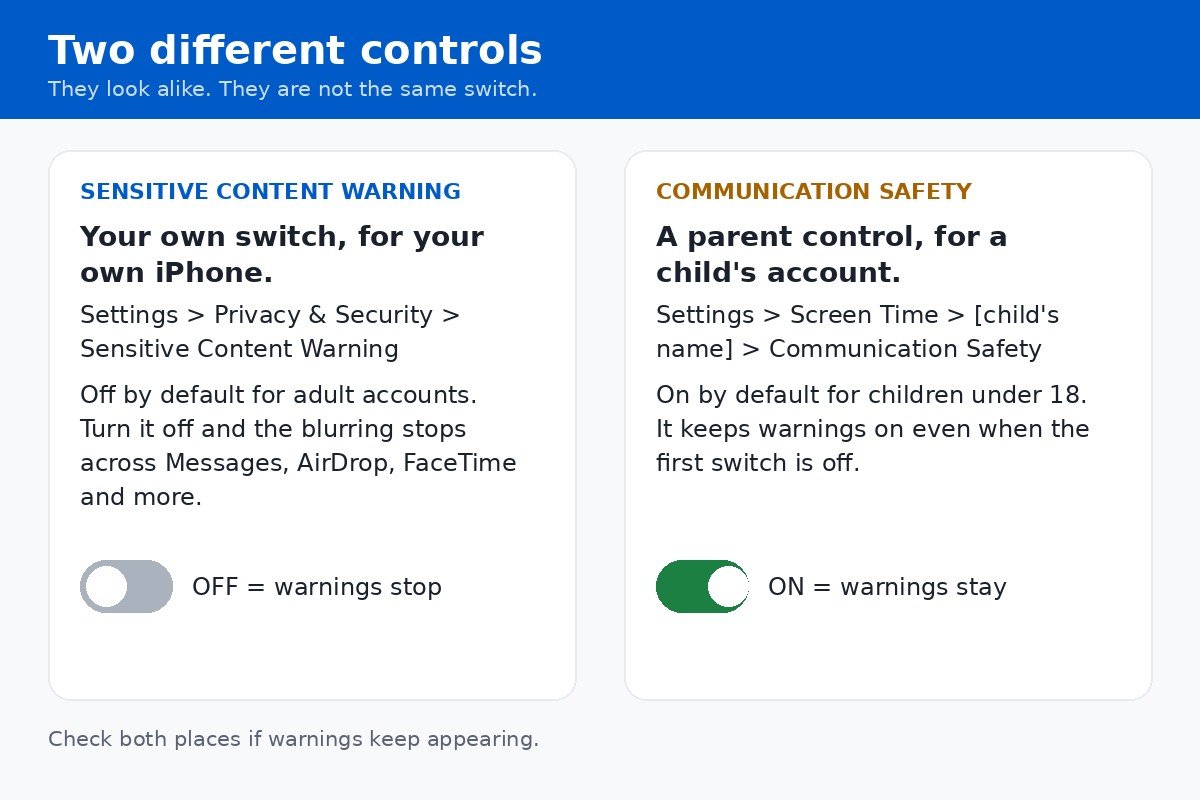
Communication Safety is a parent control for a child’s account in a Family Sharing group. Apple turns it on by default for children under 18, and for children under 13 it is on by default with an extra rule: the child cannot view the content at all without a parent or guardian entering the Screen Time passcode. That is why it so often looks like the main switch is broken. On an adult’s own phone it is not running, so warnings there have a different cause, usually the other person’s phone on a FaceTime call.
To check it, open Settings, then Screen Time, then tap the child’s name, then Communication Safety. On the newest iOS you can also reach it through Settings, then Family, then the child’s name, then Communication Safety. Only a parent or guardian can change it, and you may need the Screen Time passcode. Apple explains the setup in its guide to Communication Safety. If the phone belongs to a child and the warnings are meant to stay, leave this setting alone and stop here: the master switch in Privacy and Security is not the control that governs that phone.
The iOS 26 change: FaceTime calls can freeze mid-call
Older guides describe Sensitive Content Warning as a blur on photos and videos. On iOS 26 that is no longer the whole story, because Apple extended the feature to live FaceTime video calls. In a live call there is no photo to blur, so the behaviour is different: when the on-device check detects what looks like nudity, FaceTime pauses both the audio and the video at once. Both people see the freeze, and a message explains that audio and video are paused because something sensitive may be showing, with a suggestion to end the call if anyone feels uncomfortable.
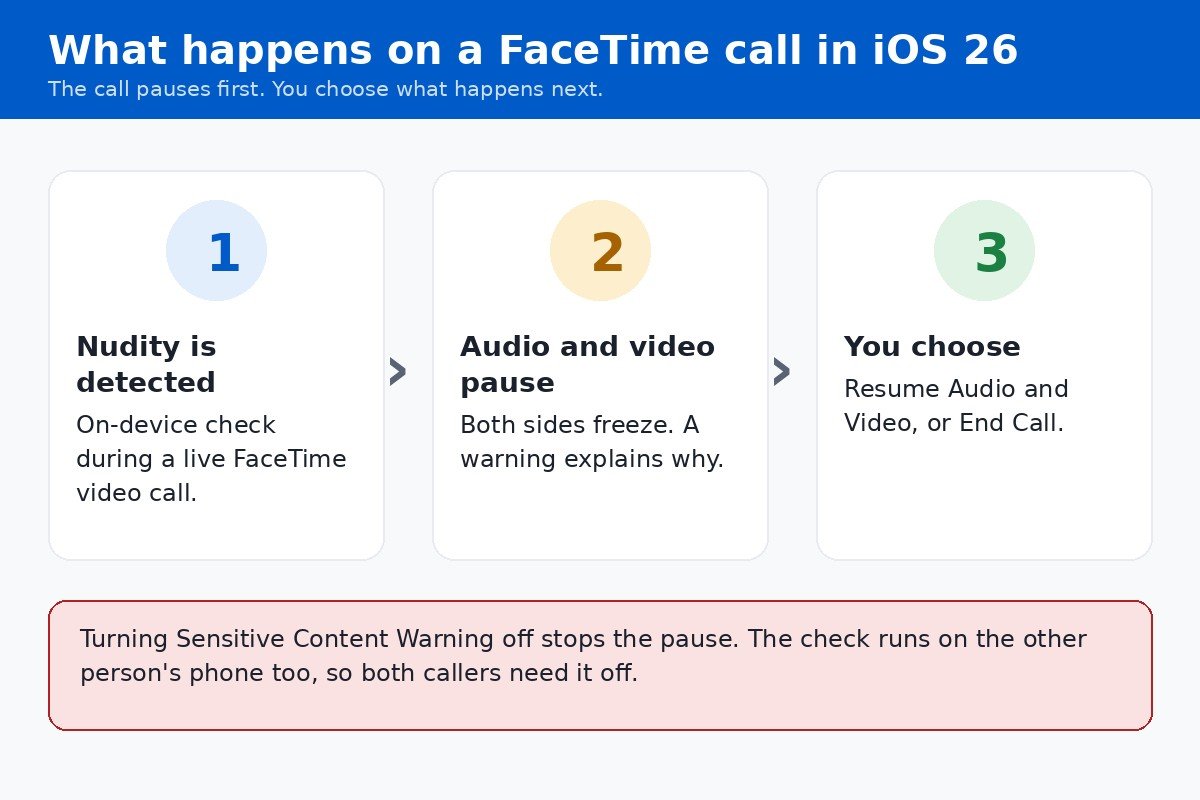
From the warning screen you get two choices: Resume Audio and Video, or End Call. The warning appears only the first time nudity is detected in that call, so resuming does not bring a second warning later in the same call. If the call does not come back after you tap Resume, end the call and start a fresh one rather than waiting on a frozen screen.
Turning Sensitive Content Warning off stops the pause on your phone, including the FaceTime switch in the per-app list if you would rather keep warnings in Messages and drop them only for calls. One detail catches people out: the check runs on the phone receiving the video, not the phone sending it. Your setting decides what you see, and the other caller’s setting decides what they see. If a call keeps freezing and your own switch is already off, the other person’s iPhone still has the warning on, and they need to turn it off on their own phone.
What turning it off does not change
Apple’s switch covers Apple’s services only. It has no effect on any other app’s own sensitive-media settings, and those apps keep applying their own rules exactly as before. X, Instagram, and other social apps each decide for themselves whether to hide media they class as sensitive, and each one has its own setting, usually inside the app or on its website. If a photo is still blurred inside X or Instagram after you switch Apple’s warning off, the blur is coming from that app, and the fix sits in that app’s settings, not on your iPhone.
The same applies to anything in a web browser. A warning shown by a website is that site’s own choice, and no iPhone setting overrides it. If warnings are still appearing somewhere after you have followed the steps above, match your symptom to the cause in the table below before changing anything else.
| Problem | Likely cause | Fix |
|---|---|---|
| Photos still blur in Messages | A per-app switch is still on | Check the Messages switch on the Sensitive Content Warning screen |
| Warnings return on a child’s phone | Communication Safety is on | A parent or guardian changes it in Screen Time with the passcode |
| FaceTime still freezes | The other caller’s warning is on | They turn it off on their own iPhone |
| The switch is greyed out | Screen Time restrictions on a child account | Ask the parent or guardian who manages the account |
| No Sensitive Content Warning row | iOS older than version 17 | Update in Settings, General, Software Update |
| Media still hidden in X or Instagram | That app’s own sensitive-media setting | Change it inside that app or on its website |
Once the master switch is off, the warning is off across Messages, AirDrop, FaceTime, Contact Posters, and Shared Albums, and it stays off until you turn it back on. If it ever comes back on its own, the first place to look is Screen Time, because a parent control is the one thing that can keep the warnings running after you have switched the main control off. Otherwise, the switch you just turned off is the end of the story, and your photos and calls arrive exactly as they were sent.

- How to Turn Off Sensitive Content Warning on iPhone - November 18, 2026
- How to Turn Off Voice Access in Windows 11 - November 17, 2026
- How to Turn Off the Screen Saver in Windows 11 - November 16, 2026