
Open Wi-Fi networks feel convenient until they are not. You walk past a coffee shop, your phone quietly joins its network, and suddenly your messages stall, a sign-in page pops up, or your banking app refuses to load until you disconnect. The annoying part is that you never chose that network in the moment. Your phone remembered it from an earlier visit and reconnected on its own.
That is the key point to understand before changing settings. Android does not usually join a brand new open network you have never used, just because you walked past it. What it does do, by default, is reconnect automatically to networks you have joined before, and it can turn Wi-Fi back on by itself when it thinks a saved network is nearby. Stopping auto-connection therefore means fixing two different behaviors: per-network auto-reconnect, and Wi-Fi turning itself on near saved networks. This guide covers both, on Pixel phones and on Samsung Galaxy phones, plus a cleanup step for the old open networks still sitting in your saved list.
Method 1: Turn off auto-connect for each saved open network
This is the most important method, and the one most people miss. A single global switch will not help if one saved coffee shop network still has auto-connect on. You need to change the setting on each open network you no longer want to rejoin automatically, while leaving your home and work networks untouched.
On a Pixel phone
- Open Settings, then tap Network and internet, then Internet.
- Tap Saved networks or scroll to the saved networks list, depending on your phone model.
- Tap the name of the open network you want to stop rejoining.
- Turn off Auto-connect. The phone will still remember the network, but it will not join it again until you tap its name yourself.
- Repeat for every open network in the list that you do not want to rejoin automatically. Home and work networks can safely keep auto-connect on.
On a Samsung Galaxy phone
- Open Settings, then tap Connections, then Wi-Fi.
- Tap the gear icon next to a saved network, or tap the network name to open its details.
- Turn off Auto reconnect. Samsung uses that wording where Pixel uses Auto-connect, but the effect is the same: the phone remembers the network without joining it on its own.
- Repeat for each saved open network you want to control manually.
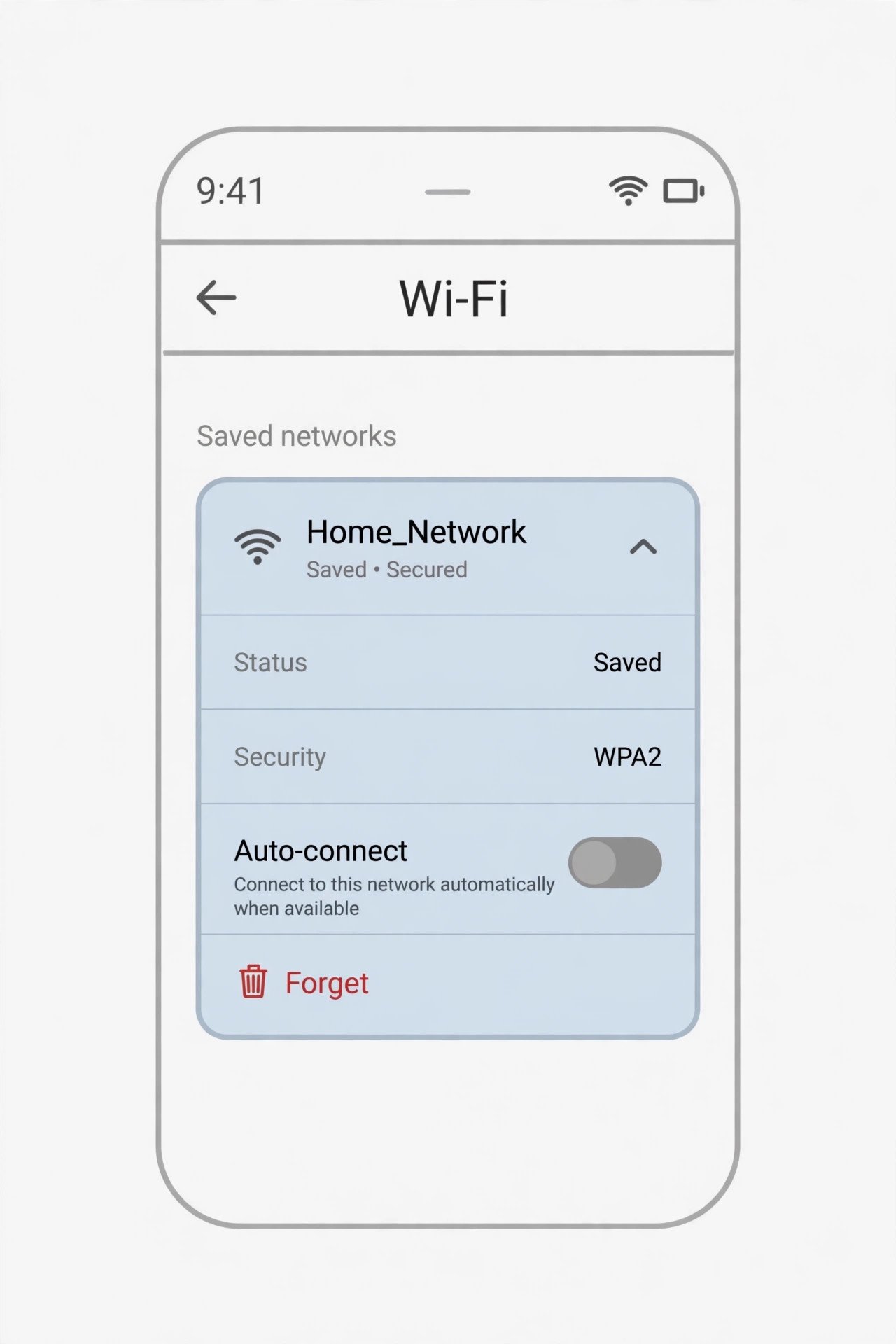
If you would rather the phone forget an open network completely, use the Forget option on the same details screen instead. Forgetting removes the network from the saved list entirely, so the phone cannot reconnect to it at all until you join it again and enter any details it asks for. Forgetting is the right choice for one-off networks, such as a hotel or airport network you will never use again. Turning off auto-connect is the better choice for a network you still use sometimes, but only when you choose to.
Method 2: Stop Wi-Fi turning itself on near saved networks on Pixel
Even with per-network auto-connect off, a Pixel phone can still turn Wi-Fi back on by itself when it detects that a saved network is nearby. That is a separate feature, and it needs its own switch. Turning it off means Wi-Fi stays off until you turn it on, which also stops the phone from scanning for and joining saved open networks in the background.
- Open Settings, then tap Network and internet, then Internet.
- Tap Network preferences.
- Turn off Turn on Wi-Fi automatically.
- Note that this feature needs location turned on to work at all, so if location is off, the switch may already be inactive. Google describes this setting in its Pixel guide to connecting to Wi-Fi networks, including the conditions under which Wi-Fi will not turn on automatically, such as when battery saver or airplane mode is on.
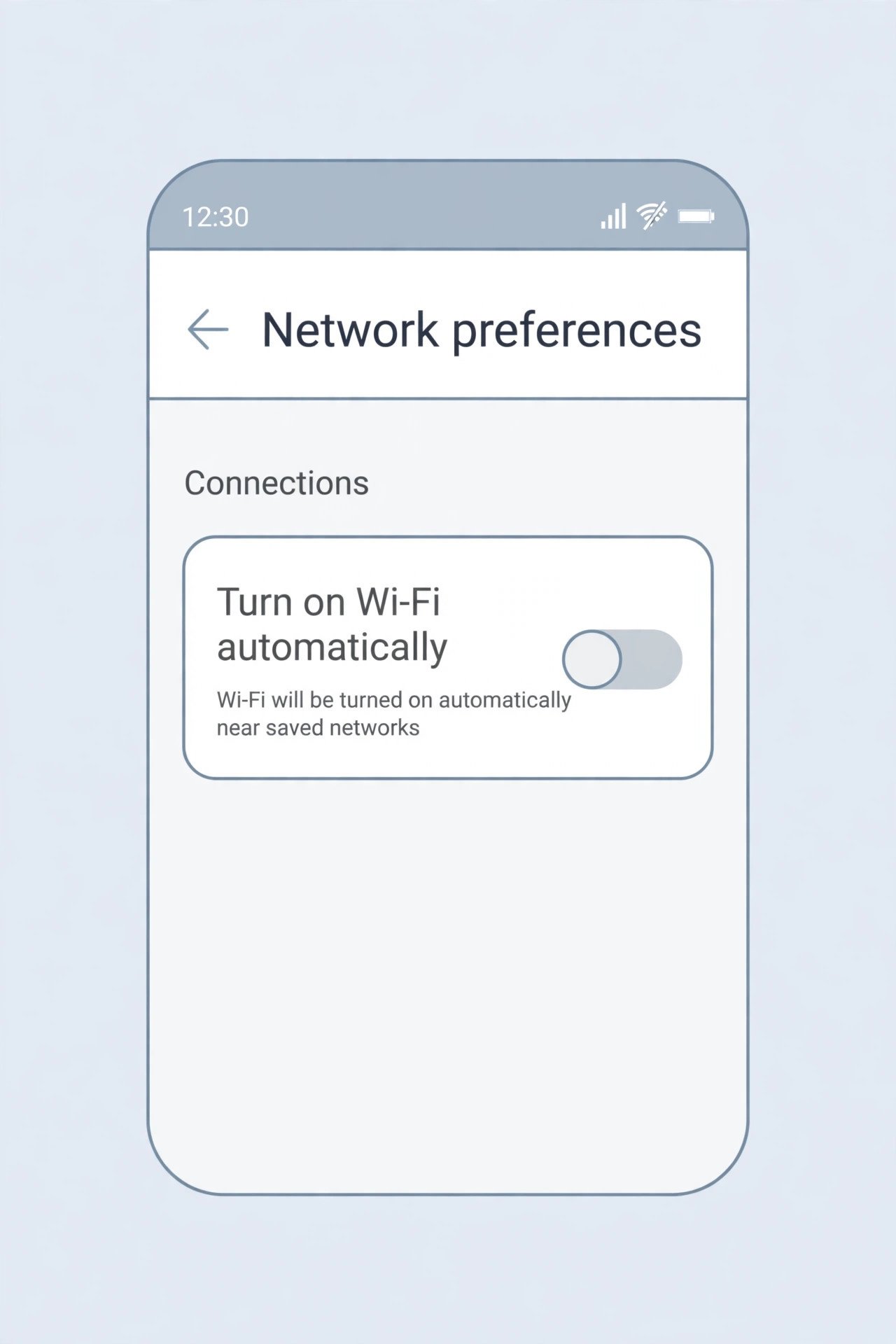
After changing this setting, test it the way you would use it in real life. Turn Wi-Fi off, walk away from your home network for a few minutes, then come back. If Wi-Fi stays off, the setting is working. If it turns itself back on, check that you changed the setting in Network preferences and not only the per-network switch in Method 1, since the two switches do different jobs.
Method 3: Stop Wi-Fi turning itself on automatically on Samsung
Samsung puts the equivalent automatic Wi-Fi feature under a different name, Intelligent Wi-Fi. The steps below turn off the part that revives Wi-Fi in places you use often, without touching your saved networks themselves.
- Open Settings, then tap Connections, then Wi-Fi.
- Tap the three dot menu at the top right, then tap Intelligent Wi-Fi.
- Turn off Turn Wi-Fi on or off automatically. Samsung describes this as turning Wi-Fi on in places you use frequently, and turning it off elsewhere.
- While you are on the Intelligent Wi-Fi screen, leave Switch to mobile data alone unless you have a separate reason to change it. That setting decides what happens when a connected Wi-Fi network becomes unstable, which is a different problem from auto-connecting in the first place. Samsung covers these Wi-Fi troubleshooting steps in its Galaxy Wi-Fi connection support page, including forgetting and reconnecting a network.
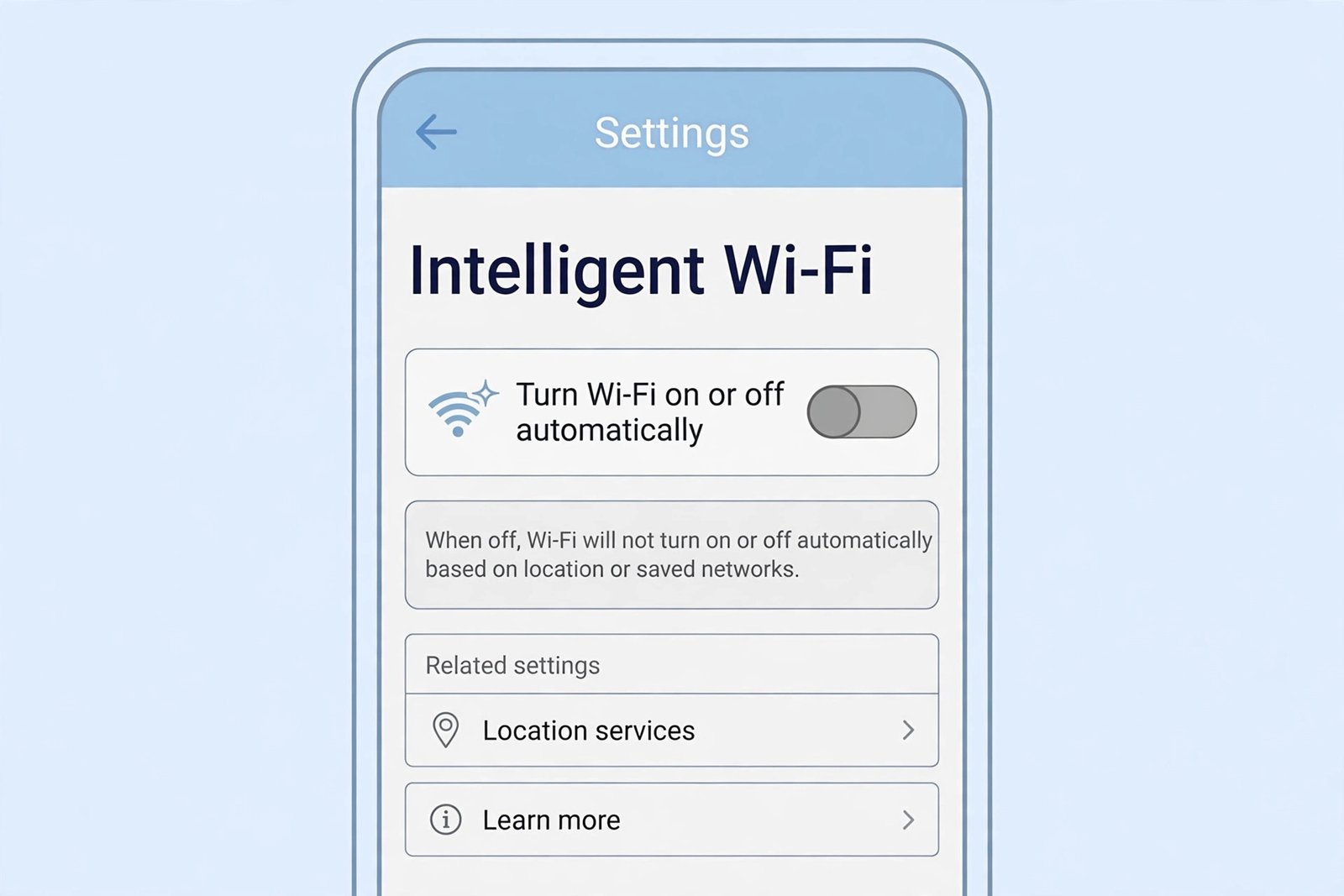
Samsung also offers Modes and Routines, which can turn Wi-Fi on or off based on location or time. If Wi-Fi still turns itself on after the steps above, check Settings, Modes and Routines for a routine you or someone else set up earlier, such as a routine that turns Wi-Fi on at home. A routine will override the Intelligent Wi-Fi switch, so delete or pause that routine if you do not want it.
Method 4: Clean up the old open networks still saved on the phone
Most phones carry a long tail of saved networks: hotels from years ago, coffee shops from other cities, conference networks, and free networks from airports. Each one is a network your phone will try to rejoin if its auto-connect switch is still on. A five minute cleanup removes most of the risk in one pass.
- Open the saved networks list as in Method 1, on Pixel under Network and internet, Internet, Saved networks, and on Samsung under Connections, Wi-Fi and the saved list there.
- Work through the list slowly. For each network, ask one question: would I want my phone to join this without asking me? If the answer is no, turn off its auto-connect switch, or forget it entirely.
- Keep home, work, and any network you use weekly with auto-connect on. The goal is control, not turning off a convenience you rely on every day.
- After the cleanup, restart the phone once. That clears any half-connected state from a network the phone joined just before you changed its setting.
What to do when you actually need an open network
Stopping auto-connection does not mean never using open Wi-Fi. It means joining on purpose, for a reason, and leaving when you are done. A few habits make that safe enough for everyday use.
- Join the network manually, use it for what you need, then turn Wi-Fi off or forget the network when you leave. That way it cannot rejoin next time you walk past.
- Prefer networks that ask you to sign in through a captive portal run by the venue itself, rather than a network with a generic name and no sign-in at all. A network named Free WiFi with no other identification is easy for anyone to imitate.
- Use a VPN on open networks if you have one, and avoid signing in to banking or other sensitive accounts on a network you do not trust, even with a VPN.
- Turn off Wi-Fi entirely when you are out and do not need it. That is the simplest protection of all, and with the automatic switches above turned off, Wi-Fi will stay off until you decide otherwise.
The change is small, but the difference in daily life is noticeable. Your phone stops jumping onto weak coffee shop networks mid-walk, stops stalling on sign-in pages you never asked for, and stays on mobile data until you make a deliberate choice. That is the whole point: Wi-Fi becomes something you turn on, not something that happens to you.

- How to Stop Android Auto-Connecting to Open Wi-Fi Networks - October 24, 2026
- How to Stop iPhone Apps Asking for Ratings and Reviews - October 23, 2026
- How to Turn Off HDR in Windows 11 When Colors Look Washed Out - October 22, 2026