
By default, every screenshot on a Mac lands on the Desktop. That is fine for the first few captures. After a week of documenting a project, reporting bugs, or saving receipts, the Desktop becomes a carpet of image files, and finding one screenshot means hunting through the rest. Moving the save location to a dedicated folder fixes the clutter at the source: every future screenshot goes straight where it belongs, and the Desktop stays clean.
There is only one setting to change, and two ways to change it. The Screenshot toolbar method below is the one most people should use, because it is visual, reversible, and applies immediately. The Terminal method does the same thing from the command line, which is useful when you are setting up several Macs or scripting a standard setup. Both change the same underlying preference, so pick one, not both, and then test it with a single screenshot.
Before you change anything, pick the folder
The choice of folder matters more than the method, because macOS will keep using it until you change it again. A folder inside Documents works well for most people, since it is backed up with the rest of your documents and easy to find in Finder. A folder on an external drive works too, but only while that drive is connected. If the drive is unplugged, screenshots may fail to save or fall back to another location, so an internal folder is the safer default.
- Open Finder and go to Documents.
- Create a new folder and name it Screenshots, or pick an existing folder you already use for images.
- Remember the exact name and location, since you will select it in the steps below.
- Do not pick a folder you plan to delete, rename, or move soon. If macOS cannot find the folder later, screenshots will not save where you expect.
Method 1: Change the location with the Screenshot toolbar
This method works on macOS Mojave and later, including the current macOS 27 release. It needs no Terminal commands and no admin password.
- Press Shift + Command + 5 to open the Screenshot toolbar at the bottom of the screen.
- Click Options in the toolbar.
- Under Save to, you will see a list of places: Desktop, Documents, Clipboard, Mail, Messages, and Preview, plus an Other Location option at the bottom of the list.
- If your folder is Documents itself, choose Documents and you are done. For any other folder, choose Other Location.
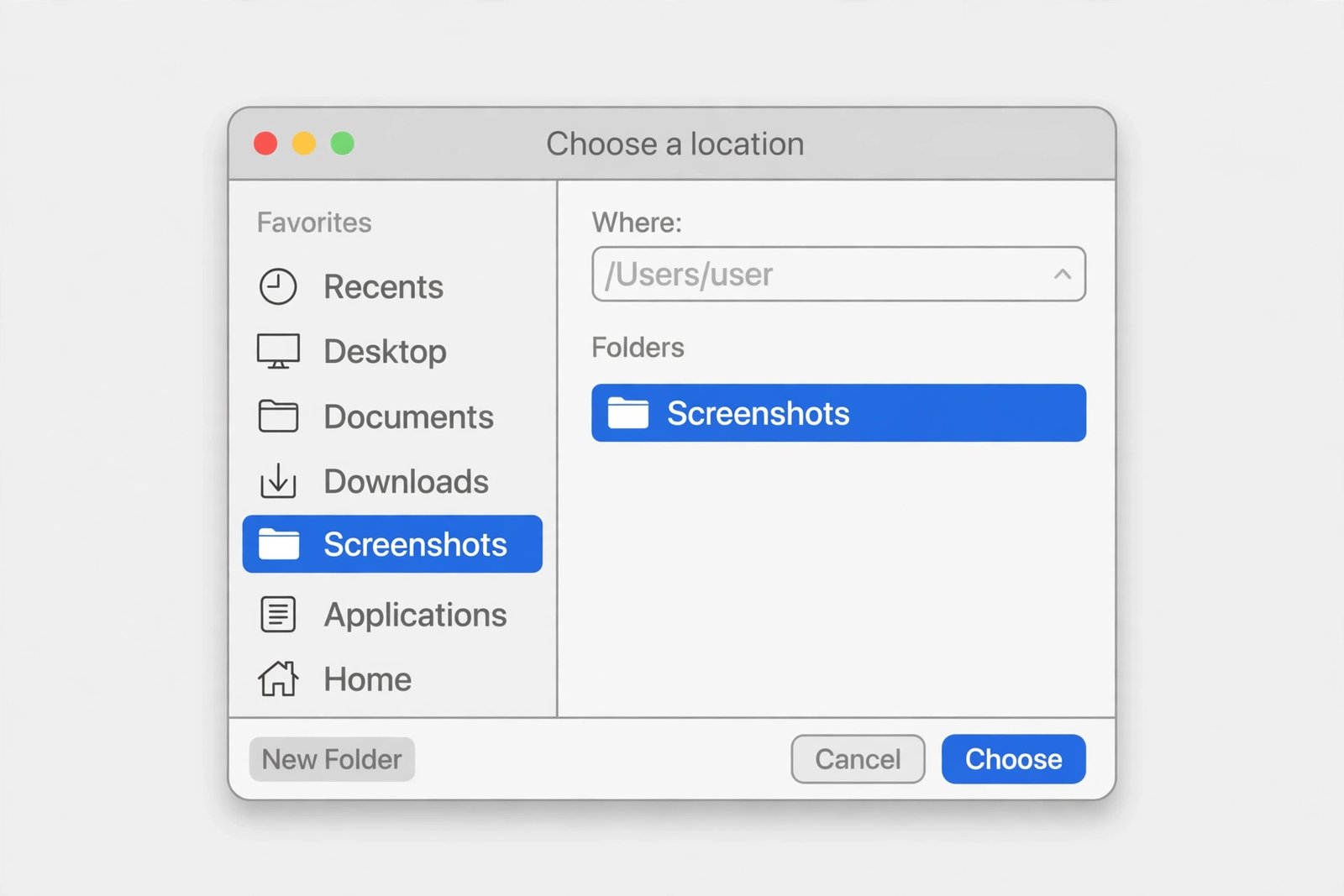
- In the Finder window that opens, navigate to your folder, select it, and click Choose.
- Press Esc or click anywhere outside the toolbar to close it. The change applies immediately, with no restart needed.
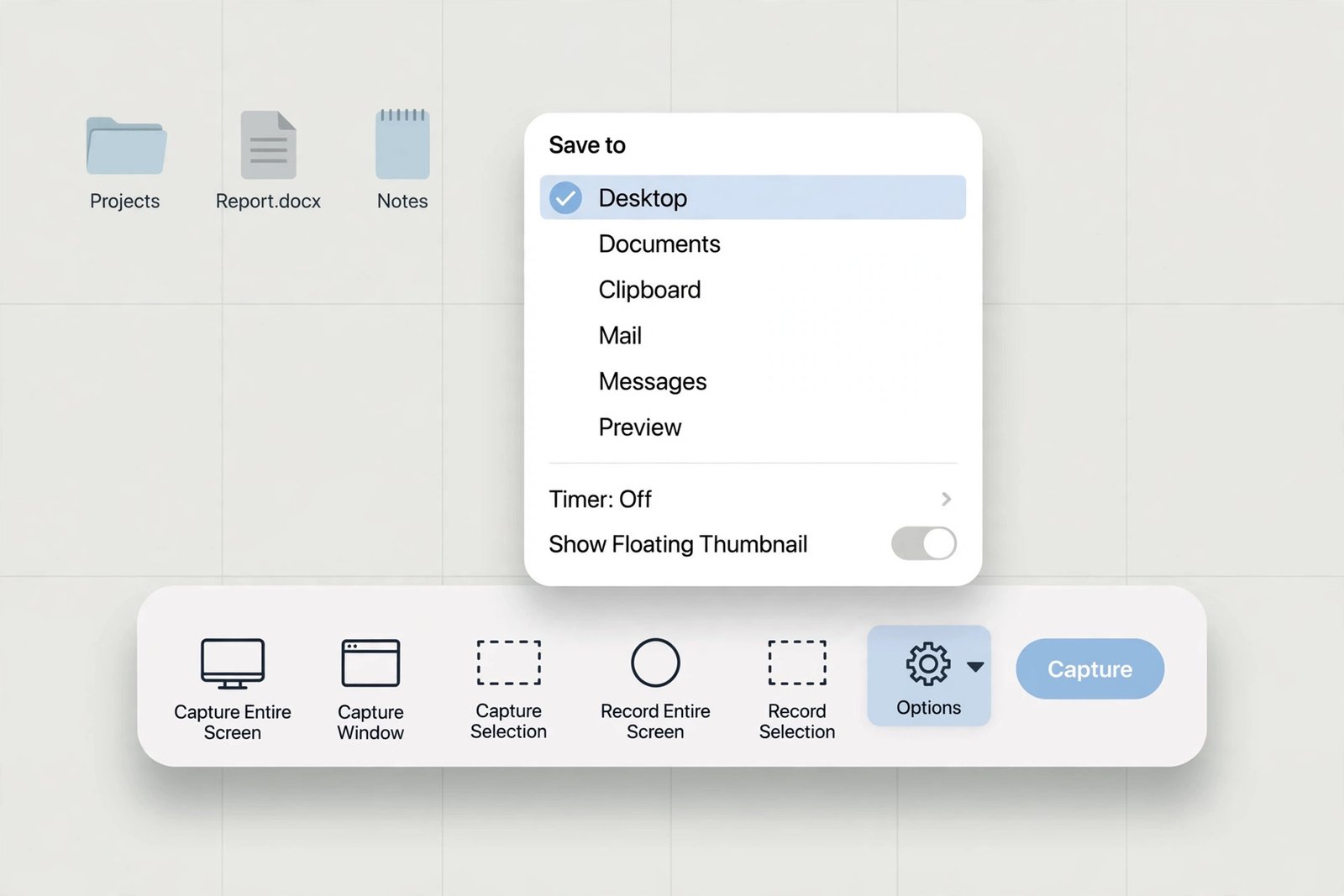
Now test it. Press Shift + Command + 3 to capture the whole screen, then open your chosen folder in Finder and confirm the new screenshot is there. If it landed on the Desktop instead, open the toolbar again and check the Save to setting, since it is easy to close the toolbar without confirming the choice. The most common mistake is choosing Clipboard, Mail, or Preview by accident. Clipboard sends the screenshot to the clipboard instead of saving a file, while Mail and Preview open the capture in those apps, so none of them will put a file in your folder.
Method 2: Change the location with Terminal
Terminal sets the same preference directly, which is handy when you are configuring a Mac remotely or repeating the setup on more than one machine. The commands are short, but type them exactly, since a typo in the folder path will send screenshots to a place that does not exist.
- Make sure your target folder already exists, for example a Screenshots folder inside Documents.
- Open Terminal from Applications, Utilities, Terminal, or find it with Spotlight.
- Type the following command, replacing the path with your own folder, then press Return: defaults write com.apple.screencapture location ~/Documents/Screenshots
- Then type the following command and press Return to apply the change: killall SystemUIServer
- Take a test screenshot with Shift + Command + 3 and confirm it appears in your folder.
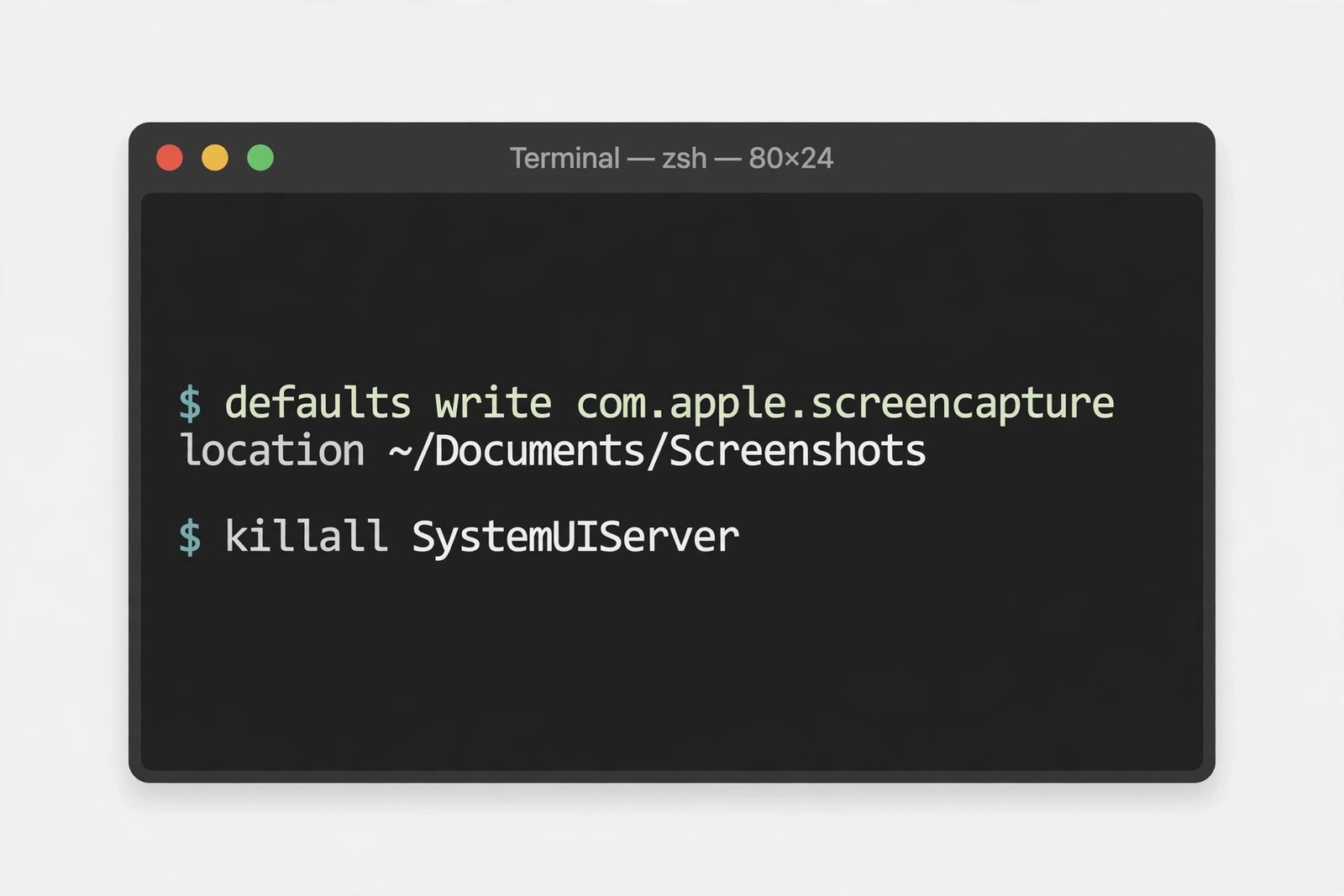
A shortcut makes the path easier to get right. After typing the first command up to the word location and a space, drag your folder from Finder into the Terminal window. macOS inserts the full path for you, so there is no typing to get wrong. Apple documents the Screenshot app options, including choosing where screenshots are saved, in its guide to taking a screenshot on Mac, which also notes that screenshots are saved to the Desktop by default under the name Screen Shot followed by the date and time.
How to switch back to the Desktop
Changing your mind is just as easy as the original change, and it uses the same steps in reverse.
- Press Shift + Command + 5, click Options, and under Save to choose Desktop.
- Or, in Terminal, run defaults write com.apple.screencapture location ~/Desktop followed by killall SystemUIServer.
- Take a test screenshot and confirm it appears on the Desktop before you delete or move the old folder.
If screenshots stop appearing where you expect
A changed save location explains most cases of screenshots going missing. Work through these checks in order before assuming screenshots are broken.
- Check the Save to setting first. Press Shift + Command + 5, click Options, and read what is selected under Save to. If it says Clipboard, your screenshots are being copied, not saved as files. Pressing Control together with a screenshot shortcut does the same thing, so drop the Control key if you want a file.
- Confirm the folder still exists. If you renamed, moved, or deleted the folder, macOS has nowhere to put new screenshots. Point the setting at a folder that exists, then test again.
- Check the floating thumbnail. After a screenshot, a small thumbnail appears in the corner of the screen. If you drag that thumbnail somewhere else, that copy goes to the place you dragged it, which can look like the save location changed. Wait for the thumbnail to disappear on its own if you want the default behavior.
- Check your shortcuts. If nothing happens at all, the screenshot shortcuts may have been changed or disabled. Look under Apple menu, System Settings, Keyboard, Keyboard Shortcuts, Screenshots and confirm Shift + Command + 3, 4, and 5 are enabled.
- Check free space. A full disk stops screenshots from saving with little warning. Freeing even a small amount of space, then testing again, rules this out quickly.
One last detail is worth knowing when you sort your screenshots later. By default, macOS saves screenshots as PNG files, named with the date and time they were taken. On supported Mac models running recent macOS versions, the Screenshot app also offers a choice between standard and high dynamic range capture formats, which changes the file format for HDR captures. That choice does not change the save location, so you can leave it alone unless you have a specific reason to change it.
Moving the save location does not move the screenshots already sitting on your Desktop. If you want a clean break, open the Desktop in Finder, select the existing screenshot files, and move them into your new folder in one batch. Do that after your test screenshot lands in the right place, so you know the folder works before you rely on it. From then on, new captures and old ones live together, and the Desktop goes back to being a workspace instead of an archive.
Once the folder is set, the habit takes care of itself. Screenshots stop piling up on the Desktop, they land in one place you can search and back up, and you stop losing captures in the clutter. If you ever change projects, just point the setting at a new folder and carry on.

- How to Change the Screenshot Save Location on Mac - October 24, 2026
- How to Turn Off Stage Manager on Mac - October 23, 2026
- How to Reset Your Private Space PIN on Android If You Forgot It - October 22, 2026