
Auto-hide is supposed to be simple. Turn it on, and the taskbar slides out of sight until you move the mouse to the bottom edge of the screen. When it stops working, the taskbar sits there, eating a strip of screen space, no matter how long you wait. The tricky part is that this is rarely a broken setting. More often, something is asking Windows to keep the taskbar visible, and Windows is doing exactly what it was asked to do.
That is why this guide starts with a quick test instead of a settings tour. The test tells you whether auto-hide itself is broken or whether an app, a notification, or a stuck popup is holding the taskbar open.
Run the 30 second test first
Before changing anything, check what kind of stuck you have.
- Move the mouse away from the bottom edge and wait five seconds. If the taskbar hides on its own, auto-hide is working and something was briefly calling for attention, such as a notification that has since cleared.
- Press Esc, then click once on an empty part of the desktop, away from any window. If the taskbar hides now, a popup or a hidden window had focus and was holding it open.
- Move the mouse to the bottom edge, then away again. If the taskbar slides up on hover but never slides back down, auto-hide is enabled but something is actively preventing it from hiding. That is the case the fixes below are built for.
- If the taskbar never appears on hover at all, auto-hide may be off, or the taskbar itself may be stuck. Start with Fix 1 either way.
Also check whether you are in full screen mode. A video, game, or browser in full screen covers the taskbar by design, and that is not an auto-hide failure. Press Esc or F11 to leave full screen, then test auto-hide again in a normal window.
Fix 1: Confirm auto-hide is actually on
This sounds too basic to matter, and that is why it catches people out. Windows updates or a settings reset can turn auto-hide off without warning, and the taskbar then behaves exactly like a taskbar with auto-hide off, because that is what it is.
- Right-click an empty part of the taskbar and choose Taskbar settings. If right-clicking does not work, press Windows key + I, then go to Personalization, Taskbar.
- Expand Taskbar behaviors near the bottom of the page.
- Check that Automatically hide the taskbar is ticked. If it is already ticked, untick it, wait a few seconds, then tick it again. That off and on cycle refreshes a setting that can get stuck after an update.
- Move the mouse away from the bottom edge and wait. Microsoft describes this same page in its guide to customizing the taskbar in Windows, including the behaviors section where auto-hide lives.
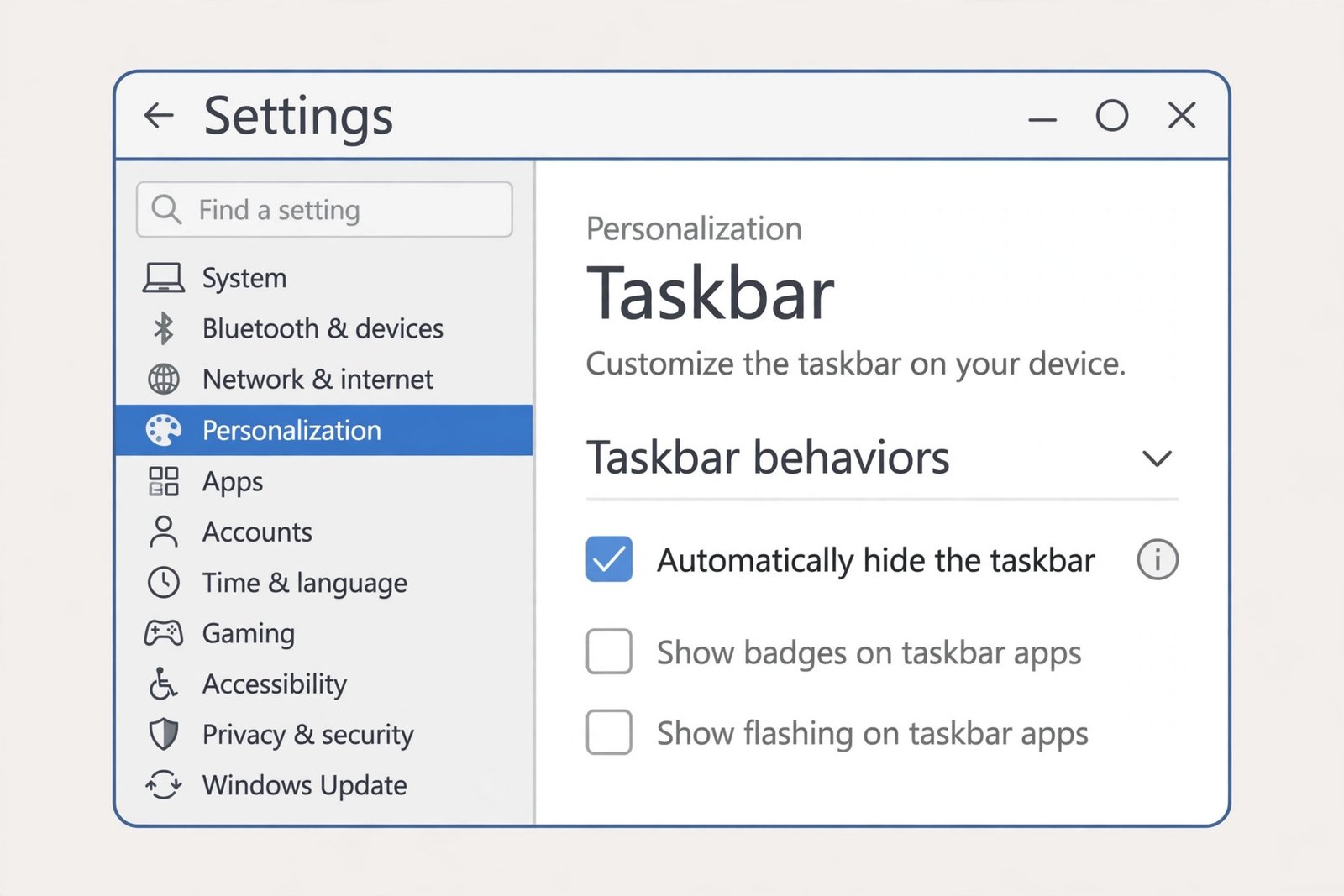
One limitation is worth knowing. Auto-hide only applies when the taskbar sits at the bottom of the screen, which is where Windows 11 keeps it. There is no built-in way to move the taskbar to the top or sides, so if a third-party tool moved it, that tool, not Windows, controls whether it hides.
Fix 2: Close the hidden icons popup
This is the single most reported cause of a taskbar that refuses to hide, and it is easy to miss because nothing looks wrong. When you click the small up arrow in the system tray, the area that shows hidden icons, Windows opens a little popup with the rest of your tray icons. Until you dismiss that popup, Windows treats the taskbar as in use and will not hide it, even after you move on to another window.
- Click the up arrow in the system tray, at the right end of the taskbar, to open the hidden icons popup.
- Click the same arrow again to close it, or click on an empty part of the desktop.
- Move the mouse away from the taskbar and wait a few seconds. In many cases the taskbar hides immediately once the popup is closed.
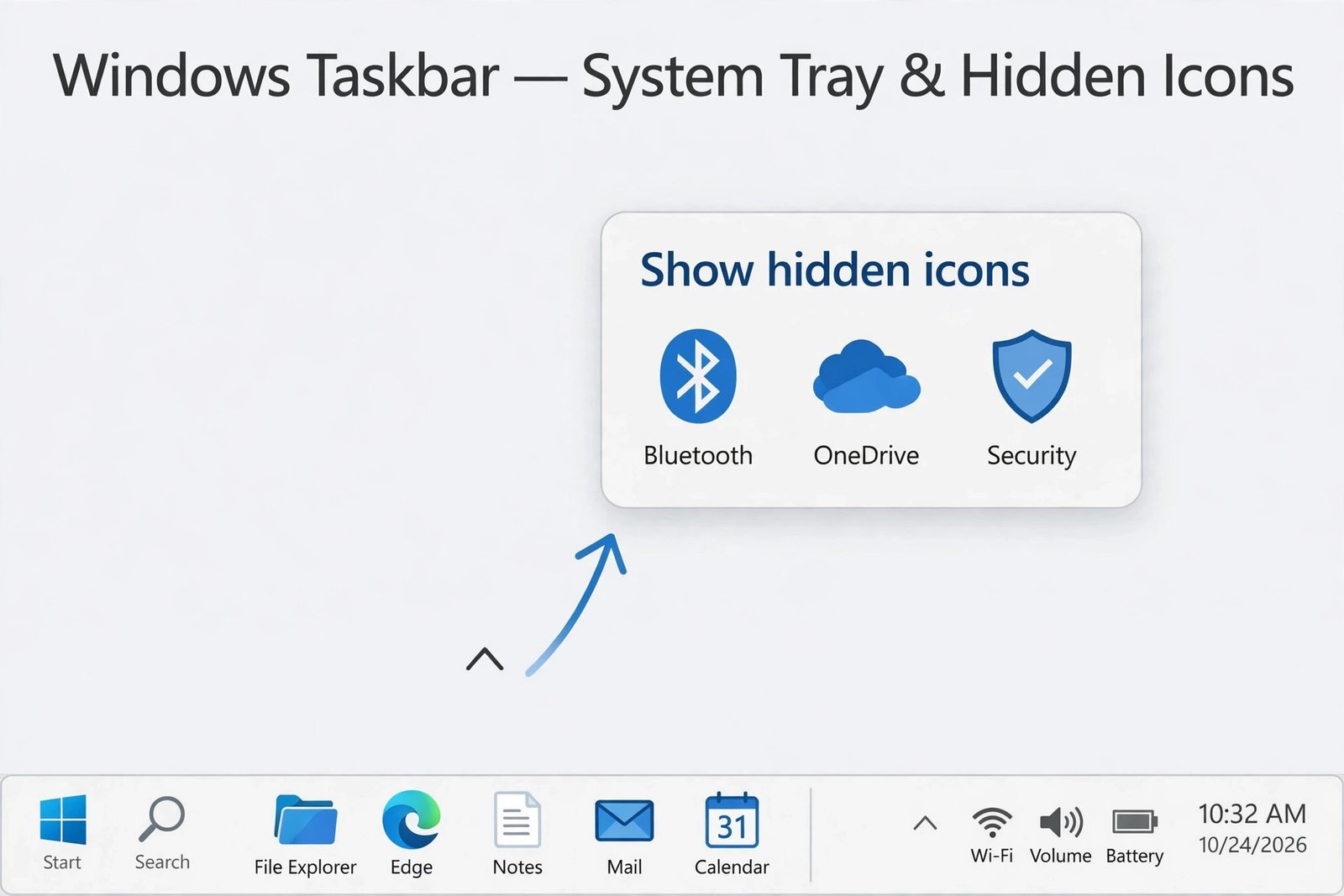
The same logic applies to any small popup anchored to the taskbar: a calendar flyout left open, a volume slider, or a notification that is still on screen. If the taskbar only started misbehaving after you clicked something in the tray, close that thing first and retest before trying heavier fixes.
Fix 3: Turn off badges and flashing app alerts
Windows keeps the taskbar visible when an app needs your attention. Two settings in the same Taskbar behaviors section control the most common triggers.
- Go to Settings, Personalization, Taskbar, Taskbar behaviors as in Fix 1.
- Untick Show badges on taskbar apps. Badges are the little counters on app icons, such as unread messages, and a new badge can summon the taskbar and hold it open.
- Untick Show flashing on taskbar apps if it is on. A flashing icon is Windows saying an app wants attention, and the taskbar stays visible while it flashes.
- Clear any unread notifications: click the date and time area to open the notification center, then dismiss or open the pending items, and test auto-hide again.
Fix 4: Restart Windows Explorer
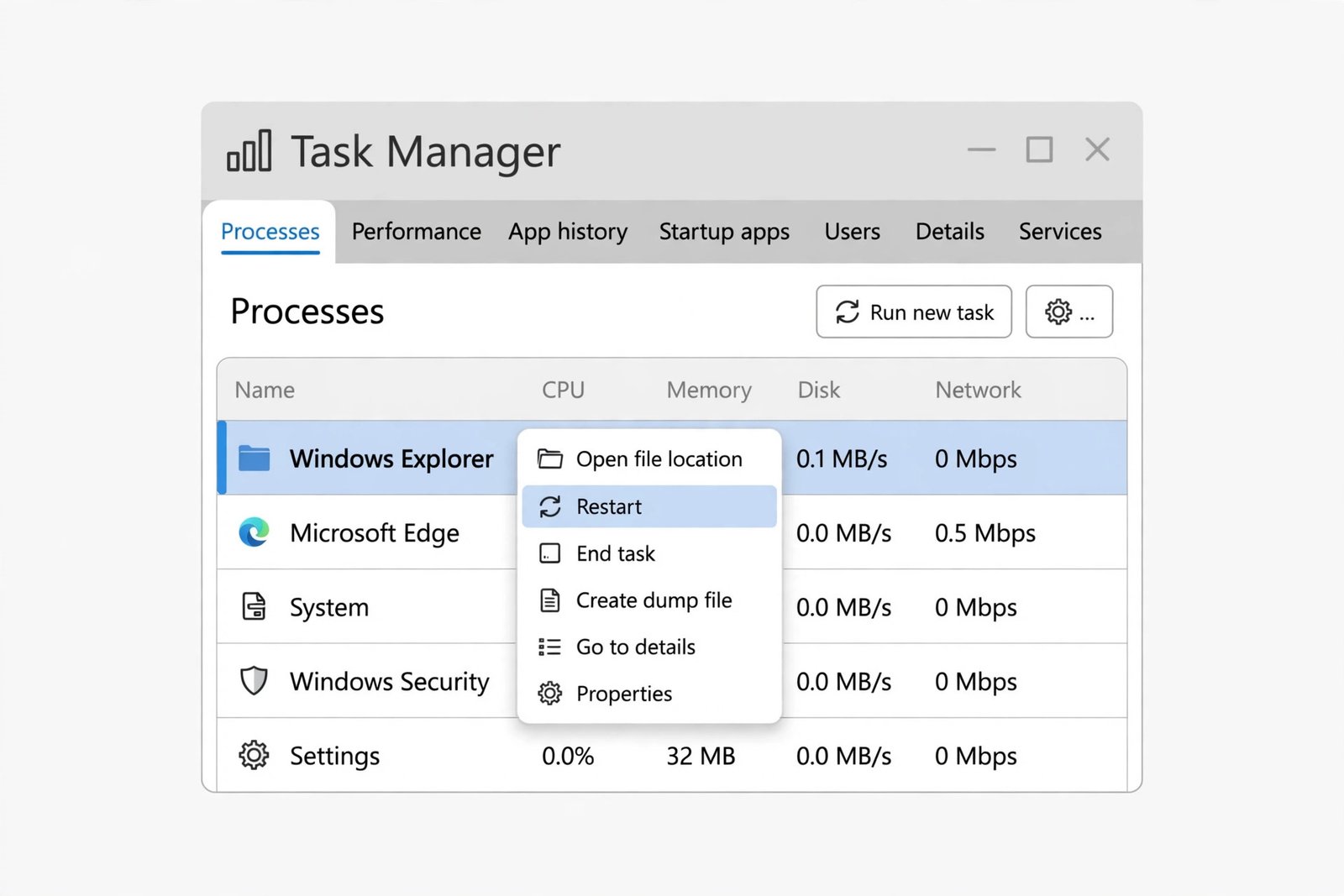
When the taskbar itself is stuck, restarting the process that draws it clears the jam without logging you out or closing your files. Windows Explorer, listed as explorer.exe, runs the taskbar, the desktop icons, and File Explorer windows together, so a restart briefly flickers the screen and then redraws everything cleanly.
- Press Ctrl + Shift + Esc to open Task Manager.
- On the Processes tab, find Windows Explorer. Use the search box at the top of Task Manager if the list is long.
- Right-click Windows Explorer and choose Restart.
- Wait for the screen to flicker and the taskbar to reappear, then move the mouse away and test auto-hide.
- If Windows Explorer is not listed, click Run new task at the top of Task Manager, type explorer.exe, and press Enter.
Fix 5: Rule out the app holding the taskbar open
Some apps keep the taskbar visible on purpose, or by accident. Full screen games, video players, chat apps with persistent popups, and third-party taskbar tools are the usual suspects. Close things one at a time and test auto-hide after each one.
- Close any full screen app first, then test.
- Close chat and messaging apps one by one, testing after each. If auto-hide starts working after closing one app, that app was the holder. Check its own notification or popup settings before blaming Windows.
- Temporarily quit any third-party taskbar customization tool, such as a taskbar replacement or a start menu replacement. These tools replace part of how Windows draws the taskbar, and their own auto-hide handling can conflict with the built-in setting.
- If you use more than one monitor, test with a single monitor connected. On multi-monitor setups, check the Taskbar behaviors setting for showing the taskbar on all displays, and confirm the taskbar is not simply hiding on one screen while staying visible on another.
Fix 6: Update, repair, and isolate what is left
Only reach this section if the earlier fixes did not help. At this point the cause is likely a system file problem, a driver problem, or a damaged user profile, and each step below narrows it down.
- Install Windows updates. Go to Settings, Windows Update, and install any pending updates, then restart. Taskbar behavior has changed across Windows 11 updates, and an update can repair a regression as easily as it once caused one.
- Update the graphics driver. In Device Manager, expand Display adapters, right-click your graphics card, and choose Update driver. A buggy graphics driver can interfere with how the taskbar is drawn and hidden.
- Run a system file check. Open Terminal as administrator, type sfc /scannow, and press Enter. When it finishes, restart and test auto-hide. If it reports corrupt files it could not fix, run DISM /Online /Cleanup-Image /RestoreHealth in the same admin window, then run the file check once more.
- Try a clean boot. A clean boot starts Windows with only Microsoft services and a minimal set of startup apps. If auto-hide works in a clean boot, re-enable startup apps in small groups until the problem returns.
- Test a new user profile. Go to Settings, Accounts, Other users, add a local account, sign out, and sign in to the new account. If auto-hide works there, your original profile holds a damaged taskbar setting, and moving to a fresh profile is cleaner than hunting for the single broken value.
What usually turns out to be the cause
| What you notice | Most likely cause and fix |
|---|---|
| Taskbar hides sometimes, not always | A popup or notification is holding it open: Fix 2 and Fix 3 |
| Taskbar never hides since an update | Auto-hide got turned off or stuck: Fix 1, then Fix 4 |
| Taskbar hides on hover but never slides back | Hidden icons popup or a flashing app: Fix 2 and Fix 3 |
| Taskbar is frozen or missing parts | Explorer itself is stuck: Fix 4 |
| Only one app breaks auto-hide | That app is holding it: Fix 5 |
| Nothing above helps at all | System files, driver, or profile: Fix 6 |
In practice, most auto-hide failures are not failures at all. The setting is off, a tray popup is still open, or a badge is asking for attention, and Windows is keeping the taskbar visible for a reason it never explains on screen. Work through the test at the top, then the fixes in order, and you will usually find the taskbar sliding away again before you reach the repair steps at the end.

- How to Fix the Windows 11 Taskbar Auto-Hide Problem - October 24, 2026
- How to Fix a Laptop Camera Not Working in Windows 11 - October 23, 2026
- How to Fix the Brightness Slider Missing in Windows 11 - October 22, 2026