
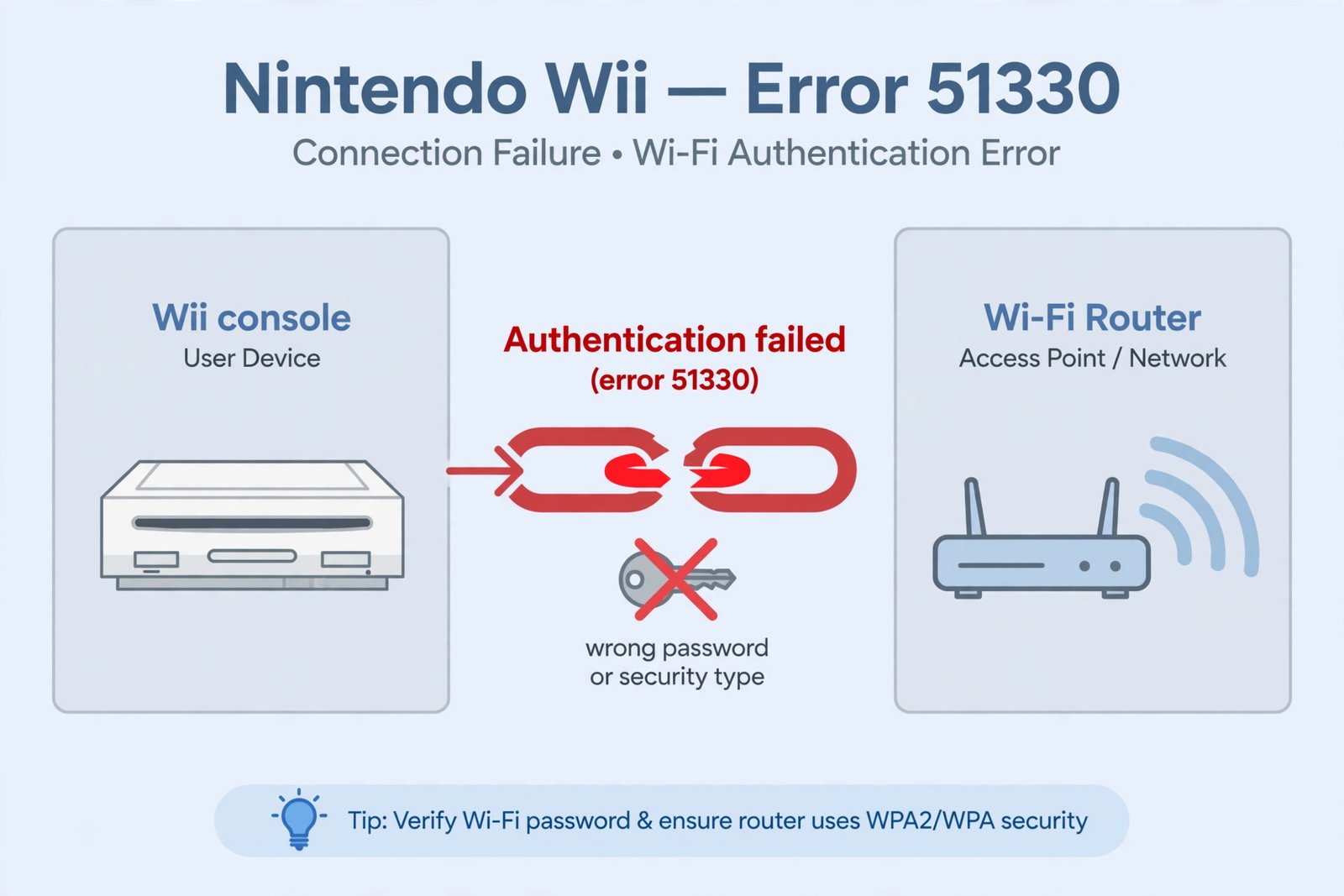
Key takeaways: Error 51330 means your Wii could not finish the Wi-Fi login with your router. The most common cause is a wrong password or the wrong security type in the Wii’s settings. This is a home network problem, not a Nintendo server problem, and it is usually fixed in a few minutes.
Seeing error 51330 today is confusing, because the Wii’s original online service, Nintendo Wi-Fi Connection, was shut down back in May 2014. That means this error is no longer about Nintendo’s servers. It is about the handshake between your Wii and your router: the Wii tries to join your Wi-Fi network, the security check fails, and the console reports 51330. Here is how to diagnose it and fix it, in order of likelihood.
One-line diagnosis
Nintendo’s own support page for this error says it indicates the authentication process between the Wii and the wireless router or access point failed, and that it is often caused by the router refusing the connection because an incorrect security key or security type was entered into the Wii Internet settings. Start with the password and the security type.
Quick checks before you dig in
- The Wii is powered on and within a reasonable distance of the router.
- The router is on and other devices can connect to it.
- You know the exact Wi-Fi password. Capitalization and special characters matter.
- Your router broadcasts a 2.4 GHz network. The Wii cannot see 5 GHz networks at all.
- The Wi-Fi password has not changed recently without you updating the Wii.
Fix 1: Set the correct security type and password on the Wii
- From the Wii Menu, press the Wii button on the remote and select Wii Settings.
- Use the arrow on the right side of the screen to go to the second page, then select Internet.
- Select Connection Settings, then choose the connection profile you use, then Change Settings.
- Go to the second page again and select Security Type.
- Select WPA2-PSK (AES), which is the most common home setup. If your router uses a different security type, choose that one instead so it matches.
- Type the Wi-Fi password exactly as it is, watching for capitals and special characters. Select OK, then Save, then OK. The Wii will run a connection test.
If the test shows “The connection test was successful,” the error is fixed. If 51330 comes back, move to Fix 2.
Fix 2: Power cycle your router, modem, and Wii
Unplug the Wii, the router, and the modem from power. Wait a full minute. Plug the modem back in first and wait for its lights to settle, then the router, then turn the Wii back on. Run the connection test again. A successful test here means a temporary glitch was the cause.
Fix 3: Switch your router to a Wii-compatible wireless mode
The Wii only speaks the old 802.11b and 802.11g standards on the 2.4 GHz band. If your router is set to 802.11n-only, or it only broadcasts on 5 GHz, the Wii cannot talk to it. Log in to your router’s admin page (the exact steps vary by brand, but they are in the manual or on the sticker under the router), set the wireless mode to a compatible option such as “Mixed,” “b/g/n,” or “Up to 54 Mbps,” and make sure the 2.4 GHz band is turned on. Save the settings and reboot the router.
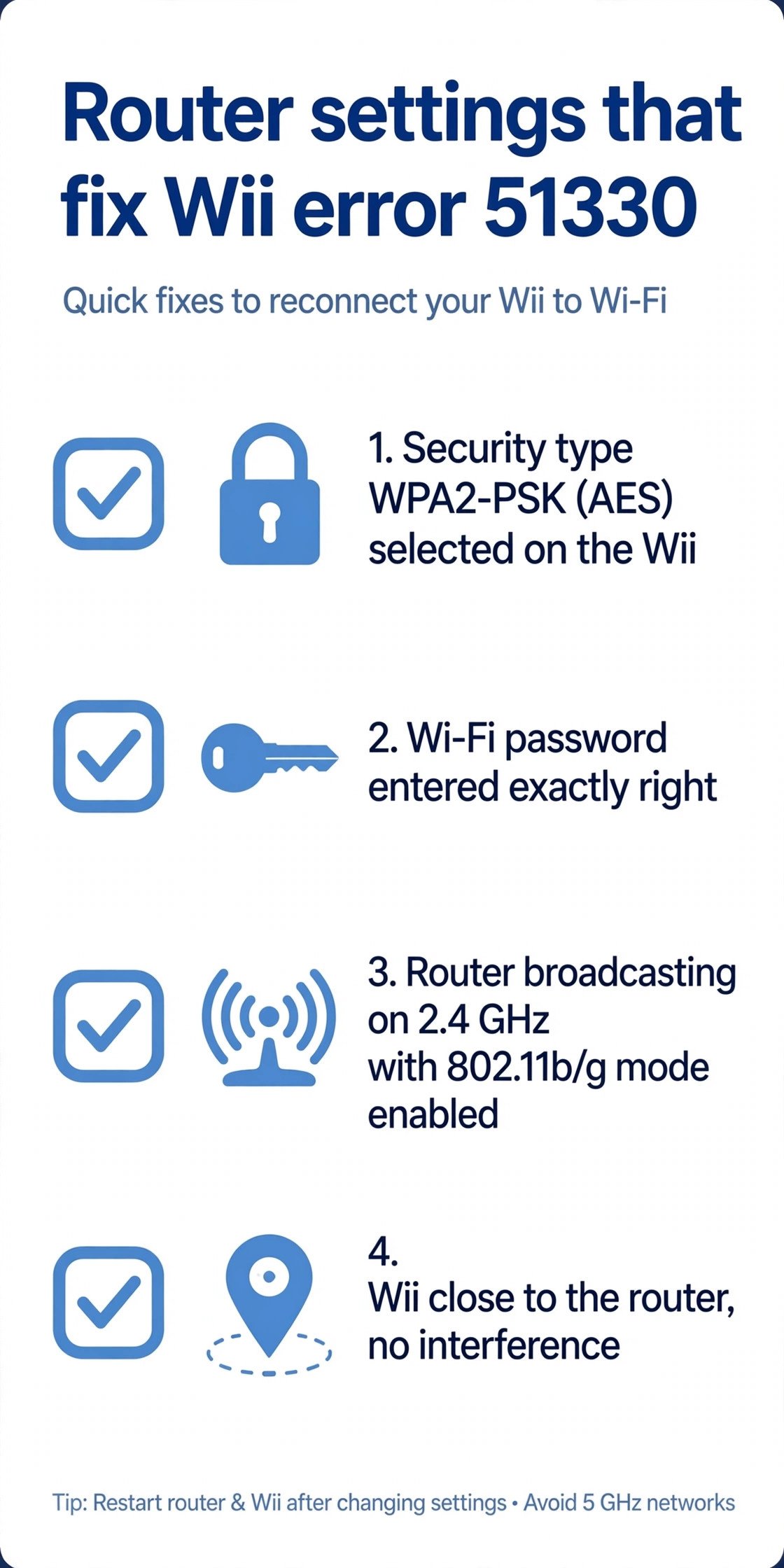
Run the Wii connection test after the router reboots. Success confirms the wireless mode was the blocker.
Fix 4: Delete the old profile and start fresh
A corrupted connection profile can keep failing even with the right password. Go to Wii Settings, then Internet, then Connection Settings, select the profile you use, and delete or clear it. Then set up a new connection and let the Wii search for access points. Pick your network and enter the password fresh. Run the connection test when it finishes.
Fix 5: Move the Wii and cut wireless interference
The Wii’s radio is from 2006 and is sensitive to distance and interference. Move the console closer to the router, keep it away from microwaves, cordless phones, and Bluetooth speakers, and avoid thick walls between the console and the router. Then run the connection test once more.
About playing Wii games online in 2026
Some honest context: Nintendo’s own Wi-Fi Connection service ended in May 2014, so the original online features, such as Nintendo-hosted matchmaking, are gone for good. Error 51330 is about your local Wi-Fi, not those servers. Fan-run replacement servers have kept some Wii games playable online for years, and the best-known project is called Wiimmfi. Server availability can change, so check the project’s own site for its current status before counting on it. Nintendo still hosts the official support page for error codes 51330 to 51332, which covers the same router-side troubleshooting steps.
Our take
Error 51330 is almost always the Wi-Fi password or the security type, so Fix 1 solves it for most people. The deeper fixes matter when the router is new, because modern routers default to settings the 2006-era Wii radio cannot understand. If retro gaming is your thing, you may also enjoy our roundup of the best NES emulators in 2026 for playing classics on modern devices.

- How to Change the Screenshot Save Location on Mac - October 24, 2026
- How to Turn Off Stage Manager on Mac - October 23, 2026
- How to Reset Your Private Space PIN on Android If You Forgot It - October 22, 2026