
Key Takeaways
- The hypervisor must launch at boot or no Hyper-V VM can start. This error means that launch failed, not that your VM is broken.
- The two most common causes: virtualization is disabled in the BIOS/UEFI, or the boot entry is not set to launch the hypervisor automatically.
- Hyper-V needs Windows 11 Pro, Enterprise, or Education. If you are on the Home edition, that alone explains the error.
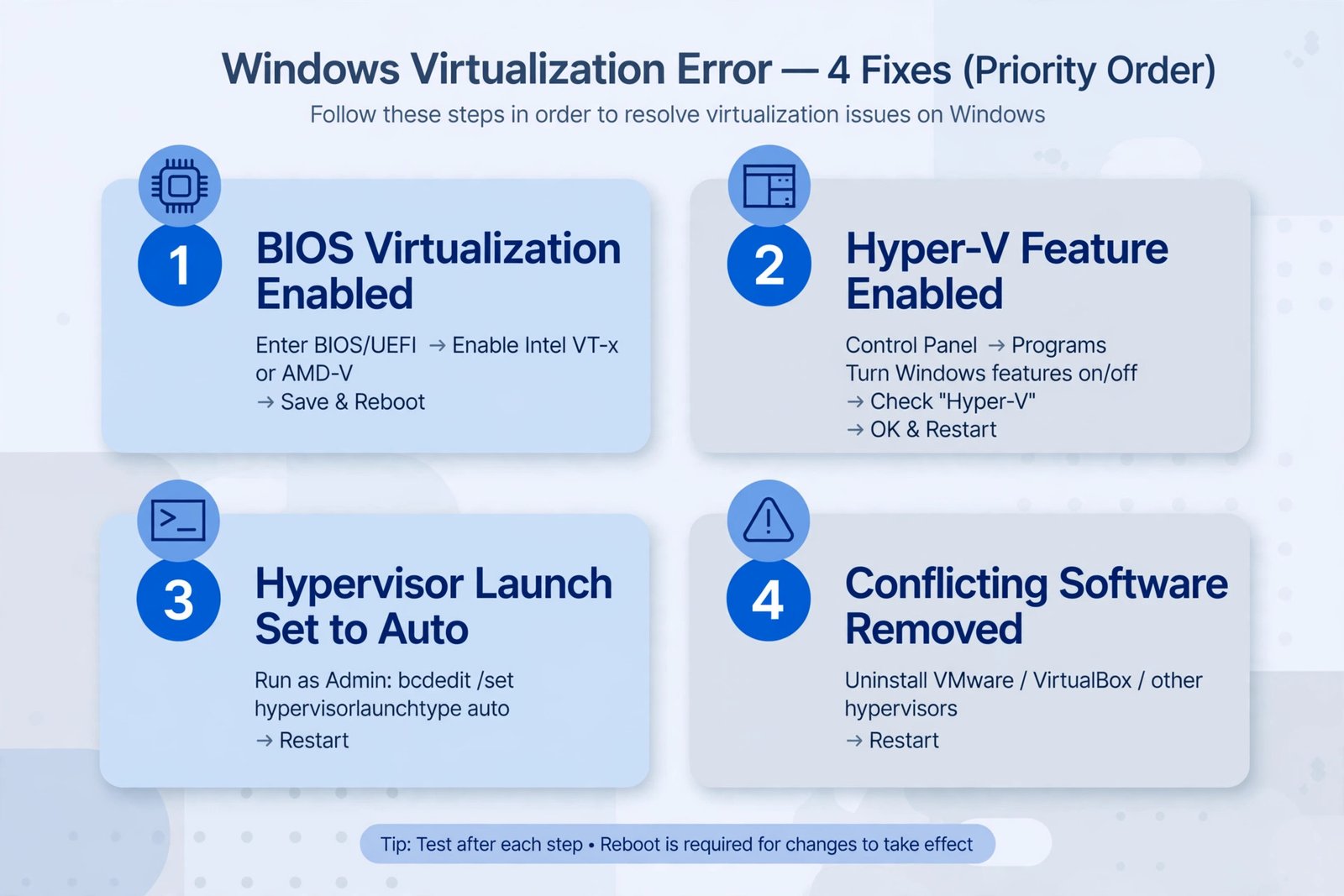
The hypervisor is the thin layer of software that lets Hyper-V run virtual machines. When it fails to start at boot, every VM fails with it, usually with “Virtual machine could not be started because the hypervisor is not running.” Here are the fixes in the order that resolves most cases.
Basic checks first
- Use Restart, not Shut down. With Fast Startup enabled, shutting down does not fully reload the boot environment. Choose Restart from the power menu so the hypervisor launch setting actually takes effect. (Our guide to what Fast Startup is in Windows explains why.)
- Confirm your Windows edition. Go to Settings > System > About. Hyper-V is only available on Pro, Enterprise, and Education editions.
- Check the Hyper-V requirements. Open Terminal and run systeminfo. At the bottom, every line under “Hyper-V Requirements” should say Yes. A No tells you exactly what is missing.
Fix 1: Enable virtualization in the BIOS/UEFI
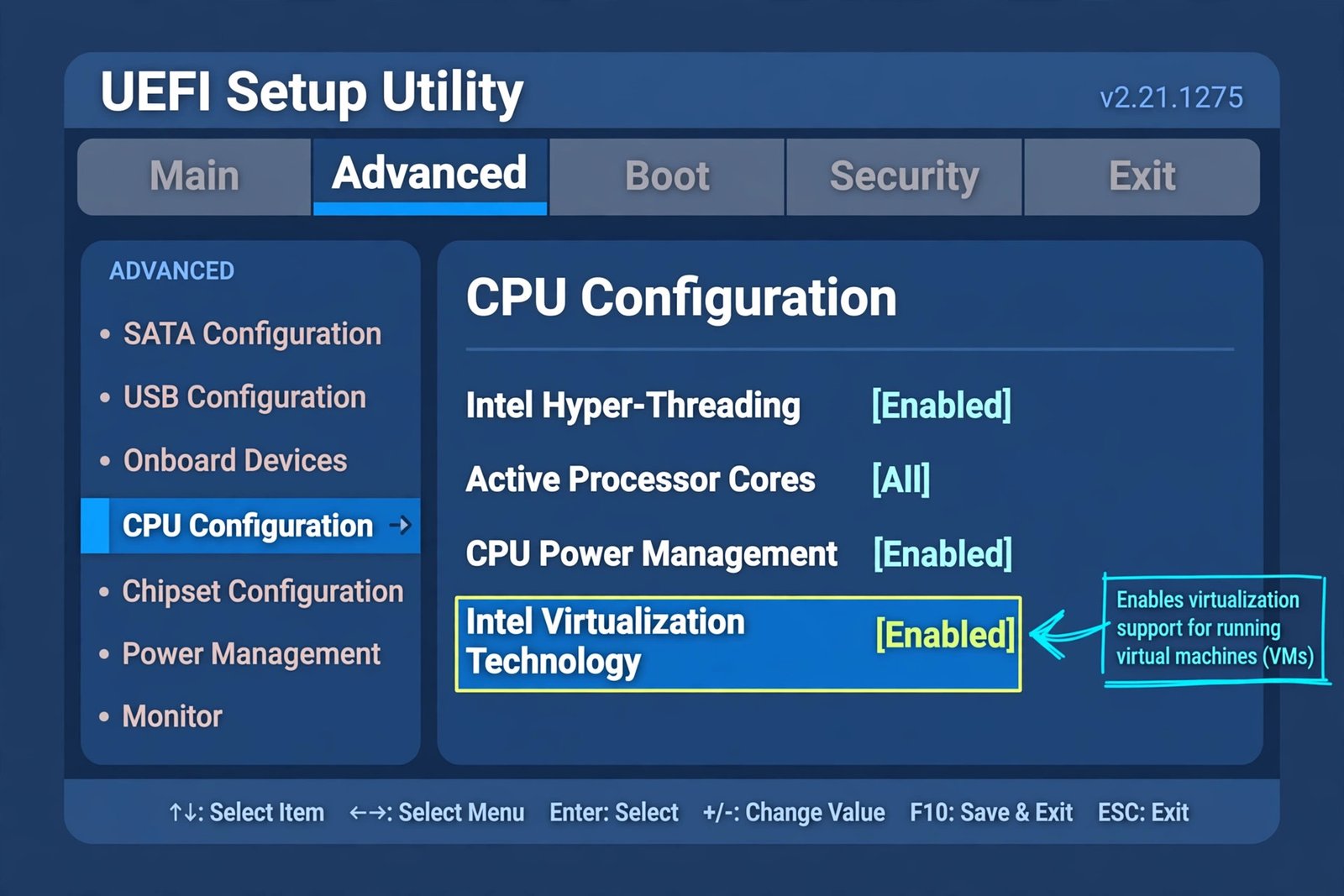
This works when virtualization is simply switched off in firmware, which is the default on many PCs. Windows cannot see hardware virtualization at all until you enable it here.
- Step 1: Restart your PC and enter the BIOS/UEFI setup (usually F2, Del, or Esc during boot).
- Step 2: Look under the Advanced or CPU Configuration tab for Intel Virtualization Technology (Intel) or SVM Mode (AMD).
- Step 3: Set it to Enabled, save, and exit.
You should now see “Hyper-V Requirements: Yes” on every line when you run systeminfo again, and the VM should start. If it still fails, move to the boot configuration fix below.
Fix 2: Set the hypervisor to launch automatically at boot
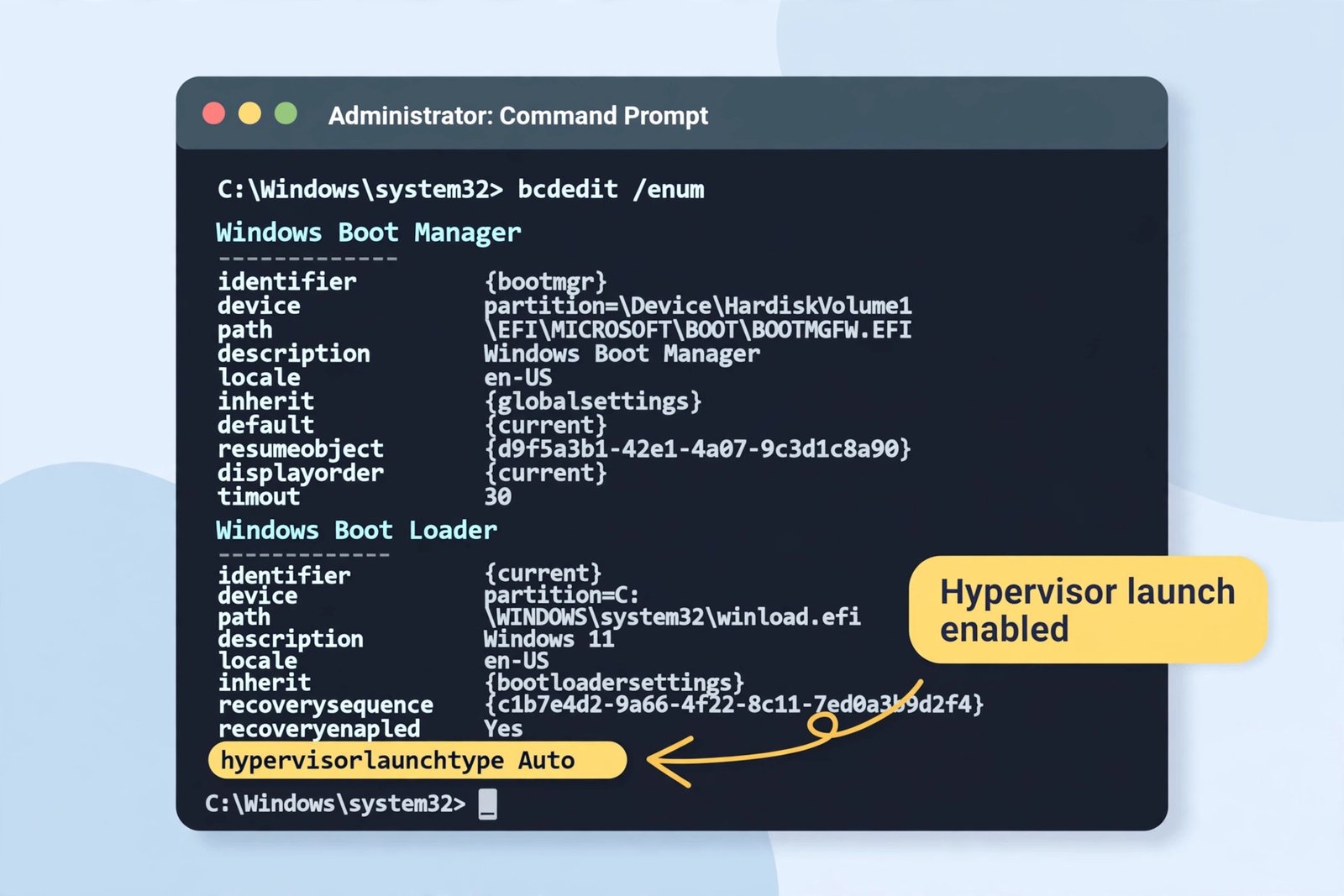
This works when virtualization is on but the boot entry does not start the hypervisor. Other virtualization tools (VMware, VirtualBox) sometimes change this setting behind your back.
- Step 1: Open Terminal (Admin) or an elevated Command Prompt.
- Step 2: Check the current setting:
bcdedit /enum | findstr hypervisorlaunchtype- Step 3: If the line does not say Auto, set it:
bcdedit /set hypervisorlaunchtype auto- Step 4: Restart your PC.
You should now see hypervisorlaunchtype Auto when you re-run the check, and Hyper-V Manager should start the VM. (Do not confuse this with bcdedit /set hypervisorlaunchtype off, which disables the hypervisor deliberately and produces exactly this error.)
Fix 3: Repair or reinstall the Hyper-V feature
This works when the Hyper-V components themselves are installed incompletely or damaged. Reinstalling forces Windows to rebuild them.
- Step 1: Open Terminal (Admin).
- Step 2: Run this command to enable every Hyper-V feature:
dism /online /enable-feature /featurename:Microsoft-Hyper-V -All- Step 3: Restart when prompted.
You can do the same thing through Control Panel > Programs > Turn Windows features on or off: uncheck Hyper-V, reboot, then check it again with all sub-options. You should now see the Hyper-V Virtual Machine Management service start cleanly in services.msc.
Fix 4: Remove conflicting virtualization software
This works when another hypervisor is fighting Hyper-V for the CPU. VMware Workstation and VirtualBox can both take exclusive control of virtualization, and Android emulators can clash with Hyper-V settings too (see our guide to handling Android Studio installation in Windows if you develop on this machine).
Decide which one you actually need. If Hyper-V wins, uninstall the third-party virtualization software from Control Panel > Programs and restart. If the third-party tool wins, disable Hyper-V instead (uncheck it in Turn Windows features on or off) and stop trying to run both. You should now see whichever virtualization platform you kept working without the error.

- How to Stop Android Auto-Connecting to Open Wi-Fi Networks - October 24, 2026
- How to Stop iPhone Apps Asking for Ratings and Reviews - October 23, 2026
- How to Turn Off HDR in Windows 11 When Colors Look Washed Out - October 22, 2026