
Fast Startup is Windows’ hybrid shutdown: instead of powering everything down cleanly, it saves the kernel’s state to a file called hiberfil.sys and reloads that snapshot on the next boot, which shaves seconds off startup. The payoff is real on older machines, but this half-asleep shutdown is also why Windows updates sometimes don’t finish applying and why dual-boot setups act strange. Here’s what it does, when to leave it alone, when to switch it off, and exactly how to change the setting.
What Fast Startup Actually Does
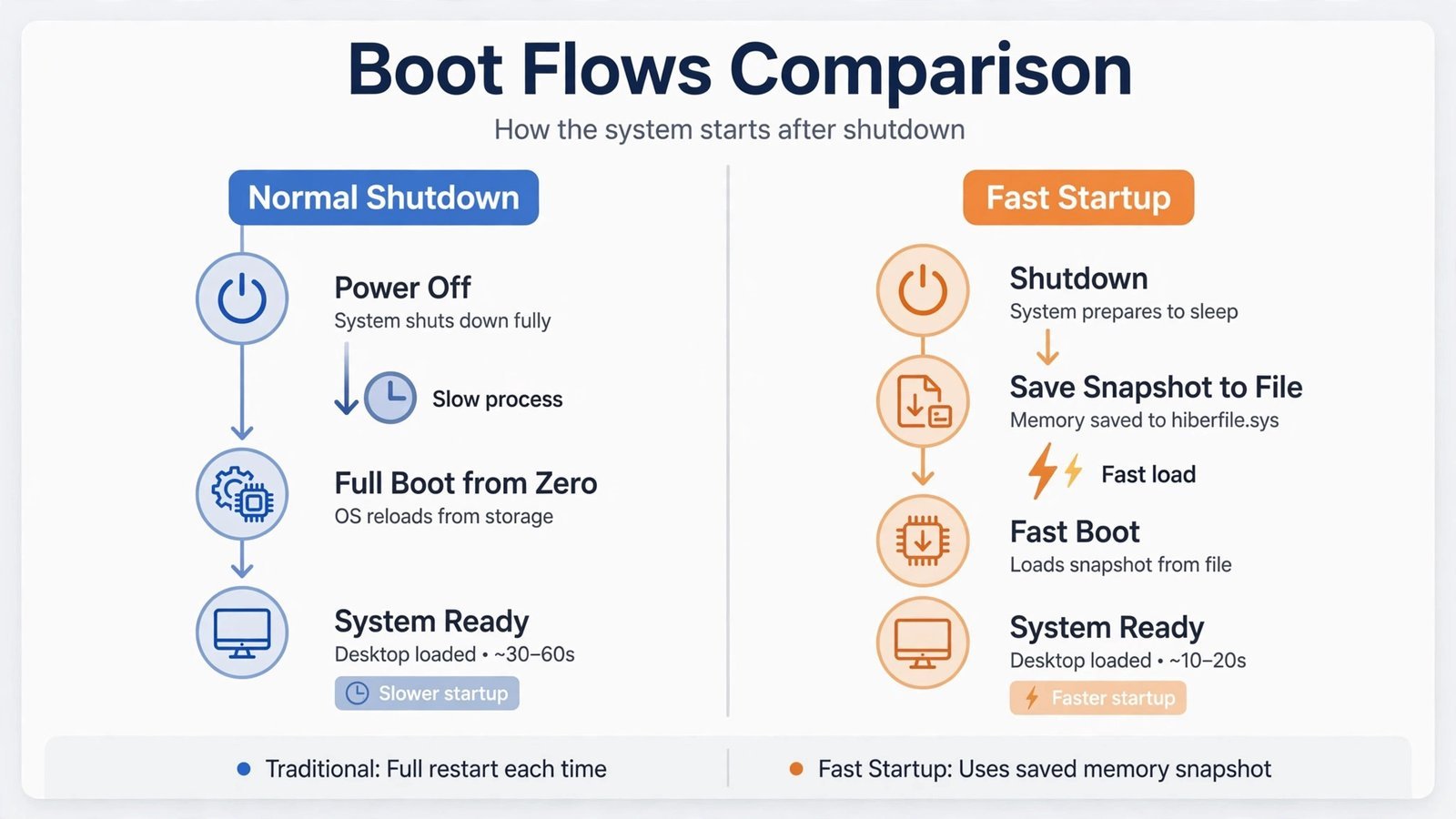
A normal shutdown closes everything: your apps, your session, and the Windows kernel itself. The next boot starts from zero. Fast Startup changes only the last part of that sequence.
When you click Shut down with Fast Startup enabled, Windows logs you out and closes your apps as usual, but instead of discarding the kernel and loaded drivers, it writes their state to hiberfil.sys, a hidden system file at the root of your C: drive. The hardware then powers off fully. When you switch the PC back on, Windows reads that snapshot instead of initializing the kernel from scratch. Your open apps and documents are not saved, this isn’t hibernation, but the deep system layer gets a head start.
Two things about this trip people up. First, Restart always bypasses Fast Startup and does a full, clean boot, which is why “have you tried restarting?” is genuinely different advice from “shut it down and turn it back on.” Second, the snapshot only gets written on Shut down, so the feature does nothing for you if you only ever use Sleep or Restart.
When to Leave It On, and When to Turn It Off
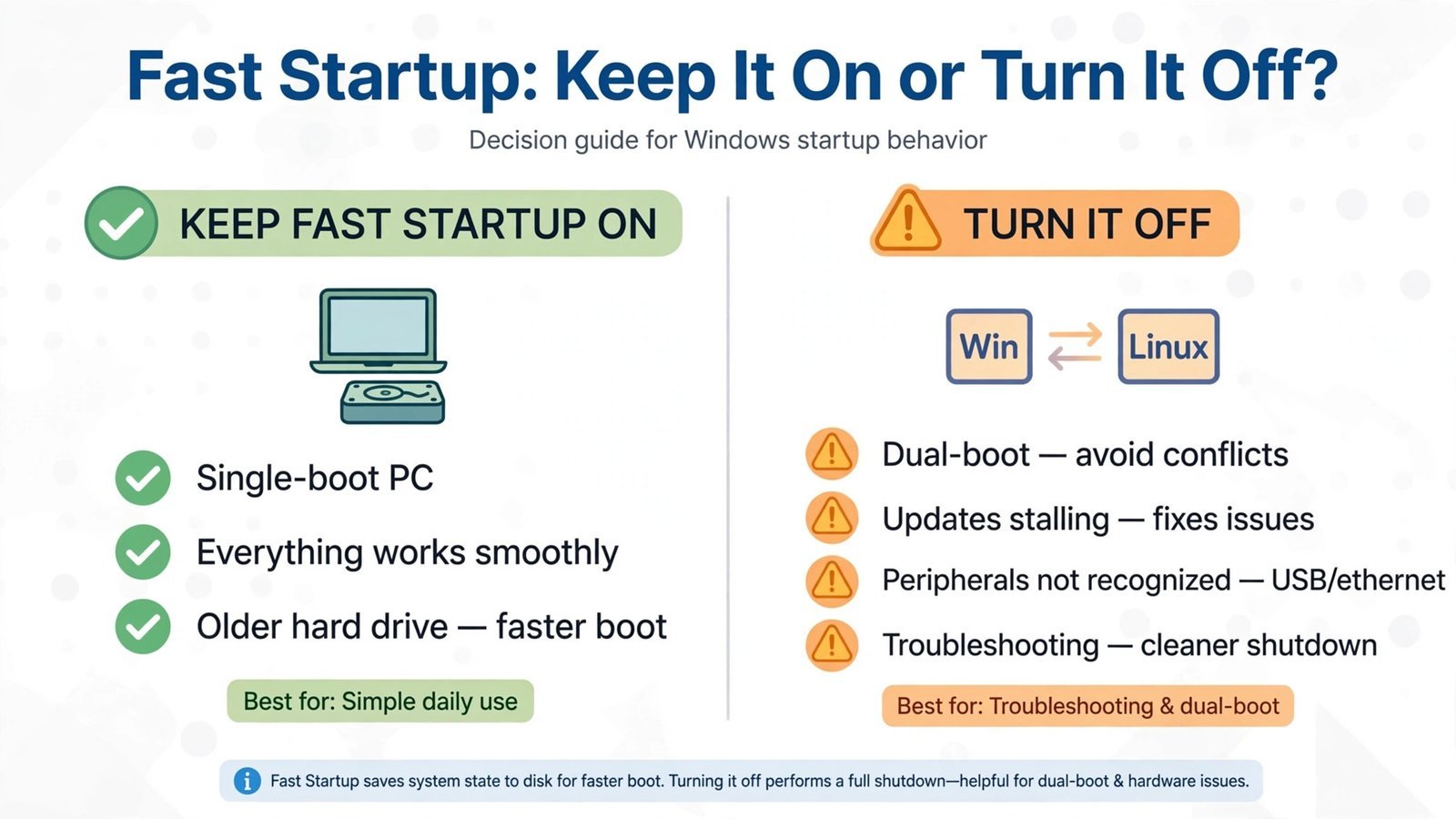
For a single-boot home PC, Fast Startup is mostly harmless and slightly helpful. But there are specific situations where it actively causes trouble, and recognizing them is the whole point of understanding this feature:
- You dual-boot Linux or another OS. Fast Startup leaves the Windows partition in a locked, “in use” state. The other OS may mount it read-only or refuse to mount it at all, one of the most common causes of dual-boot file access headaches.
- Windows updates seem to stall or never finish. Some updates need a full shutdown and clean boot to complete. If you always use Shut down instead of Restart, the old kernel state can carry over and the update sits half-applied.
- New hardware or peripherals aren’t recognized after shutdown. Plugged in a new device, shut down, powered on, and Windows acts like nothing changed? The saved kernel state may not have picked it up. A Restart (full boot) usually fixes it.
- You can’t get into BIOS/UEFI settings. The skipped POST sequence can make the usual F2/Delete key presses unresponsive on some machines.
- You’re chasing a stubborn driver or software problem. Troubleshooting on top of a stale kernel snapshot is a recipe for confusion. Rule it out by turning Fast Startup off.
The practical trigger: if anything about booting, updating, or hardware detection has been “weird lately,” Fast Startup is worth suspecting. If everything works fine, there’s no reason to touch it.
| Mode | What gets saved | Power used | Boot experience |
|---|---|---|---|
| Sleep | Nothing, RAM stays powered | Low (RAM stays live) | Resumes in seconds |
| Hibernate | Full RAM contents to disk | Zero | Slower than Sleep, faster than cold boot |
| Fast Startup | Kernel session only, to hiberfil.sys | Zero | Fastest boot from powered-off state |
| Full shutdown | Nothing saved | Zero | Slowest, fully fresh boot |
How to Turn Fast Startup On or Off
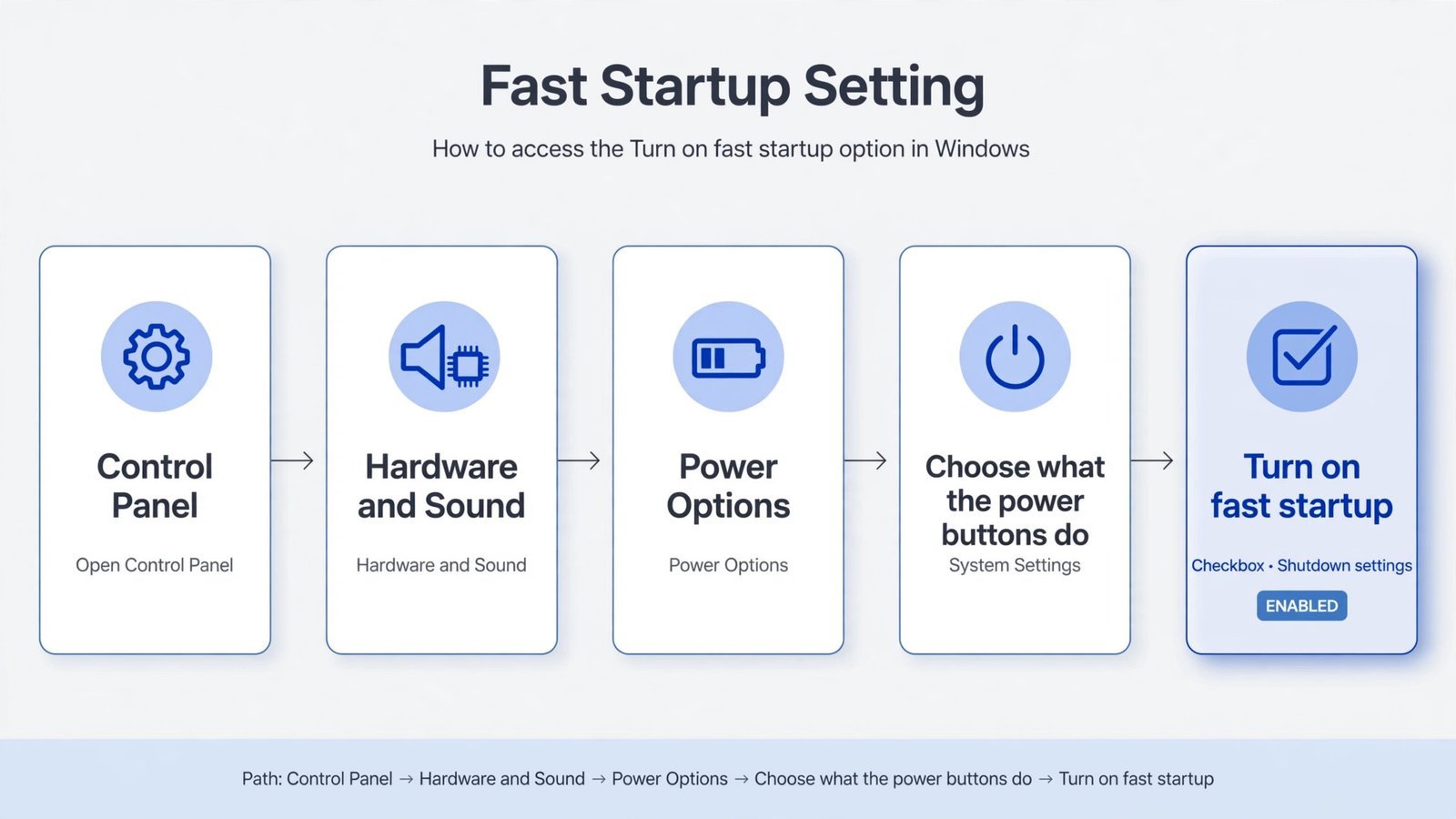
The setting lives in the old Control Panel on both Windows 10 and Windows 11, the path is the same, which is convenient. You’ll need an administrator account.
- Open Control Panel (press Win + R, type
control, and press Enter). - Click Hardware and Sound, then Power Options.
- In the left pane, click Choose what the power buttons do.
- Near the top of the page, click Change settings that are currently unavailable, this unlocks the greyed-out checkboxes below. (On Windows 10 you can also reach Power Options via Win + X → Power Options → Additional power settings; the rest is identical.)
- Under Shutdown settings, check or uncheck Turn on fast startup (recommended).
- Click Save changes. No restart needed, the change applies the next time you shut down.
Note: If the Fast Startup checkbox is missing entirely, hibernation is disabled on your system, and Fast Startup depends on it. Open an elevated Command Prompt (right-click Start → Terminal (Admin)) and run
powercfg /hibernate on, then go back to Power Options, the checkbox should appear. Runningpowercfg /hibernate offdoes the reverse: it disables both hibernation and Fast Startup and deletes the multi-gigabytehiberfil.sysfile, freeing that disk space.
Two handy alternatives. For a one-time full shutdown without changing the setting, hold Shift while clicking Shut down in the Start menu, or run shutdown /s /t 0 from an elevated prompt. And if you’re comfortable in the registry, the setting is the DWORD HiberbootEnabled under HKEY_LOCAL_MACHINE\SYSTEM\CurrentControlSet\Control\Session Manager\Power, 1 for on, 0 for off, but the Control Panel checkbox does exactly the same thing with less risk, so prefer it.
The Bottom Line: Should You Touch It?
Keep Fast Startup on if you run Windows as your only operating system, everything updates cleanly, and you like a snappier cold boot, especially on a spinning hard drive, where the difference is most noticeable. Turn it off if you dual-boot, if updates keep misbehaving, if peripherals play hide-and-seek after shutdown, or if you’re troubleshooting anything driver-related and want a clean baseline.
On a modern machine with an NVMe SSD, you may genuinely not feel the difference either way, Windows 11 already boots in seconds. The feature matters less than it used to; knowing when it interferes matters more than the setting itself.
Does Fast Startup wear out my SSD?
Every shutdown writes the kernel snapshot to hiberfil.sys, which means extra writes to your drive. Technically true, practically a non-issue: modern SSDs are rated for hundreds of terabytes of writes, and the snapshot adds only a few gigabytes per week. Unless you’re running an ancient low-endurance drive, don’t let this decide the setting for you.
If boot speed is what you’re chasing, Fast Startup is only one lever. Trimming the apps launching at startup usually makes a bigger visible difference, and our guide on how to speed up your Windows boot time covers the rest. Curious about the disk space hibernation eats? Here’s whether swapfile.sys is safe to delete, its close cousin.
Read next: How to Speed Up Windows Boot Time in 2026 (Real Fixes That Actually Work)

- How to Change the Lock Screen Timeout on Windows 11 - October 25, 2026
- How to Fix the Windows 11 Taskbar Auto-Hide Problem - October 24, 2026
- How to Fix a Laptop Camera Not Working in Windows 11 - October 23, 2026