
A 502 Bad Gateway error means the server you reached tried to fetch your page from another server behind it, and that second server gave back garbage, or nothing at all. Nine times out of ten it’s a server-side hiccup, but sometimes your own connection or browser is the thing getting in the way. This guide covers both sides: quick checks for visitors, then deeper fixes for site owners, and we’ll start with the easiest method first.
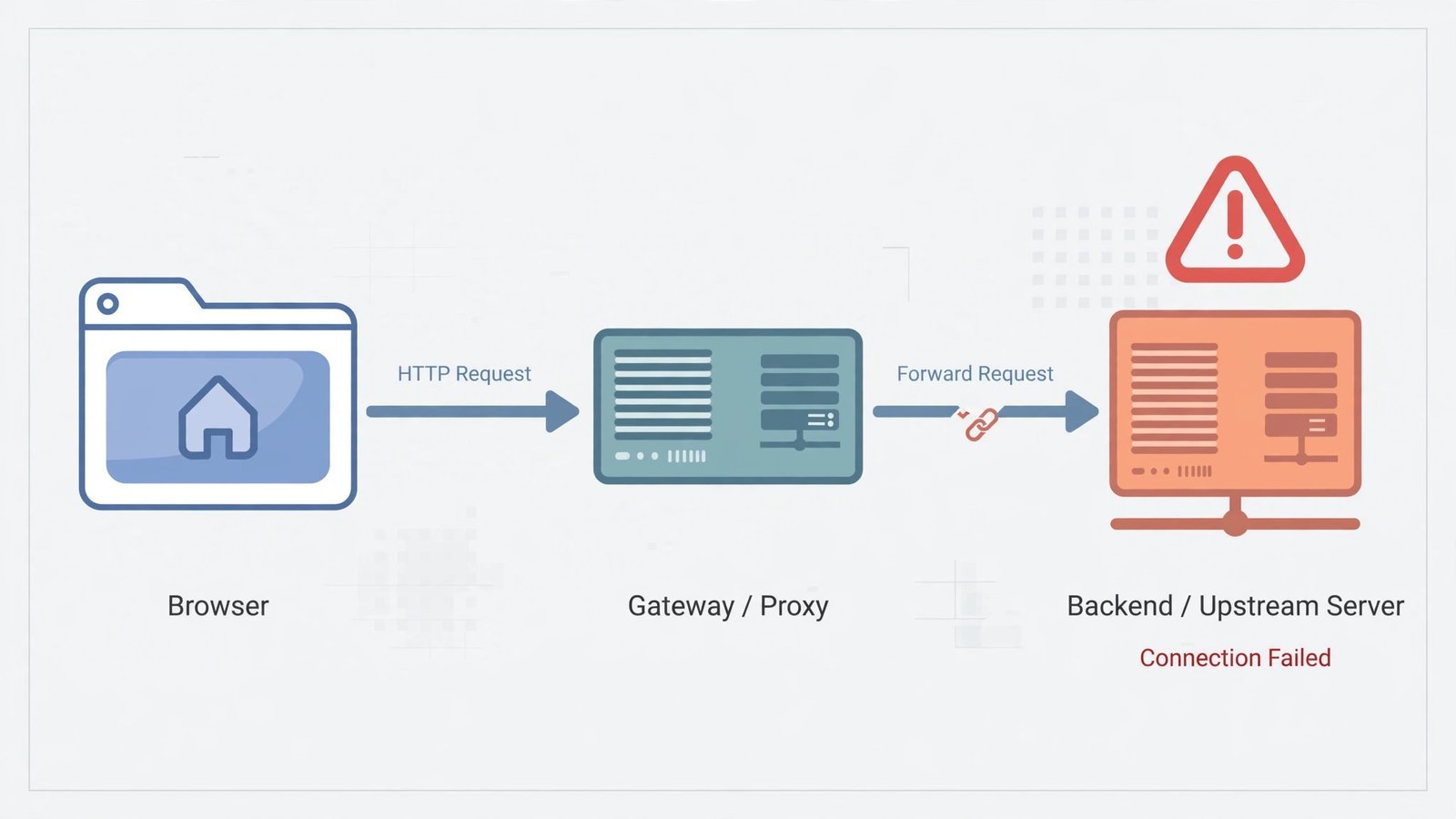
1. Hard-Refresh the Page
What this does: rules out a one-off hiccup between the servers. 502s are often momentary, a backend process restarting, a deployment rolling through, and a fresh request a few seconds later sails through.
- Click the refresh button in your browser, or press F5.
- If it still shows the error, do a hard refresh to bypass your local cache: Ctrl + F5 on Windows/Linux, or Cmd + Shift + R on Mac.
If the page loads now, you’re done, it was a blip. If not, keep going.
2. Check Whether the Site Is Down for Everyone
What this does: tells you in about twenty seconds whether this is your problem or theirs, which decides everything you do next.
We recommend doing this as your second move, before touching any settings. If the site is down for everyone, no amount of cache-clearing on your end will help, you’ll just be fiddling while the site owner fixes their server.
- Open a new tab and go to downforeveryoneorjustme.com.
- Type the site’s address and check the result.
- Down for everyone: the problem is on the server side. Skip to step 7, report it and wait.
- Just you: something on your end is involved. Continue with the steps below.
3. Try a Different Network
What this does: rules out your ISP, router, or office network as the culprit. Some networks route traffic through proxies or filters that can produce 502-style failures.
- Disconnect from your Wi-Fi and load the site over your phone’s mobile data (or a mobile hotspot).
- If the site loads on mobile data, the problem is specific to your network, restart your router and modem, then try again.
- If it fails on both networks, the issue isn’t your connection. Move on.
Note: If your Windows connection keeps acting up in general, here’s how to reset your network settings, it clears out stale configurations without touching your files.
4. Clear Your Browser Cache and Cookies
What this does: your browser may be showing you a stale, cached copy of the error page instead of the live site. Clearing it forces a genuinely fresh request.
- In Chrome, click the three-dot menu → Settings → Privacy and security.
- Click Delete browsing data.
- Set the time range to All time, tick Cached images and files and Cookies and other site data, then click Delete data.
- Close the tab and try the site again.
Warning: Clearing cookies logs you out of most sites, so make sure you know your passwords first. If your browser feels sluggish in general, not just on this one site, see our guide on how to fix a slow browser for the deeper cleanup.
5. Turn Off Your VPN, Proxy, and Extensions
What this does: a broken VPN endpoint or misconfigured proxy produces responses that look exactly like a server-side 502. Extensions, especially ad blockers and privacy tools, can interfere with page loading too.
Before the steps, the one judgment call: should you browse with the VPN on or off for this test? We recommend testing with everything off once. You’re not making a permanent choice, you’re isolating the variable. If the site loads with the VPN disabled, the culprit is your VPN’s endpoint or your proxy settings, not the site. Switch to a different VPN server or leave it off for that site.
- Disconnect your VPN completely (not just pause, fully disconnect).
- Disable your browser extensions temporarily: in Chrome, go to chrome://extensions and toggle them off.
- Try the site in an incognito/private window, which runs with extensions off by default.
- If it loads, re-enable things one at a time to find the offender.
6. Flush Your DNS Cache
What this does: your computer may be resolving the site to an old or dead server address. Flushing forces a fresh DNS lookup.
On Windows:
ipconfig /flushdnsOn Mac:
sudo dscacheutil -flushcache; sudo killall -HUP mDNSResponderOn Linux:
sudo resolvectl flush-cachesRun the command for your system, then reload the page. If the 502 persists after all six visitor steps, it’s almost certainly a server-side problem.
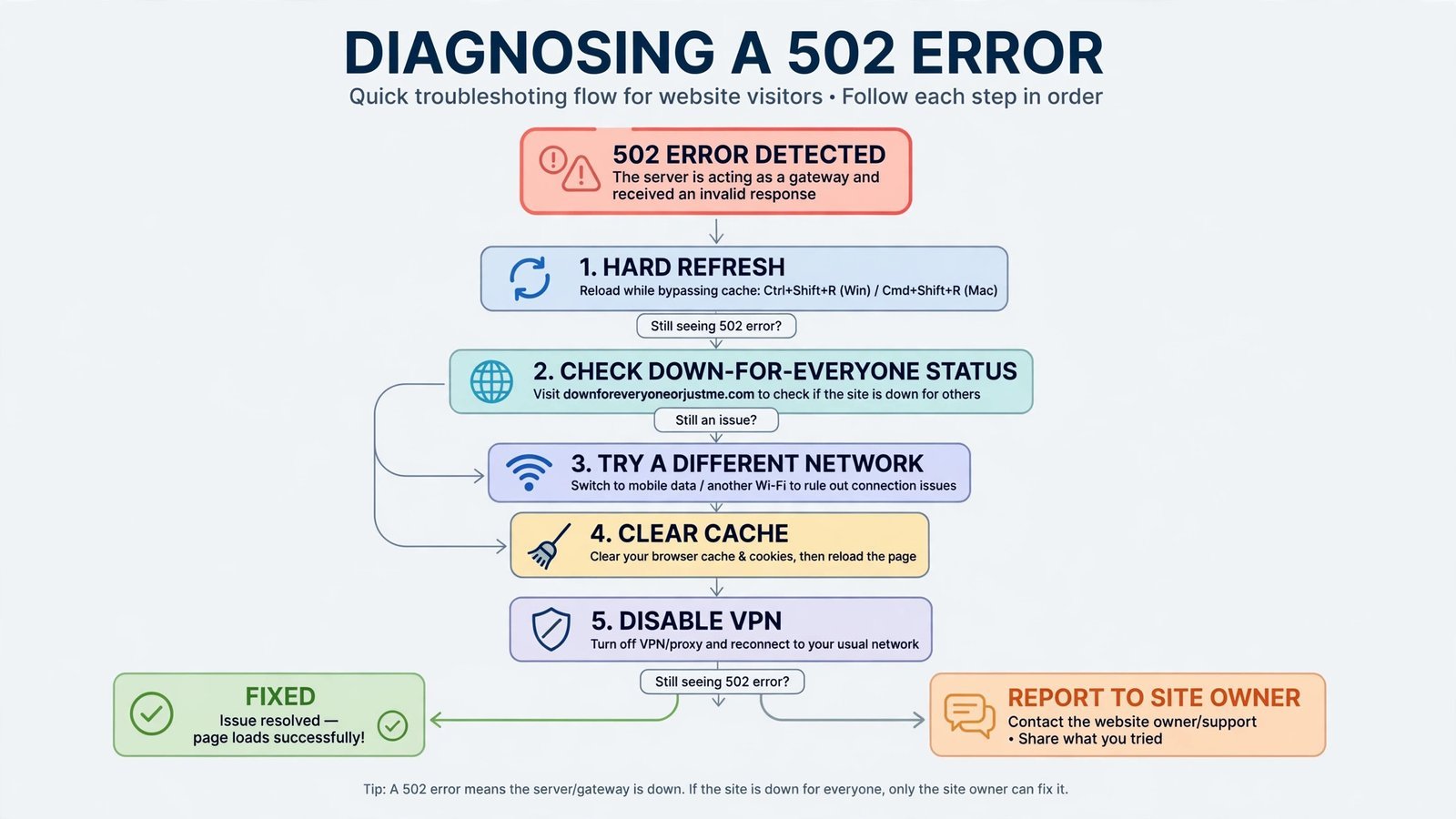
7. Report It to the Site Owner and Wait
What this does: if the site is down for everyone, the fix is on their end, but a good bug report gets it fixed faster.
- Find the site’s contact page, support email, or social media account.
- Include the exact URL, the time you saw the error, what you were trying to do, and your general location/ISP.
- Wait 10–15 minutes before retrying. Hammering refresh doesn’t speed anything up and can add load to a struggling server.
If you run the site yourself, the visitor checks above don’t apply, the problem is in your stack. Start with step 8.
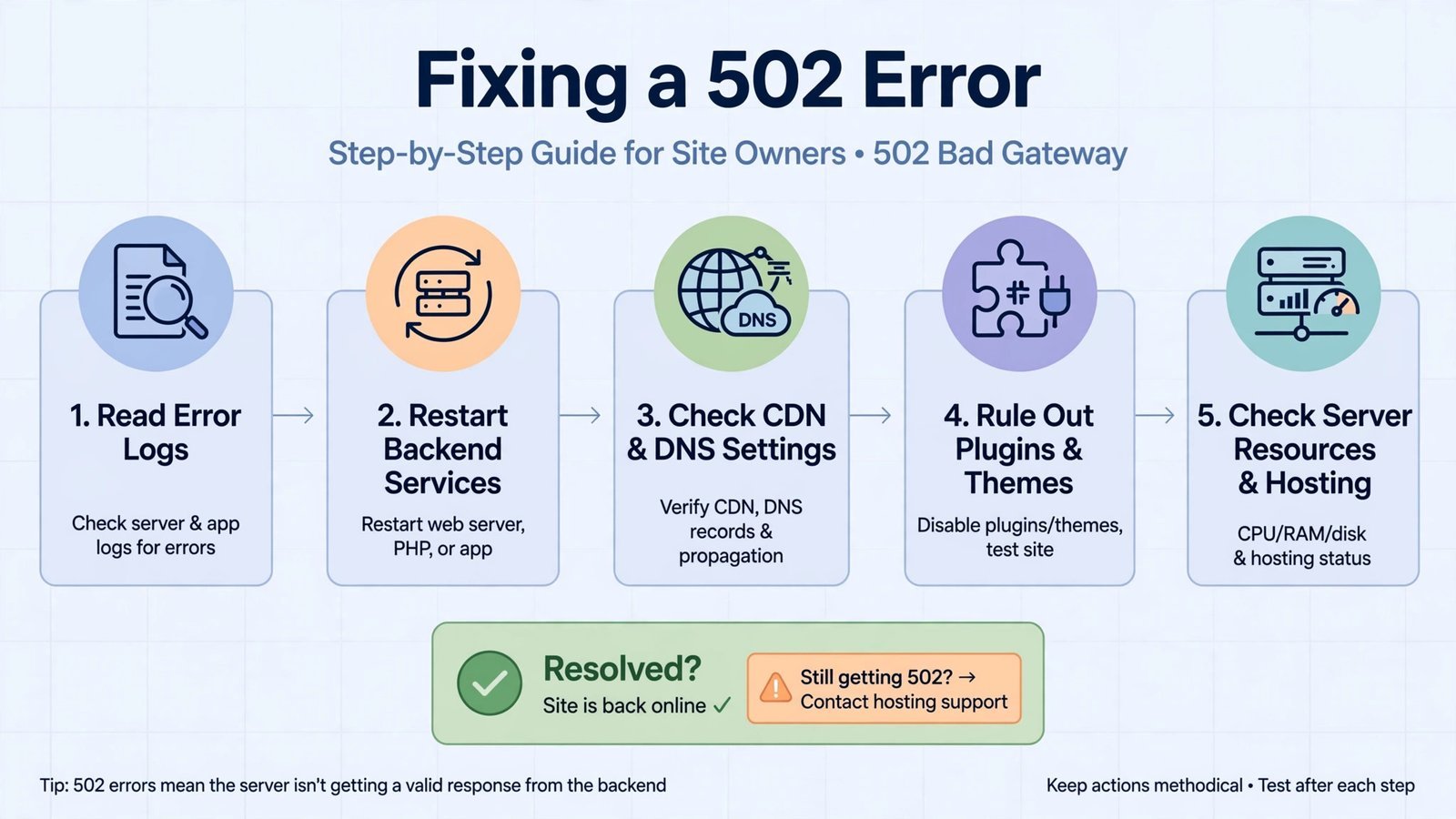
8. Restart Your Backend Services (Site Owners)
What this does: a crashed or wedged backend process, PHP-FPM, your Node.js app, the database, is the single most common cause of 502s. A restart is the fastest way to confirm.
- SSH into your server.
- Check what’s actually running:
sudo systemctl status php-fpm nginx(use your PHP version, e.g.php8.3-fpm). - Restart the backend first, then the web server:
sudo systemctl restart php-fpm sudo systemctl restart nginx - Reload the site. If the 502 is gone, it was a crashed process, but don’t stop here. Check why it crashed (memory? a bad deploy?) or it’ll be back.
Warning: Restarting services briefly drops all active connections. Do this during a quiet moment if you can, and never restart a production database service blindly, restart the app/backend tier first.
9. Read Your Error Logs (Site Owners)
What this does: the logs name the broken piece. Guessing wastes hours; logs take minutes.
tail -n 100 /var/log/nginx/error.log
tail -n 100 /var/log/apache2/error.log
tail -n 100 /var/log/php-fpm/error.log
Look for lines mentioning upstream, connection refused, or upstream prematurely closed connection. “Connection refused” means the backend isn’t listening at all (it’s down or bound to the wrong port). “Upstream timed out” means it’s alive but too slow, that’s a performance problem, not a dead process, and points at overloaded workers or a stuck database query.
10. Check Your CDN and DNS Settings (Site Owners)
What this does: when a Cloudflare-branded 502 page appears, it means Cloudflare reached out to your origin server and got an invalid response. The fault is usually in the handshake between the two, not in Cloudflare itself.
The confusing choice here is Cloudflare’s SSL mode. We recommend this rule: use Full (Strict) only if your origin server has a valid SSL certificate; if it doesn’t (or it expired), Strict mode itself causes the 502. Switching temporarily to Full (non-strict) is a legitimate diagnostic step, just don’t leave it there permanently, since it weakens the encryption between Cloudflare and your origin.
- In the Cloudflare dashboard, verify your DNS A record points at the correct origin IP, especially if you recently migrated servers.
- Check SSL/TLS → Overview and confirm the mode matches your origin’s certificate situation (see above).
- Click the cloud icon on the DNS record to turn it grey (DNS only), bypassing Cloudflare entirely. If the site loads directly, your origin is fine and the problem is the Cloudflare↔origin connection. If it still fails, the origin server itself is broken, go back to steps 8–9.
- Re-enable the proxy (orange cloud) when you’re done testing.
11. Rule Out WordPress Plugins and Themes (Site Owners)
What this does: on WordPress, a bad plugin update crashing the PHP worker is the most common 502 cause in the wild, more common than server misconfiguration.
Plugins or theme first? We recommend starting with plugins. They’re updated far more often than themes and run far more code per page load, so they’re statistically the likelier culprit. The trade-off: bulk-deactivating is safe and reversible, but you’ll need to reactivate plugins one by one afterward to find the offender, which takes patience.
- If you can reach wp-admin: go to Plugins → Installed Plugins, select all, and choose Deactivate from the bulk menu. Test the site.
- If wp-admin is also 502’d: connect via FTP/SSH and rename the folder:
mv wp-content/plugins wp-content/plugins_backup. WordPress disables everything automatically. - If the 502 clears, rename the folder back and reactivate plugins one at a time, testing the site after each, until the error returns.
- If plugins weren’t it, switch to a default theme (Twenty Twenty-Five) the same way, rename your theme’s folder and WordPress falls back.
- While you’re in there, raise the PHP memory limit in
wp-config.php:define('WP_MEMORY_LIMIT', '256M');, memory-starved PHP workers are a classic 502 trigger.
12. Check Resources, and Your Host (Site Owners)
What this does: a server that’s out of memory starts killing processes mid-request, and each kill surfaces as a 502 to visitors.
free -h # memory usage
df -h # disk space, a full disk crashes databases and causes 502s too
top # live view of what's eating CPU and RAM
If RAM is exhausted during traffic spikes and your plan can’t grow with it, no amount of tuning will save you, you’re simply on a box that’s too small. If your host can’t handle your traffic even after optimizing, it may be time to change web hosting to a plan with headroom.

- How to Rebuild the Spotlight Index on Mac - October 25, 2026
- How to Change the Screenshot Save Location on Mac - October 24, 2026
- How to Turn Off Stage Manager on Mac - October 23, 2026