
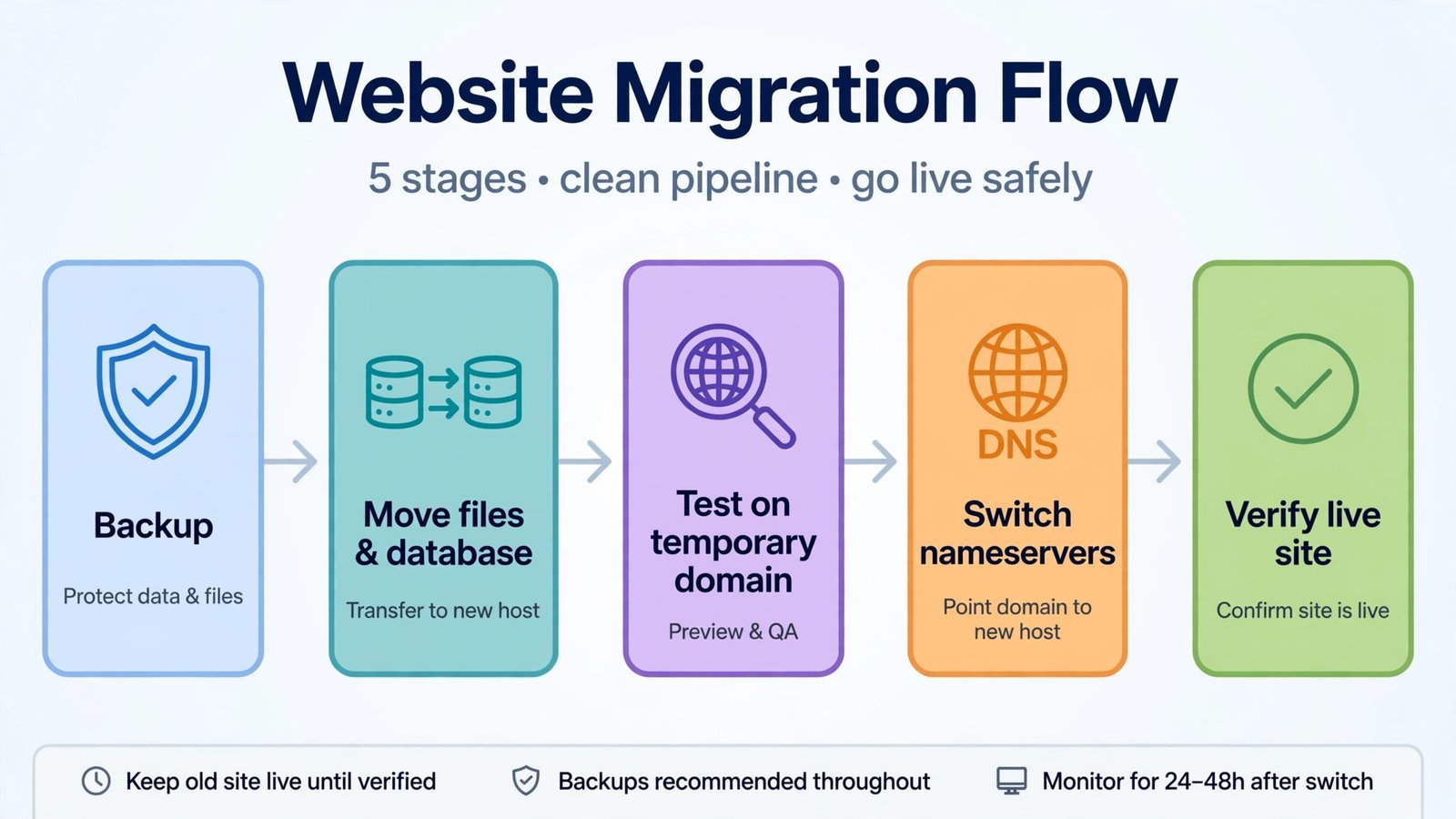
- Moving a website means copying its files and database to a new server, then pointing your domain at the new server.
- The fastest, safest method for most people: your new host’s free migration service, their team does the technical work.
- The one warning: DNS changes take time to spread (usually a few hours, sometimes up to 48). Plan around it.
- Total realistic time: a few hours of your work, spread over 2–4 days including propagation and testing.
It usually starts with an email: your renewal quote, and the price has tripled since the intro offer. Or support goes silent right when your site is down. Either way, you’re moving, and the good news is that switching hosts is a solved problem. In this guide, I’ll show you how to change web hosting using three methods: your new host’s free migration service, a manual move, and a migration plugin.
- Method 1: Let your new host migrate for you (easiest)
- Method 2: Migrate manually (full control)
- Method 3: Use a migration plugin (WordPress)
Before you touch anything: the boring steps that save you
Every migration horror story starts with someone skipping this section. Don’t be that person.
- Back up everything, twice. Download a full backup of your site’s files (usually in
public_html) and export your database via phpMyAdmin. Keep one copy on your computer and one in cloud storage. If anything goes sideways, this is your rewind button. - Gather your logins. Old host’s control panel, FTP/SFTP credentials, database credentials, and, critically, your domain registrar login, since you’ll change nameservers there later.
- Screenshot your DNS records. If you run email on your domain, note every MX record and any TXT/SPF entries. These don’t move automatically with a nameserver change, and losing email for a day is the most common migration casualty.
- Lower your DNS TTL now. TTL (time-to-live) tells the internet how long to cache your DNS records. Drop it to 300 seconds (5 minutes) 24–48 hours before you switch nameservers. When you flip the switch, the change spreads in minutes instead of a day. You can raise it again afterward.
Quick tip: Don’t cancel your old hosting yet. Keep it active for at least a week after the move, some visitors and email will still hit the old server during propagation, and you want a fallback while you verify.
Method 1: Let your new host migrate for you (easiest)
Most reputable hosts offer free migration, their technicians move your files and database, test the result, and hand you a working site. If your new host offers this, take it. It’s the lowest-risk option and it costs nothing.
- Sign up with the new host and open a migration request (usually under “Services” or via support chat). You’ll hand over your old host’s login credentials, use a temporary password you change afterward.
- Wait for their team to complete the move, typically 1–3 days. They’ll notify you when it’s done.
- Test on the temporary domain they provide (something like
yoursite.newhost.com). Click through pages, submit a contact form, log into your admin panel, and check that images load. - Point your domain at the new host by updating nameservers at your registrar (covered in the DNS section below).
- Verify everything on the live domain after propagation, then cancel the old account.
Quick note: Free migrations usually cover one site and assume a standard setup. Heavily customized servers, multisite networks, or giant media libraries may be excluded, ask before you commit.
Method 2: Migrate manually (full control)
Manual migration takes longer but teaches you exactly how your site fits together, and it’s the only option when no migration service or plugin quite fits. This example assumes WordPress on cPanel-style hosting; the shape is the same everywhere.
- Back up (you did this in the prep section, confirm the files are actually on your computer, not just “in the cloud somewhere”).
- Upload your files to the new host’s
public_htmlfolder via FTP (FileZilla is free) or the control panel’s file manager. Large sites take a while; let it finish. - Create a new database on the new host, then import your exported SQL file through phpMyAdmin. For databases over ~10 MB, imports sometimes hit server limits, your new host’s support will import it for you if you ask.
- Update wp-config.php with the new database name, username, and password. This is the step everyone forgets, and the symptom is the infamous “Error establishing a database connection.”
- Test before switching nameservers. Either use the host’s temporary domain or edit your computer’s hosts file to point your domain at the new server’s IP, that way only you see the new site. Click everything. Check the admin panel. Send a test email.
- Switch the nameservers at your registrar to the new host’s addresses (typically
ns1.newhost.com/ns2.newhost.com). - Verify SSL. Your site should show the padlock and
https://. Most hosts issue a free Let’s Encrypt certificate automatically, but it can take an hour or two after the DNS switch, don’t panic if it’s briefly missing.
Quick tip: If your email lives with your old host, recreate the mailboxes on the new host before switching nameservers, and copy over the MX records you screenshotted in prep. Email is the thing people forget until Monday morning.
Method 3: Use a migration plugin (WordPress)
Migration plugins package your whole site, files, database, themes, plugins, into one file you import on the new host. No FTP, no phpMyAdmin. Three honest options in 2026:
- All-in-One WP Migration, the friendliest. Export on the old site, drag-and-drop import on the new one, and it rewrites URLs automatically. The catch: the free version caps imports at around 512 MB (your host’s upload limit). Fine for most blogs; not for a 5 GB media library unless you buy the Unlimited extension.
- Duplicator, builds an archive plus an
installer.phpscript you run on the new server. Slightly more hands-on, but no artificial size games on the free tier and it works even without WordPress installed at the destination. The long-standing favorite of developers. - Migrate Guru, the answer for big sites. It transfers server-to-server through its own infrastructure, so your site size barely matters (it handles very large sites free). The trade-off: your data passes through their servers, and you’re limited to a few migrations per month. Fine for most, but think twice for sensitive data.
Whichever you pick: install it on the old site to export, install WordPress plus the same plugin on the new host to import, and delete the installer files when you’re done.
Our Take: which method to pick, and when not to switch at all
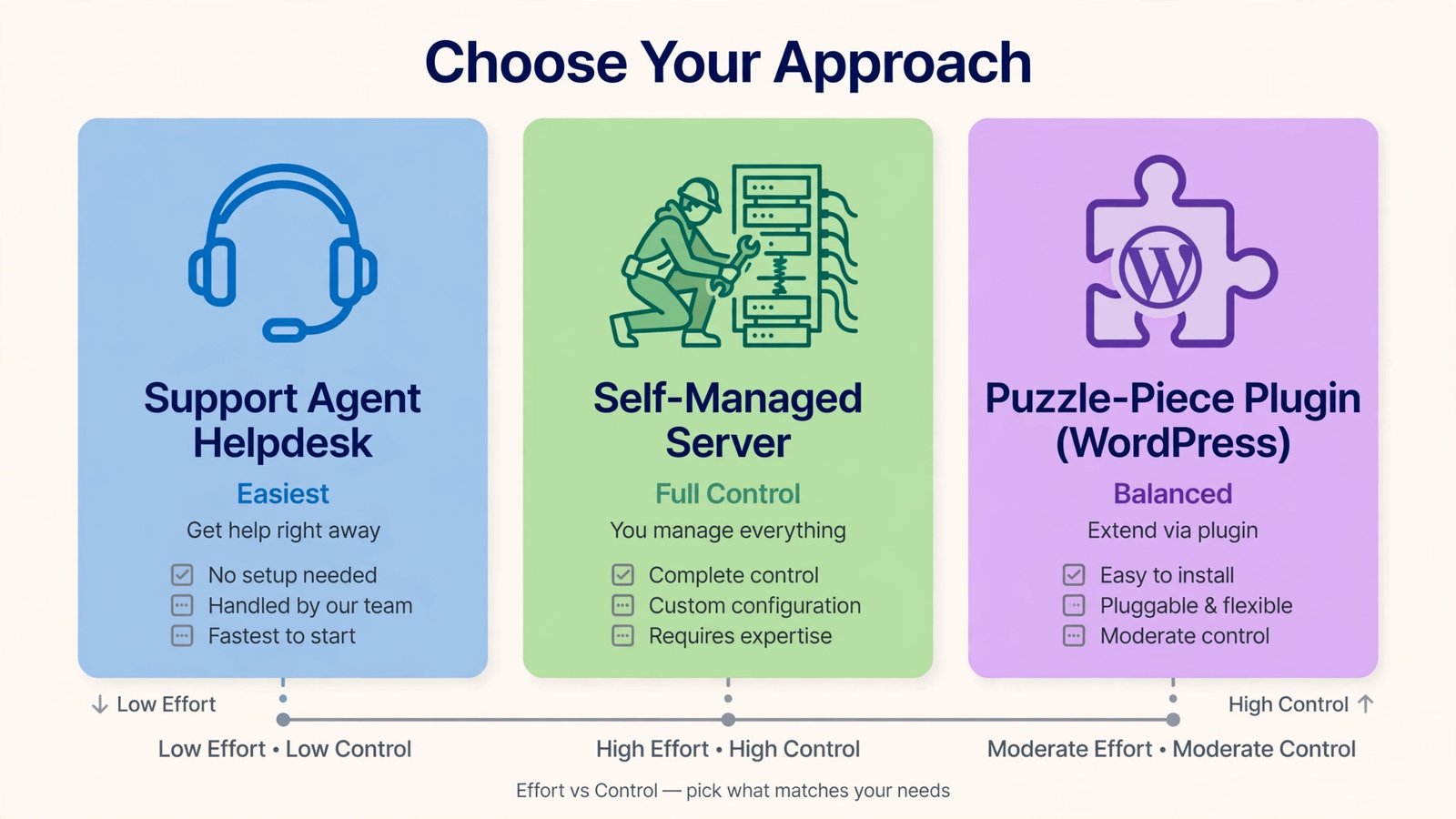
Pick the free migration service if your new host offers it and your site is standard. It’s genuinely the best combination of ease and safety, and there’s no prize for doing it the hard way.
Pick manual migration if you’re technical, your setup is unusual, or you want to understand your own infrastructure. It’s also the fallback when the other two methods choke.
Pick a plugin if you’re moving WordPress yourself and the site fits the tool’s limits, All-in-One for simplicity under 512 MB, Migrate Guru when it’s bigger.
And don’t switch at all if the only problem is the renewal price. Call your current host’s retention or billing team first, hosts routinely discount renewals when you ask, and staying put beats a migration every time. Only move when the problem is structural: chronic downtime, slow servers, or support that doesn’t answer. A cheaper host with worse uptime is not a deal.
After the move: the 10-minute verification checklist
Once propagation has settled, run through this before you relax:
- Load your domain in a fresh browser session, does the new site appear?
- Click links, submit forms, log into the admin panel.
- Confirm the SSL padlock and
https://. - Send and receive a test email from every address on the domain.
- Check speed with PageSpeed Insights, is it actually faster than before?
- Glance at your search rankings and analytics over the next few days; they shouldn’t move, but monitor anyway.
If a page throws a 502 Bad Gateway error right after the move, it’s usually the new server’s PHP or proxy still settling, our fix guide covers it. And once you’re stable on the new host, run your site through our free SEO tools to make sure the move didn’t cost you any visibility.
Read next: Free SEO Tools for Optimizing Your Website.

- How to Rebuild the Spotlight Index on Mac - October 25, 2026
- How to Change the Screenshot Save Location on Mac - October 24, 2026
- How to Turn Off Stage Manager on Mac - October 23, 2026