
A network reset removes every network adapter from your PC and reinstalls them with factory defaults: all Wi-Fi networks and passwords, VPN connections, and any custom TCP/IP, DNS, or proxy settings are gone.
It takes about two minutes to run, plus one automatic restart. Your files, apps, and Windows account are completely untouched.
One warning before you start: have your Wi-Fi password and any VPN setup details handy, because you will be typing them in again afterward.
Microsoft lists network reset as the last-resort step in its own Wi-Fi troubleshooting guide, which tells you exactly where this sits: after the easy fixes, before you start replacing hardware.
A corrupted network adapter or a stubborn “connected but no internet” status is the classic case for this button. In this guide, I’ll show you how to reset network settings in Windows 11 from the Settings app, what to back up first so you’re not locked out of your own Wi-Fi, and how to get reconnected and verify the fix afterward. I’ll also show you the lighter command-line resets to try when a full reset is overkill.
- Save your Wi-Fi profiles (optional, 2 minutes)
- Run the network reset from Settings
- Reconnect to Wi-Fi and verify it worked
- A lighter fix for smaller problems
Save your Wi-Fi profiles before you reset (optional, but smart)
The reset wipes every saved Wi-Fi password on the PC. If you don’t know your router’s password by heart, export the profiles first with one command. It takes about thirty seconds and saves real frustration.
- Create a folder somewhere easy, like C:\WiFiBackup.
- Open Terminal (admin): press Win + X and choose Terminal (Admin).
- Run this command, replacing the folder path with your own:
netsh wlan export profile folder="C:\WiFiBackup" key=clearWindows saves each network profile as an XML file, including the password in plain text. After the reset, you can re-import them all with one more command instead of typing passwords manually:
for %f in ("C:\WiFiBackup\*.xml") do netsh wlan add profile filename="%f"Quick tip: These exported files contain your Wi-Fi passwords in readable text, so don’t email them to yourself or leave them on a shared drive. Delete the backup folder once you’ve reconnected.
Reset network settings from the Settings app
This is the supported method and it works identically on every Windows 11 version, including 26H2. You don’t need admin-level skills, but the PC will restart on its own, so save your open work first.
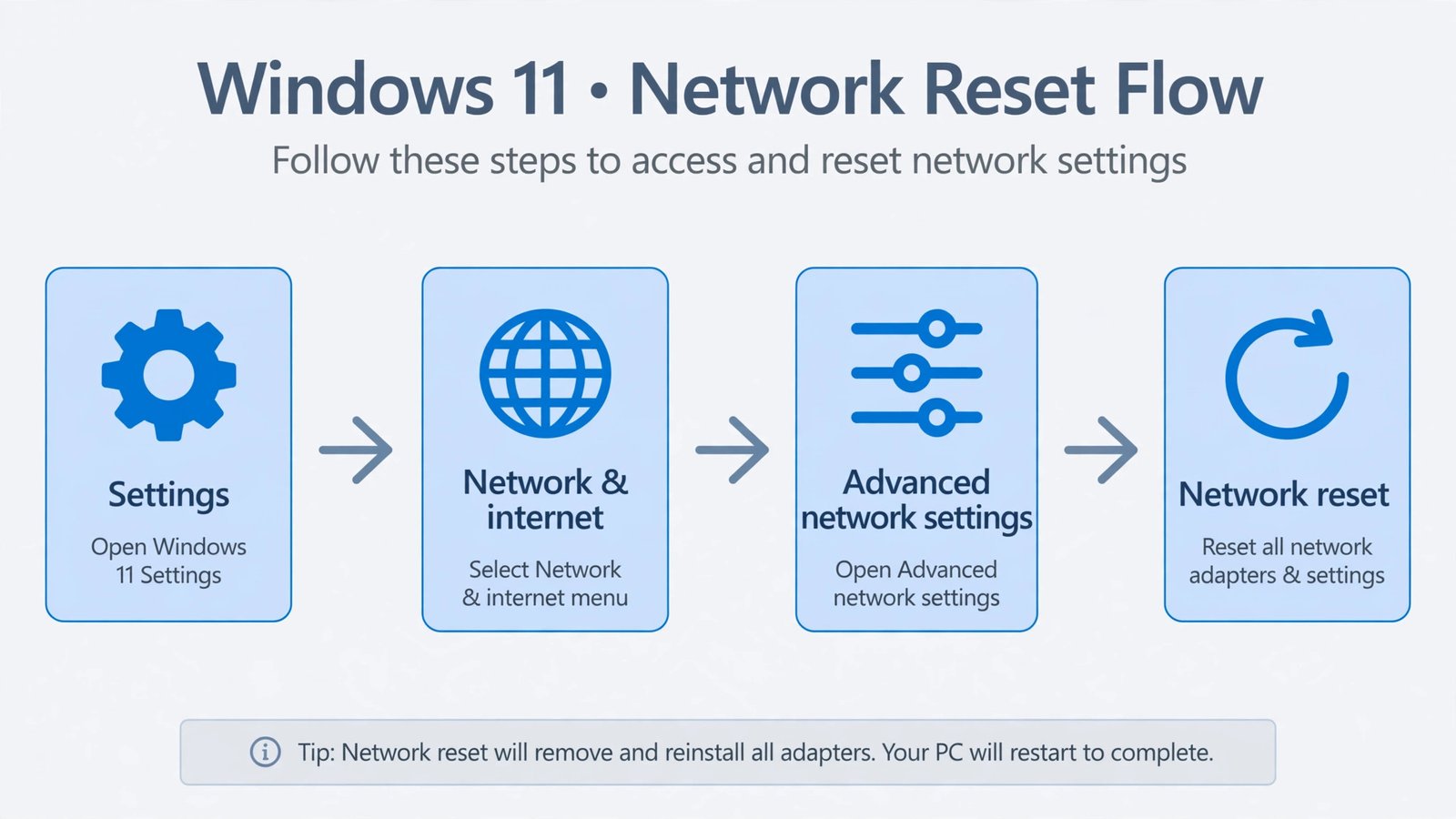
- Press Win + I to open Settings.
- Select Network & internet in the left sidebar.
- Scroll down on the right side and select Advanced network settings.
- Under More settings, select Network reset.
- Read the summary of what will be removed, then select Reset now.
- Confirm with Yes. Your PC will restart automatically within five minutes.
After the restart, Windows reinstalls every network adapter (Wi-Fi, Ethernet, Bluetooth) from scratch. The whole process feels like a fresh network install on an old PC: nothing is remembered, which is exactly the point.
What the reset changes, and what it leaves alone
People hesitate on this button because “reset” sounds destructive. It isn’t, but the line between what changes and what doesn’t is worth knowing cold.
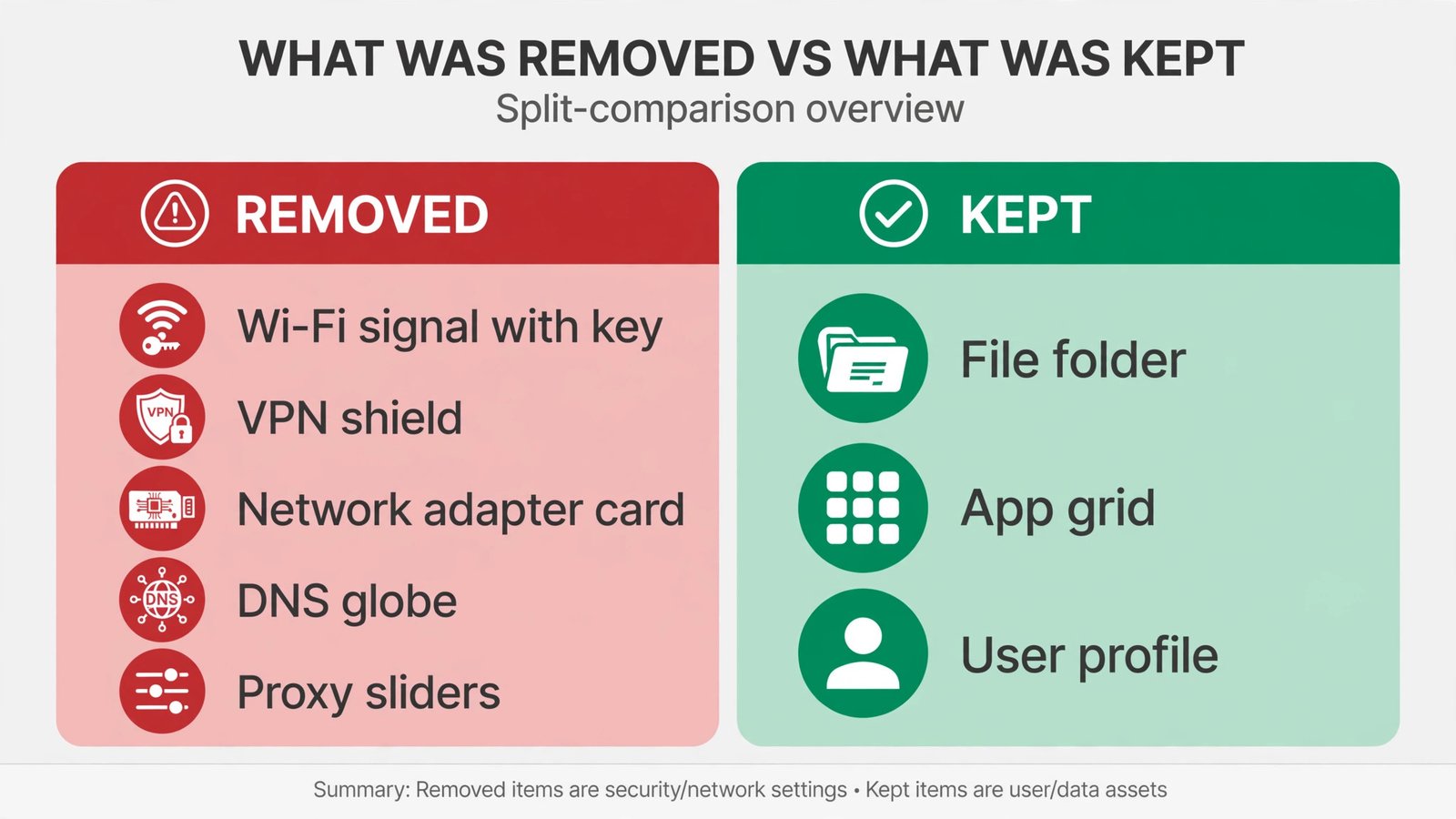
- Removed: all network adapters and their settings, saved Wi-Fi networks and passwords, VPN connections, static IP assignments, custom DNS servers, proxy settings, metered-connection flags, and network profiles (public/private).
- Untouched: your files, photos, installed apps, browser data, Windows account and sign-in, and every non-network setting.
- Outside its reach: your router or modem. A network reset changes nothing on the router, so if every device in the house is offline, this button won’t help. Fix the router first.
One more thing people notice: after the reset, the PC treats your home Wi-Fi as a new network. If you use features like network discovery or file sharing at home, you may need to set the network back to Private under Wi-Fi settings.
Reconnect to Wi-Fi and check that it worked
- After the restart, select the network icon in the taskbar.
- Choose your Wi-Fi network, enter the password, and select Connect.
- Open a couple of websites in different browsers to confirm real internet access, not just a Wi-Fi connection.
- If the Wi-Fi icon or network list is missing entirely after the reset, that’s a separate adapter-driver problem with its own fix.
If websites load and the status under your network says Connected, you’re done. Then reinstall or reconfigure any VPN client you use, since those profiles were wiped too.
A lighter reset for smaller problems
A full network reset is the nuclear option. For a single misbehaving adapter, flaky DNS, or a connection that broke right after an update, these three commands reset the network stack without touching your saved Wi-Fi passwords or VPNs. Run them in Terminal (Admin), one at a time, then restart.
netsh winsock reset
netsh int ip reset
ipconfig /flushdns
What each does: netsh winsock reset repairs the layer Windows apps use to talk to the network (often corrupted by VPN clients or security software), netsh int ip reset clears custom TCP/IP settings, and ipconfig /flushdns empties the DNS cache so bad lookups stop haunting you. If these fix it, you’ve saved yourself the reconfiguration work. If the same problem returns within days, that pattern is exactly when the full reset earns its keep.
Quick note: Run the lighter commands before the full reset, not after. Doing the full reset first and then the commands wastes the effort, because the reset already clears everything they touch.
Our Take
A network reset is the right call when the problem clearly lives inside your PC’s networking stack: an adapter that vanished from Device Manager, “connected but no internet” on this machine while your phone works fine, a VPN client that left broken settings behind after uninstalling, or internet weirdness that appeared right after a Windows update. In those cases it’s faster and more thorough than fiddling with individual settings, and because it only touches networking, the risk is low.
It is the wrong call when the evidence points elsewhere. If no device in the house can get online, the router or your ISP is the problem and this button changes nothing. If your laptop has a physical Wi-Fi switch or a function-key toggle that’s off, no software reset can fix that. And if the same adapter keeps failing after a reset, you’re likely looking at failing hardware, not corrupt settings, and a cheap USB Wi-Fi adapter is the honest next step. Reset when the stack is suspect; don’t reset when the signal was never there.
Still having trouble after the reset? Microsoft’s own Fix Wi-Fi connection issues in Windows page walks through the router-side checks and driver reinstalls that come next. And if Windows seems to restart without really restarting, fast startup is worth understanding, since it can mask whether a reboot actually cleared anything.

- How to Fix Windows 11 Clock Showing the Wrong Time - October 23, 2026
- How to Fix File Explorer Slow to Open in Windows 11 - October 22, 2026
- How to Fix a Printer Showing Offline in Windows 11 - October 21, 2026