
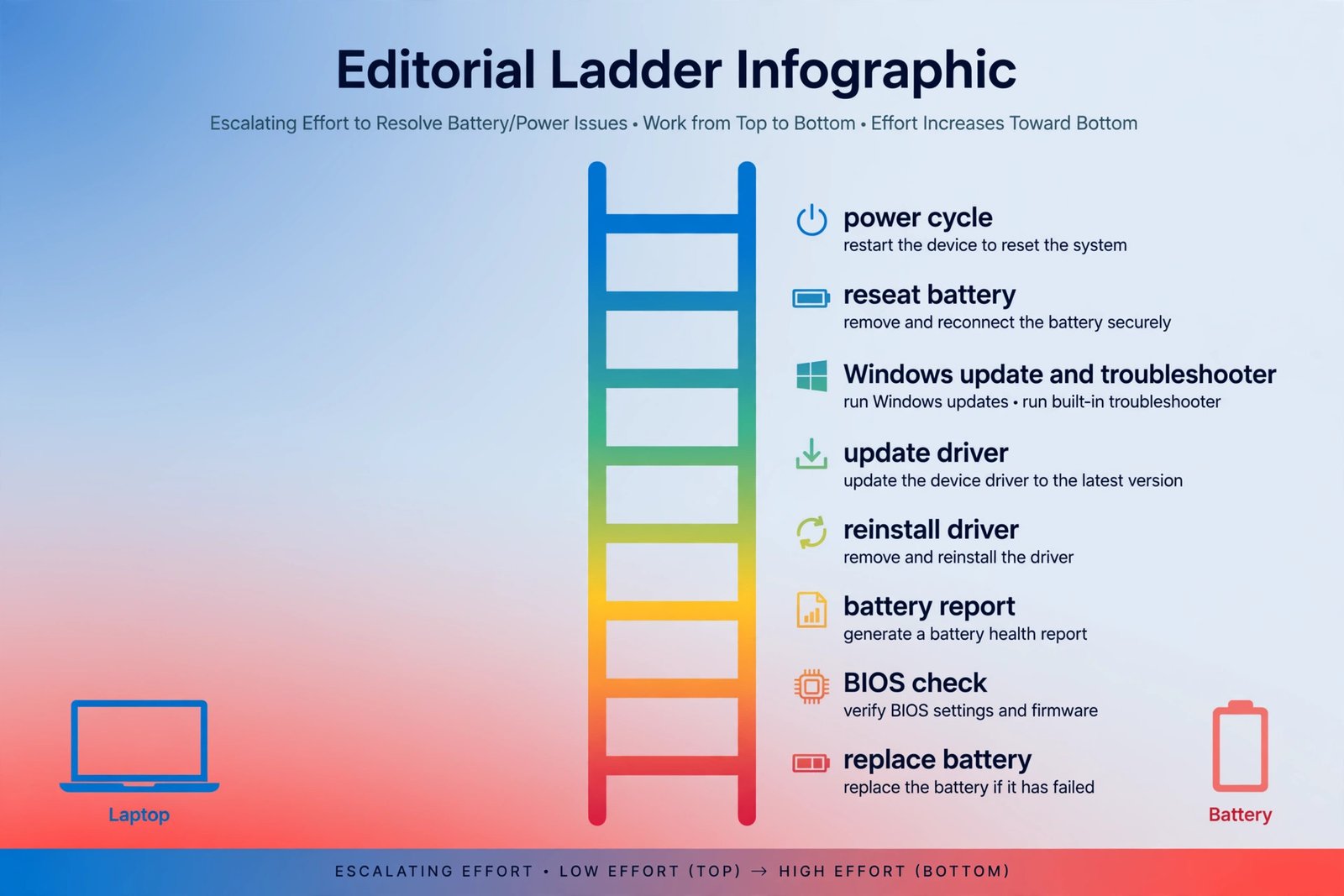
Seeing “No battery is detected” over the battery icon doesn’t automatically mean your battery is dead. This error shows up on laptops from every major brand, and in most cases it’s a stuck power state or a confused driver rather than failed hardware. The steps below are ordered from the easiest two-minute fix to the last resort, so follow them in sequence and stop as soon as the battery shows up again.
Why is my laptop showing “No battery is detected”?
Before touching anything, it helps to know what usually causes this. The candidates are:
- A stuck power state after an update or a hard shutdown
- A loose or dirty battery connection
- Outdated or corrupted battery drivers (the Microsoft ACPI entries in Device Manager)
- A pending Windows update that broke power management
- BIOS that no longer hands the battery to Windows properly
- A battery that has genuinely reached the end of its life
Notice the order: software and connection issues come first, because they’re far more common than dead batteries. Follow the fixes below in the order given. Each one takes a little more effort than the last, and the last one costs money.
1. Perform a hard reset (the 2-minute fix)
This works when the power circuitry is stuck in a bad state, which happens surprisingly often after Windows updates. It costs nothing and solves the error more often than any other single step.
- Shut down the laptop completely (not sleep, not hibernate).
- Unplug the AC adapter. If your battery is removable, take it out too.
- Press and hold the power button for 15 to 20 seconds. This drains residual power and forces the hardware to re-detect everything on next boot.
- Reconnect the battery and the AC adapter, then power on.
You should now see the normal battery icon in the taskbar. If the error persists after a full restart, keep climbing.
2. Reseat the battery and check the contacts
This works when the battery has shifted slightly or its contacts are dirty, which is common in laptops that travel in backpacks. Skip this rung if your laptop has a sealed, non-removable battery (most ultrabooks do) and move straight to rung 3.
- Power off and unplug the laptop, then remove the battery.
- Look at the battery compartment and the battery’s metal contacts. Wipe away dust with a dry cloth; for grime, a cotton swab lightly dampened with isopropyl alcohol works well. Let it dry fully.
- Push the battery firmly back in until it clicks or sits flush, then plug in the AC adapter and boot.
You should now see the battery charging. If the contacts look corroded or the battery doesn’t sit snugly, that alone may explain the error, and it points toward replacement later.
3. Install Windows updates and run the Power troubleshooter
This works when a recent update broke power management, or when Windows simply has a pending fix. Microsoft’s own support threads show this error appearing right after feature updates, and a follow-up update often clears it.
- Go to Settings > Windows Update and install everything offered, then restart.
- Next, go to Settings > System > Troubleshoot > Other troubleshooters.
- Find Power and select Run. Follow the prompts and restart when it finishes.
You should now see either a detected battery or a troubleshooter report telling you what it changed. If the battery is still missing, the drivers are next.
4. Update the battery drivers in Device Manager
This works when the driver that reports battery status to Windows is outdated. It’s a quick check before the more aggressive reinstall in the next step.
- Press Win + X and select Device Manager.
- Expand the Batteries section. You’ll usually see Microsoft AC Adapter and Microsoft ACPI-Compliant Control Method Battery.
- Right-click each entry, choose Update driver, then Search automatically for drivers.
- Restart the laptop.
Quick note: If Batteries doesn’t appear in Device Manager at all, jump to rung 6 (the battery report) and rung 7 (BIOS) first. A completely missing section usually means the hardware isn’t visible to Windows yet.
5. Uninstall the battery drivers and let Windows reinstall them
This works when the driver files themselves are corrupted, which an update can’t fix. Windows reinstalls clean copies automatically on the next boot.
- In Device Manager, expand Batteries again.
- Right-click each battery entry and choose Uninstall device. Confirm the prompt.
- Shut down the laptop (a full shutdown, not a restart).
- Unplug the AC adapter for about 30 seconds, plug it back in, and power on. Windows detects the battery hardware and installs fresh drivers.
You should now see the battery icon back in the taskbar, possibly showing 0% while it recalibrates. Let it charge for a while before judging. If your laptop maker offers a battery driver on its support site (Lenovo, HP, and Dell all do), installing that is worth trying before moving on.
6. Generate a battery report to check the battery’s health
This doesn’t fix anything by itself, but it answers the key question: is the battery actually dying, or is Windows just confused? The built-in report takes seconds to generate.
- Open Terminal (Admin) with Win + X.
- Type the following command and press Enter:
powercfg /batteryreport /output "C:\battery_report.html"- Open C:\battery_report.html in your browser and find the Installed batteries section.
- Compare Design Capacity with Full Charge Capacity. A healthy battery shows numbers that are close. If the full-charge capacity is a small fraction of the design capacity, the battery is worn out and no driver fix will bring it back.
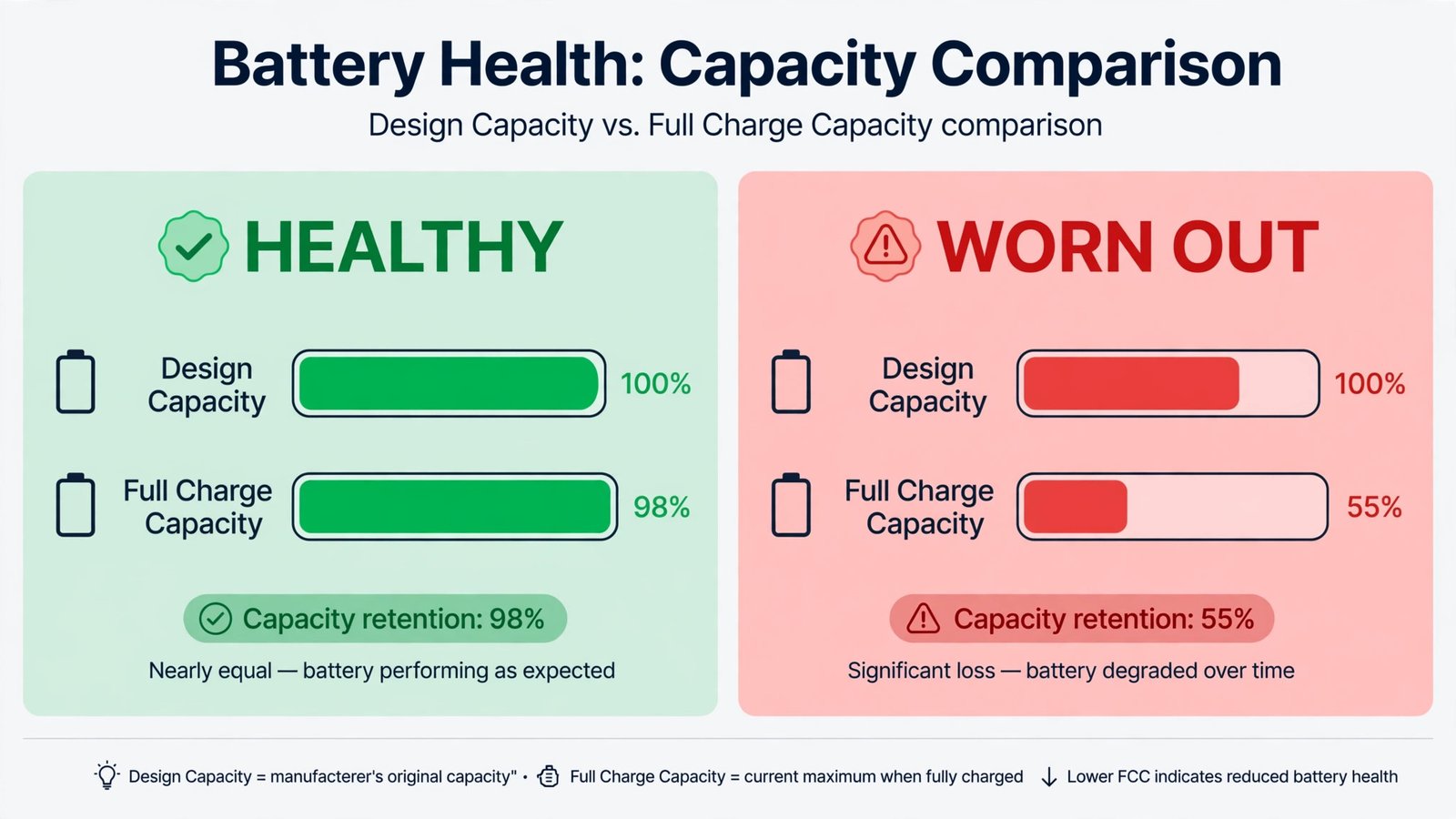
If the report shows a healthy battery that Windows still won’t detect, the problem sits between the hardware and Windows, which is the BIOS’s territory. That’s the next rung.
7. Check the BIOS for battery detection, and update it if needed
This works when the BIOS, the firmware that hands hardware to Windows, has a stale battery table or a bug. Restart and press the BIOS key for your brand (usually F2, Del, or Esc) to enter setup, then look for a battery or power status page. If the BIOS itself doesn’t see the battery, Windows never will.
If the BIOS sees the battery but Windows doesn’t, check your laptop maker’s support site for a BIOS update. Follow their instructions exactly: a BIOS update is safe when done right, but an interrupted one can brick a machine, so keep the AC adapter plugged in and don’t touch anything while it runs.
Warning: Only update the BIOS using the file from your laptop manufacturer’s own support page for your exact model. Never use a “universal” BIOS updater from a third-party site.
8. Replace the battery
This is the last rung, and it’s the honest answer when everything above fails: the battery itself is faulty. The clues are consistent: the battery report shows a collapsed full-charge capacity, the BIOS doesn’t detect the battery, or the laptop only runs on AC power and dies the instant you unplug it.
Buy a genuine battery from your laptop maker’s store or an authorized seller, not the cheapest lookalike on a marketplace. Counterfeit batteries are a real fire hazard, and they often report fake capacity numbers that fool the battery report. If the laptop is under warranty, contact the manufacturer first, since a failed battery is usually covered.
Once replaced, boot up and confirm Windows detects the new battery, then run the battery report again after a full charge cycle to verify the capacity reads correctly.
If you reached the end of this ladder, power-related quirks elsewhere in Windows are worth a look too: what fast startup actually does explains why some power problems survive a “restart,” and speeding up Windows boot time covers the startup side of the same coin.

- How to Change the Lock Screen Timeout on Windows 11 - October 25, 2026
- How to Fix the Windows 11 Taskbar Auto-Hide Problem - October 24, 2026
- How to Fix a Laptop Camera Not Working in Windows 11 - October 23, 2026