
Here is the honest starting point: Windows 11 has no single slider called “lock screen timeout.” The time before your PC locks is really two settings working together: how long the screen stays on, and whether Windows asks you to sign in when you come back. Change the wrong one, and your screen will go dark after 10 minutes while the PC still wakes straight to the desktop, or the PC will lock after 1 minute while you are still reading.
This guide sorts out which timer you actually want, sets it in the Settings app, and then covers the hidden lock screen display timer and the Pro-only policy options for the cases where the basic setting is not enough.
First, decide which timer you actually want
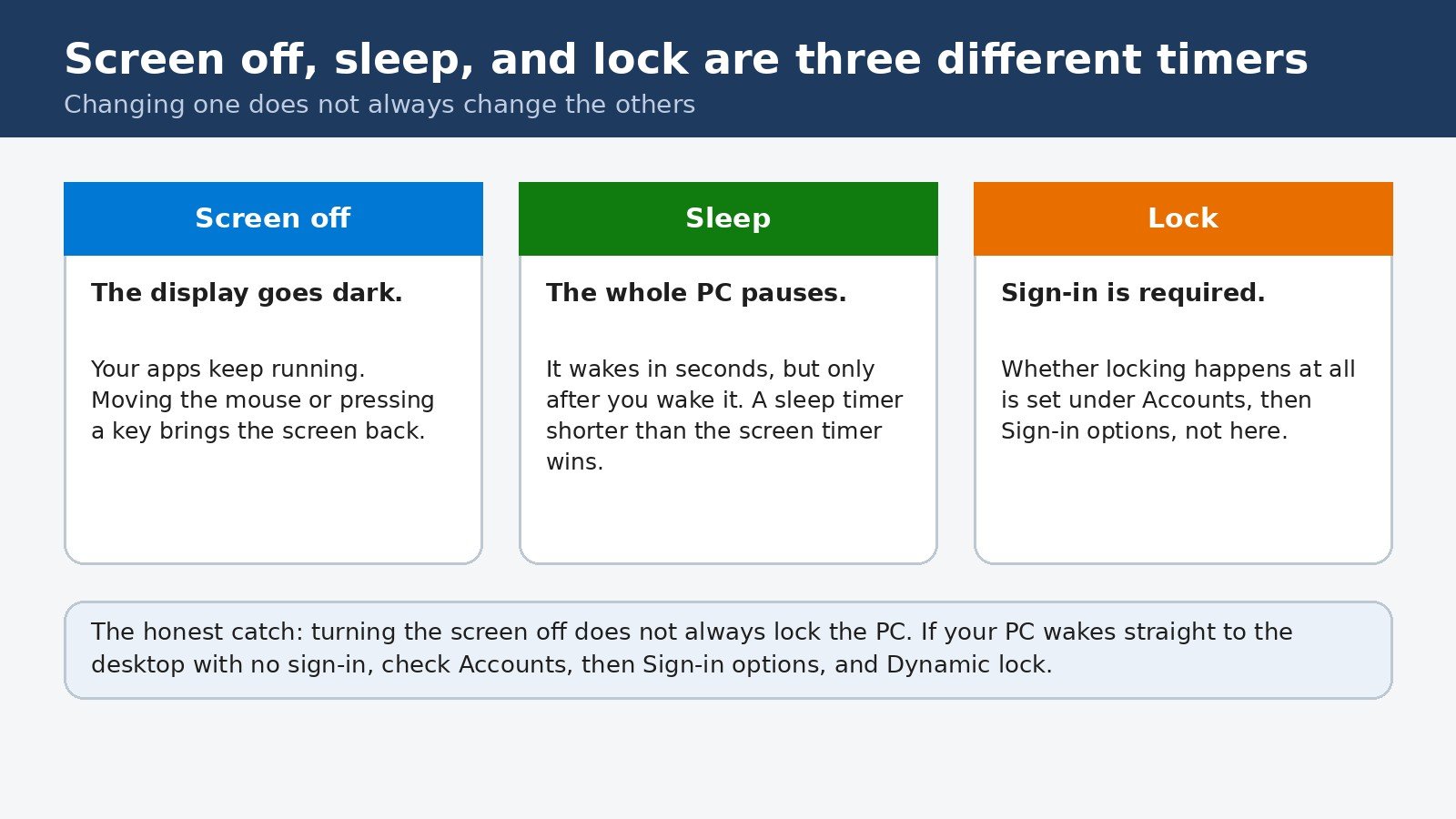
Three timers get mixed up constantly, and they do different jobs. Getting this distinction right saves you from changing a setting, seeing no difference, and assuming it is broken.
| What you want | What to change | Where it lives |
|---|---|---|
| Screen stays on longer while you read | Turn my screen off after | Settings, System, Power and battery |
| PC locks and asks for sign-in | Sign-in requirement | Settings, Accounts, Sign-in options |
| Locked screen itself stays lit longer | Console lock display off timeout | Advanced Power Options (hidden by default) |
| Screen saver appears after a set time | Screen saver Wait time | Settings, Personalization, Lock screen, Screen saver |
Most people asking about “lock screen timeout” really want the first two rows: a screen that stays on for a sensible time, and a PC that asks for sign-in afterwards. Start there.
Change the screen timeout in Settings
- Press Windows key + I to open Settings.
- Choose System in the left pane, then Power and battery. On a desktop PC without a battery, this page is simply called Power.
- Expand Screen, sleep, and hibernate timeouts. On older Windows 11 builds this section is called Screen and sleep.
- Open the menu next to Turn my screen off after and pick a time. On a laptop, set it separately under Plugged in and On battery. Choosing Never keeps the screen on, which is useful for a presentation but poor for battery life and screen health.
- On the same page, check Make my device sleep after. If the sleep time is shorter than the screen time, the PC sleeps first and the screen timeout never gets its turn, so keep sleep longer than screen off if you want the screen timer to matter.
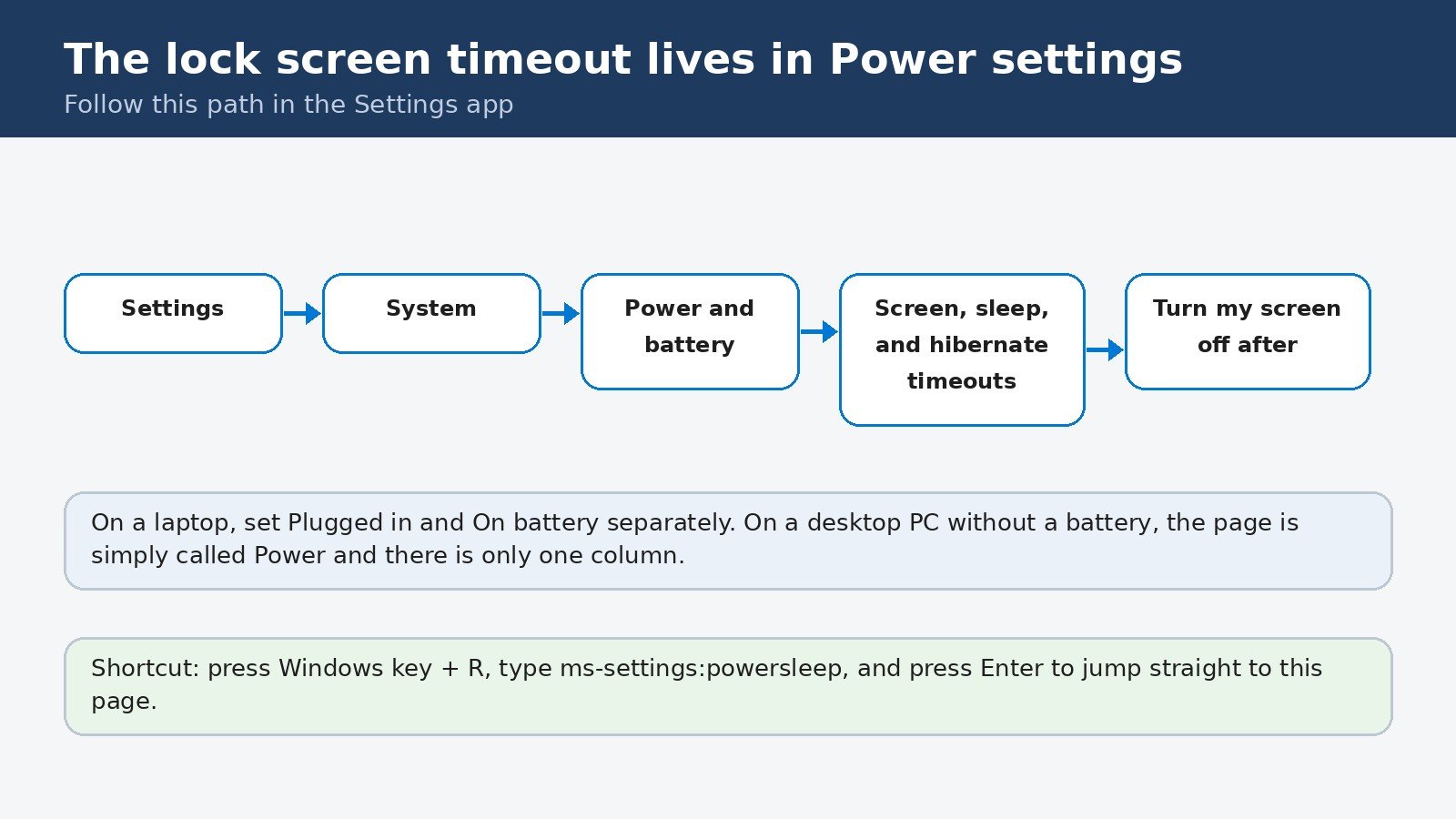
The change saves the moment you pick it, and there is no Save button to hunt for. If you want the full official description of these menus, including the current default values, see Microsoft’s Power settings in Windows 11 guide. As a shortcut, pressing Windows key + R, typing ms-settings:powersleep, and pressing Enter jumps straight to this page.
Make Windows ask for sign-in when you return
Turning the screen off does not always lock the PC. Whether you face a sign-in prompt on return is a separate setting, and it is the one that actually makes the lock screen mean something.
- Open Settings, then Accounts, then Sign-in options.
- Under Additional settings, find If you have been away, when should Windows require you to sign in again? and choose When PC wakes up from sleep or Every Time, depending on the options your device offers.
- If you use a Bluetooth phone with your PC, check Dynamic lock on the same page. When it is on, Windows locks itself when your phone walks away with you, which can feel like a timeout problem when it is really a feature working as designed. Turn it off if the locking feels random.
On a work or school PC, this setting may be greyed out or capped. That is your organization enforcing a policy, not a fault on your PC, and the policy section near the end of this guide explains why.
Change the hidden lock screen display timer
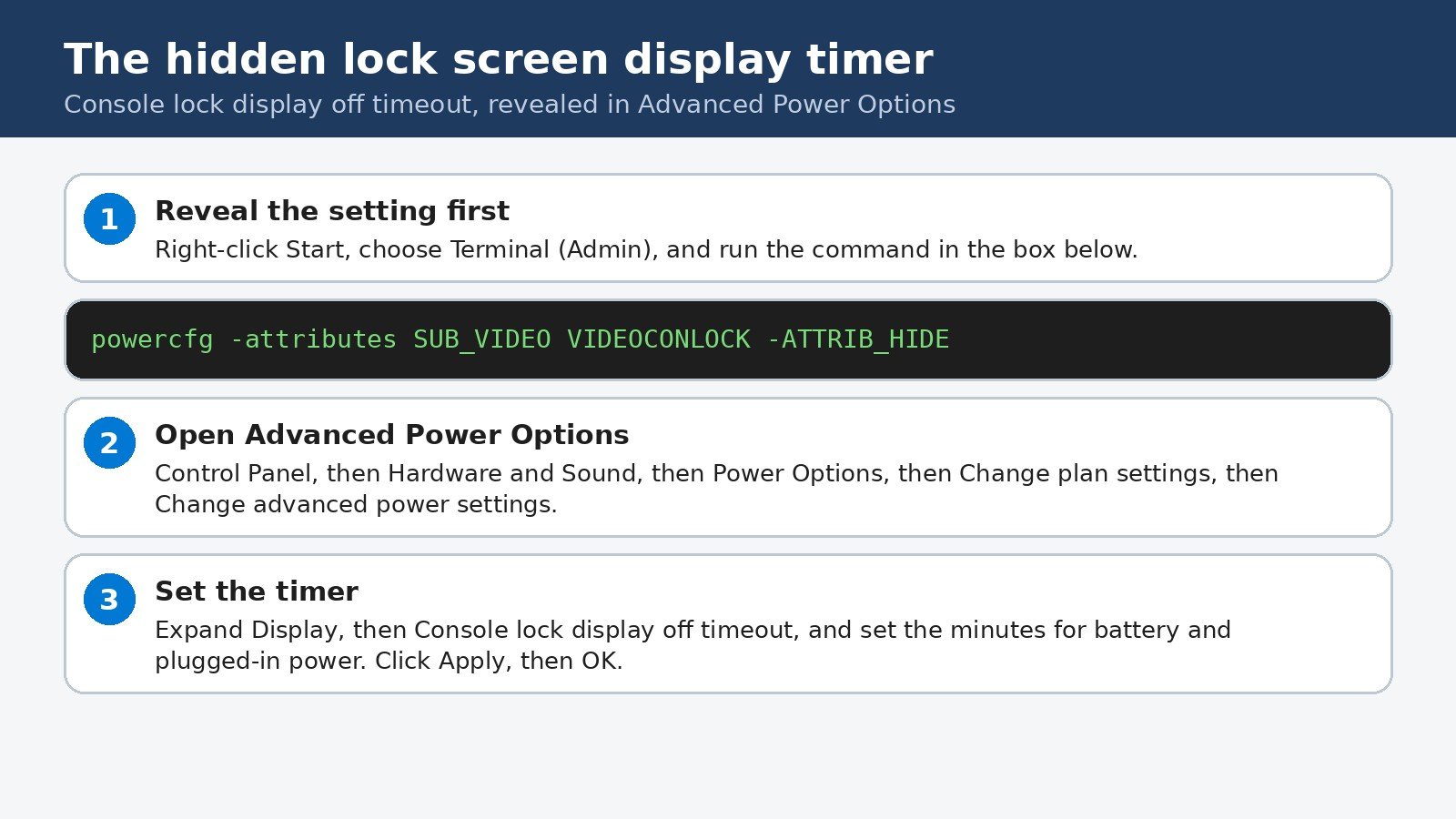
There is one more timer, and it explains a specific frustration: you press Windows key + L to lock the PC, and the lock screen itself goes black after about a minute, even though your screen timeout is set to 10 minutes. That is the Console lock display off timeout, a setting that only applies while the PC is already locked, and Windows hides it by default.
- Right-click Start and choose Terminal (Admin), then approve the prompt.
- Type powercfg -attributes SUB_VIDEO VIDEOCONLOCK -ATTRIB_HIDE and press Enter. This reveals the setting, it does not change any timer yet.
- Open Control Panel, then Hardware and Sound, then Power Options. Click Change plan settings next to your active plan, then Change advanced power settings.
- Expand Display, then Console lock display off timeout, and set the minutes for battery and plugged-in power. Click Apply, then OK.
A related hidden timer, System unattended sleep timeout, can also put displays to sleep shortly after locking. It sits under Sleep in Advanced Power Options, and it is hidden by default too. If your locked PC still goes dark far sooner than your settings say, check that one as well.
Pro only: Group Policy and registry options
On Windows 11 Pro, Enterprise, and Education, two deeper controls exist. On Home edition, the Group Policy Editor is not included, so the registry route is the only one of the two available, and it should be used with care.
- Group Policy: press Windows key + R, type gpedit.msc, and go to Computer Configuration, Windows Settings, Security Settings, Local Policies, Security Options. The setting Interactive logon: Machine inactivity limit sets, in seconds, how long the PC can sit idle before locking. For a 15 minute limit, enter 900.
- Registry: press Windows key + R, type regedit, and go to HKEY_LOCAL_MACHINE\SOFTWARE\Microsoft\Windows\CurrentVersion\Policies\System. Create a DWORD (32-bit) value named InactivityTimeoutSecs if it does not exist, and set it to the idle time in seconds. Back up the registry before editing it, and sign out or restart for the change to take effect.
- The Screen saver timeout policy under Administrative Templates, Control Panel, Personalization is a third control, but it governs the screen saver, not the lock screen directly. It only locks the PC if the screen saver is also set to require sign-in on resume.
A word of caution about mixing these controls: a policy value overrides the Settings app, so if your timeout keeps snapping back to a value you did not choose, a policy or registry entry is enforcing it. Clearing the policy entry, not changing Settings again, is what fixes that.
If your setting keeps resetting
- Work or school devices: your organization may enforce a maximum lock time through policy. In that case no local setting will hold past the enforced limit, and your IT team is the only route to a longer timeout.
- Presence sensing: some newer laptops dim or switch off the screen when you walk away, using a sensor under Settings, Privacy and security, Presence sensing. If your screen goes dark while the timeout still has minutes to run, check there.
- Screen saver confusion: if moving shapes or a blank screen appear instead of the display switching off, you are looking at a screen saver, not the timeout. Set it under Settings, Personalization, Lock screen, Screen saver, where the Wait time is measured in minutes and On resume, display logon screen controls whether it locks.
The lock screen timeout is really a small chain: the screen timer, the sleep timer, and the sign-in rule, with one hidden timer for the locked screen itself. Set the screen timeout for how long you want to keep reading, set the sign-in rule for how secure you want the return to be, and only reach for the hidden timer or the policy controls when the basic settings do not explain what you are seeing. Once the chain is set the way you want it, it stays out of your way, which is exactly what a timeout setting should do.

- How to Change the Lock Screen Timeout on Windows 11 - October 25, 2026
- How to Fix the Windows 11 Taskbar Auto-Hide Problem - October 24, 2026
- How to Fix a Laptop Camera Not Working in Windows 11 - October 23, 2026