
Your Android home screen keeps rearranging itself. An app you never pinned appears in the dock, a row of suggested apps sits at the top of the app drawer, and folders keep offering apps you did not ask for. The fix is one toggle in most cases, but it is not where most people look, because app suggestions do not live in the Google app or in your ad settings. They live in the launcher, the app that draws your home screen, and each launcher hides the toggle in a different place.
This guide turns suggestions off on Pixel and Samsung phones, the two launchers most readers use, then covers other Android phones and explains what the toggle does and does not change.
First, work out which suggestions you are seeing
Suggestions show up in three places, and each place can have its own toggle. If you switch one off and a row survives somewhere else, you have not failed, you have just found a second toggle.
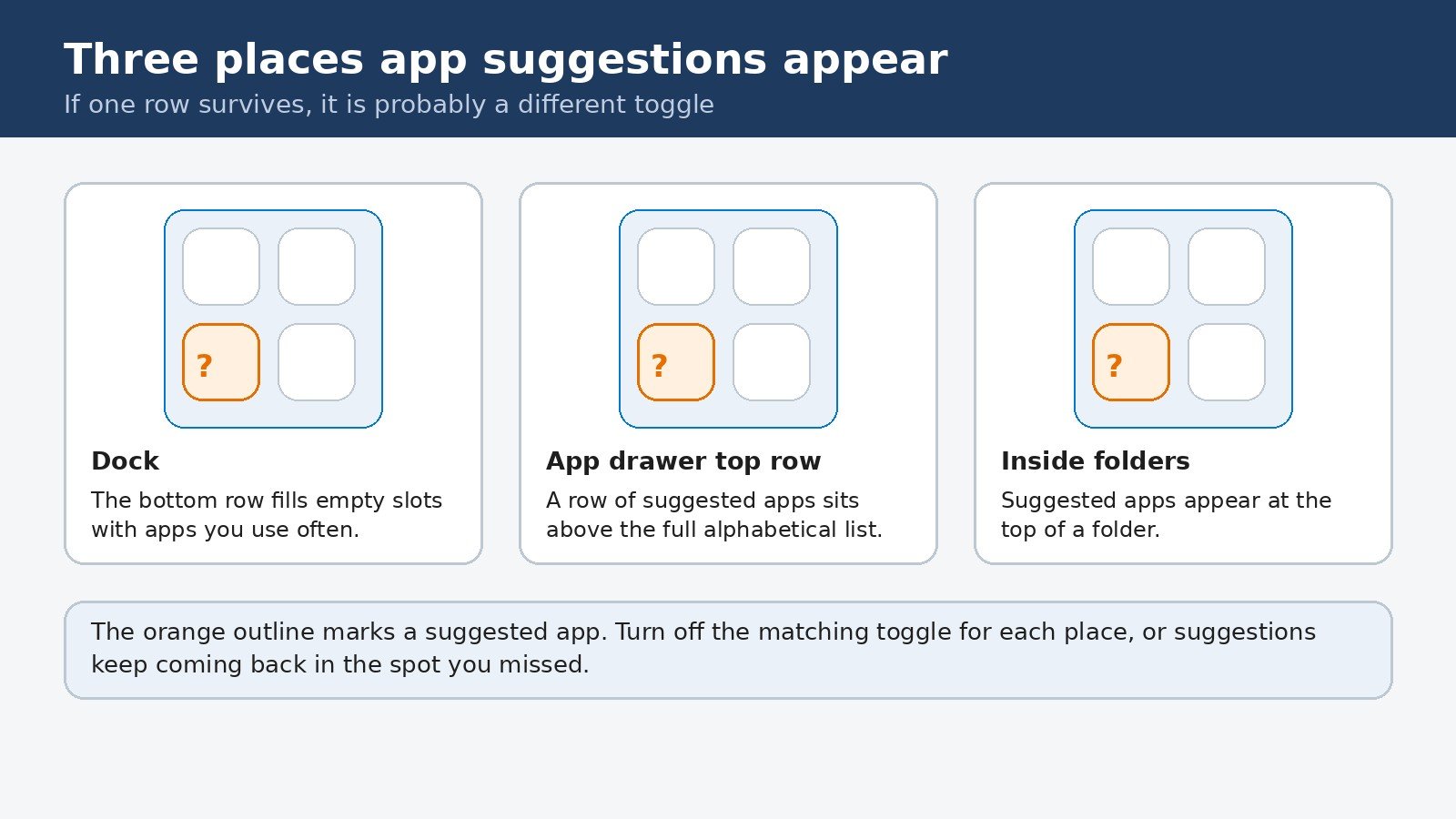
The dock is the most confusing of the three. On Pixel phones, the launcher watches which apps you use and fills any empty dock slot with its next guess, marking it with a subtle glow. Because most people keep the dock full of pinned apps, they never notice the feature running until they remove one app and a stranger takes its place. Once suggestions are off, empty dock slots simply stay empty until you drag an app there yourself.
Turn off suggestions on a Pixel phone
- Long-press an empty part of the home screen, somewhere between icons, not on an icon.
- Tap Home settings in the menu that appears.
- Tap Suggestions.
- Switch off Suggestions on Home screen and Suggestions in all apps list. The first clears the dock guesses, the second clears the suggested row at the top of the app drawer.
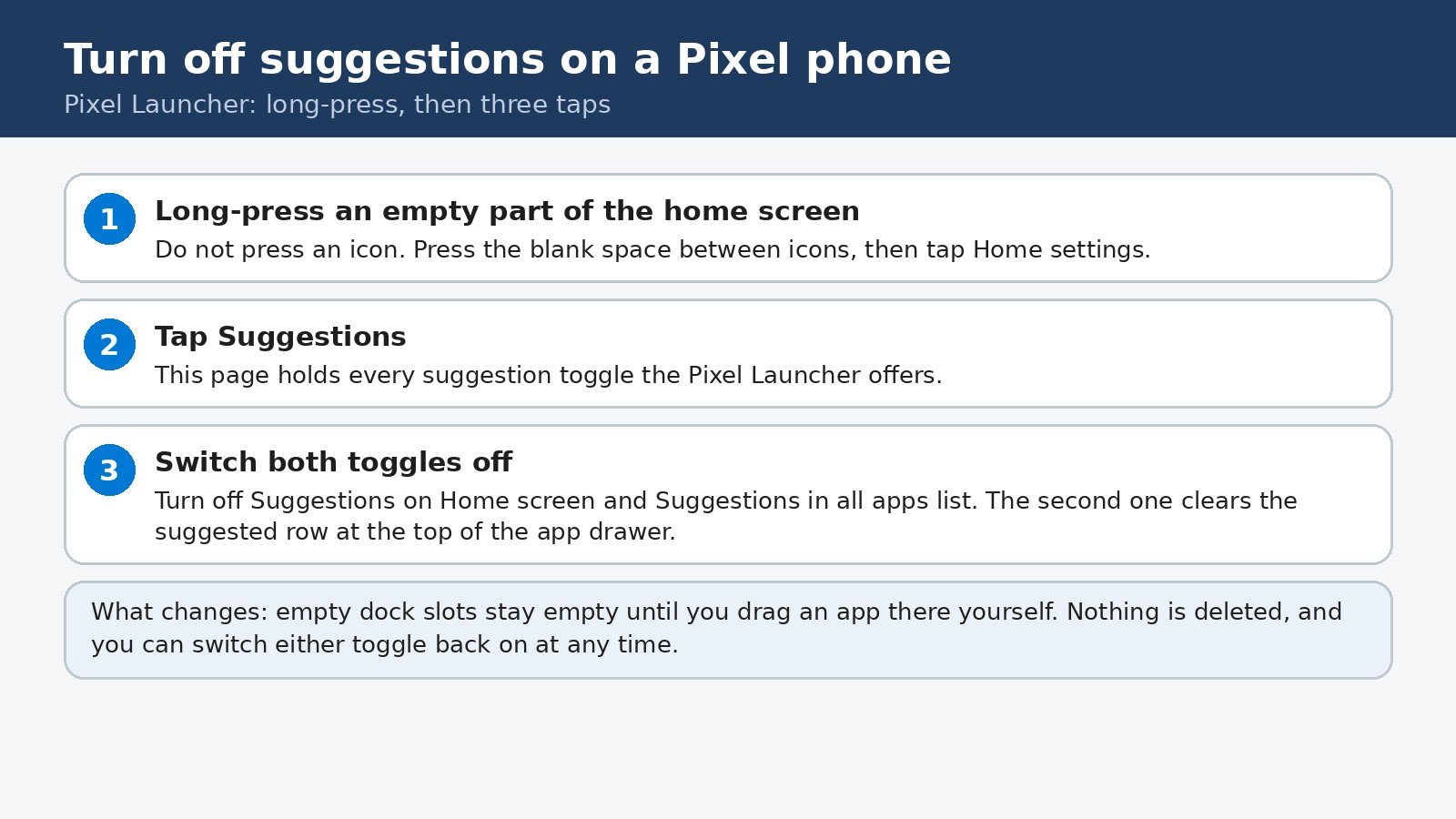
An alternative route exists if the long-press menu does not show Home settings: open Settings, then Apps, then Default apps, tap the gear icon next to the Home app, and open Suggestions from there. Both routes reach the same toggles.
Turn off suggested apps on a Samsung phone
Samsung splits the setting across two places, which is why Samsung owners so often report that turning it off “did not work.” Check both.
- Inside a folder: open any folder on the home screen, tap the + (Add) button inside it, and turn off Suggested apps at the top.
- Home screen settings: long-press an empty part of the home screen, tap Settings, then Home screen, and turn off Show suggested apps in folders.
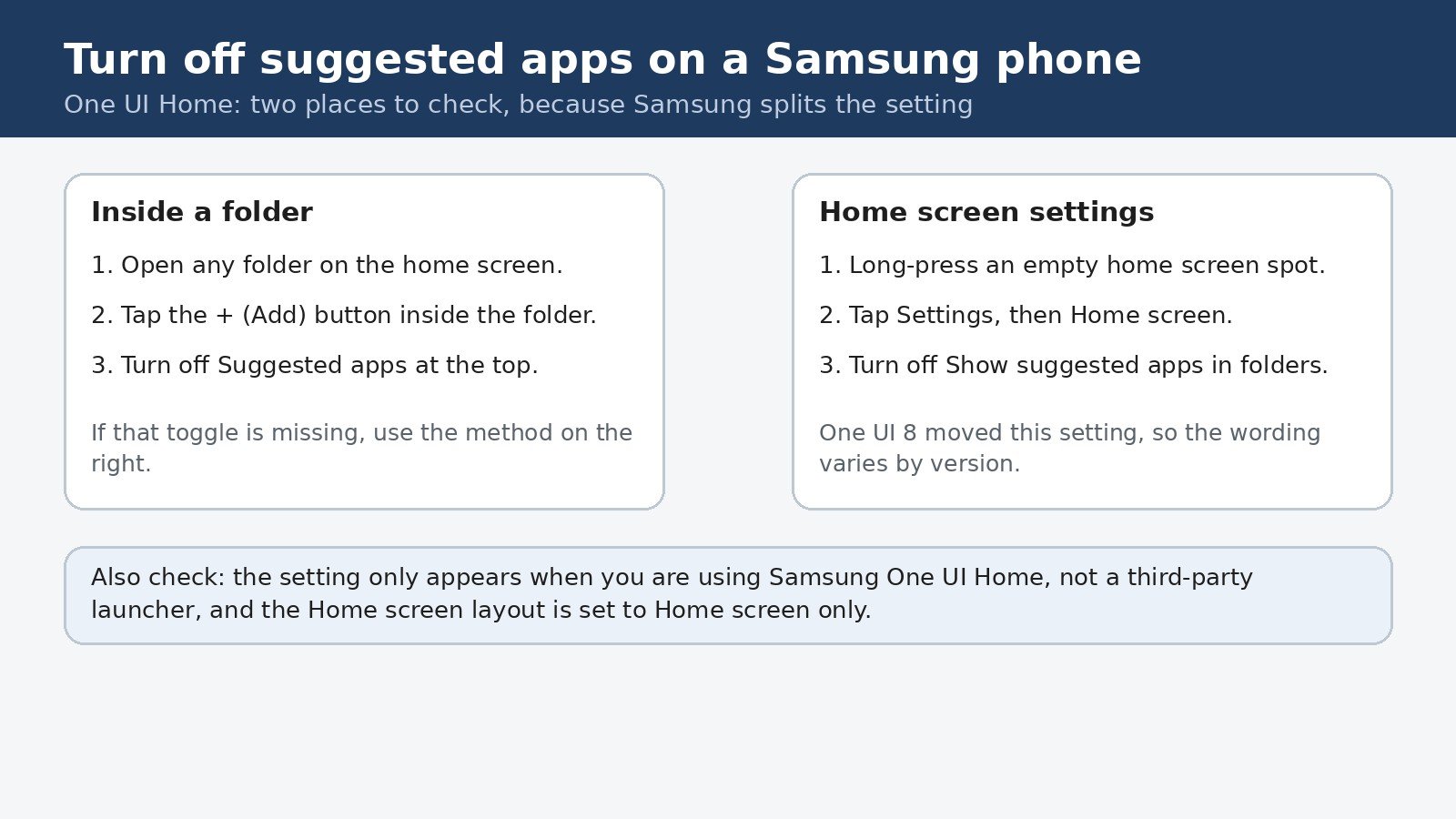
Two conditions apply to the Samsung setting. It only appears when you are using Samsung One UI Home rather than a third-party launcher, and on some versions it only appears when the Home screen layout is set to Home screen only rather than Home screen plus Apps screen. If the toggle is missing entirely, check both of those first. Samsung’s own community support confirms the folder route and the One UI 8 move, as described in Samsung’s community thread on removing suggested apps from folders.
Samsung phones also push other home screen extras that are not app suggestions, and they have their own switches. If something still pops up on your home screen after the toggles above, it may be a different feature entirely. For example, Samsung Free has its own way of opening from the home screen, covered in our guide to Samsung Free and how to stop it opening on your home screen.
Other Android phones
The pattern is the same everywhere, even when the wording changes: the toggle lives in the launcher’s own settings, reached by long-pressing the home screen.
- OnePlus (OxygenOS): long-press the home screen, swipe to the More gear icon, tap Home screen, and turn off Show suggested apps.
- Other brands: long-press an empty part of the home screen, open the launcher settings, and look for Suggestions, Suggested apps, or Recommendations. The exact label varies, but the concept is the same.
- Third-party launchers (such as Nova Launcher or Lawnchair): open the launcher’s own settings app and look for its Suggestions section. Because these launchers replace the system launcher entirely, their toggles are independent of the phone maker’s settings.
- If your phone has no such toggle at all, your launcher may not offer suggestions in the first place, and the row you are seeing may come from a different app, such as a widget or a preinstalled app drawer replacement.
What turning suggestions off does not do
- It does not delete any app or remove any pinned icon. Your home screen keeps exactly the apps you placed there.
- It does not stop recommendations inside the Play Store, which are a separate system with their own settings.
- It does not stop Google Discover or the Google feed, which are separate features with their own toggles.
- It does not stop personalized ads, and turning off personalized ads does not stop home screen suggestions either. The two systems are unrelated, so changing one never fixes the other.
- It does not require disabling Google Play Services or clearing any cache, and you should not do either for this problem. Disabling Play Services breaks core phone functions, and clearing a cache only removes the suggestions temporarily until the launcher relearns them.
The point of turning suggestions off is a home screen that stays the way you arranged it. Once the launcher toggles are off, the dock, the drawer, and the folders all stop guessing, and the layout you set is the layout you keep. If a suggestion ever returns after a major system update, the same toggles are the first place to check, because updates occasionally restore launcher defaults.

- How to Turn Off App Suggestions on Your Android Home Screen - October 25, 2026
- How to Stop Android Auto-Connecting to Open Wi-Fi Networks - October 24, 2026
- How to Stop iPhone Apps Asking for Ratings and Reviews - October 23, 2026