
Spotlight is supposed to find anything on your Mac in seconds: an app, a document, an email. When it starts missing things you know are there, returning stale results, or spinning without answering, the usual cause is a damaged or incomplete search index. Rebuilding that index forces Spotlight to catalog everything again from scratch, and it fixes most search problems that a restart does not.
There are two ways to rebuild it. The Settings method needs no typing and suits most people, while the Terminal method does the same job in one command. Both are covered below, along with how to tell when the rebuild is actually finished, because judging it too early is the most common mistake.
Before you rebuild: two quick checks
A rebuild takes time and system resources, so rule out the cheap explanations first.
- Restart your Mac. A stuck indexing process sometimes clears with a restart, and a rebuild is unnecessary if search starts working again.
- Check that the missing item’s category is switched on. Open System Settings, then Spotlight (or Siri and Spotlight on some versions), and confirm the relevant category, such as Applications or Documents, is ticked. An unticked category never appears in results, no matter how healthy the index is.
- Check the Privacy list. On the same Spotlight settings page, scroll down and open Search Privacy (called Spotlight Privacy on older macOS). If the folder holding your missing file is listed there, Spotlight is deliberately ignoring it. Remove it from the list and the file becomes searchable again without any rebuild.
- Check free space. Spotlight struggles when the startup disk is nearly full, and a rebuild on a full disk may stall. Free up space first if the disk is close to full.
Method 1: Rebuild with the Privacy list
This method uses a deliberate trick. Adding a disk to the Privacy list tells Spotlight to stop indexing it, and removing it again tells Spotlight to index it from scratch. The removal is the step that triggers the rebuild, so do not stop halfway.
- Click the Apple menu and choose System Settings.
- Click Spotlight in the sidebar (on some versions this is Siri and Spotlight).
- Scroll down and click Search Privacy at the bottom of the window. On older macOS the button is called Spotlight Privacy.
- Click the + button, or drag your startup disk (usually called Macintosh HD) into the list. If a warning appears saying Spotlight will stop searching it, accept it.
- Wait a few seconds, then select the disk you just added and click the minus button to remove it.
- Click Done and quit System Settings. Spotlight now reindexes the contents of the disk.
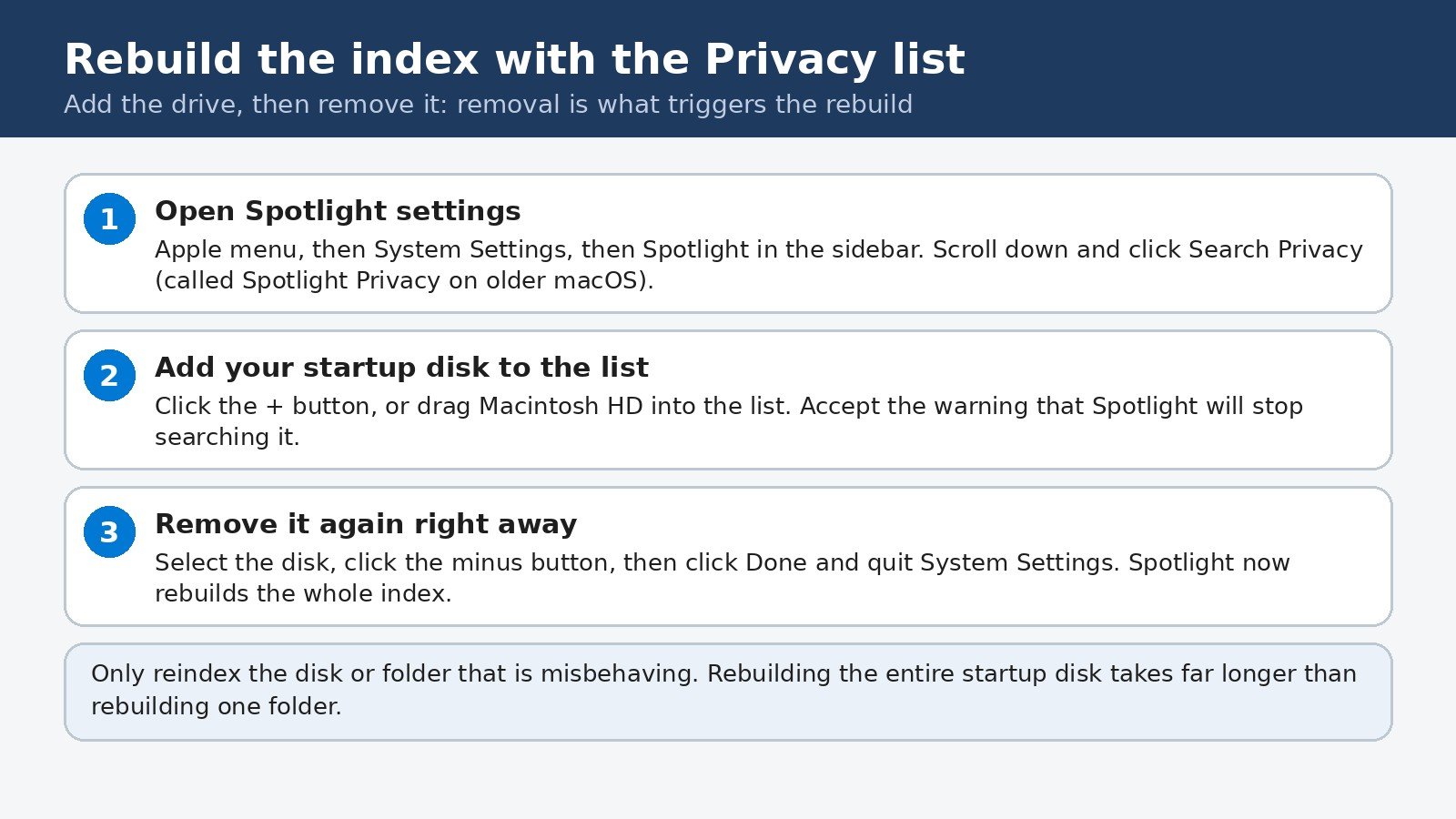
To rebuild only one folder instead of the whole disk, add and remove just that folder. This is much faster, and it is the right choice when only one area of search is misbehaving. Apple’s own guidance describes the same add-then-remove sequence, as documented in Apple’s support article on Spotlight indexing and search results.
Method 2: Rebuild from Terminal
If you are comfortable typing a command, Terminal rebuilds the index in one step, and it also lets you check the rebuild status afterwards.
- Open Terminal from Applications, Utilities.
- Type sudo mdutil -E / and press Enter. The command erases the index for your startup disk and starts a fresh one.
- When asked for your password, type your administrator password and press Enter. Nothing appears on screen as you type, which is normal for sudo prompts.
- To rebuild just one folder instead of the whole disk, replace the slash with the folder path, for example sudo mdutil -E /Users/yourname/Documents, using your own username in place of yourname.
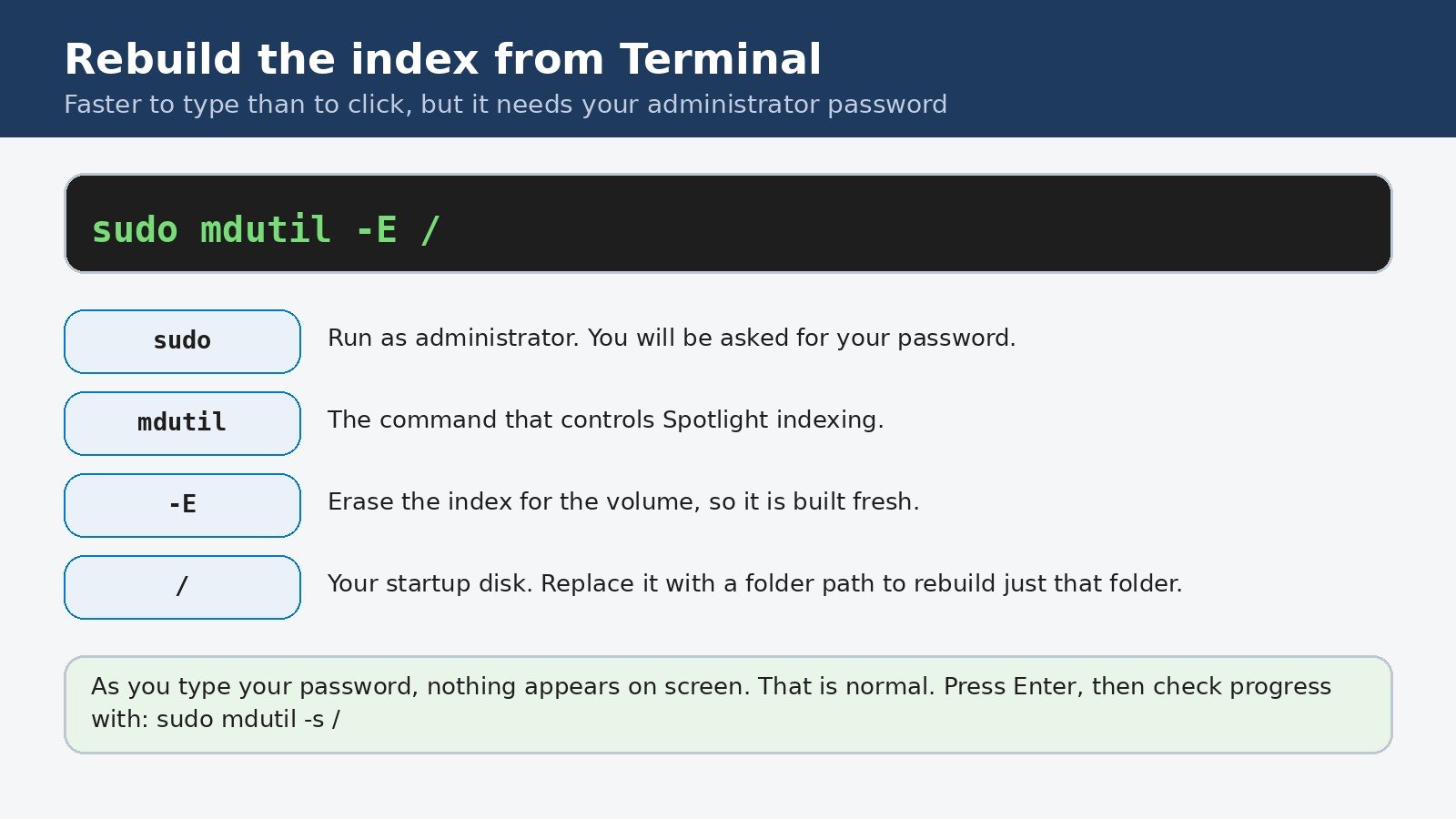
Two related commands are worth knowing. The command sudo mdutil -i off / followed by sudo mdutil -i on / turns indexing off and back on, which is a deeper reset some guides recommend when the simple erase does not help. The command sudo mdutil -s / reports the indexing status of the disk, which is the honest way to check progress instead of guessing.
How to tell the rebuild is working
- Press Command + Space and look for the indexing progress indicator at the top of the Spotlight window. While indexing is in progress, Spotlight shows that indicator.
- Search for an app name first. Apps tend to return quickly, while documents and emails catch up as the index fills in.
- Keep the Mac plugged in and idle when you can. Apple notes that indexing finishes faster when the device is not in use, connected to power, and connected to the internet, in case email or other data still needs to download.
- Do not keep restarting the Mac to “help” it. Restarts interrupt indexing and stretch the job out.
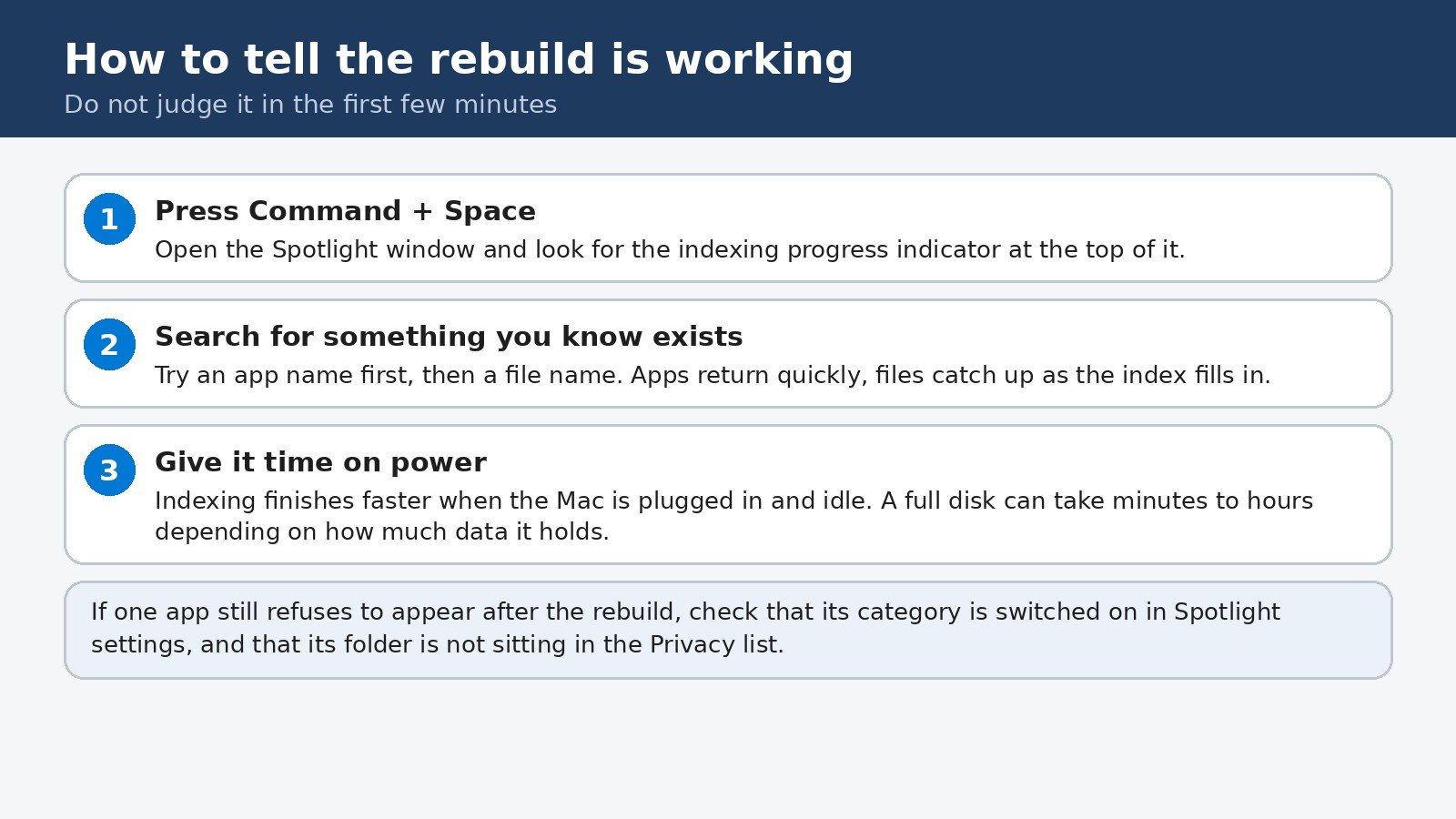
How long does it take? It depends on how much data the disk holds. A lightly used Mac can finish in minutes, while a full disk with years of files can take hours. Apple itself says indexing can take hours or even days on a device with a large amount of data, and the progress indicator is the only reliable signal. On Apple Silicon Macs the job is usually faster than on older Intel models, because the indexing work benefits from the faster storage and processor, but the disk size still decides the total time.
If search still misses things after the rebuild
| Symptom after a rebuild | Likely cause | What to try next |
|---|---|---|
| One app still missing | Its category is off, or its folder is in the Privacy list | Check the category toggles and the Privacy list again |
| Only Mail results missing | Mail has its own mailbox index | In Mail, select the mailbox, then choose Mailbox, Rebuild |
| An “unknown” or permissions error when adding to Privacy | Your account lacks ownership of some items | Check the disk or folder permissions for your account |
| Indexing never finishes | Disk nearly full, or a corrupted volume | Free up space, then run Disk Utility First Aid on the volume |
One more case deserves a mention. If Spotlight finds files but not apps, and the rebuild did not fix it, the Applications folder itself may be the problem: rebuild just that folder with the Privacy list method, or with the Terminal command pointed at the Applications folder path. Narrowing the rebuild to the misbehaving folder is faster and often more effective than rebuilding the whole disk a second time.
A Spotlight rebuild is a patient fix, not an instant one. Give the index time to finish, check the progress indicator rather than guessing, and test with searches you know the answer to. Once the catalog is fresh, search goes back to being the fastest way to reach anything on your Mac, which is exactly what it is for.

- How to Rebuild the Spotlight Index on Mac - October 25, 2026
- How to Change the Screenshot Save Location on Mac - October 24, 2026
- How to Turn Off Stage Manager on Mac - October 23, 2026