
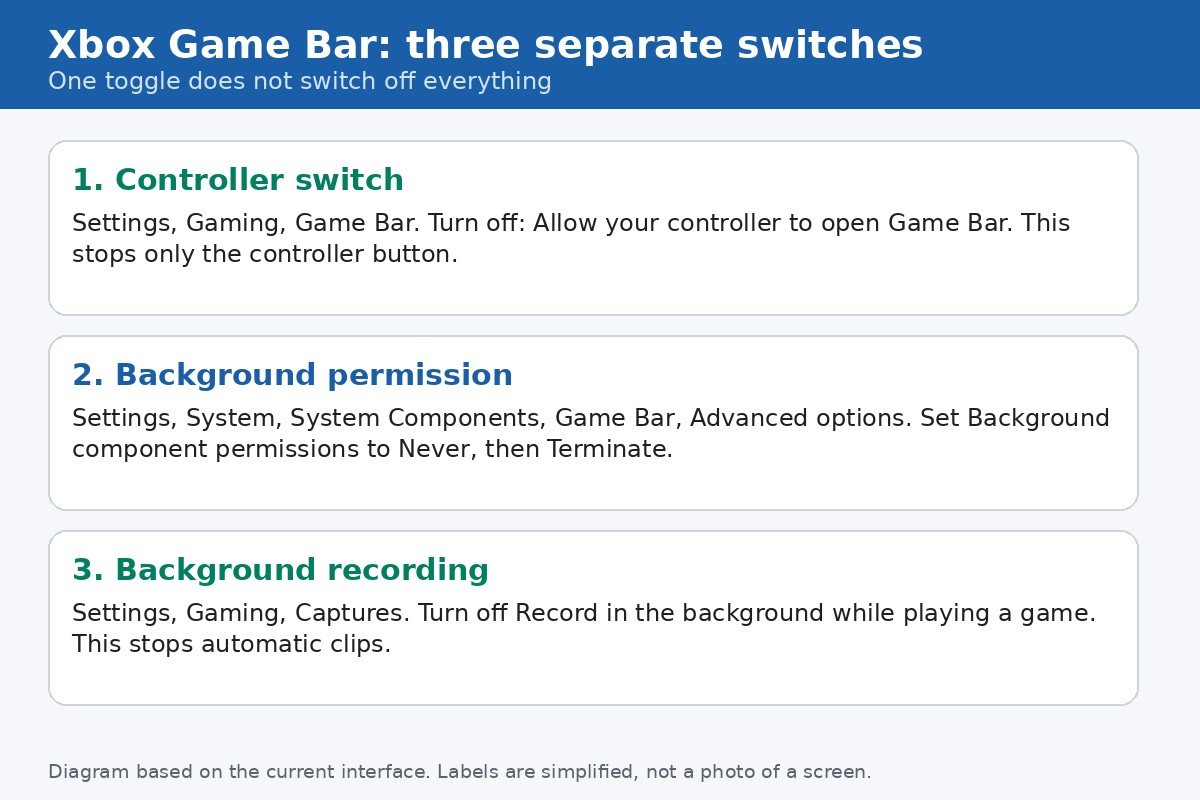
Xbox Game Bar is the overlay that opens over a game or app on Windows 11, with panels for recording clips, checking performance, adjusting audio, and chatting with Xbox friends. If you never use it, it can still pop up at the worst moment, record clips in the background, or sit running when you would rather it did nothing at all. The reason most guides fail is simple: there is no single switch that turns off every part of it. Game Bar has three separate controls, and each one stops a different thing.
Start by matching your problem to the right switch. If a controller button keeps opening the overlay, you need the controller switch. If you want the app to stop running in the background, you need the System Components permission. If clips keep being saved without you asking, you need the Captures setting. Do all three if you want Game Bar fully quiet, and skip the ones that do not match your problem.
Which switch is yours
| Your problem | The switch that fixes it | Where it lives |
|---|---|---|
| The Xbox button on a controller opens the overlay | Allow your controller to open Game Bar, off | Settings, Gaming, Game Bar |
| Game Bar keeps running in the background | Background component permissions, Never, plus Terminate | Settings, System, System Components |
| Clips are recorded without you starting them | Record in the background while playing a game, off | Settings, Gaming, Captures |
| You want the app gone entirely | Uninstall, a separate step with side effects | Microsoft Store app listing, or PowerShell removal |
First, a warning about the main toggle
Older guides tell you to open Settings, Gaming, Xbox Game Bar, and turn off a master toggle. On many current Windows 11 builds, that page no longer shows a master on and off switch for the whole overlay. Instead, the page focuses on the controller button. This is a real source of confusion, and it is why people follow a guide step by step and still see Game Bar afterwards. Do not assume the page on your PC matches an old guide. Use the labels you actually see, and use the System Components step below for the background part, because that step is the one that still works on current builds.
One more honest note before you start. Turning off these switches quiets Game Bar, but it does not uninstall it. Microsoft’s own support forum confirms the same point: after setting the background permission to Never and terminating the app, the Windows key plus G shortcut may still open the overlay, because the app is still installed. If your goal is that nothing opens at all, read the section near the end about full removal, and weigh its side effects first.
Turn off the controller button
This is the quickest fix if your complaint is accidental popups while holding a controller. The Xbox button is easy to press by accident, and this switch removes that trigger without touching anything else.
- Press Windows key + I to open Settings.
- Click Gaming in the left sidebar, then click Game Bar.
- Turn off Allow your controller to open Game Bar. On some builds the label reads Open Xbox Game Bar using this button on a controller, which is the same setting under a slightly different name.
- Close Settings. There is nothing else to save, the change applies at once.
After this change, pressing the Xbox button on a controller should no longer summon the overlay. The Windows key plus G shortcut is a separate trigger, so do not be surprised if that shortcut still works. That is expected, and it is covered by the next section, not by this switch.
Stop Game Bar running in the background
This is the step most people actually want, and it is the one older guides bury. Windows 11 treats Game Bar as a system component, so its background permission lives under System Components, not under the Gaming page. Setting it to Never stops Windows from letting the component run in the background, and Terminate stops the copy that is already running.
- Press Windows key + I to open Settings.
- Click System in the left sidebar, then click System Components.
- Find Game Bar in the list. If the list is long, use the search box at the top of Settings and type Game Bar, then open its entry from there.
- Click the three dots next to Game Bar and choose Advanced options.
- Under Background component permissions, open the dropdown and choose Never.
- Scroll down on the same page and click Terminate. This stops the running process immediately, so you do not have to restart to feel the effect.
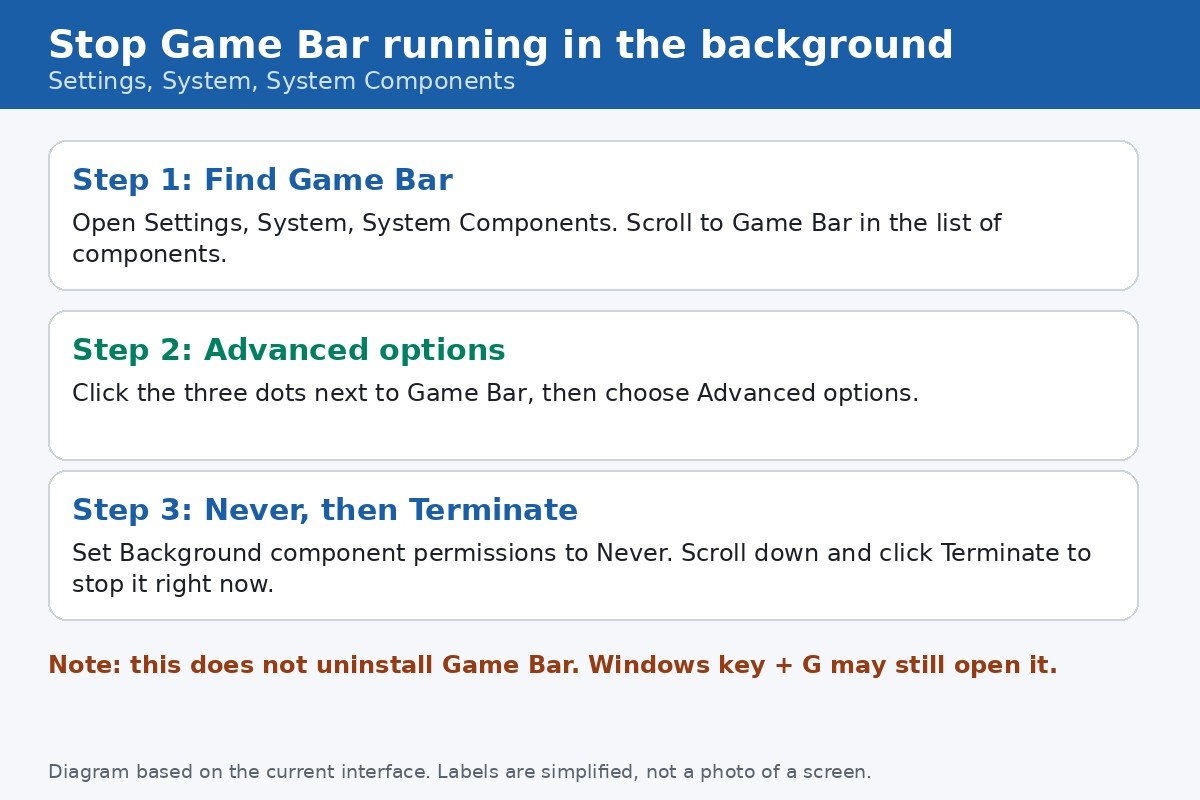
Do both parts of this step. Choosing Never alone leaves the current process running until the next restart, and clicking Terminate alone without changing the permission leaves Windows free to start the component again later. Together, they are the closest thing to a full shutdown short of uninstalling.
Turn off background recording in Captures
Game Bar can save the last moments of gameplay even when you never pressed record. That feature is called background recording, and it lives on its own page, separate from both switches above. If your complaint is clips appearing on your drive, or a performance dip during games, this is the setting to check, even after the other two switches are off.
- Press Windows key + I to open Settings.
- Click Gaming in the left sidebar, then click Captures.
- Turn off Record in the background while playing a game. On some builds the label reads Record what happened, which is the same background recording feature.
- While you are here, check the rest of the page. If you do not want Windows handling game capture at all, leave the quality and frame rate options alone, because they only matter when recording is on.
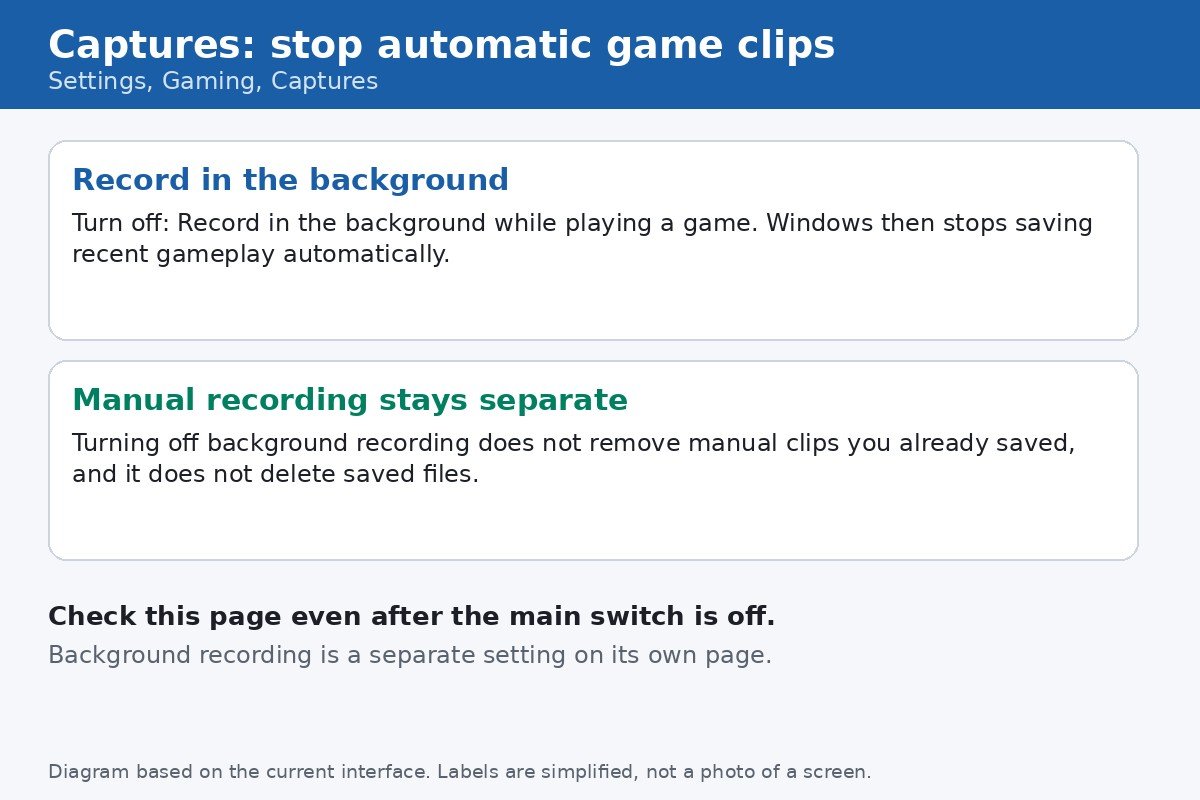
Turning off background recording does not delete clips you already saved. Those files stay where they are until you delete them yourself, so check your Videos folder, Captures folder, if you want the disk space back.
What happens to Windows key + G now
Here is the part to test honestly, rather than assume. After the three switches above, press Windows key + G and see what happens. On many PCs, the overlay still opens, because the app is still installed and the shortcut is a direct launch, not a background activity. That does not mean your steps failed. The controller button should be dead, background activity should be stopped, and automatic clips should be off. The shortcut is simply a fourth behaviour, and it only goes away with removal.
Microsoft’s support forum answer on this exact problem says the same thing in plain terms: the background permission and controller steps prevent the overlay from popping up on its own, and removal is the workaround if it still appears when you do not want it. Treat a still working Windows key plus G as information, not as proof that the earlier steps did nothing.
Should you uninstall Game Bar completely
Uninstalling is the only way to make sure no shortcut opens the overlay, but it has real side effects, so think of it as a last step, not the first one. Removing Game Bar also removes the built in capture shortcuts, including Windows key plus Alt plus R for recording and Windows key plus Alt plus G for saving the last clip. If you use those shortcuts, or a third party tool that relies on Game Bar capture, you will lose them. A future Windows update may also reinstall the app, so removal is not always permanent.
If you still want it gone, the safer route is the Microsoft Store: search for Game Bar in the Store app and uninstall it from its listing if your build offers that option. The PowerShell removal command for the Xbox Gaming Overlay package is widely shared, including in Microsoft’s own support forum thread on this problem, but it is a system level change, so only use it if you are comfortable with that, and only after the three switches above have failed to give you the quiet you want. The forum answer linked above gives the exact wording for readers who want it.
If Game Bar comes back after an update
- Recheck the controller switch first, because updates sometimes reset Gaming settings.
- Recheck the System Components permission, because a reinstalled component can arrive with its default permission restored.
- Recheck Captures, because background recording can return with a feature update.
- If the app itself was reinstalled after you removed it, repeat the removal only if you still want it gone, and accept that the next major update may bring it back again.
That cycle is annoying, but it is the honest picture on current Windows 11 builds. The three switches above take about two minutes once you know where they live, and they are easy to reapply after an update. Keep this guide bookmarked for the next time Game Bar reappears, and work through the table at the top again, starting with whichever symptom actually returned.

- How to Turn Off Xbox Game Bar on Windows 11 - October 28, 2026
- How to Fix an SD Card Not Detected on Windows 11 - October 25, 2026
- How to Fix Windows 11 Search Not Finding Files - October 24, 2026