
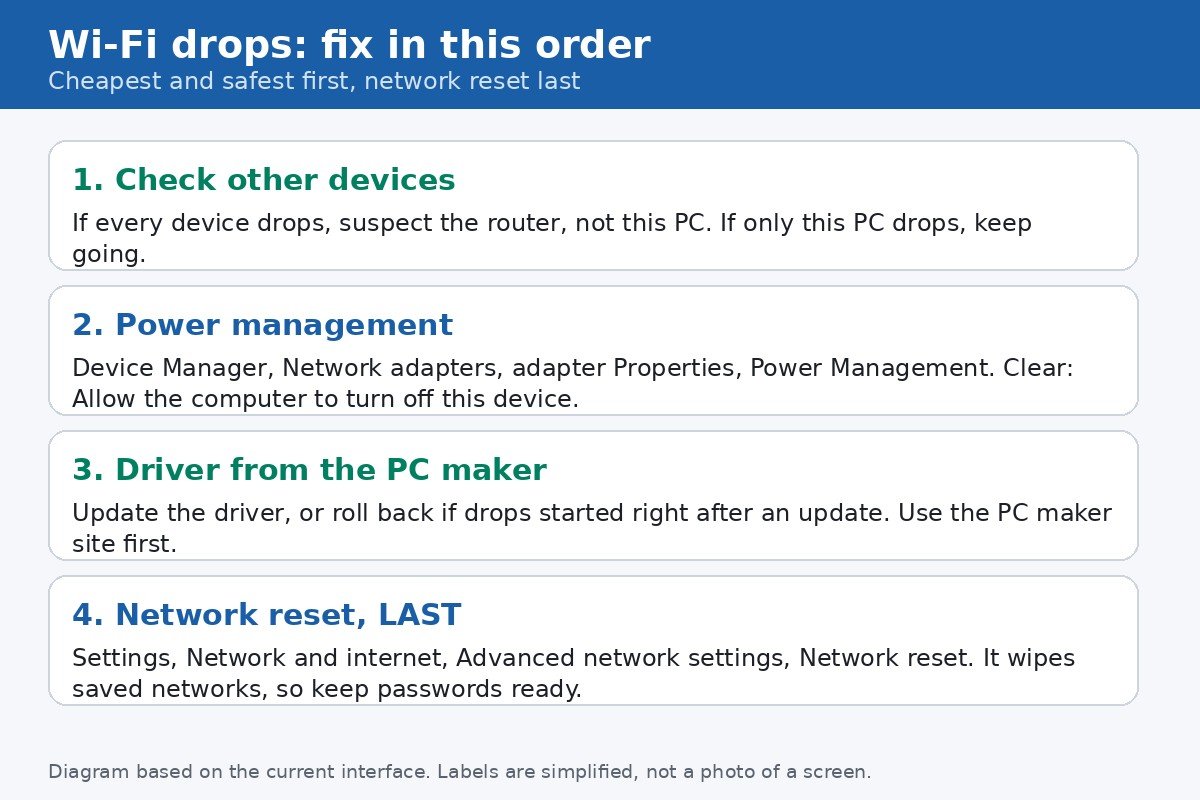
Your Windows 11 Wi-Fi drops in the middle of a video call, then reconnects on its own a minute later, then drops again. Before you change anything, answer one question: does every device in the house drop at the same time, or only this PC? That answer splits the whole problem in half. If every device drops, the fault is the router, the broadband line, or a crowded wireless channel, and no setting on this PC will fix it. If only this PC drops, the fault is almost always on the PC itself, and the fixes below are ordered from cheapest to most disruptive, so you stop as soon as the connection holds steady.
Work through the steps in order, and test for a while after each one before moving on. A fix that looks good for five minutes and then fails again has not fixed anything, and jumping ahead to a network reset will wipe saved networks you did not need to lose. The order below is the point of this guide: power management first, then the driver, then the per network privacy setting, and network reset last, because it is the only step that erases everything.
The diagnostic order, and why it matters
| Step | What it fixes | What it costs you |
|---|---|---|
| 1. Check other devices | Tells you whether the PC or the router is at fault | Two minutes, nothing changed |
| 2. Adapter power management | Drops after idle, sleep, or on battery | One checkbox, slightly more battery use |
| 3. Driver update or rollback | Drops that started after an update | A restart, and a download from the PC maker |
| 4. Random hardware addresses off | Networks that keep asking you to sign in again | Less address privacy on that one network |
| 5. Forget and rejoin the network | A corrupted saved profile for one network | You need the Wi-Fi password again |
| 6. Network reset, last | Deep adapter and settings corruption | All saved networks, VPN settings, and a restart |
Step 1: Is it this PC, or the whole house
- When the PC drops, check a phone or another computer on the same Wi-Fi at once. If they are also offline, restart the router and modem first, and contact your broadband provider if the drops continue, because the PC is not the problem.
- If only this PC drops, note the pattern. Drops after the PC sits idle, after sleep, or only on battery point at power management. Drops that started the day after a Windows or driver update point at the driver. Drops in one room only, or far from the router, point at signal strength or interference.
- Try moving closer to the router for one test session. If the drops stop near the router, the fix is placement, a better band, or a router channel change, not a PC setting. The 5 GHz band is usually faster but travels less far through walls, while 2.4 GHz travels further but shares airspace with more neighbours.
One more quick check saves a lot of wasted effort. If the PC stays connected to the router but shows No Internet, the Wi-Fi link itself is fine and the problem is further upstream, with the router, the broadband line, or DNS. The steps below still help for a true disconnect, but a No Internet case deserves a router restart and a provider check before any PC surgery.
Step 2: Stop Windows turning off the Wi-Fi adapter
This is the single most common fix for random drops on laptops, especially drops that happen when the laptop is idle, on battery, or just after waking from sleep. Windows tries to save power by switching the wireless adapter off, and sometimes it does not switch it back on cleanly. Turning that behaviour off costs a small amount of battery life, and it is fully reversible.
- Right click the Start button and choose Device Manager.
- Expand Network adapters and find your Wi-Fi adapter. Its name usually contains Wireless, Wi-Fi, WLAN, 802.11, or a maker name such as Intel, Realtek, Qualcomm, or MediaTek.
- Right click the adapter and choose Properties.
- Click the Power Management tab, then clear the checkbox labelled Allow the computer to turn off this device to save power.
- Click OK and restart the PC, then use it normally for a while and watch whether the drops stop.
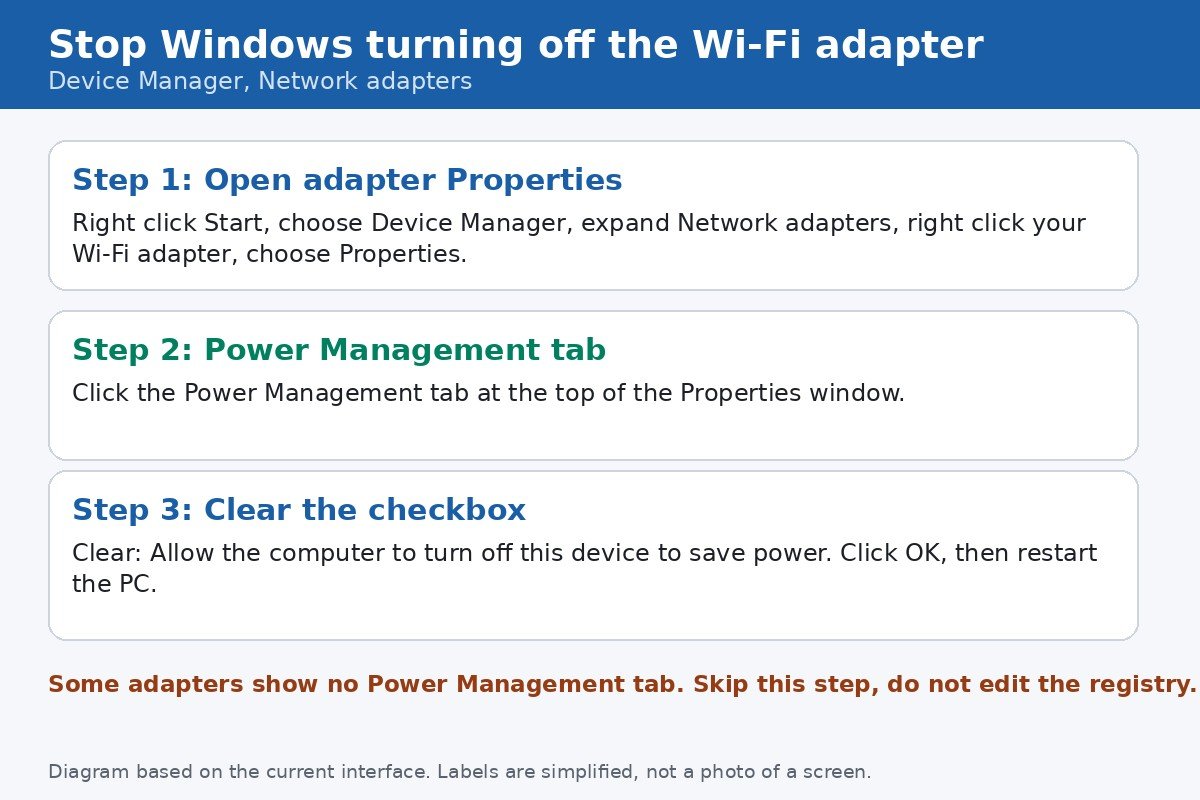
Not every adapter shows a Power Management tab. Modern standby laptops in particular often hide it, and its absence does not mean something is broken. If your adapter has no such tab, move on to the driver step. Do not go hunting in the registry for a substitute, because a wrong registry edit can do more damage than a dropped connection.
Step 3: Update the driver, or roll it back
If the drops started right after a Windows update or a driver update, the driver is the prime suspect. The order matters here too: try the PC maker first, because a laptop maker driver is tested against that exact model, while a generic driver from Windows Update is tested against a much wider range of hardware.
- In Device Manager, right click your Wi-Fi adapter and choose Update driver, then choose Search automatically for drivers. Restart if Windows installs anything.
- If Windows finds nothing, or the problem continues, visit your PC maker support site, search for your exact model, and download the wireless driver listed for Windows 11. Install it, then restart.
- If the drops started immediately after a driver update, roll back instead. In the adapter Properties window, open the Driver tab and click Roll Back Driver if the button is available. Windows asks for a reason, and any reason is fine, then restart.
- If neither update nor rollback is available, try a clean reinstall: right click the adapter, choose Uninstall device, do not tick the remove driver box unless you already have a replacement driver downloaded, then restart and let Windows reinstall the adapter.
Keep a backup route in mind while doing driver work. If you uninstall the wireless driver and Windows cannot reinstall it, you will have no Wi-Fi to download a replacement. Download the maker driver before you uninstall anything, or keep a phone with USB tethering handy as a temporary connection.
Step 4: Turn random hardware addresses off for this network
Windows can use a random hardware address, sometimes called a MAC address, for each Wi-Fi network, instead of the adapter real address. That is good for privacy on public networks, but some home routers, hotel networks, and networks with MAC filtering tie your login or your access to one address. If the address changes, the network can drop you, or keep asking you to sign in again, which looks exactly like a flaky connection.
- Open Settings, then Network and internet, then Wi-Fi.
- Click Manage known networks, then click the network that keeps dropping.
- Find Random hardware addresses and set it to Off for this network only.
- Disconnect from the network and reconnect, so the new setting takes effect on the next connection.
Only change this for the network that misbehaves. Leaving random addresses on for coffee shop and hotel networks keeps the privacy benefit where it matters, while your home network gets the stable address it expects. If turning it off changes nothing, turn it back on again, because there is no reason to give up privacy for no benefit.
Step 5: Forget the network and rejoin it
A saved network profile can go stale, especially after a router password change, a security setting change, or a router replacement that reused the old network name. Forgetting the network deletes that profile, and rejoining builds a fresh one.
- Open Settings, then Network and internet, then Wi-Fi, then Manage known networks.
- Click the problem network and choose Forget.
- Open the Wi-Fi list from the taskbar, choose the network again, and type the password carefully.
- Test for a while before touching anything else, because a fresh profile needs a real test, not a thirty second check.
Do not forget a work or school network without checking first. Some managed networks use certificates or a sign in portal, and rejoining them can need help from the network administrator. For a home network, forgetting is safe, as long as you know the password.
Step 6, last: Network reset
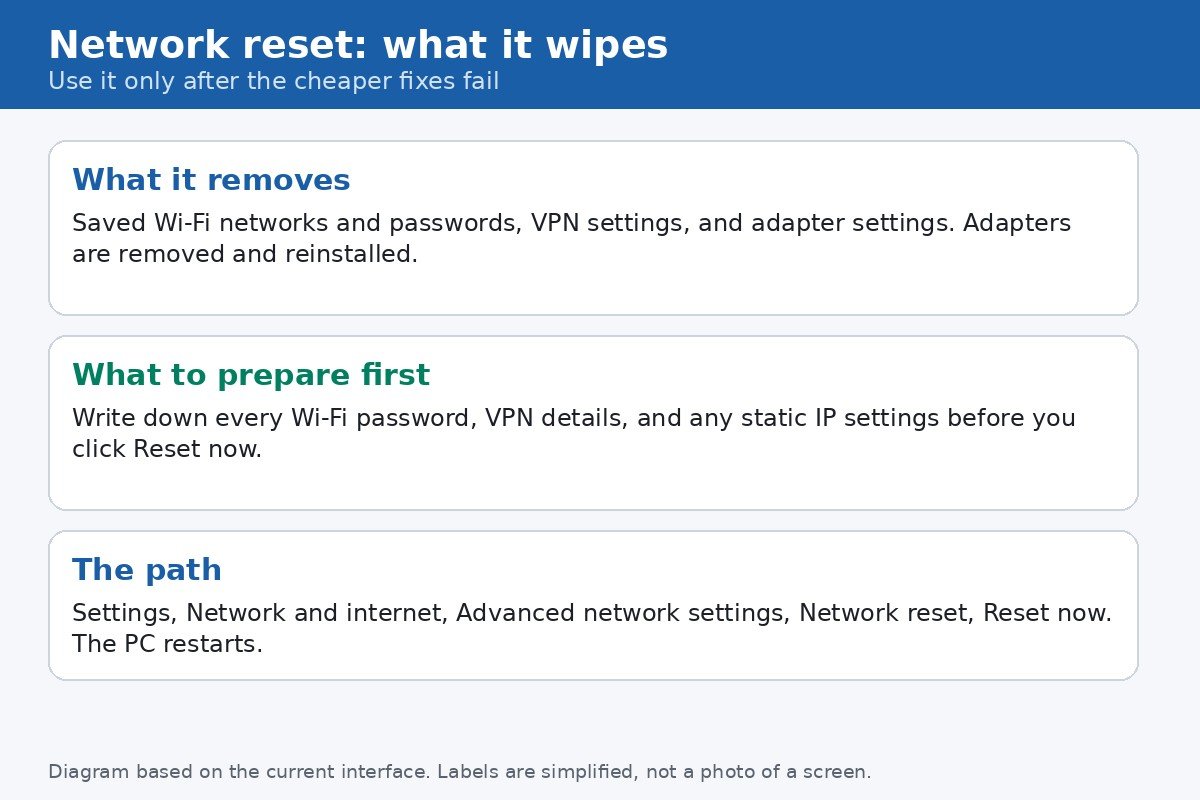
Network reset is the step to reach only when every cheaper fix has failed, because it is deliberately destructive. Windows removes every network adapter and reinstalls them with default settings, and the PC restarts as part of the process. After the restart, every saved Wi-Fi network is gone, VPN software may need reinstalling, and any static IP settings must be entered again. That is why it sits at the bottom of this guide, not the top.
- Write down every Wi-Fi password, VPN login details, and any static IP settings before you start.
- Open Settings, then Network and internet, then Advanced network settings, then Network reset.
- Click Reset now and confirm. Let the PC restart and reinstall its adapters, which can take several minutes.
- Reconnect to your Wi-Fi network, re-enter the password, and set up VPN software again if you use it.
Microsoft’s own wireless troubleshooting guide warns against resetting the network stack, deleting profiles, or removing the adapter before collecting basic evidence, because those steps erase the clues about what went wrong. That warning is worth following even at this stage: note when the drops happen, whether they follow sleep or idle time, and whether other devices are affected, before you reset, so you can describe the problem clearly if you need support afterwards. The guide also covers the deeper diagnostic route, including the wireless report command that logs each disconnect with a reason code.
When it is a router or channel problem, not a PC problem
Some patterns belong to the router, and no PC setting will cure them. Every device dropping together, drops at the same time of day, drops only when a microwave runs or a neighbour network appears, and drops that vanish when you switch from 5 GHz to 2.4 GHz, or the other way round, all point away from the PC. In those cases, try a different wireless channel in the router admin page, move the router away from thick walls and large metal objects, update the router firmware, and talk to your broadband provider if the line itself drops. A cheap USB Wi-Fi adapter is also a useful final test: if a USB adapter holds a steady connection while the built in adapter drops, the built in adapter itself is likely faulty, and that is a repair question, not a settings question.
Most Windows 11 Wi-Fi drops, though, end at step two or three of this guide. The power management checkbox and a maker driver fix the majority of cases, and the rest are usually a stale profile or a router issue. Work in order, test properly after each step, and keep network reset where it belongs, at the very end.

- How to Fix Windows 11 Wi-Fi That Keeps Disconnecting - October 28, 2026
- How to Change the Lock Screen Timeout on Windows 11 - October 25, 2026
- How to Fix the Windows 11 Taskbar Auto-Hide Problem - October 24, 2026