
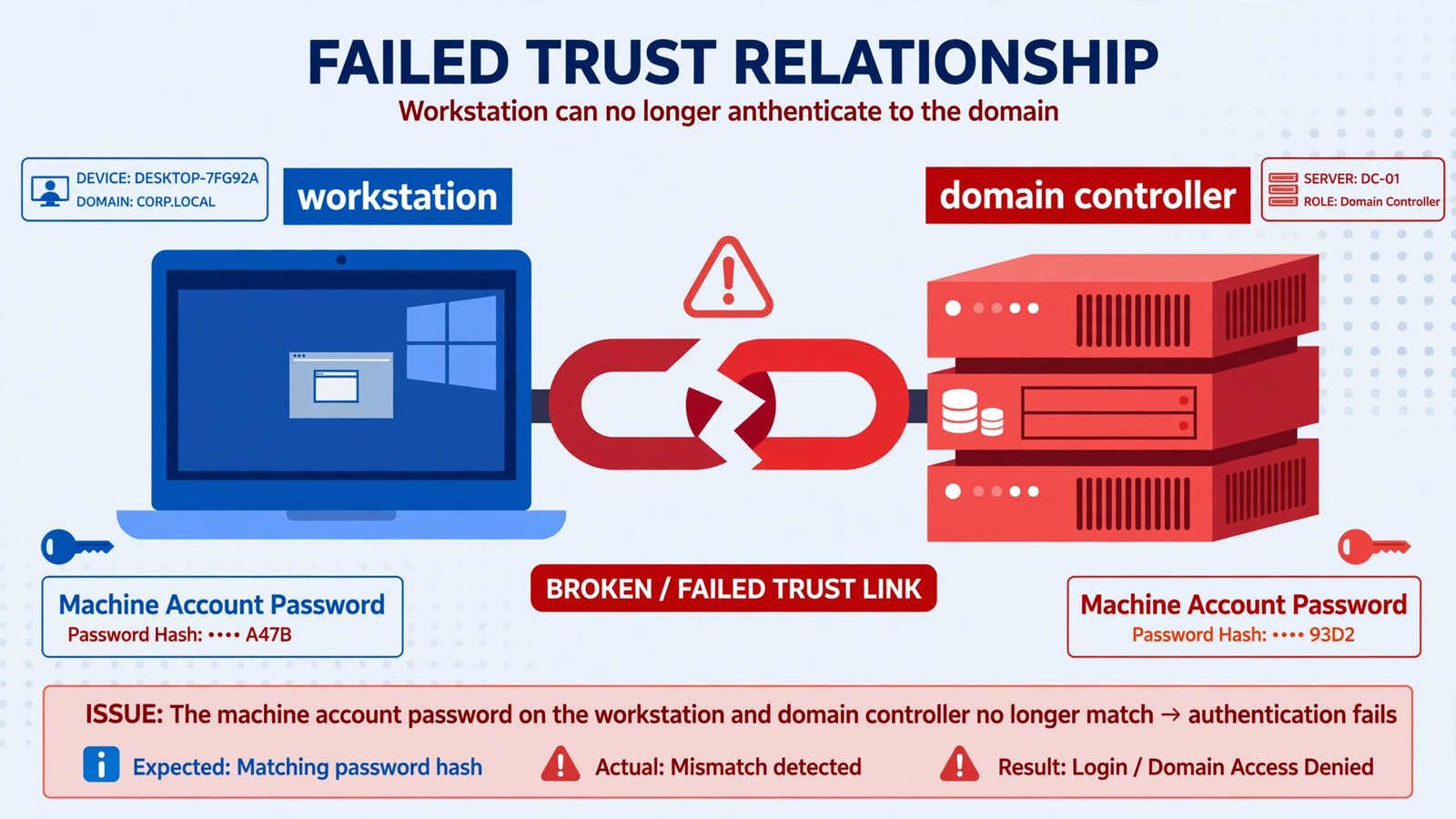
Yesterday your PC signed you in without a thought. This morning you type the same password you always use, and Windows refuses you with a flat statement: the trust relationship between this workstation and the primary domain failed. Your password is fine. What broke is the private handshake between your computer and your company’s domain controller, the secret the two of them share so the domain knows your PC is really yours. This only happens on domain-joined PCs, never on home computers, and the fixes below are ordered from fastest to last resort.
First, a Quick Check Before You Repair Anything
The “trust” in this error is literally a password your computer and the domain controller agree on, renewed automatically every 30 days. If something interrupted that renewal, a system restore rolled your PC back, the computer account was deleted in Active Directory, or the clock drifted, the two sides stop recognizing each other. Two minutes of diagnosis can save you a pointless rejoin:
- Make sure the PC can actually reach the office network or VPN. No network, no domain, no login.
- Check the date and time. A clock off by more than about five minutes causes Kerberos failures that look exactly like trust failures.
- Ask your IT admin whether the computer account still exists in Active Directory. If it was deleted or disabled, the PowerShell repairs below will fail and you need a rejoin.
Fix 1: Repair the Secure Channel with PowerShell
This is the fastest fix and works whenever the computer account is still healthy in Active Directory. Log on to the affected PC with a local administrator account, since domain accounts are locked out.
- Open PowerShell as administrator (right-click Start, choose Terminal (Admin) or Windows PowerShell (Admin)).
- Check the state of the channel first:
If it returns False, the channel is broken.Test-ComputerSecureChannel -Verbose - Repair it:
Enter domain administrator credentials when the prompt appears.Test-ComputerSecureChannel -Repair -Credential (Get-Credential) - Run
Test-ComputerSecureChannel -Verboseagain. It should now report that the secure channel is in good condition. Restart the PC and sign in with your domain account.
If the PC cannot reach the domain controller at all, you may see RPC-style connectivity errors. Troubleshooting the RPC server unavailable error covers the network side of that.
Fix 2: Reset the Machine Account Password Directly
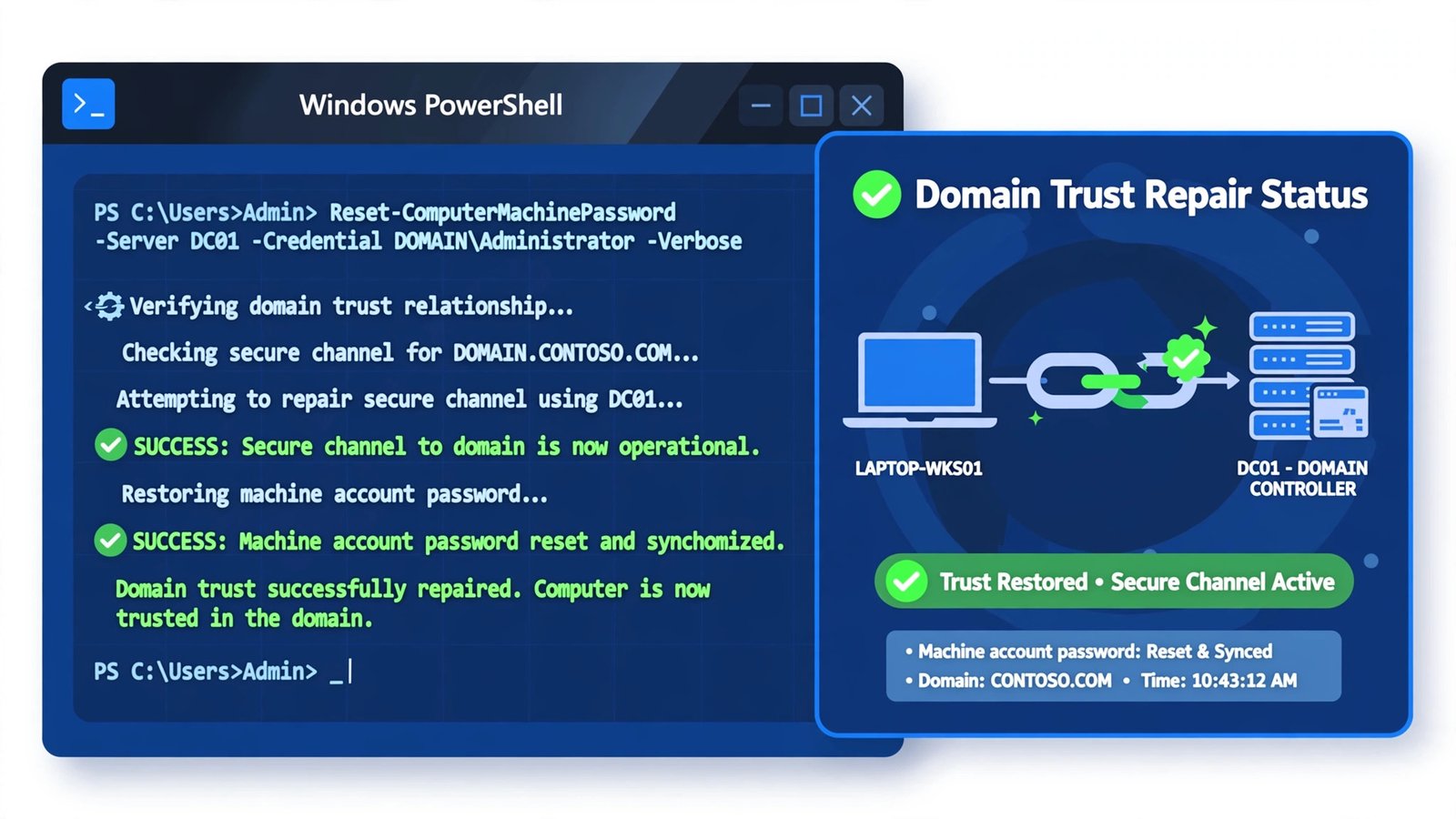
If the channel repair returns an error instead of fixing things, force the workstation to push a brand-new machine account password to the domain. This works without testing the existing channel first.
- Open PowerShell as administrator and run:
$credential = Get-Credential Reset-ComputerMachinePassword -Credential $credential Restart-Computer -Force - Enter domain administrator credentials when prompted.
- The PC restarts with a fresh machine password synced to Active Directory. Log in with your domain account.
Fix 3: Remove and Rejoin the Domain
When the computer account is missing, disabled, or the repairs above fail, the classic disjoin-and-rejoin still works. It creates a fresh computer account in Active Directory.
- Log on as a local administrator. Press Windows key + R, type
sysdm.cpl, and press Enter. - On the Computer Name tab, click Change. Select Workgroup, type any name (such as WORKGROUP), and click OK. Enter administrator credentials when asked.
- Restart the PC. Log on as local administrator again.
- Open
sysdm.cplagain, click Change, select Domain, type your domain name, and click OK. Enter domain administrator credentials. - Restart once more and sign in with your domain account.
After rejoining, if you are blocked at a different login screen error, the user profile service failed sign-in guide covers the next most common failure.
Fix 4: Check Time Sync and Network Path to the Domain Controller
Kerberos authentication tolerates about five minutes of clock skew. If the PC’s clock is wrong, every domain login fails with symptoms identical to a trust failure. Also confirm DNS resolves your domain: a PC that cannot find its domain controller will never rebuild trust.
- Log on as local administrator and check the clock against a reliable source. Enable automatic time in Settings > Time & language > Date & time.
- From an elevated command prompt, run
nltest /dsgetdc:yourdomain(replace yourdomain with your domain name) to confirm the PC can locate a domain controller. - If you are remote, connect the VPN before attempting any domain login, then retry the PowerShell repairs.
Microsoft’s own Q&A thread on this exact error walks through the same netdom and PowerShell repairs if you want a second reference.
Our Take: Repair First, Rejoin Only When the Account Is Gone
The PowerShell channel repair fixes the majority of these cases in under five minutes, and it preserves the computer’s existing identity in Active Directory. Reserve the disjoin-and-rejoin for when an admin confirms the computer account was deleted or disabled, because rejoining creates a new account and can disturb group policies and profiles tied to the old one. If this error keeps returning on the same machine, something deeper is wrong, a failing disk corrupting the local secret, a dying CMOS battery throwing the clock off, or a system-restore habit, and that is worth one proper investigation rather than a monthly repair.

- How to Fix a Laptop Camera Not Working in Windows 11 - October 23, 2026
- How to Fix the Brightness Slider Missing in Windows 11 - October 22, 2026
- How to Stop Phone Link From Opening on Startup in Windows 11 - October 21, 2026