
The “RPC server is unavailable” error (code 1722) appears when Windows tries to send a command to a service, on your own PC or another one on the network, and gets no answer. It shows up most often while printing, during Windows Update, or when joining a domain or running network tools. The cause is genuinely ambiguous: several unrelated things produce this exact message.
Error 1722: The RPC Server Is Unavailable
First, the obvious triage: restart your computer and try the task again. A stuck service is the most boring cause and the most common one. If the error survives a restart, work from the causes list below.
The cause of this error message can be as follows:
- An RPC-related Windows service is stopped or disabled
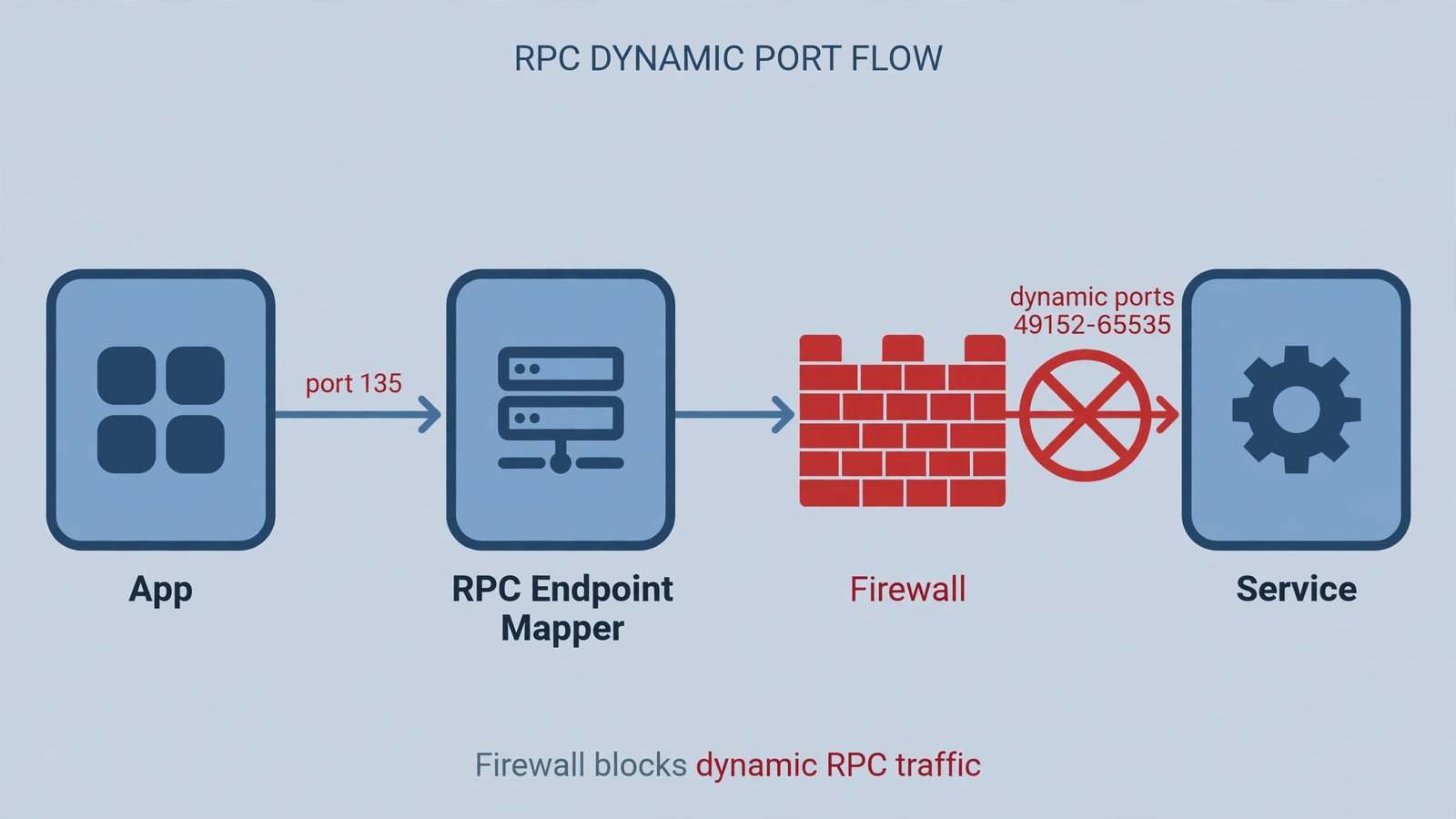
- The firewall is blocking RPC traffic (TCP port 135 and the dynamic range 49152-65535)
- DNS or name resolution is failing, so the PC cannot find the target machine
- The network connection to the target is down or misrouted (VPNs and proxies included)
- The system clock is out of sync, breaking authentication with the target
- Corrupt system files in the networking stack
- Third-party security software interfering with RPC calls
Here are the solutions, numbered for reference:
- 1] Check that the core RPC services are running
- 2] Restart the Print Spooler (if the error appeared while printing)
- 3] Let RPC through Windows Firewall
- 4] Check DNS and name resolution
- 5] Sync your system clock
- 6] Repair system files with SFC and DISM
- 7] Rule out third-party software with a clean boot
Important: this is a menu, not a sequence. Read through all the fixes first, then decide which ones match your situation. Someone who hit the error while printing should start at 2]; someone on a company network should look at 3] and 4] before touching anything else. Let us talk about them in detail.
The Fixes in Detail
1] Check that the core RPC services are running
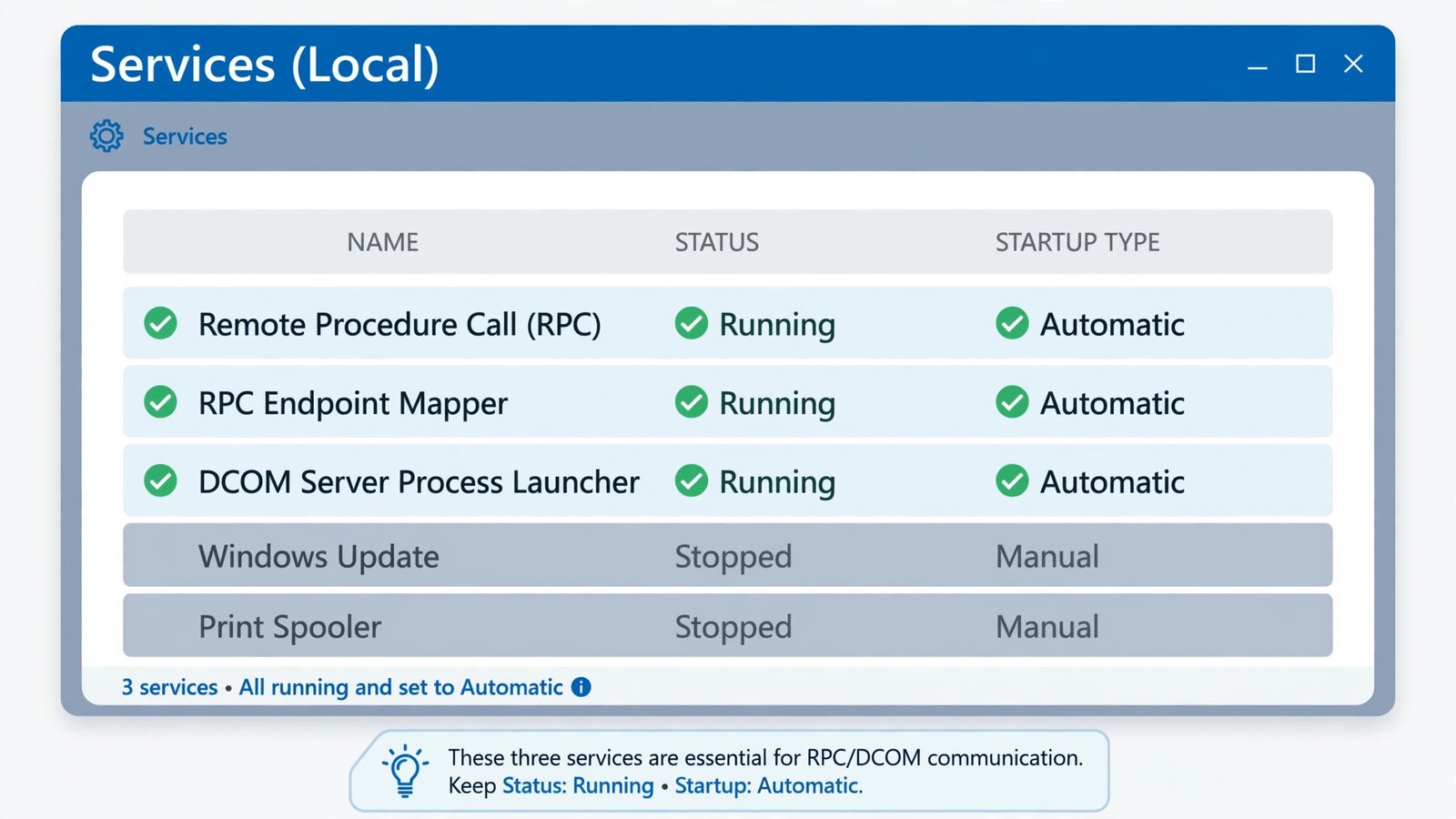
Three services do the heavy lifting for RPC. Press Win + R, type services.msc, and press Enter. Find Remote Procedure Call (RPC), RPC Endpoint Mapper, and DCOM Server Process Launcher. Each one should show Running as its status and Automatic as its startup type. Right-click any that do not, choose Properties, set the startup type to Automatic, and click Start. Note: the main RPC service’s options are greyed out by design; that is normal, not a problem. If your network tools also depend on name services, also confirm TCP/IP NetBIOS Helper is running.
2] Restart the Print Spooler (printing errors only)
If 1722 appeared while adding a printer or printing, the Print Spooler is the prime suspect. In the same services.msc window, find Print Spooler, right-click it, and choose Restart. Try printing again. If the spooler keeps stopping on its own, a corrupt print driver is likely; remove and reinstall the printer afterward.
3] Let RPC through Windows Firewall
With the services running, the next suspect is the firewall silently dropping RPC traffic. Open the Start menu, type “Allow an app through Windows Firewall”, and open it. Click Change settings (you will need administrator rights), then make sure Remote Service Management is checked, and File and Printer Sharing if this is a printing or file-sharing scenario. Click OK and retry your task. On a company network, the block may be on a hardware firewall instead; that is a question for your IT team, not your PC.
4] Check DNS and name resolution
RPC between machines starts with finding the other machine by name. If your PC cannot resolve the target’s name, the call never starts. Open Command Prompt and run nslookup followed by the target computer’s name; if it fails, DNS is your problem, not RPC. Flush the local cache with ipconfig /flushdns, confirm you can ping the target by both name and IP address, and check that any VPN or proxy is not rerouting the traffic into a dead end. Microsoft’s own troubleshooting guidance for this error lists name resolution among the first things to verify.
5] Sync your system clock
It sounds unrelated, but RPC authentication fails when the client and server clocks disagree by more than a few minutes. Go to Settings, then Time and Language, and turn on both Set time automatically and Set time zone automatically. This is a two-minute check that resolves a real share of domain and network RPC errors.
6] Repair system files with SFC and DISM
If the networking stack itself is damaged, no settings change will help. Open an elevated Command Prompt and run sfc /scannow; when it finishes, run DISM /Online /Cleanup-Image /RestoreHealth. Both take a while. Restart afterward and retry the task that produced 1722.
7] Rule out third-party software with a clean boot
Security suites and “optimizer” tools sometimes hook into RPC calls and break them. Type msconfig in the Start menu, open System Configuration, go to the Services tab, check Hide all Microsoft services, and click Disable all. Restart. If the error is gone, re-enable services in small groups until it returns; the group that brings it back contains your culprit. Remember to re-enable everything afterward and restart normally.
Hopefully, one of these fixes resolves the error on your machine. Read next: if the failure was on a network connection rather than local services, see our guide on what to do when Remote Desktop cannot connect. For name-resolution-flavored failures, Remote Desktop cannot find the computer covers the DNS side in depth. And if the error appeared inside a virtual machine, the Hyper-V hypervisor not running error is the virtualization equivalent to check.

- How to Stop Windows 11 From Rearranging App Windows When a Monitor Wakes Up - November 4, 2026
- How to Turn Off Search Highlights in Windows 11 - November 3, 2026
- How to Turn Off Dynamic Lighting in Windows 11 - November 2, 2026