
Search highlights are the daily pictures, anniversaries, trending topics, and news snippets that appear in the Windows 11 search panel. If you would rather have a plain search box that only shows your apps, files, and settings, you can switch them off in under a minute. Open Settings, go to Privacy & security, then Search permissions, scroll to More settings, and turn off Show search highlights.
What search highlights actually are
When you click the search box on the taskbar, Windows shows more than a blank box. Alongside your recent apps and suggested files, it can show a small daily picture, a holiday or anniversary note, and trending searches. That extra content is called search highlights. It comes from Bing, and it changes every day.
Search highlights do not change how search finds your own files. Turning them off does not delete anything, does not uninstall any app, and does not stop you searching. It only removes the extra daily content from the search panel, so the panel looks calmer and more predictable.
Turn off search highlights in Settings
This is the method to use on any Windows 11 PC, including Windows 11 Home. It changes the setting for your own user account only.
- Press Win + I to open Settings.
- Click Privacy & security in the left sidebar.
- Scroll down to the Windows permissions section and click Search. On some builds this page is labelled Search permissions, so use whichever name you see.
- Scroll to the bottom of the page, to the More settings section.
- Turn off the Show search highlights toggle.
- Click the taskbar search box to check. The daily picture and trending content should be gone, leaving quick searches and your top apps.
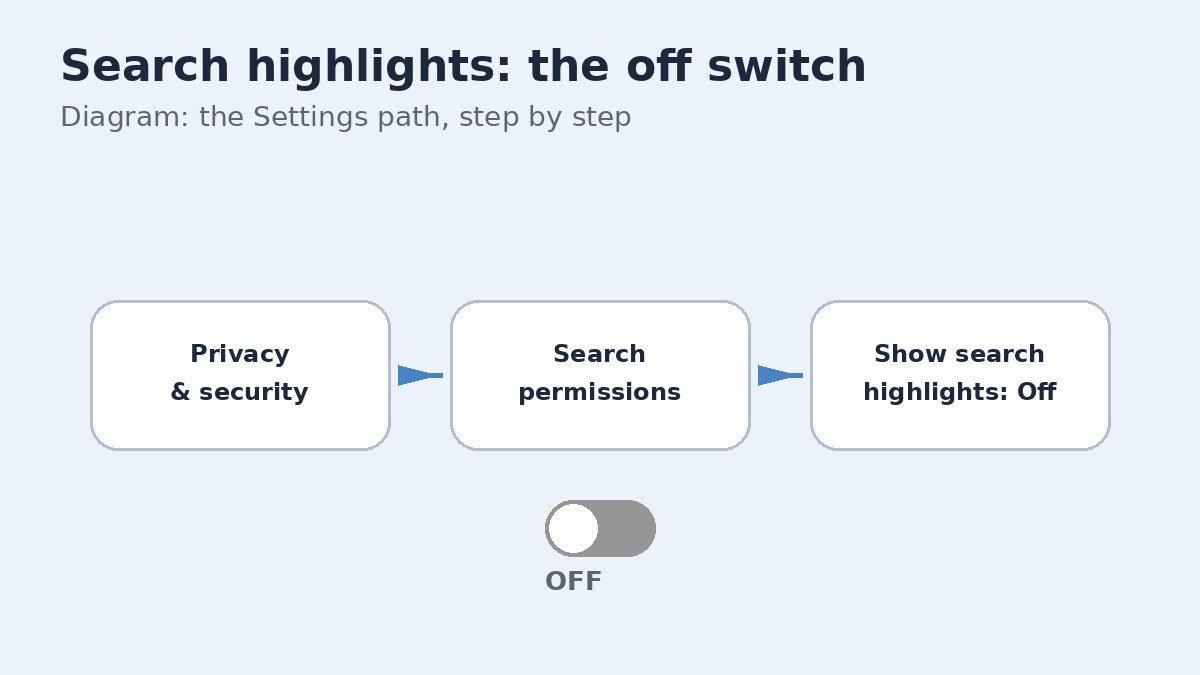
The change applies right away, with no restart needed. If the panel still shows old content, close it and open it again.
Turn it off for every user with Group Policy
On a shared PC, Group Policy can set search highlights for every user at once, but only on Windows 11 Pro, Enterprise, or Education. It is not available on Windows 11 Home, so Home users should stick with Settings.
- Press Win + R, type gpedit.msc, and press Enter to open the Local Group Policy Editor.
- In the left panel, go to Computer Configuration, then Administrative Templates, then Windows Components, then Search.
- Double-click Allow search highlights.
- Choose Disabled to turn highlights off for all users, then click Apply and OK. Choose Not Configured later if you want to hand control back to each user.
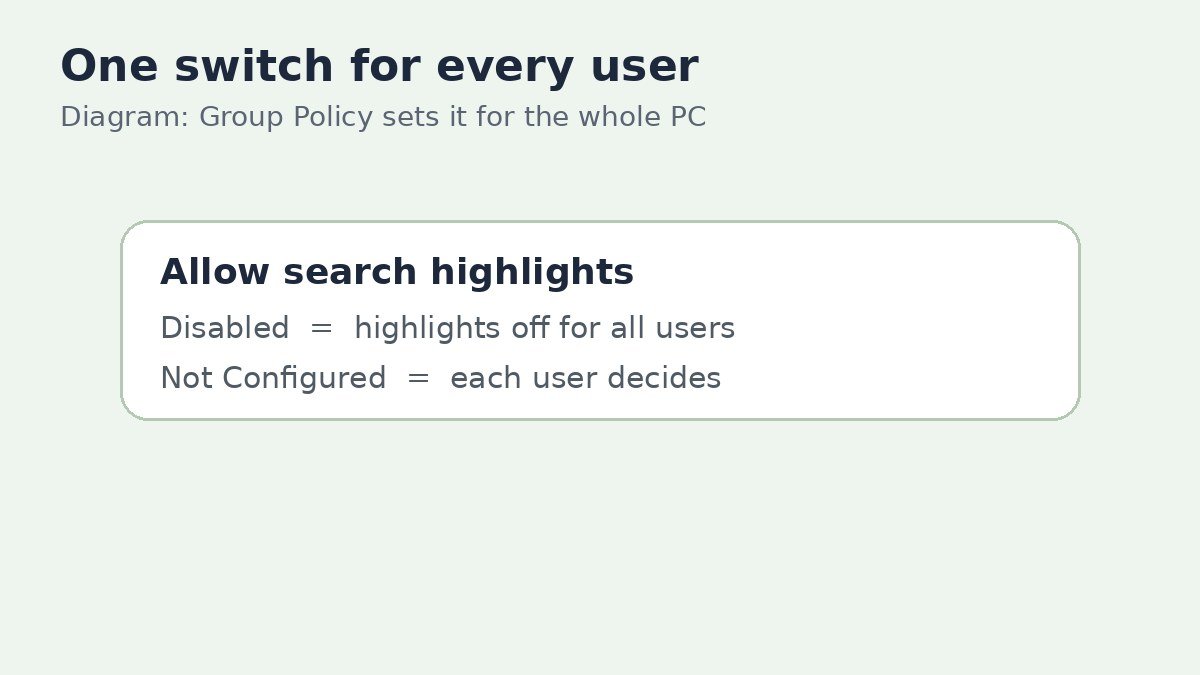
If the toggle in Settings is greyed out, or Settings says some settings are managed by your organisation, a policy like this one is already in control, and only an administrator can change it.
Registry fallback for advanced users
The registry method is a fallback for advanced users only, and it is worth trying only if the Settings toggle is missing or does not stick. Back up the registry before changing anything, because a wrong edit can cause wider problems.
- Press Win + R, type regedit, and press Enter. Approve the User Account Control prompt.
- Go to HKEY_CURRENT_USER\Software\Microsoft\Windows\CurrentVersion\SearchSettings.
- Find the DWORD value named IsDynamicSearchBoxEnabled. If it is not there, right-click an empty area, choose New, then DWORD (32-bit) Value, and name it IsDynamicSearchBoxEnabled.
- Double-click it, set Value data to 0, and click OK. Sign out and back in, or restart, for the change to take full effect. Setting it to 1 turns highlights back on.
What turning this off does not change
This is the most common point of confusion. Search highlights and web results are two separate things, controlled by two separate settings. Turning off highlights only removes the daily pictures and trending content from the search panel. It does not stop Windows from showing Bing web results when you type a query.
| Setting | What it controls | What changes when you turn it off |
|---|---|---|
| Show search highlights | Daily pictures, anniversaries, and trending content in the search panel | The search panel becomes plain, with only quick searches and top apps |
| Web results in search | Bing results shown for typed queries | Typed queries stop returning web matches, a separate setting |
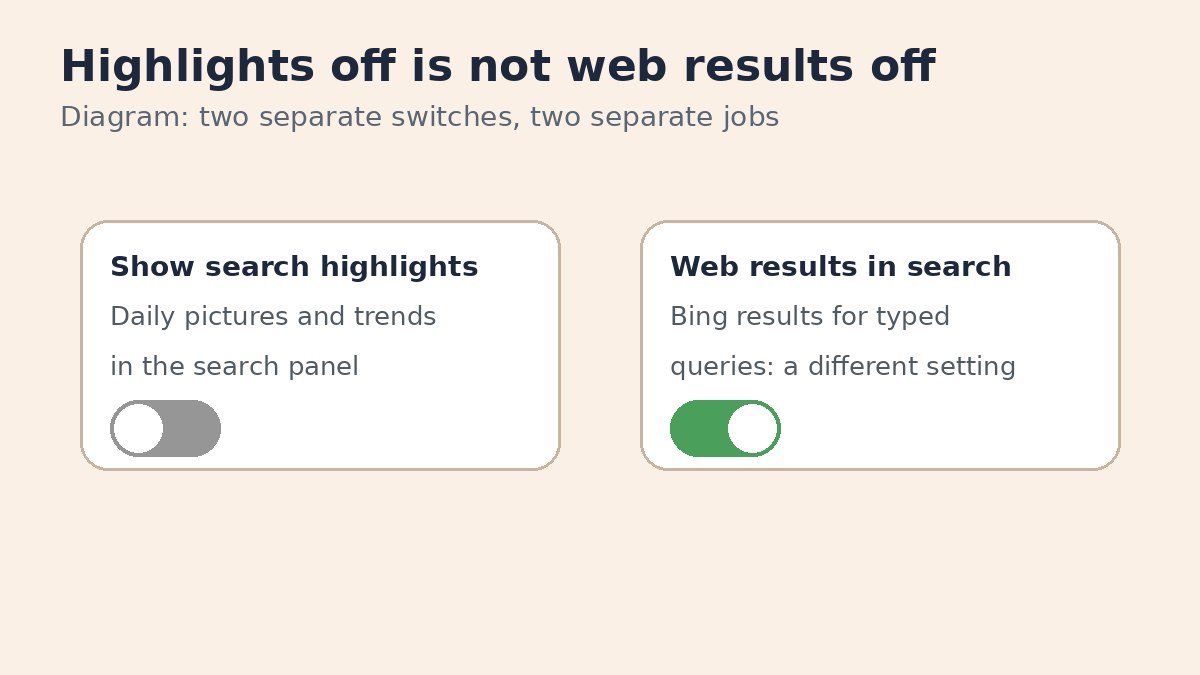
If you also want to stop web results appearing in search, that needs its own separate change. Our guide to turning off Bing web results in Windows 11 Start menu search covers that setting step by step.
If the toggle is missing on your PC
Some PCs on Windows 11 version 26H2 no longer show the Show search highlights toggle at all. Reports on this are mixed: Microsoft simplified the search home panel in 26H2 to cut visual clutter, and the change appears to reach PCs gradually, so two PCs on the same version can look different for a while. If the toggle is missing and your search panel is already plain, there is nothing left to switch off, and the feature has effectively gone on your PC.
If the toggle is missing but daily content is still showing, first check for Windows updates, then confirm you are not signed in with a work or school account that manages the setting. Avoid registry tricks that promise to bring the toggle back, since they can break the search panel on newer builds.
Search highlights are easy to live with once you know where the switch is, and just as easy to bring back. If you ever miss the daily picture, repeat the Settings steps and turn Show search highlights back on.

- How to Turn Off Search Highlights in Windows 11 - November 3, 2026
- How to Turn Off Dynamic Lighting in Windows 11 - November 2, 2026
- How to Turn Off the Mac Startup Sound (Startup Chime) - November 1, 2026