
“An internal error has occurred” is Remote Desktop’s way of saying the session broke for a reason it cannot pin down. It is not a password error and not a “computer not found” error: your PC reached the remote machine, but something in the session setup or the network path failed. The fixes below are ordered by how often they actually work.
What the Error Actually Means
Unlike clearer errors such as “your credentials did not work,” this message is deliberately vague. It appears when the RDP client and the remote host start talking but the handshake collapses partway: the network drops mid-setup, a security setting on one side rejects the other, or a stale cached session gets in the way. Because the client cannot tell which of these happened, you troubleshoot by likelihood.
What Causes It
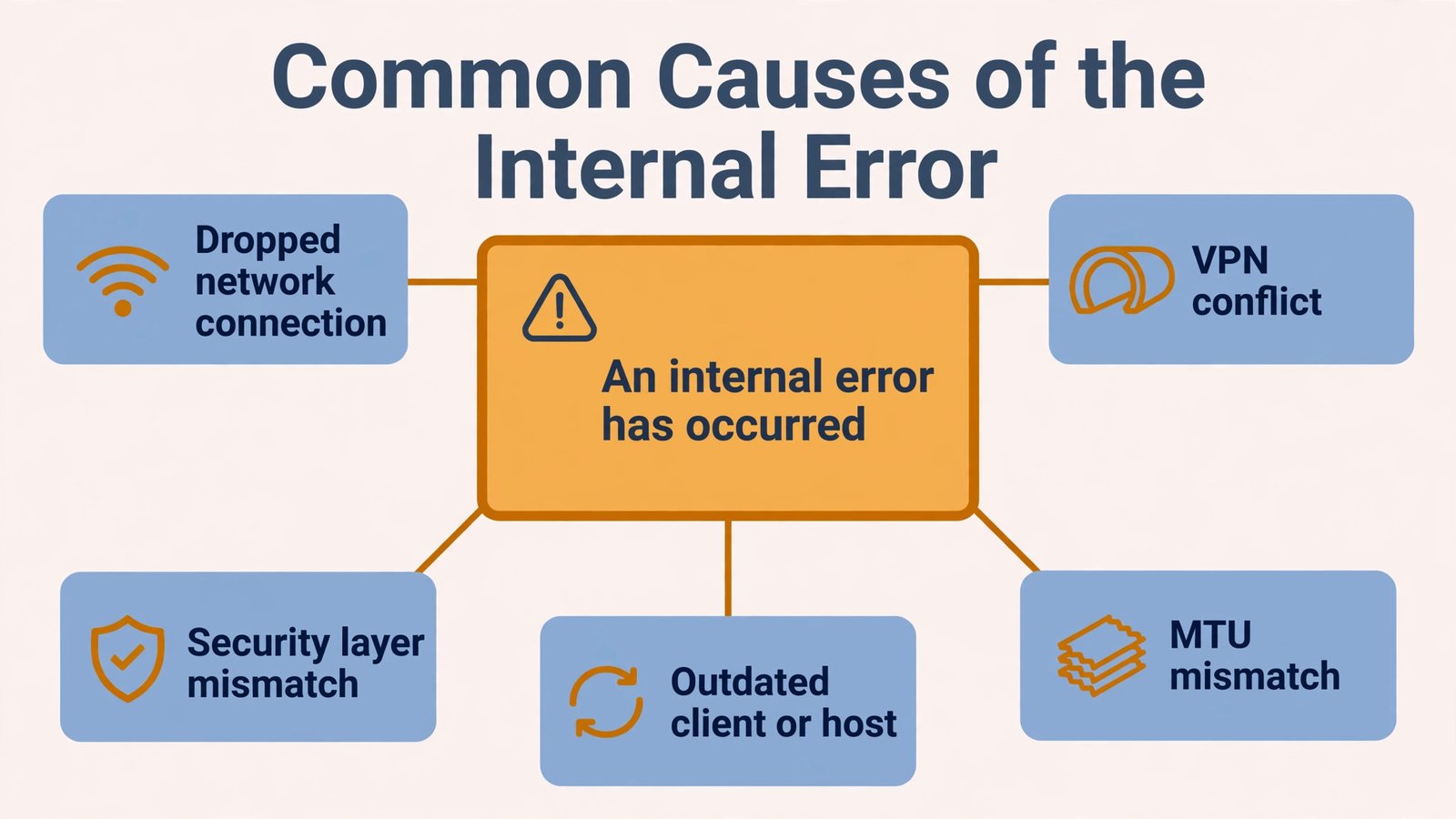
- Unstable network: a weak or dropping connection interrupts the session handshake.
- VPN interference: a VPN reroutes or inspects RDP traffic and breaks the session.
- Security layer mismatch: the client and host disagree on Network Level Authentication or encryption settings.
- MTU problems: oversized network packets get dropped on the path between the two PCs.
- Domain or update issues: a broken domain trust or a mismatched Windows update on one side.
Fix 1: Turn Off “Reconnect if the Connection Is Dropped”
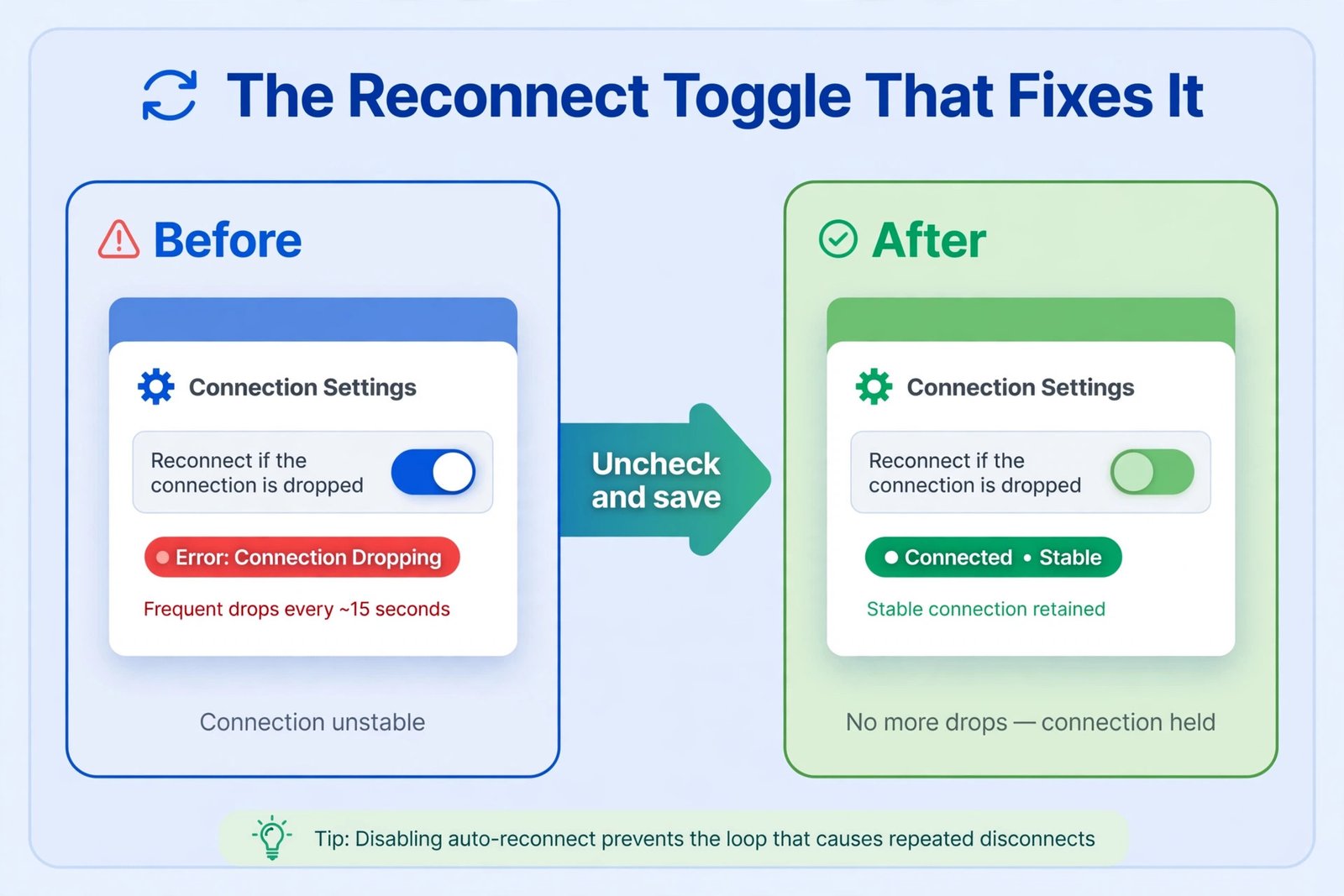
This is the most reported fix, and it takes twenty seconds. Open Remote Desktop Connection, click Show Options, and go to the Experience tab. Uncheck “Reconnect if the connection is dropped,” then save the connection and try again. The automatic reconnect logic can loop against a half-dead session and surface as the internal error; disabling it forces a clean session start.
Fix 2: Disconnect Your VPN
If either PC runs a VPN, disconnect it and retry. Go to Settings, then Network and internet, then VPN, and disconnect the active connection. Also quit any third-party VPN app completely, since some keep filtering traffic even when “disconnected.” If the error disappears, the VPN was interfering, and you may need a split-tunnel rule from your VPN provider to allow RDP through.
Fix 3: Match the Security Settings on Both Sides
Open the Remote Desktop client, click Show Options, and check the Advanced tab. If the remote host requires Network Level Authentication and your client cannot complete it, the handshake fails with this generic message. Try connecting from the built-in Remote Desktop Connection app or the current Windows App rather than an old third-party client. Also make sure both PCs are fully updated: mismatched security updates on client and host are a classic cause, and Microsoft specifically recommends updating both sides instead of weakening security settings.
Fix 4: Check the FIPS Setting in Local Security Policy
Press Windows key + R, type secpol.msc, and go to Local Policies, then Security Options. Find “System cryptography: Use FIPS compliant algorithms for encryption, hashing, and signing” and set it to Disabled. This policy is sometimes enabled by third-party software or old hardening guides, and it breaks RDP’s encryption negotiation. Restart the PC after changing it.
Fix 5: Lower the MTU Value
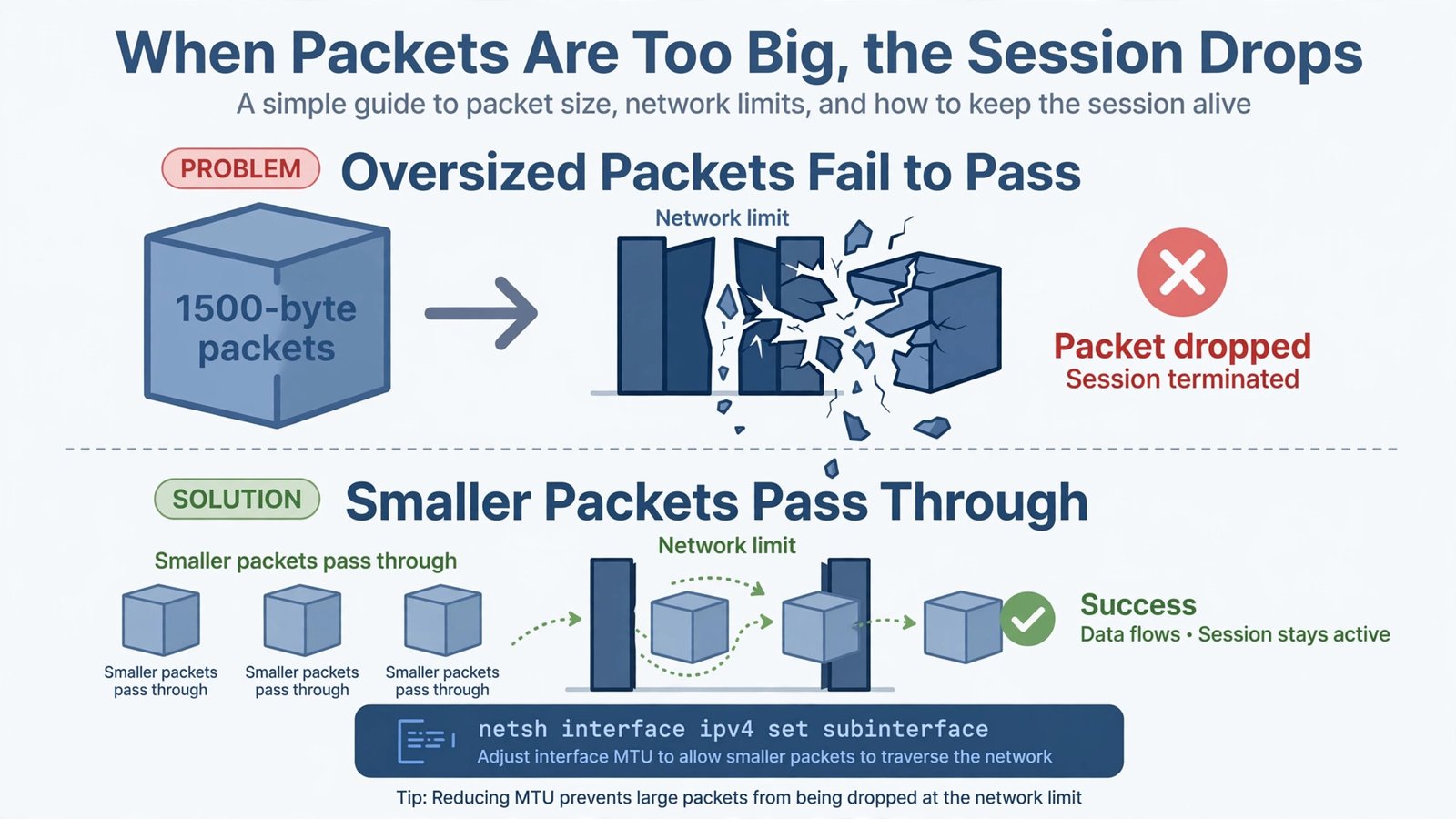
If the error only happens on certain networks, oversized packets may be getting dropped silently along the path. Open an elevated Command Prompt and lower the MTU on your active connection:
netsh interface ipv4 set subinterface "Wi-Fi" mtu=1400 store=persistentReplace “Wi-Fi” with your connection name if you use Ethernet. Retry the connection; if it works, the MTU was the culprit. You can find your exact interface name with netsh interface ipv4 show subinterfaces. Related name-resolution oddities are covered in our guide to ping returning IPv6 instead of IPv4.
Fix 6: Leave and Rejoin the Domain
On domain-joined PCs, a broken trust between the workstation and the domain can corrupt authentication and produce this error. Go to Settings, then Accounts, then Access work or school, select the organization, and choose Disconnect. Restart, then rejoin the domain. This is disruptive, so try it only after the earlier fixes, and make sure you have a local admin account to sign in with while disconnected.
Fix 7: Install the October 2026 Updates
As of October 2026, Microsoft lists a known issue where Remote Desktop connections fail for non-admin users on hosts with Administrator protection enabled, showing an “invalid token” style failure. If your error appeared after the September or October 2026 updates, install every pending update on both the client and the host, then restart. On organization-managed PCs, the workaround is an admin-side policy change, so escalate to your IT team rather than changing security settings yourself.
Frequently Asked Questions
Is this error caused by wrong credentials?
No. Wrong credentials produce a specific “your credentials did not work” message. The internal error means the session itself failed to establish, which points at the network, the client settings, or a security mismatch instead.
Why does it work sometimes and fail other times?
Intermittent failures usually mean an unstable network or a VPN that is active only sometimes. The “Reconnect if the connection is dropped” toggle in Fix 1 is the first thing to check for flaky connections.
Still stuck at the connection stage? Start from our broader RDP cannot connect troubleshooting guide to rule out the basics.

- How to Fix Windows 11 Search Not Finding Files - October 24, 2026
- How to Fix Windows 11 Clock Showing the Wrong Time - October 23, 2026
- How to Fix File Explorer Slow to Open in Windows 11 - October 22, 2026