
Here’s my honest verdict after setting up more Windows 11 machines than I can count: a fresh install doesn’t feel like your computer. It feels like a billboard with a Start menu — trial apps, games you’ll never open, and services phoning home in the background. The good news is you can strip almost all of it out in under an hour, safely, without the sketchy “one-click debloat” scripts that break things. Let me show you the clean way to do it, in escalating phases, so you stop exactly where you’re comfortable.
Why Bother? What Bloatware Actually Does to Your PC
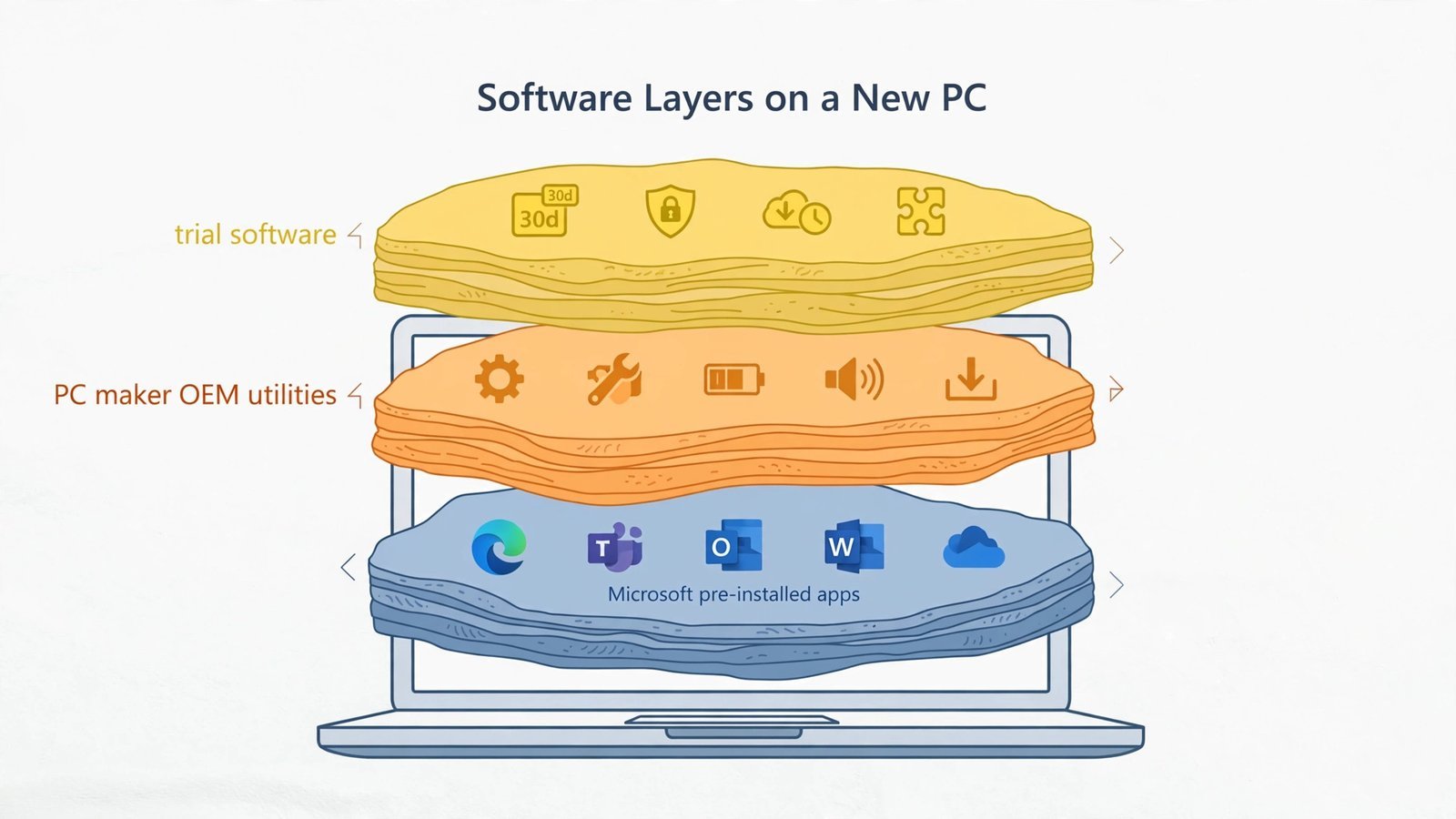
“Bloatware” gets thrown around as a vague insult, so let’s be concrete about the mechanism. Those pre-installed apps aren’t just icons sitting there. Many of them register background services that start with Windows and idle in RAM, add scheduled tasks that wake up to check for updates or sync data, and enable telemetry that reports usage back to Microsoft or the app vendor. A handful of apps doing this is noise; thirty of them doing it is a few hundred megabytes of RAM, a longer boot, and a Start menu that looks like a junk drawer.
There’s also the OEM layer. Buy a Dell, HP, or Lenovo and you get a second helping: branded updaters, trial antivirus, and “helpful” utilities — some genuinely useful for drivers, most just taking up space. Between Microsoft’s bundle and the manufacturer’s, a brand-new laptop can easily carry several gigabytes of software nobody asked for.
In a hurry? Skip straight to Phase 1 below — the Settings sweep removes the worst offenders in about fifteen minutes with zero risk. Come back for the deeper phases when you have time.
What You’ll Need Before You Start
Two things, and I’m serious about both:
- A System Restore point. Search for Create a restore point in the Start menu, select your C: drive, click Create, and name it something like “Before debloat.” If anything goes sideways in the later phases, this is your undo button. Do not skip this before Phase 3.
- A backup of anything you care about. Debloating shouldn’t touch your files, but you’re about to run commands that remove software system-wide. Documents, photos, and anything irreplaceable should exist somewhere other than this PC first.
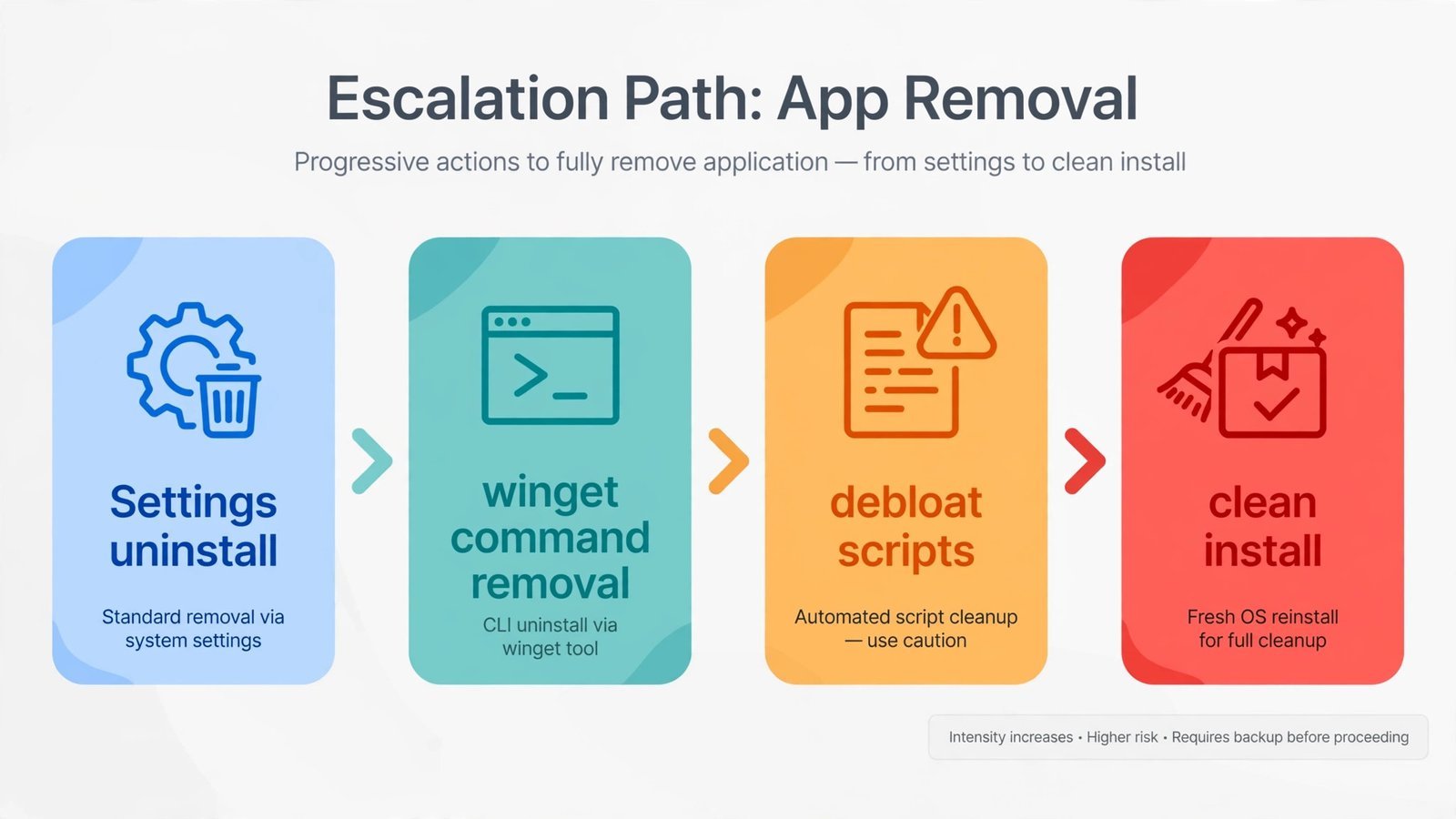
Warning: Everything in Phase 1 is reversible through the Microsoft Store. Phases 2 and 3 remove apps more aggressively — still recoverable, but with more effort. Phase 4 wipes the drive. Read each phase’s warnings before running anything.
Phase 1: The Safe Sweep — Uninstall Through Settings
Start where Microsoft intends you to. This phase removes the obvious junk — the Spotify, TikTok, Disney+, and game trials — with nothing but the Settings app, and everything here can be reinstalled from the Microsoft Store if you change your mind.
- Press Win + I to open Settings.
- Go to Apps → Installed apps.
- Work through the list. For anything you don’t want, click the three-dot menu next to it and choose Uninstall, then confirm.
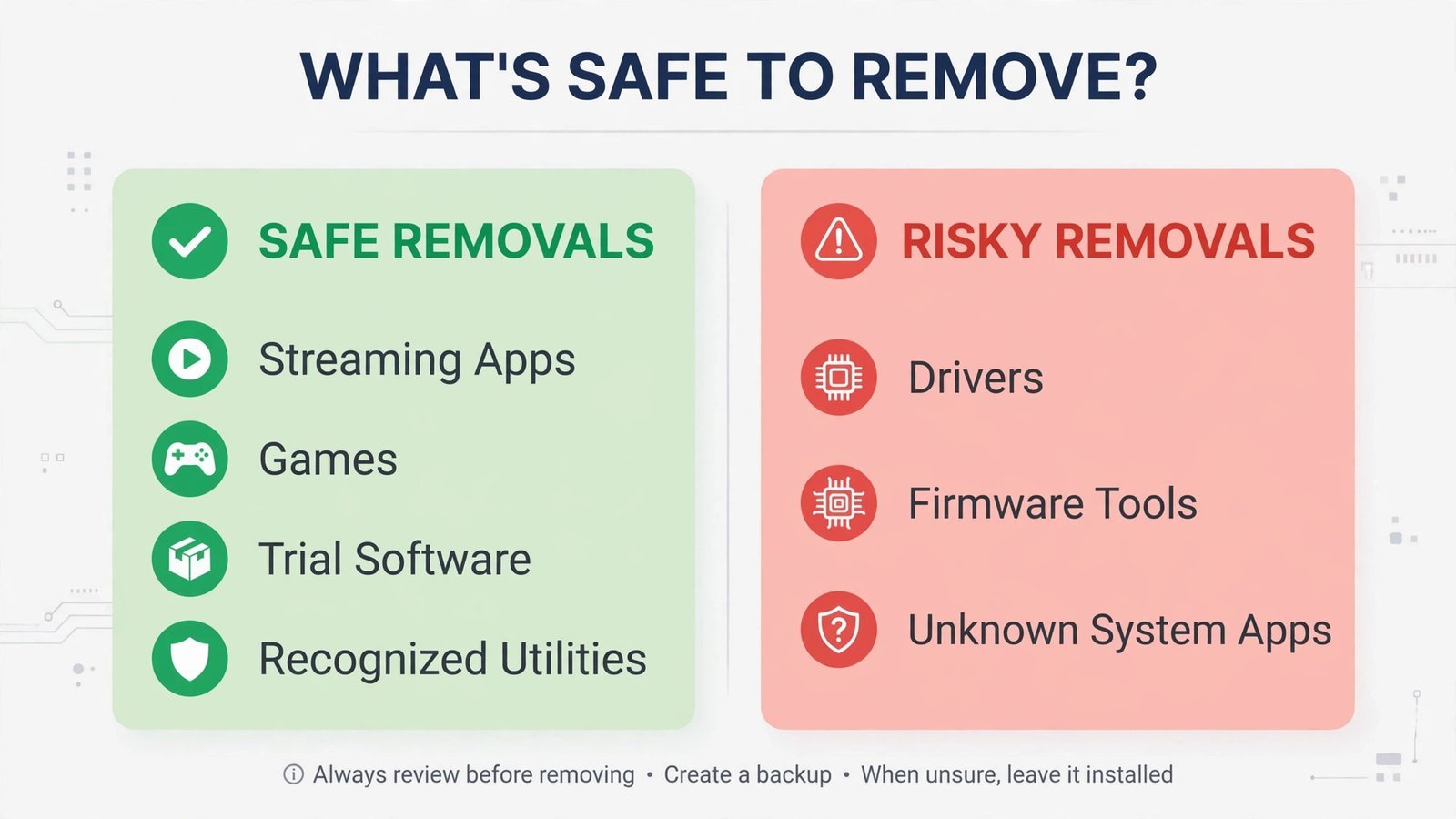
What to target: streaming apps you don’t use, pre-installed games (Solitaire Collection, Candy Crush variants), trial antivirus or office suites, and manufacturer utilities you don’t recognize. What to leave alone: anything with “driver,” “firmware,” or your PC maker’s name plus “update” in it — those often manage hardware features, and removing them can break things like function keys or power profiles. When in doubt about a specific app, search its name before touching it. A good first audit is to get a full list of installed programs so you’re deciding from complete information, not just what catches your eye.
You’ll notice some apps — Cortana remnants, Tips, certain system utilities — offer no Uninstall option at all. That’s normal; those are provisioned apps that Settings can’t remove. If uninstalling Cortana or similar stubborn apps is on your list, they need Phase 2.
This phase alone transforms the Start menu and kills the most annoying background updaters. For a lot of people, it’s enough — stop here if you’re happy.
Phase 2: Go After the Stubborn Ones with Winget
Windows 11 ships with winget, Microsoft’s own command-line package manager, and it’s the safest way to remove apps that Settings won’t touch. Unlike random PowerShell snippets copied from forums, winget uses proper uninstall routines — cleaner, more predictable, and far less likely to leave a broken mess behind.
- Right-click the Start button and open Terminal (admin rights aren’t needed for most uninstalls).
- List what’s installed:
winget list. Scroll through and note the exact names of apps you want gone. - Remove one with:
winget uninstall --name "Spotify Music"— using the name exactly as shown in the list. For stubborn cases, the package ID form works better:winget uninstall --id Spotify.Spotify. - Repeat for each unwanted app, checking that each uninstall completes before moving on.
Note: Only uninstall apps you recognize and have decided you don’t need. Winget will happily remove things like the Xbox app or Phone Link if you ask it to — fine if you don’t use them, annoying if you do. This is also the phase where restraint pays: removing ten apps you chose beats removing thirty you guessed at.
Phase 3: Debloat Scripts — The Nuclear Option (Read the Warnings)
This is where I need to be blunt. Tools like Chris Titus Tech’s WinUtil (the well-known Windows Utility) can strip Windows 11 down impressively far — removing provisioned apps, disabling telemetry, applying dozens of tweaks from one interface. It’s also the phase where people break their systems, because these scripts apply broad changes and every Windows installation is slightly different.
If you go here, do it like this:
- Confirm your restore point exists (see “What You’ll Need” above). This is non-negotiable.
- Download WinUtil only from its official source — search for the Chris Titus Tech Windows Utility and verify you’re on the real repository. Never run a debloat script from a random forum link or a “mirror” site.
- Run it, but don’t apply everything. Use the interface to pick specific removals and tweaks; the “run all” style options are where Start menu search, the Microsoft Store, or Windows Update get broken.
- Reboot, then actually use your PC for a day — open the Store, check for updates, test search — before deciding everything is fine.
Warning: Aggressive debloat scripts can break the Start menu, Windows Search, the Microsoft Store, and Windows Update — sometimes immediately, sometimes after the next feature update. If something breaks, restore from your restore point first, then reinstall individual apps from the Store. The safe routes in Phases 1 and 2 are boring precisely because they don’t do this.
My honest recommendation: most people should skip this phase. Phases 1 and 2 remove 90% of what bothers you with roughly 0% of the risk. Reserve scripts for machines so loaded with OEM junk that manual removal would take all afternoon.
Phase 4: The Last Resort — A Clean Install
Sometimes the patient is too far gone — a machine drowning in manufacturer utilities, or a hand-me-down PC with years of accumulated cruft. A clean Windows install from Microsoft’s official media gives you the leanest possible starting point: just Windows, no OEM layer at all.
This means creating installation media, booting from USB, and wiping the drive — then reinstalling your apps and restoring your files from backup. It’s a couple of hours of work, which is why it’s last. Only do this if Phases 1–3 left you unsatisfied and your backup is verified. After the install, say no to the “suggested apps” prompts during setup and run Phase 1 once — even a clean install picks up a few promotional apps over time.
What You Get: A PC That Feels Like Yours
After Phase 1 and 2, here’s what’s actually different: a Start menu with only apps you chose, fewer background services competing for RAM and CPU, shorter boot times, less telemetry chatter, and fewer surprise updates from apps you never opened. The machine doesn’t just look cleaner — it behaves calmer, because fewer things are waking up to do work you never asked for.
Two things to know going forward. First, major Windows feature updates occasionally reinstall a few “suggested” apps — a quick Phase 1 pass twice a year keeps it in check. Second, keep an eye on what launches at boot: learning to stop apps launching at startup compounds everything you just did.
Read next: How to Speed Up Windows Boot Time in 2026 (Real Fixes That Actually Work) — now that the junk is gone, make the boot itself faster.

- How to Fix Windows 11 Clock Showing the Wrong Time - October 23, 2026
- How to Fix File Explorer Slow to Open in Windows 11 - October 22, 2026
- How to Fix a Printer Showing Offline in Windows 11 - October 21, 2026