
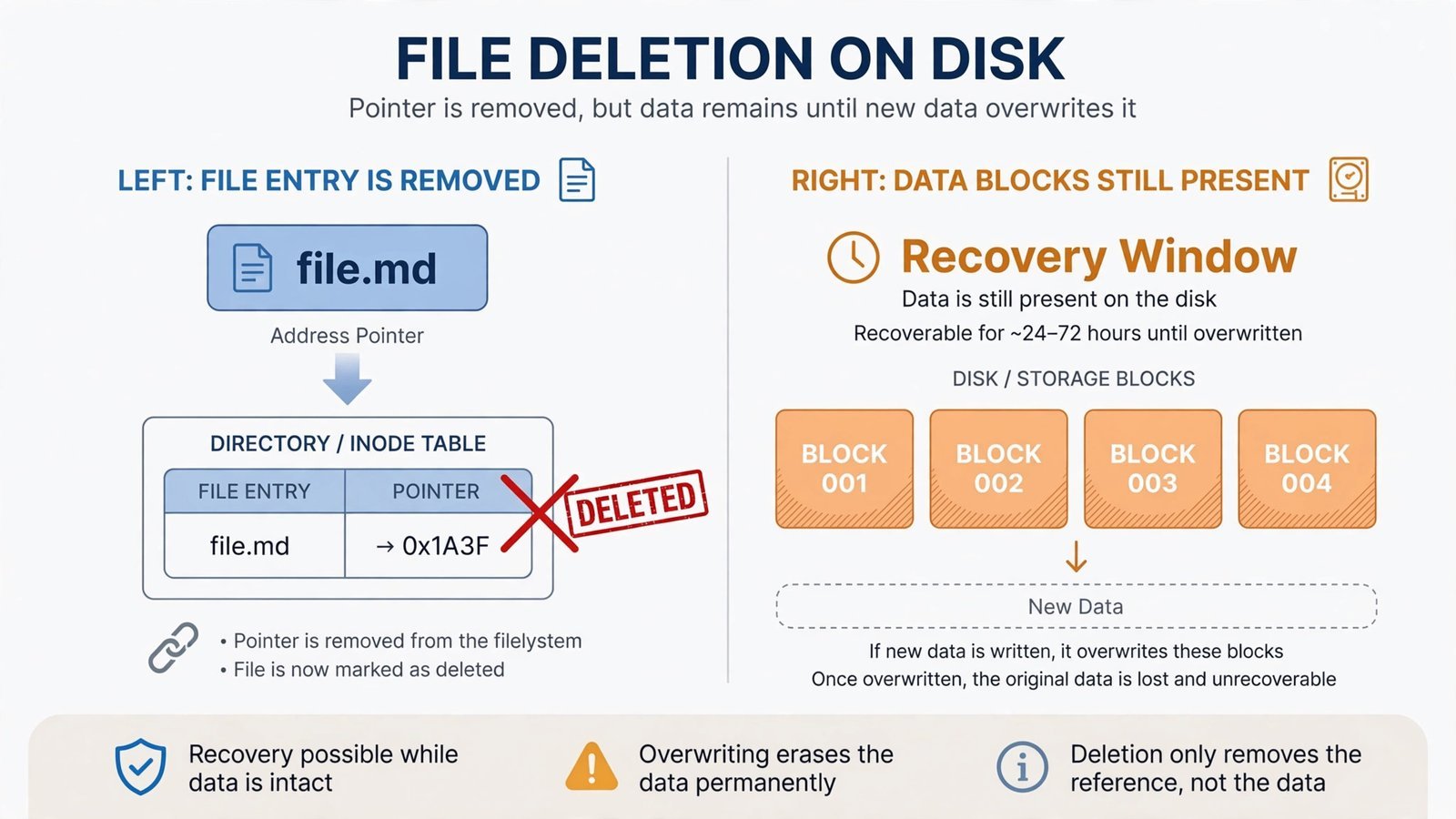
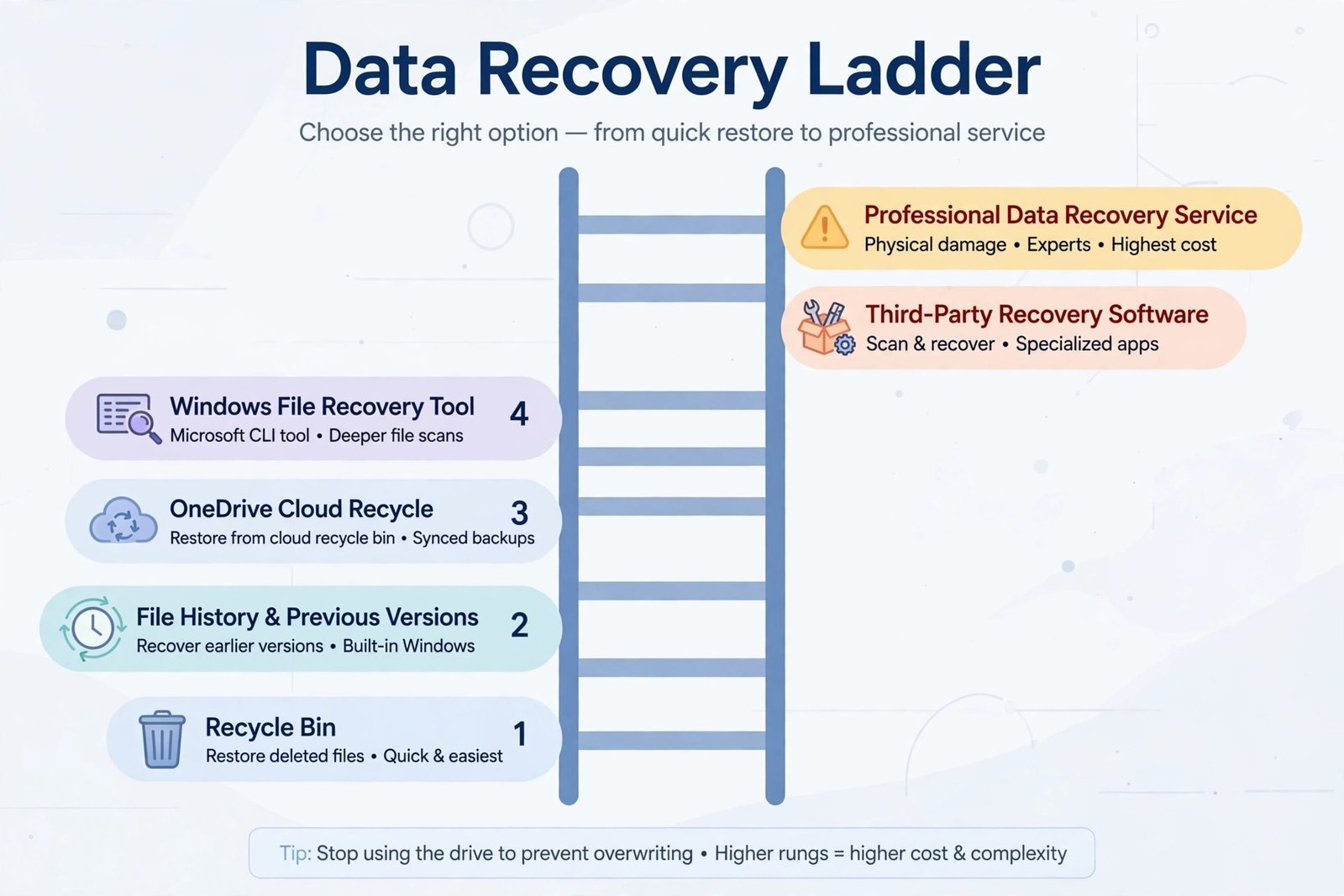
Here’s the thing most people don’t realize until it’s too late: when you “permanently” delete a file in Windows, the data usually isn’t gone. Windows just marks that disk space as available and leaves the actual bytes sitting there until something new overwrites them. That gap, between deletion and overwriting, is your entire window for getting the file back. The less you use the drive right now, the wider that window stays. Work through these steps in order; the easiest checks come first, and the last resort is genuinely the last resort.
Warning: Stop using the affected drive right now. Every download, update, or program you run risks writing over your deleted files. If the files were on your main C: drive, avoid installing anything, including recovery software, until you’ve read Rung 5. If they were on an external drive, unplug it until you’re ready to scan it.
Why Is My File “Permanently” Deleted but Still Recoverable?
A few different situations all land you in the same place:
- You emptied the Recycle Bin, or used Shift + Delete to skip it entirely.
- The file was too large for the Recycle Bin, so Windows deleted it outright.
- You deleted files from a USB drive or SD card, which often bypass the Recycle Bin.
- A program crashed or an update went wrong and files vanished.
- You formatted a drive or reinstalled Windows without backing up first.
In every one of these cases, the underlying data may still be on the disk, marked as free space, waiting to be overwritten. That’s what every rung below is trying to reach. Follow them in order; don’t jump to recovery software before checking the easy places.
Rung 1: Check the Recycle Bin
Yes, really, start here. “Permanently deleted” is often an assumption, and plenty of files people think are gone are sitting in the Bin because they were deleted normally and the Bin was never emptied.
- Double-click the Recycle Bin icon on your desktop.
- Use the search box in the top-right to find your file by name.
- Right-click it and choose Restore.
You should now see the file back in its original folder. If the Bin is empty or the file isn’t there, move to Rung 2.
Note: Files deleted with Shift + Delete skip the Bin entirely, and files deleted from most USB drives and SD cards do too. If either applies, the Bin was never in play, keep climbing.
Rung 2: Restore from File History or Previous Versions
If you had File History turned on before the deletion, Windows has been quietly keeping timestamped copies of your files, this is the closest thing Windows has to a time machine, and it’s the best-case recovery scenario.
- Open Control Panel → System and Security → File History.
- Click Restore personal files on the left.
- Browse the timeline (the arrows at the bottom move between backup dates) to find your file, select it, and click the green Restore button.
You should now see your file restored to its original location, from a version dated before you deleted it.
No File History backup? Try Previous Versions on the parent folder: right-click the folder that held the file, choose Properties, open the Previous Versions tab, and look for a snapshot from before the deletion. This works when System Protection was enabled for the drive.
Note: Be honest with yourself here: File History is off by default on most PCs, so if you never set it up with an external drive, this rung won’t help, that’s normal, just move on. One current caveat: the September 2026 Windows security updates broke File History for some users (drives showing “Reconnect your drive” even when connected). Microsoft issued a fix in late September 2026 via an optional update, rolling out to everyone in the October Patch Tuesday, details on Microsoft’s File History fix. Update Windows before relying on this rung.
Rung 3: Check OneDrive and Windows Backup
If the file lived in a OneDrive-synced folder (Documents, Pictures, or Desktop on most Windows 11 setups), Microsoft keeps deleted cloud files in a separate recycle bin, even after they’re gone from your PC.
- Go to onedrive.com and sign in.
- Click Recycle bin in the left sidebar.
- Select your files and click Restore at the top.
You should now see the files back in your synced folders on your PC within a few minutes.
Note: OneDrive keeps deleted files for 30 days on personal accounts (longer on some business plans), then removes them permanently. Also check the Windows Backup app (Settings → Accounts → Windows backup), if it was syncing your folders, your files may be retrievable from your Microsoft account on a fresh sign-in.
Rung 4: Try Microsoft’s Free Windows File Recovery Tool
Microsoft offers a free command-line tool called Windows File Recovery that scans the raw disk for deleted file traces. It’s not friendly, but it costs nothing and sometimes finds what the easy rungs missed.
- Open the Microsoft Store, search for Windows File Recovery, and install it.
- Open Command Prompt as Administrator.
- Run a scan. To recover deleted Word documents from C: to an external D: drive:
winfr C: D: /regular /n \Users\YourName\Documents\*.docx - Type Y to confirm and wait for the scan to finish.
You should now see a recovery folder on your destination drive containing whatever the scan found.
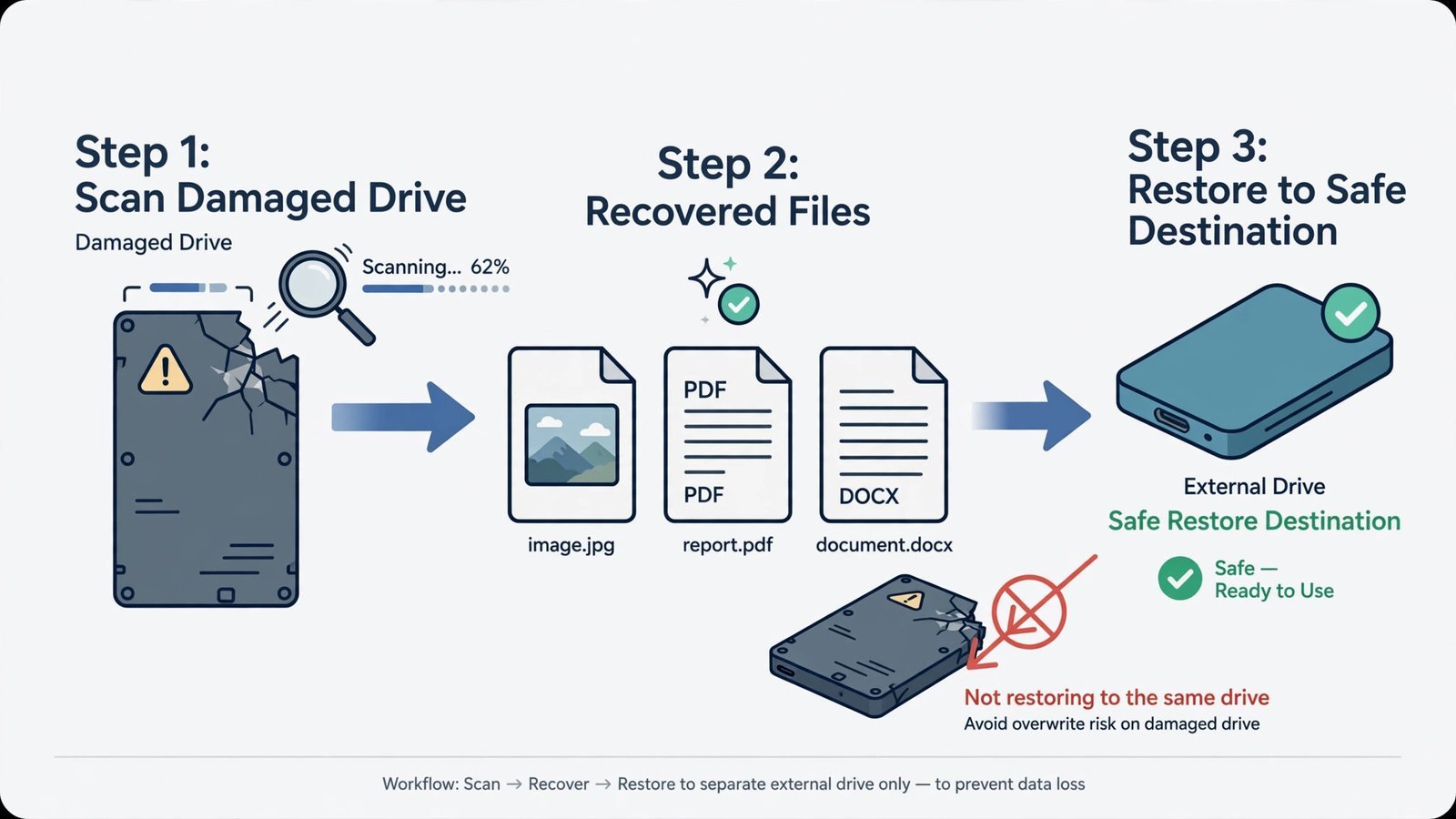
Note: Start with /regular mode for recently deleted files on a healthy drive; use /extensive for older deletions or formatted drives (it’s much slower). The hard truth: this tool has no preview and a real learning curve. If the command line isn’t your thing, Rung 5’s graphical tools do the same job more comfortably. And never recover to the same drive you’re scanning, you’ll overwrite the very files you’re trying to save.
Rung 5: Use Third-Party Recovery Software
Graphical recovery tools scan the disk the same way Microsoft’s tool does, but with previews, filters, and plain-English interfaces. Be honest about the free limits before you start:
- Recuva (free, Windows only), the simplest option. A friendly wizard, deep-scan mode, and file previews. The free version handles basic recovery well; it’s the right first try for non-technical users.
- Disk Drill (free up to 500MB), a more polished scanner with broader file-format support and disk health monitoring. The free tier caps recovery at 500MB; unlimited recovery needs the Pro version (about $89/year).
- PhotoRec (free, open source), a command-line workhorse that’s excellent at photos and media from SD cards and USB drives. Not pretty, but free without limits and very effective.
Whichever you pick, follow these safety rules:
- Install it on a different drive than the one holding your deleted files, or run a portable version from a USB stick.
- Run the deep scan if the quick scan finds nothing.
- Preview files before recovering to confirm they’re intact.
- Save recovered files to a different drive, never back to the location they were deleted from.
You should now see a list of recoverable files with previews; select what you need and restore to your external drive.
Warning: Avoid any recovery tool that demands payment before showing you what it found. Legitimate software always lets you preview recoverable files first. And one practical note: if you’re about to wipe the drive to format your laptop and reinstall Windows, run recovery before the wipe, afterward, your chances drop to near zero.
Rung 6: Call a Professional Data Recovery Service
This is the last rung, and it should stay that way. Professional labs open drives in cleanrooms, replace failed components, and image damaged platters with specialized hardware, things no software can do.
Call a professional when: the drive makes clicking or grinding sounds; Windows doesn’t recognize the drive at all; it’s an SSD with a suspected controller failure; or your own recovery attempts have failed on truly irreplaceable data (business records, legal documents, irreplaceable photos).
What to expect: reputable services typically charge anywhere from $300 to $3,000+ depending on the damage, get a quote before committing. If the drive shows signs of failing hardware rather than simple deletion, software was never going to fix it anyway.
Warning: If you suspect physical damage, stop powering the drive on. Every spin of a failing drive can make things worse. Don’t freeze it, don’t tap it, don’t run “fix” utilities on it, package it and hand it to someone with a cleanroom.
Make Sure You Never Need This Ladder Again
Recovery is a backup plan, not a strategy. Thirty minutes of prevention beats every rung above:
- Turn on File History today. Plug in an external drive, go to Control Panel → System and Security → File History, and switch it on. Future-you will be grateful.
- Keep important folders in OneDrive (or another cloud sync) so the 30-day recycle bin has your back.
- Follow the 3-2-1 rule for anything irreplaceable: 3 copies, on 2 different kinds of media, with 1 copy offsite.
And the unglamorous truth: recovery is never guaranteed. SSDs complicate things further, the TRIM command can wipe deleted blocks quickly, so act even faster on solid-state drives. But most accidental deletions on a healthy drive, caught early and handled in this order, end happily.
Read next: Best Hard Drive Repair Software: Guide to Fixing Your Failing Drive, for when the problem is the drive itself, not just deleted files.

- How to Fix the Windows 11 Taskbar Auto-Hide Problem - October 24, 2026
- How to Fix a Laptop Camera Not Working in Windows 11 - October 23, 2026
- How to Fix the Brightness Slider Missing in Windows 11 - October 22, 2026