
- Windows 11 25H2 is the current release as of October 2026. Its built-in Reset this PC tool lives in Settings > System > Recovery.
- Keep my files preserves your personal files but removes apps and settings. Remove everything wipes the drive.
- On Apple Silicon and T2-chip Intel Macs, Erase All Content and Settings finishes in about 5 to 10 minutes and signs you out of iCloud automatically.
- Formatting is irreversible. Back up first, even when you pick the option that promises to keep your files.
Formatting a laptop used to mean hunting down installation discs and typing in product keys. Both Windows 11 and modern macOS now ship a built-in factory reset, so you rarely need any of that. In this guide, I’ll show you how to format a laptop three ways: resetting a Windows 11 PC with the cloud-download option, erasing a Mac with Erase All Content and Settings, and the bootable-media route for when Windows will not start.
- Method 1: Reset this PC on Windows 11 (easiest, keeps or wipes files)
- Method 2: Erase All Content and Settings on a Mac (fastest on Apple Silicon)
- Method 3: Format from bootable media when the system will not boot
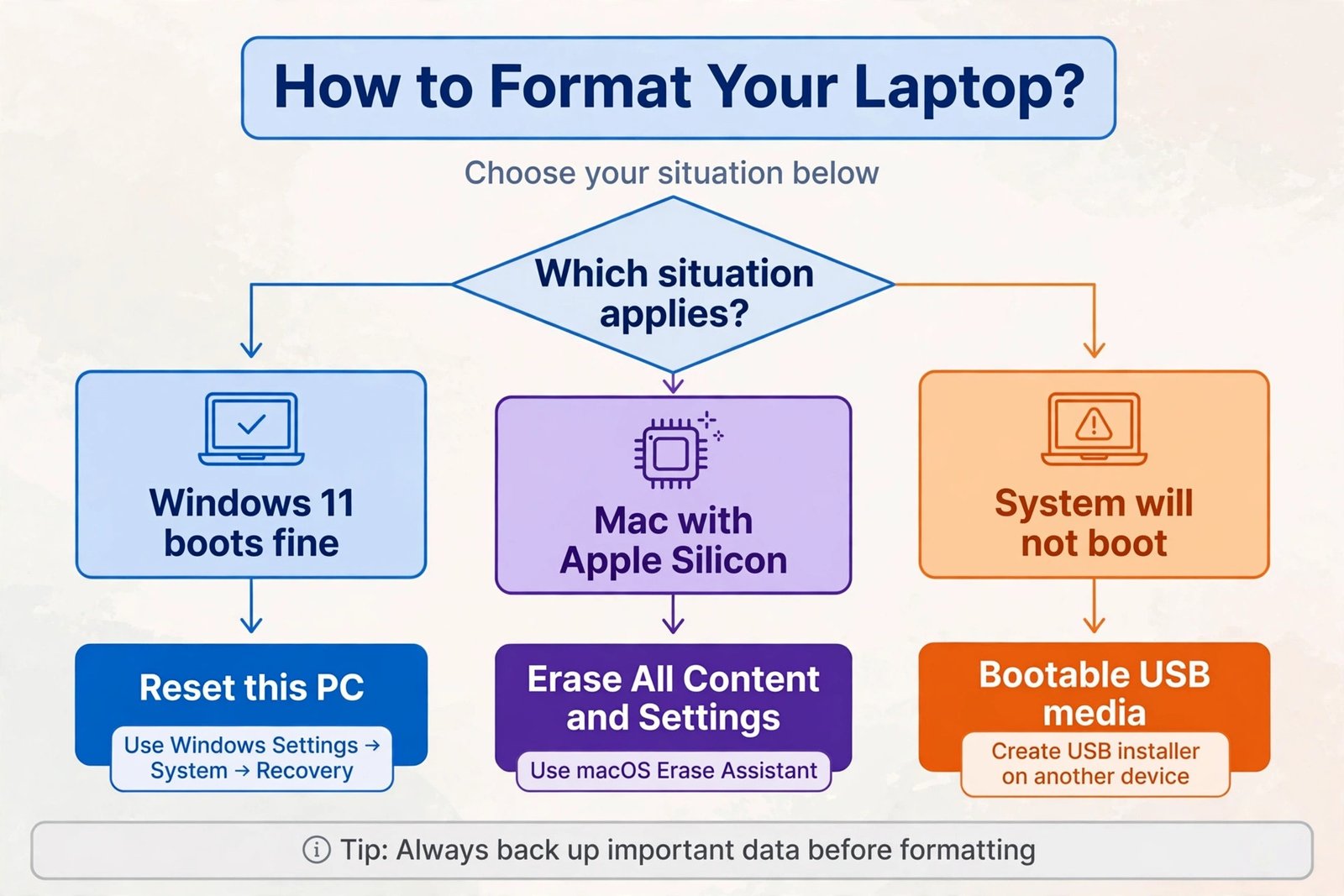
Before You Format: The 10-Minute Checklist
Do this before any method below. It is the difference between a clean start and a disaster.
- Back up everything you care about to an external drive or cloud storage. Check Desktop, Documents, Downloads, and browser bookmarks.
- Write down your software licenses and logins for apps that are not tied to an account, like older Office copies or paid utilities.
- Sign out of accounts tied to the device if you are selling it, like iTunes authorizations and the Microsoft Store. On a Mac, Erase Assistant handles the iCloud sign-out for you.
- Plug in the charger and make sure you have Wi-Fi access. A reset that dies halfway from a dead battery is a bad day.
Quick tip: your Windows digital license survives a format. It is tied to the hardware, so Windows reactivates itself after you sign in with the same Microsoft account.
Method 1: Format a Windows 11 Laptop With Reset This PC
This is the method most people should use. It is built into Windows 11, it does not need a USB drive, and it walks you through every choice.
- Step 1: Open Settings (press Windows + I), click System, then Recovery.
- Step 2: Under Recovery options, click Reset PC.
- Step 3: Choose an option. Keep my files removes apps and settings but preserves your personal files. Remove everything wipes personal files, apps, and settings. Pick Remove everything if you are selling the laptop.
- Step 4: Choose how to reinstall Windows. Cloud download pulls a fresh, up-to-date Windows image from Microsoft and needs a stable internet connection. Local reinstall rebuilds from files already on your PC and works offline.
- Step 5: Click Change settings to review the details. The Clean data toggle makes recovery of deleted files much harder. Turn it on when the laptop is leaving your hands.
- Step 6: Review the list of apps Windows will remove, click Next, then Reset. Do not turn off the laptop during the process.
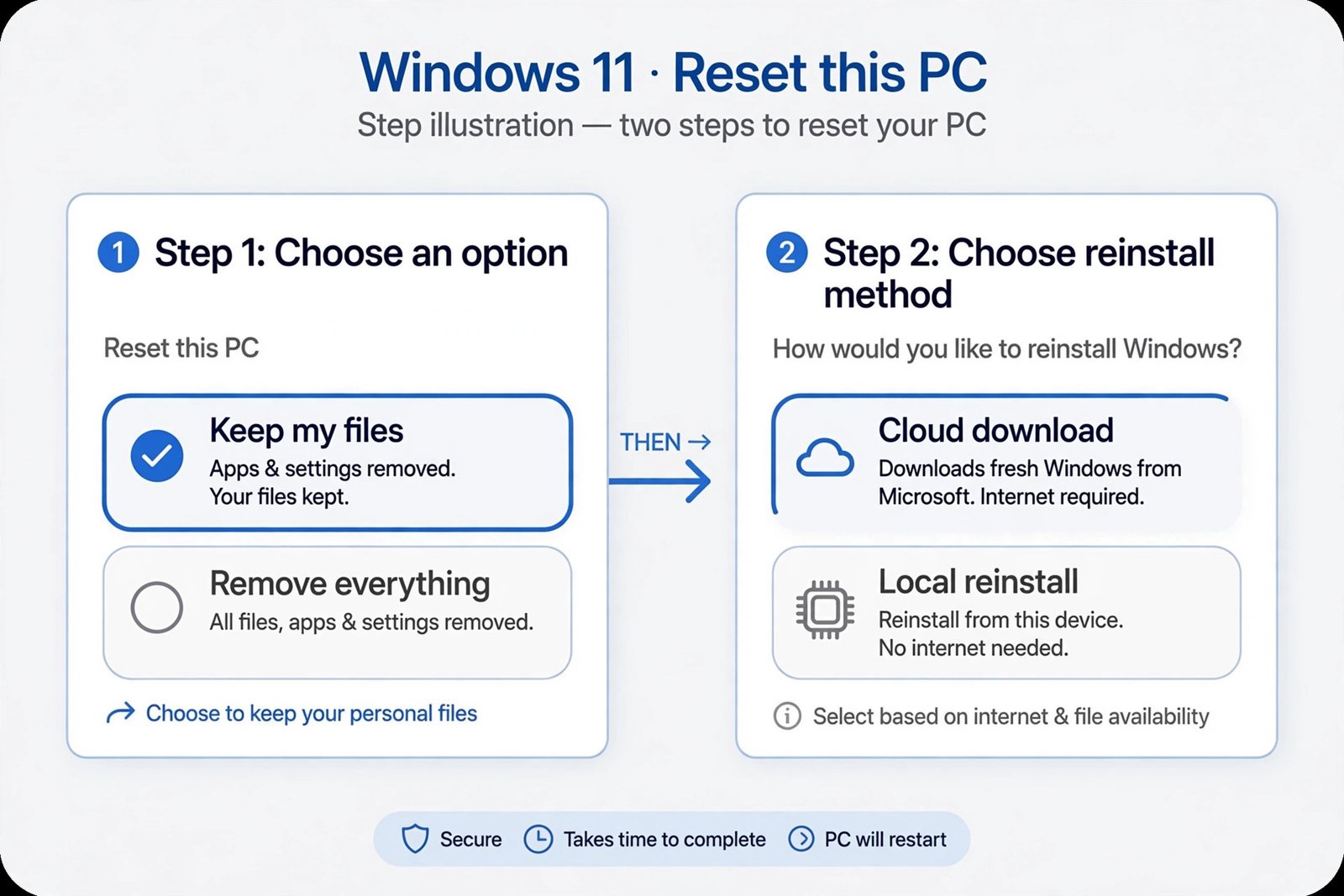
| Cloud download | Local reinstall | |
|---|---|---|
| Internet needed | Yes | No |
| Windows version installed | Latest from Microsoft | Whatever is on your PC now |
| Speed | Depends on your connection | Usually faster |
| Best for | Corrupted system files | Quick refresh, offline machines |
After the reset, expect to reinstall your programs and check device drivers. If you skipped the backup step and deleted the wrong folder, our guide on how to recover permanently deleted files in Windows may still save you.
Method 2: Format a Mac With Erase All Content and Settings
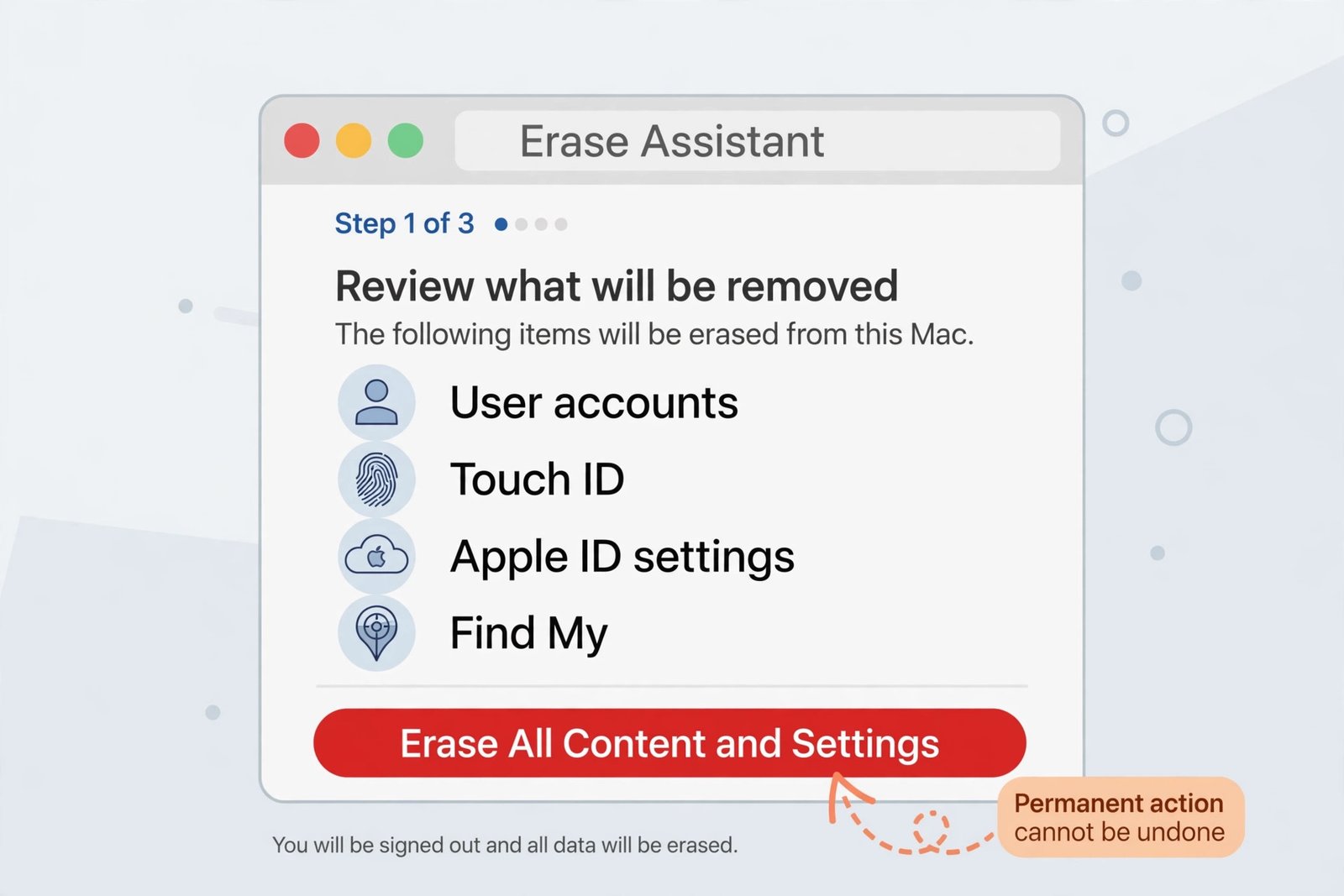
On Apple Silicon Macs and Intel Macs with the T2 security chip, this is dramatically easier than the old Disk Utility route. It also handles the ownership tasks, like signing out of iCloud and disabling Find My, automatically.
- Step 1: Open System Settings, click General, then Transfer or Reset.
- Step 2: Click Erase All Content and Settings and enter your administrator password.
- Step 3: The Erase Assistant shows everything that will be removed. Review the list and click Continue.
- Step 4: Enter your Apple Account password to sign out of iCloud and turn off Find My. It will offer a Time Machine backup first. Take it if you have not backed up yet.
- Step 5: Click the red Erase All Content & Settings button. The Mac restarts and erases itself in about 5 to 10 minutes.
Important: if someone else will own this Mac, stop when the Setup Assistant appears and shut the Mac down. Do not complete the setup yourself, or the new owner inherits your first-run choices.
Method 3: Format From Bootable Media When Windows Will Not Start
If the laptop will not boot into Windows, the Settings route is unavailable. You have two options. The gentler one: interrupt the boot three times in a row to trigger Automatic Repair, then choose Troubleshoot > Reset this PC, which runs the same reset wizard as Method 1. The thorough one: create a Windows 11 installation USB on another PC with Microsoft’s Media Creation Tool, boot from it, and either run a repair or perform a full clean install, deleting partitions as you go. Only reach for this method if Method 1 cannot run.
Our Take
For most people, Method 1 or Method 2 is the whole story. The built-in resets are reliable, they preserve your license and activation, and the cloud-download option on Windows means you end up on a current build without a separate update marathon. The bootable-USB route is only worth the effort when the system is unbootable or the recovery partition itself is damaged.
When should you not format at all? If the laptop is old and slow mainly because the hardware is old, a format gives you a fresh copy of the same sluggish machine. On a genuinely aging laptop, installing a lightweight OS for an old laptop often does more than any reset. And if the laptop crashes, overheats, or makes clicking sounds, that is a hardware problem. Format later; get it serviced first.
One more thing for after the reset: resist reinstalling every utility you had before. A fresh system is your chance to remove bloatware from Windows 11 instead of re-collecting it.
Frequently Asked Questions
Will formatting remove my Windows license?
No. The digital license is tied to the motherboard, so Windows 11 reactivates automatically once you sign in. This holds for the Reset this PC path and for clean installs from USB.
Does Reset this PC remove viruses?
Usually, yes, for ordinary malware. But deeply embedded threats that live in firmware or the recovery partition can survive a reset. For a seriously infected machine, a full clean install from USB with deleted partitions is the safer route.
Can I get my files back after choosing Remove everything?
Not reliably, and that is the point. With the Clean data toggle on, Windows overwrites the drive so recovery tools find nothing useful. Treat Remove everything as permanent.
Microsoft’s own documentation of the Windows 11 reinstall options is covered well by Pureinfotech’s reinstall guide, and Apple’s macOS Recovery documentation details the Recovery-mode route for Macs that cannot use Erase Assistant.

- How to Fix Windows 11 Clock Showing the Wrong Time - October 23, 2026
- How to Fix File Explorer Slow to Open in Windows 11 - October 22, 2026
- How to Fix a Printer Showing Offline in Windows 11 - October 21, 2026