
Five people replying from one support@ inbox usually means chaos: duplicate answers, lost threads, and someone’s personal login passed around the team. A shared mailbox fixes all three. Here is what a shared mailbox actually is, and how to add one in Outlook on the web, desktop, and mobile.
What Is a Shared Mailbox?
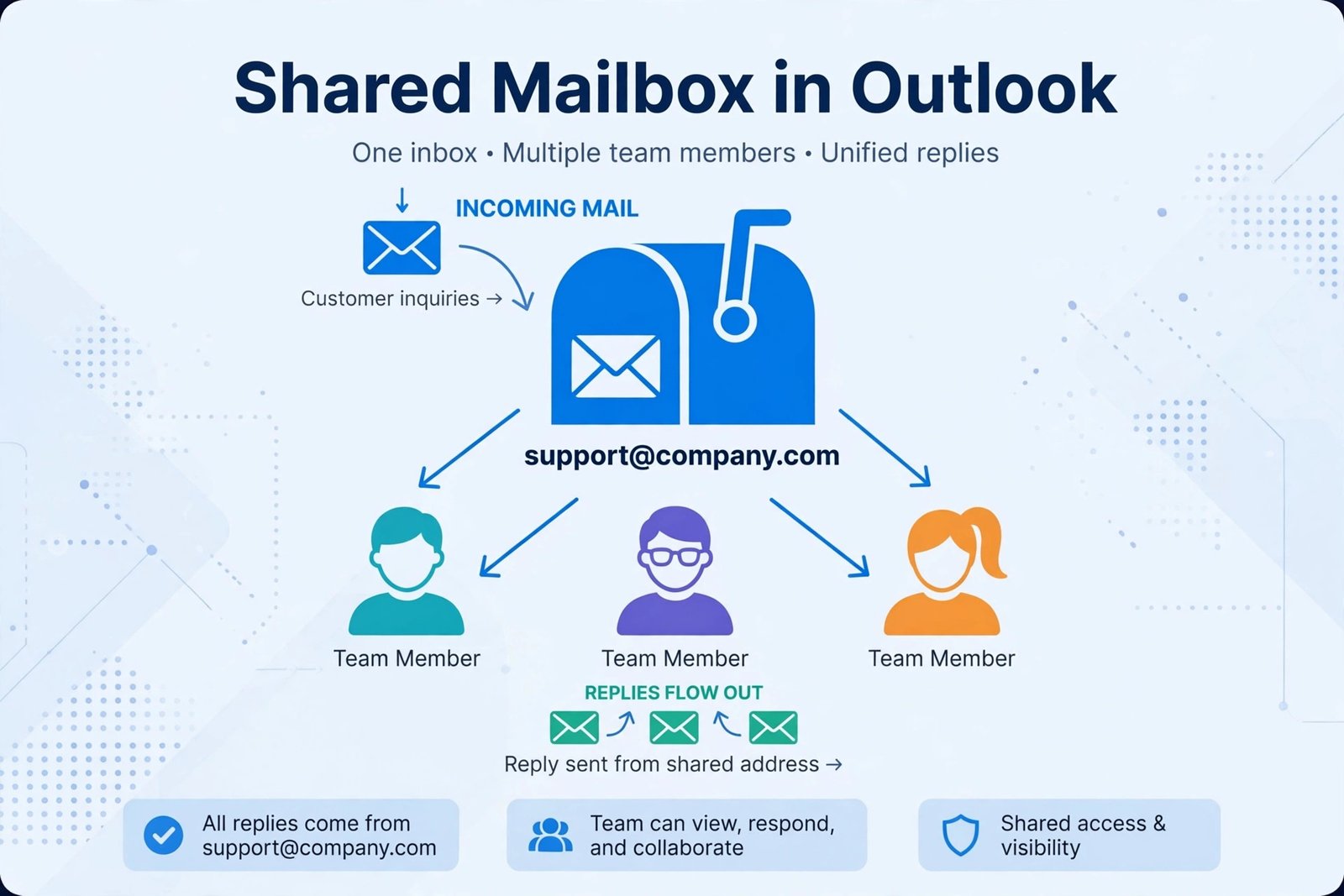
A shared mailbox is a single email address, like support@yourcompany.com, that a whole team can read and reply from. There is no separate password to share. Your Microsoft 365 administrator grants each team member access, and the mailbox then appears inside everyone’s own Outlook. Replies come from the shared address, so customers see one consistent sender instead of five different employees.
Two facts that surprise people: a shared mailbox includes 50 GB of storage at no extra license cost, and it works with a shared calendar and contacts too, which makes it handy for bookings@ or info@ addresses as well.
What You Need Before Adding One
You cannot add a shared mailbox yourself unless your Microsoft 365 administrator has given you access. If you are the admin, create the mailbox in the Microsoft 365 admin center under Teams & groups > Shared mailboxes, then add members. After access is granted, allow up to 60 minutes for it to appear. In most setups the mailbox maps itself automatically, a behavior Microsoft calls automapping, once you restart Outlook. If it does not appear, add it manually with the steps below for your Outlook version.
How to Add a Shared Mailbox in Outlook
Microsoft currently ships two desktop versions of Outlook for Windows, plus the web app. First, check which desktop version you have: if there is a New Outlook toggle in the top-right corner, you are on New Outlook.
In Outlook on the Web
- Step 1: Sign in at outlook.office.com.
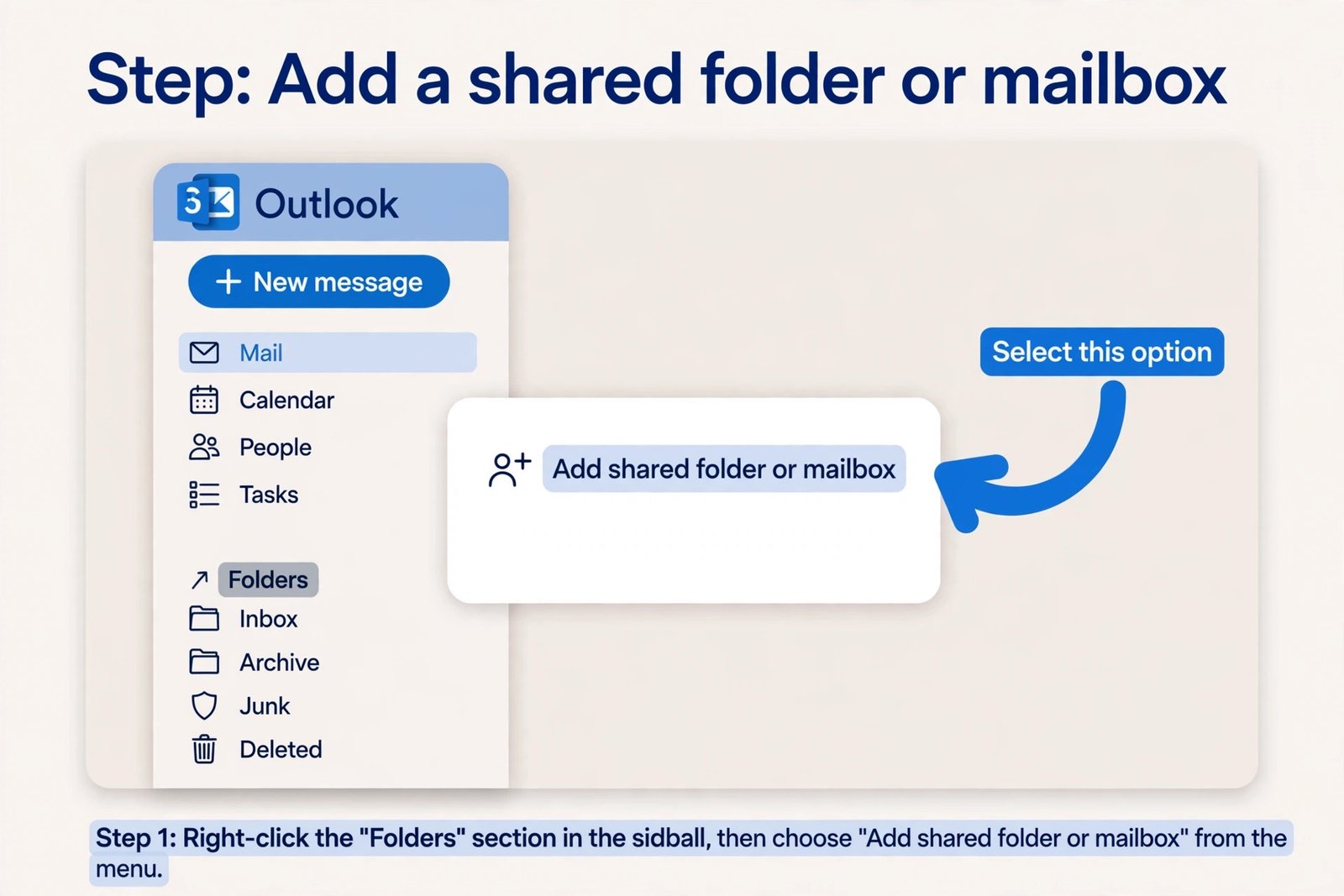
- Step 2: Right-click Folders in the left pane and choose Add shared folder or mailbox.
- Step 3: Type the shared mailbox name or email address, select it, and click Add.
The mailbox appears under Folders in your primary account. It stays there permanently, unlike the “Open another mailbox” option, which only opens it in a temporary tab.
In New Outlook for Windows
- Step 1: If automapping is on, simply close Outlook completely and reopen it. The shared mailbox appears in the left folder pane on its own.
- Step 2: If it does not appear, right-click your account name in the folder pane and select Add shared folder or mailbox, then type the shared mailbox address and click Add.
- Step 3: To manage the mailbox’s rules, auto-replies, or categories, go to Settings > Accounts > Shared with me and click Convert next to it. This adds it as a full account.
In Classic Outlook for Windows
- Step 1: Go to File > Account Settings > Account Settings.
- Step 2: On the Email tab, select your primary account and click Change, then More Settings.
- Step 3: Open the Advanced tab and click Add under “Open these additional mailboxes.”
- Step 4: Type the shared mailbox name or address, click OK, then Next, Finish, and restart Outlook.
In the Outlook Mobile App
Tap your profile icon, open Settings, and choose Add Shared Mailbox under Mail accounts. This only works if the mailbox lives in Exchange Online and your admin has granted access.
How to Send Email From the Shared Mailbox
Opening the mailbox is only half the job. To reply as support@ instead of as yourself, you need the right permission and one extra click. In a new email, click the From field. If it is not visible, click the three dots and choose Show From. Pick the shared address from the dropdown, or choose Other email address and type it. Outlook remembers it for next time.
| Permission | What it allows | What the recipient sees |
|---|---|---|
| Full Access | Open the mailbox; read, delete, and organize mail; manage calendar | Nothing, no mail is sent |
| Send As | Send mail that appears to come from the shared address | “Customer Support <support@company.com>” |
| Send on Behalf | Send mail on behalf of the shared address | “Jane on behalf of Customer Support” |
Full Access alone does not let you send. For a customer-facing inbox, the admin should grant both Full Access and Send As. Note that replies sent from the shared mailbox land in the shared mailbox’s Sent Items, not yours, which keeps the team’s history complete. One quirk: Send As and Send on Behalf do not work in desktop Outlook if the mailbox is hidden from the address list.

Verdict
A shared mailbox is the right tool for a small team answering one public address: support, info, bookings, careers. It is free with Microsoft 365, needs no shared password, and takes an admin about five minutes to set up. Skip it if you need group chat and shared files alongside email, or if people outside your organization need access. In those cases a Microsoft 365 group or a proper helpdesk tool fits better. And if sending from the address matters to you, confirm the admin granted Send As, not just Full Access, before you troubleshoot anything else.
Frequently Asked Questions
Does a shared mailbox need a paid license?
No, as long as it stays under 50 GB of storage. You only need to assign a license if it grows past 50 GB, or if you want archiving and legal hold features.
Why can’t I see the shared mailbox after being granted access?
Give it up to 60 minutes to propagate, then restart Outlook completely. If it still does not show, confirm with your admin that the permission was assigned directly to you. Automapping does not work when access comes through a security group.
Can I use a shared mailbox on my phone?
Yes, through the Outlook mobile app, as long as the mailbox is hosted in Exchange Online. Shared mailboxes on old on-premises Exchange servers generally do not work in the mobile app.
Microsoft documents the full setup, including permission details and automapping behavior, in its official shared mailbox creation guide. Ablebits maintains a thorough walkthrough of the add-to-Outlook steps for classic, new, and web Outlook if you want screenshots for each version.

- How to Change the Screenshot Save Location on Mac - October 24, 2026
- How to Turn Off Stage Manager on Mac - October 23, 2026
- How to Reset Your Private Space PIN on Android If You Forgot It - October 22, 2026