
Key Takeaways
- Function keys (F1 to F12) do double duty: app shortcuts and system controls like volume and brightness.
- The fastest fix on most Windows laptops is pressing Fn + Esc to toggle Fn Lock.
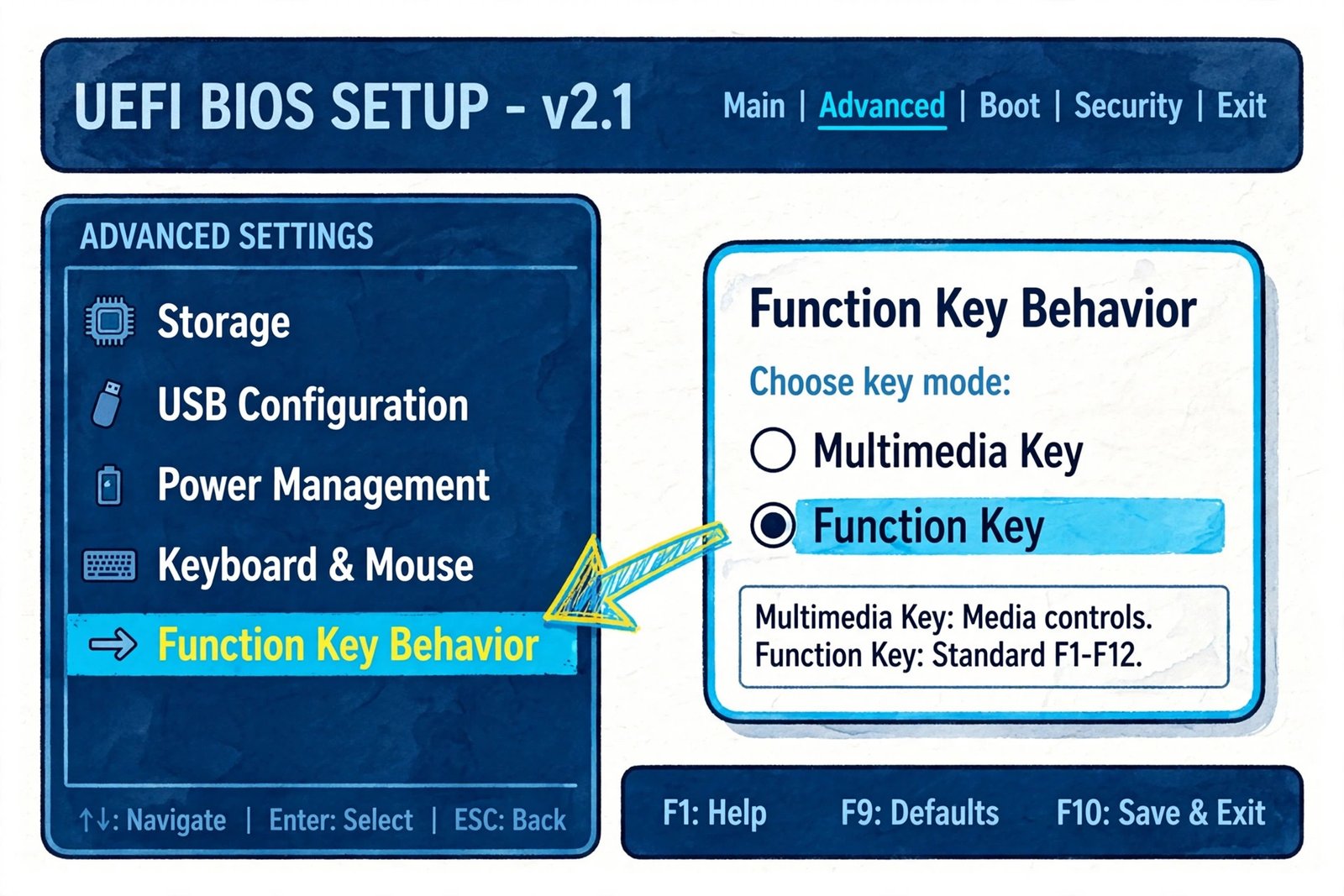
- For a permanent change, flip the setting in BIOS/UEFI. The menu name differs by brand: Hotkey Mode, Action Keys Mode, or Function Key Behavior.
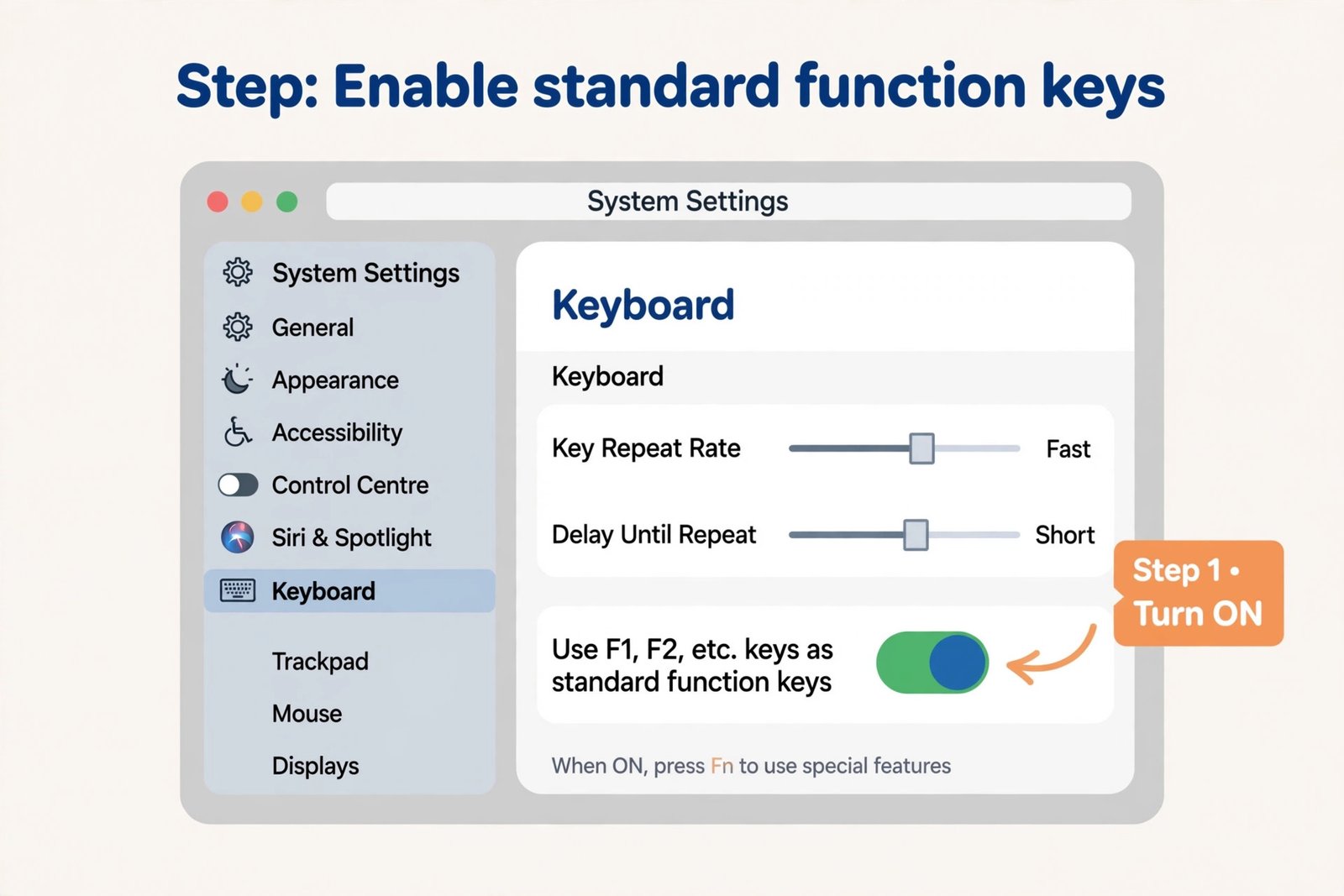
- On a Mac, the equivalent is in System Settings > Keyboard: turn on “Use F1, F2, etc. keys as standard function keys.”
Most laptop keyboards answer this question with a single toggle. Here are four ways to activate the function keys, fastest first, covering Windows laptops from Dell, HP, Lenovo, and others, plus MacBooks at the end.
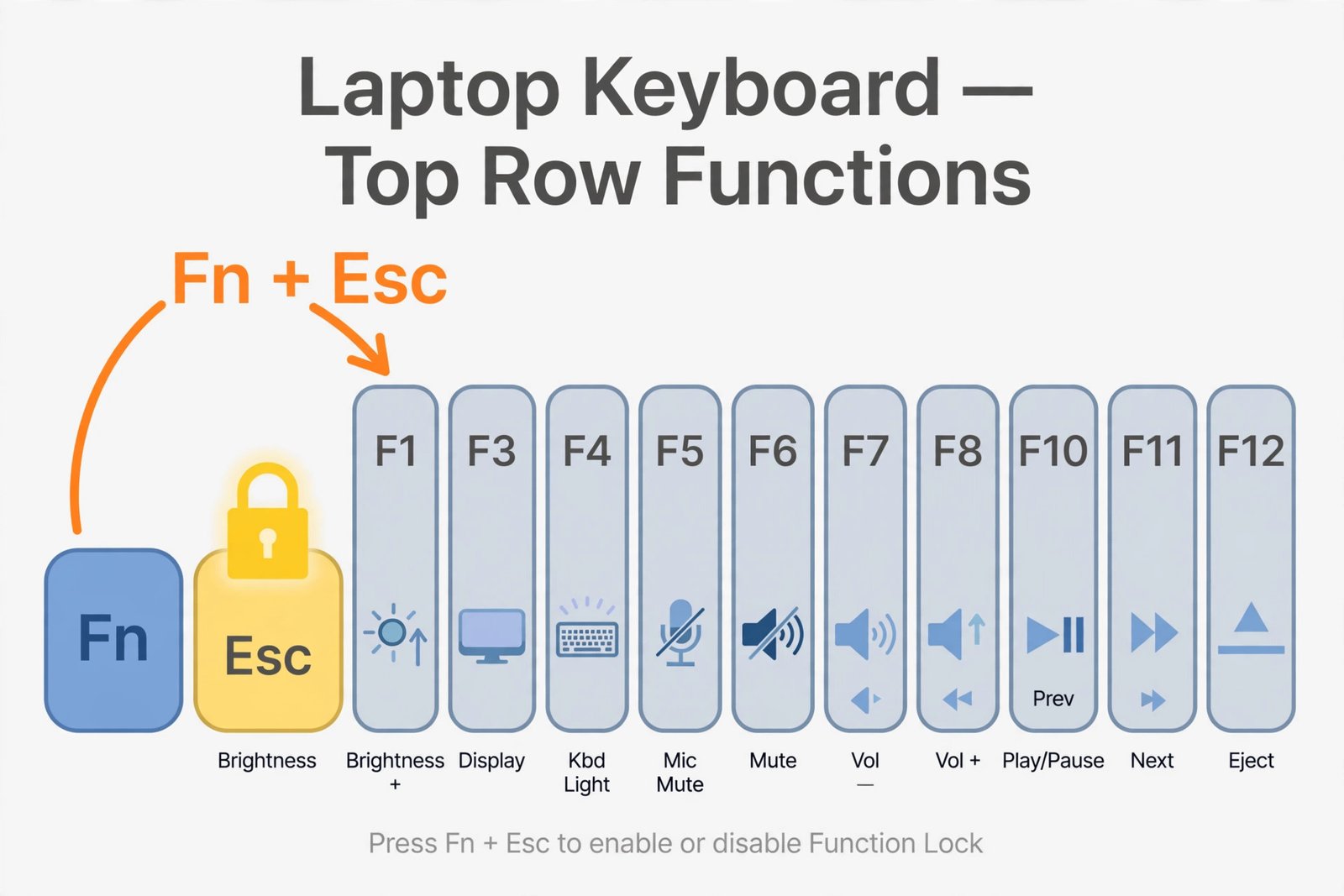
How to Activate Function Keys Using the Fn Lock Shortcut
This takes two seconds and works on the majority of modern laptops. Look at your Esc key. If it carries a small padlock icon, sometimes with “Fn” inside it, your laptop supports Fn Lock.
- Step 1: Hold the Fn key and press Esc.
- Step 2: Press F5 in a browser. If the page refreshes instead of changing a system setting, Fn Lock is now active and F1 to F12 behave as standard function keys.
- Step 3: To switch back to media controls as the default, press Fn + Esc again.
You should now be able to use shortcuts like Alt+F4, F2 to rename, and F5 to refresh without holding Fn. Some laptops show a brief on-screen indicator when the lock toggles. If nothing happens, your model may use a different combination. Check for a padlock symbol on the Fn key itself, or try Fn + Shift or Fn + Caps Lock on Acer, ASUS, and Samsung models.
How to Change Function Key Behavior in BIOS or UEFI
If the shortcut does not exist on your laptop, or you want the change to be permanent and survive reboots, the BIOS/UEFI setting is the system-level answer. If the Fn Lock shortcut worked above, you can skip this entirely.
Warning: change only the function key setting in BIOS. Do not alter voltage, boot order, or anything you do not recognize. Save with the on-screen key (usually F10) and exit.
- Step 1: Restart the laptop and press the BIOS key repeatedly during boot: F2, F10, Del, or Esc, depending on the brand.
- Step 2: Navigate to the keyboard section. The exact name varies by manufacturer (see the table below).
- Step 3: Switch the mode so the F1 to F12 keys act as standard function keys, then save and exit.
| Brand | BIOS key | Setting name and location |
|---|---|---|
| Dell | F2 | Advanced > Function Key Behavior, or Configuration > Hotkey Mode |
| HP | F10 | System Configuration > Action Keys Mode |
| Lenovo | F2 or Fn+F2 | Configuration > Hotkey Mode |
| Acer / ASUS | F2 or Del | Main or Advanced > Function Key Behavior |
How to Switch Function Keys With the Manufacturer’s App
Some laptops manage this in Windows instead of BIOS. Lenovo’s Vantage app, HP’s System Event Utility, and Dell’s support software include a Function Key or Hotkey setting that flips the default without a reboot. Open the app, search its settings for “function key” or “hotkey,” and choose the F1 to F12 behavior you want. This is also the fix to try when Fn Lock used to work and stopped after a driver update. Grab the latest hotkey or system-event driver from your manufacturer’s support site first, then check the app again.
If you use an external USB keyboard and its function keys misbehave, first make sure Windows actually sees the keyboard. The unknown USB device error is the usual culprit when a keyboard connects but its special keys do nothing.
How to Use F1 to F12 as Standard Function Keys on a Mac
MacBooks ship with the opposite default: the top row controls brightness, volume, and media, and you hold Fn for the standard F-key actions. Flip it like this:
- Step 1: Open System Settings > Keyboard.
- Step 2: Turn on Use F1, F2, etc. keys as standard function keys.
Now F1 to F12 work as function keys in apps, and holding Fn gives you the brightness, volume, and media controls. Developers and designers who live in IDE shortcuts tend to leave this on permanently.
Pick Your Default and Forget It
Start with Fn + Esc. It is instant, reversible, and it is all most people need. Make the BIOS change only if you want the behavior locked in for every boot, and use the manufacturer’s app when a driver update broke something that used to work. One related keyboard quirk worth fixing while you are here: if your number pad never works at startup, here is how to keep Num Lock on after startup on Windows.
Frequently Asked Questions
Why did my function keys suddenly change behavior?
Usually a driver update or a BIOS reset flipped the setting back, or you pressed Fn + Esc by accident. Toggle Fn + Esc first, then check the BIOS setting if the change does not stick.
Fn + Esc does nothing on my laptop. What now?
Your model may not have the shortcut. Go straight to the BIOS/UEFI method in this guide, or install your manufacturer’s keyboard utility and look for the hotkey setting there.
Can I remap individual keys instead of flipping the whole row?
Yes. On Windows, Microsoft PowerToys includes a Keyboard Manager that remaps single keys. On a Mac, the free Karabiner-Elements app remaps at the system level. Useful when you want F5 as refresh but still want the volume keys as-is.
Dell’s own documentation walks through the Fn Lock toggle for Latitude and Inspiron models in their getting started guide, and The Windows Club’s Fn key guide covers the per-brand BIOS paths with screenshots.

- How to Fix Windows 11 Clock Showing the Wrong Time - October 23, 2026
- How to Fix File Explorer Slow to Open in Windows 11 - October 22, 2026
- How to Fix a Printer Showing Offline in Windows 11 - October 21, 2026