
The fastest fix: open Registry Editor, go to HKEY_USERS\.DEFAULT\Control Panel\Keyboard, and set InitialKeyboardIndicators to 2. Then check that Fast Startup is not overriding it. That covers the problem for nearly every Windows 10 and 11 PC in about five minutes.
You type your PIN, reach for the number pad, and nothing happens. Num Lock switched itself off during boot again. Windows decides the Num Lock state from a registry value, your BIOS, and sometimes from Fast Startup’s memory of your last shutdown. Here are the three routes to fix it, starting with the one that works most often.
Method 1: Set the Registry Value (Most Reliable)
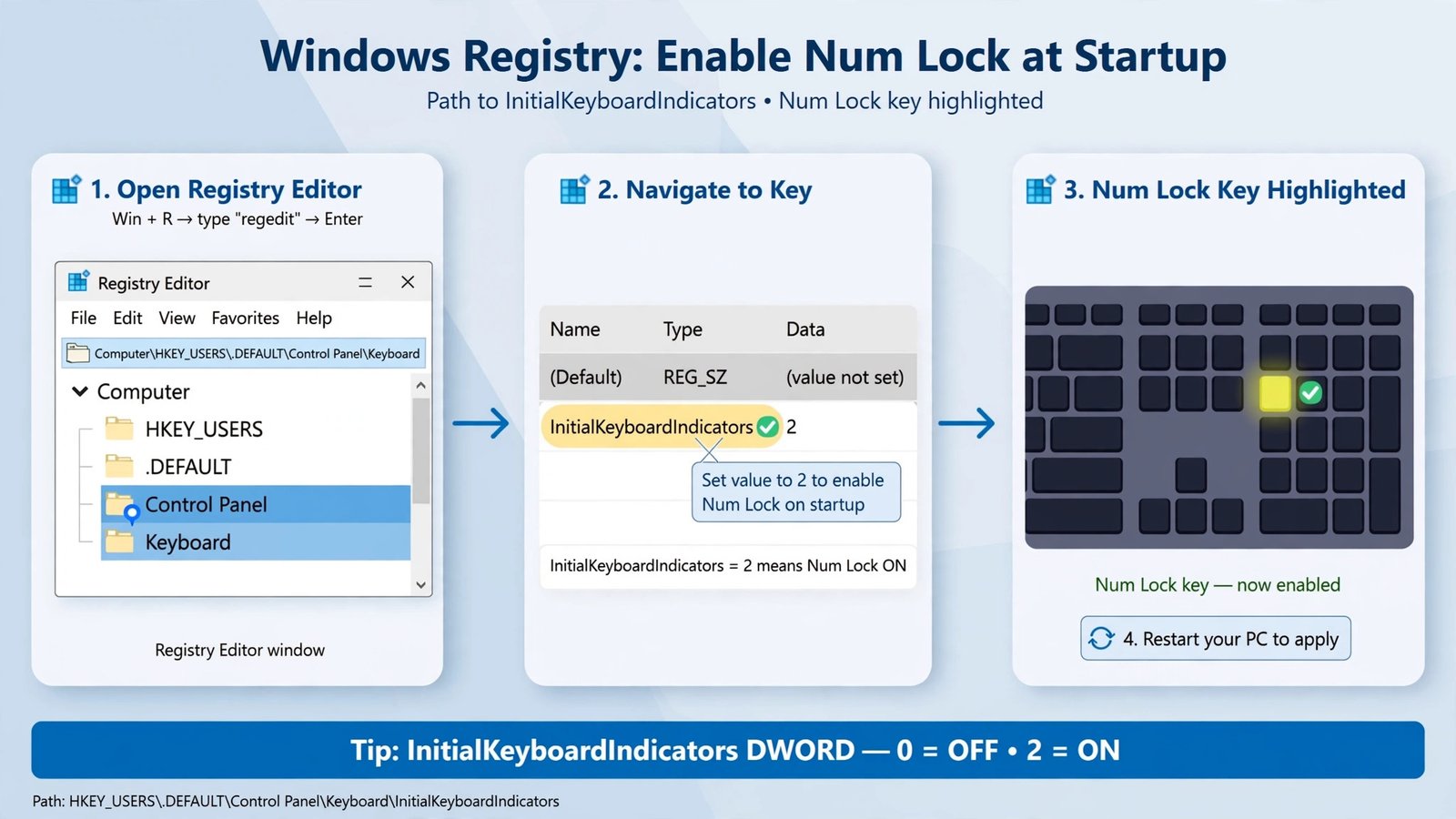
This sets Num Lock on at the login screen and for new user profiles. Back up the registry first: in Registry Editor, right-click Computer and choose Export. Then follow these steps.
- Press Win + R, type
regedit, and press Enter. Click Yes on the User Account Control prompt. - Navigate to
HKEY_USERS\.DEFAULT\Control Panel\Keyboard. - Double-click
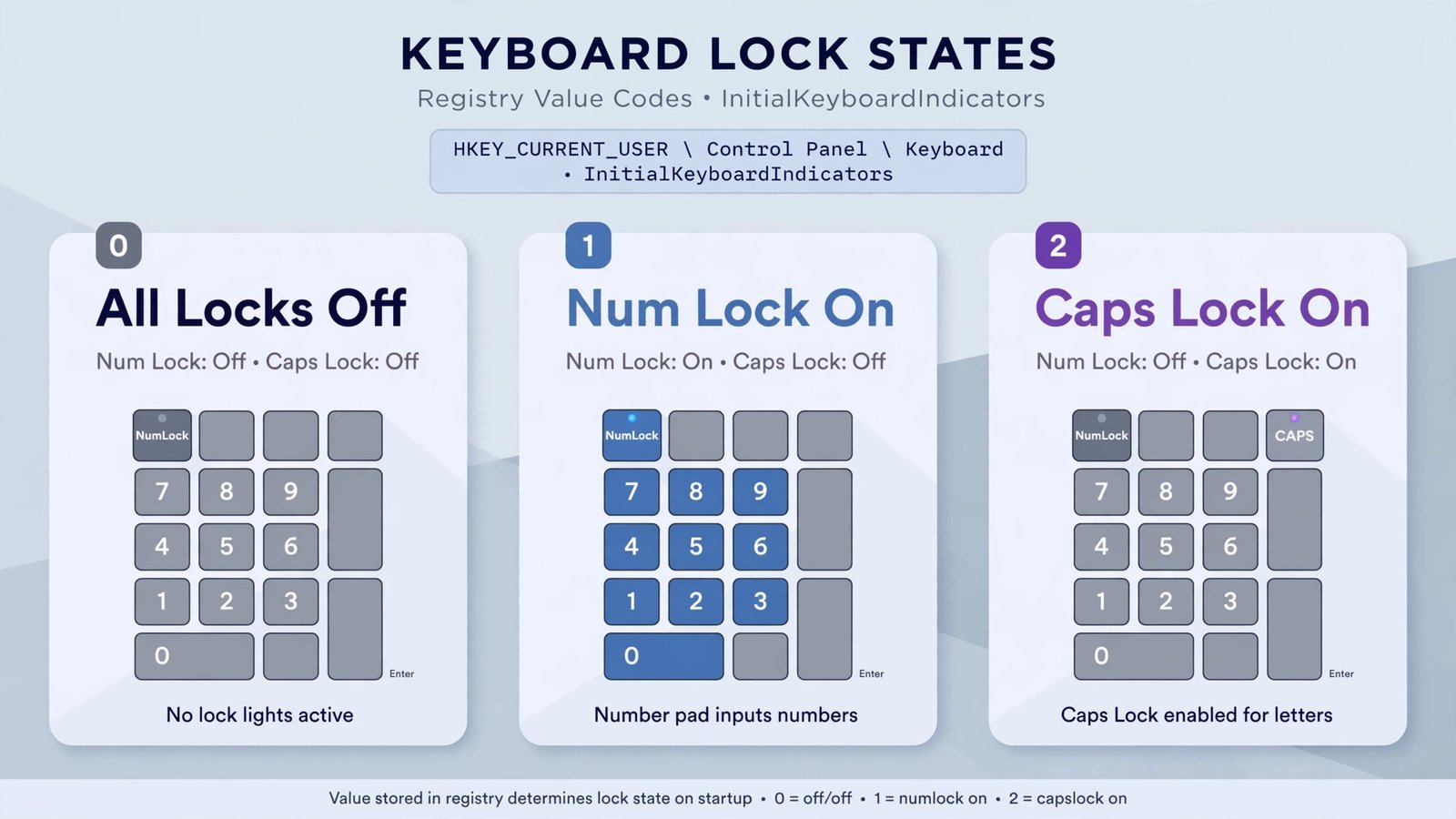
InitialKeyboardIndicatorsand set its value data to2. (If it currently shows2147483648, that is the Windows default on many installs, and it often leaves Num Lock off.) - For your own account too, set the same value at
HKEY_CURRENT_USER\Control Panel\Keyboard. - Close the editor and restart. Num Lock should now be on before you even log in.
Method 2: Turn On Num Lock in the BIOS
Some PCs hand Num Lock control to the firmware before Windows loads. Restart your computer and press the setup key (Del, F2, or F10, depending on the manufacturer) to enter the BIOS or UEFI. Look under Boot, Advanced, or Keyboard settings for a “Num Lock on Boot” or “Bootup NumLock State” option and set it to On or Enabled. Save and exit.
If your BIOS has no Num Lock option, skip this entirely. The registry method is enough on most modern machines, and changing unfamiliar BIOS settings is riskier than it is worth for this problem.
Method 3: Check Fast Startup (When Nothing Else Sticks)
Here is the catch that makes people redo Method 1 three times. Fast Startup is a hybrid shutdown that saves your session to disk instead of fully shutting down. When it is enabled, Windows often restores the Num Lock state from your last shutdown rather than reading the registry value, so your fix appears to “not work.”
Control Panel → Hardware and Sound → Power Options → Choose what the power buttons do → Change settings that are currently unavailable → uncheck "Turn on fast startup (recommended)"After unchecking it, shut down fully, power back on, and test. If you would rather keep Fast Startup on for its faster boot times, the workaround is simpler than it sounds: turn Num Lock on, then shut down. Fast Startup will faithfully restore it next time.
Quick Tips
- Laptops without a number pad: many compact keyboards share the Num Lock key with other functions, so check your manual before editing anything. There may be nothing to fix.
- Script alternative: a one-line startup script (
WshShell.SendKeys "{NUMLOCK}"saved as a .vbs file in your Startup folder) toggles Num Lock after login, but it is a workaround, not a fix. - Test with a restart, not a shutdown: a true restart bypasses Fast Startup, so if Num Lock works after restart but not after shutdown, Fast Startup is your culprit.
Verdict
For most Windows 10 and 11 PCs, the registry value plus a Fast Startup check ends the problem permanently. Set InitialKeyboardIndicators to 2, decide whether you want Fast Startup on or off (our Fast Startup explainer walks through what it actually does), and verify with one full shutdown. If your keyboard is acting up in other ways too, our keyboard troubleshooting guide covers the rest.

- How to Stop Android Auto-Connecting to Open Wi-Fi Networks - October 24, 2026
- How to Stop iPhone Apps Asking for Ratings and Reviews - October 23, 2026
- How to Turn Off HDR in Windows 11 When Colors Look Washed Out - October 22, 2026