
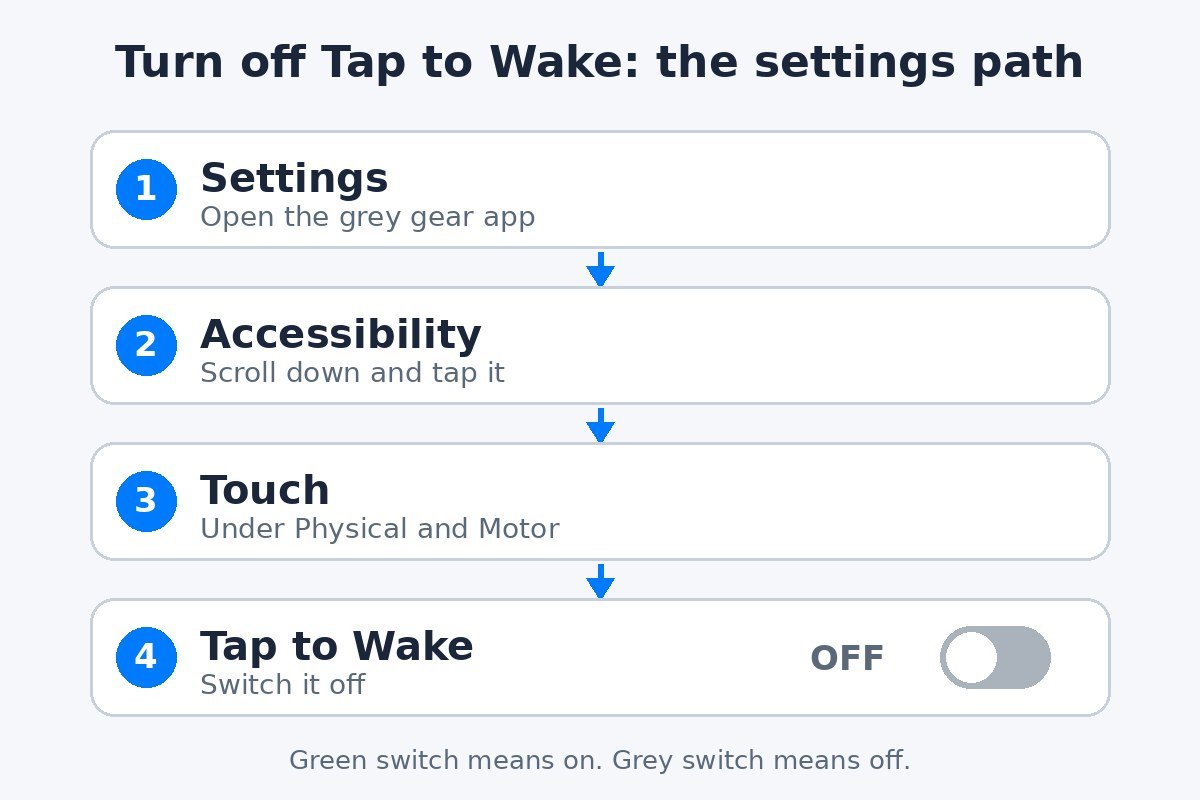
To turn off Tap to Wake on iPhone, open Settings, tap Accessibility, tap Touch, then switch off Tap to Wake. The change takes effect right away, and a tap on a dark screen will no longer wake the display. It is on by default on supported models.
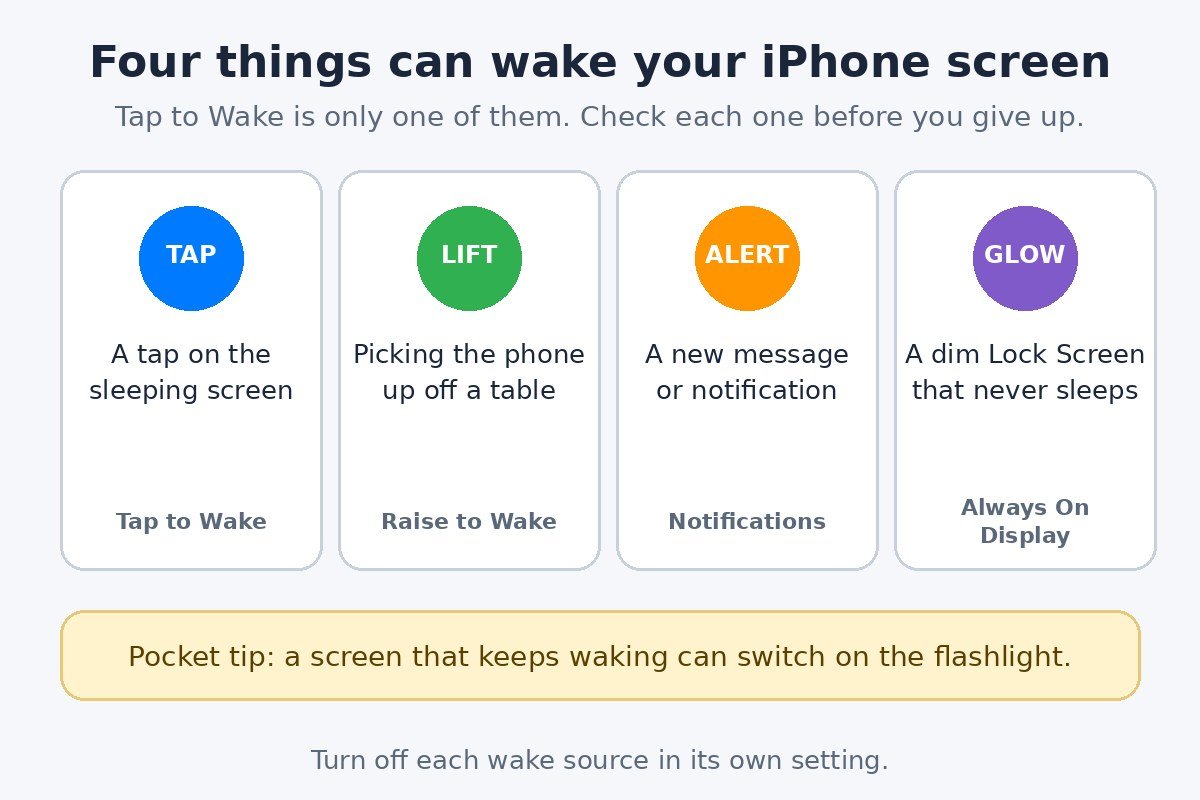
There is one catch that trips up a lot of people. Tap to Wake is only one of four things that can wake an iPhone screen. If the screen still lights up after the switch is off, the cause is usually Raise to Wake, a new notification, or Always On Display. This guide covers all four. The steps match Apple’s current iPhone User Guide, checked in November 2026 on the current iOS 27 release.
Turn off Tap to Wake in four steps
The switch sits in Accessibility, not in Display and Brightness, which is why many people look in the wrong place first. It takes less than a minute to reach it.
- Open the Settings app, the grey gear icon on the Home Screen.
- Scroll down and tap Accessibility.
- Under the Physical and Motor heading, tap Touch.
- Find Tap to Wake and tap the switch so it turns grey. Green means the feature is on, grey means it is off.
That is the whole job. There is nothing to save and no restart needed. Lock the phone with the side button, tap the screen, and it should stay dark. From now on, press the side button or lift the phone to wake it, if Raise to Wake is still on.
A faster way to reach the same switch is the Settings search box. Open Settings, swipe down to show the search field, type “tap to wake”, then tap the result. It opens the Touch screen directly. Apple documents the switch in its guide to adjusting how iPhone responds to touch, which confirms the Settings, Accessibility, Touch path.
Which iPhones have Tap to Wake, and which do not
Tap to Wake works on iPhones with Face ID, starting with the iPhone X, where a tap is the natural way to check the time or a notification without pressing anything.
There is no Tap to Wake switch on iPhone SE or other Home button models. Apple notes that tapping the screen to wake is not available on iPhone SE, so the switch simply does not appear in the Touch menu. If it is missing, nothing is broken. On those models, press the Home button or the side button to wake the screen.
One more thing worth knowing about this menu: the same Touch screen holds several other controls, including Touch Accommodations and Back Tap. Turning Tap to Wake off changes nothing else there, so Back Tap keeps working exactly as before. If Back Tap is also causing surprise actions, it has its own switch, and the steps to turn off Back Tap on iPhone are separate from the ones above.
Turn off Raise to Wake too, or the screen still wakes
This is the step most guides skip. Raise to Wake is a separate feature with its own switch in a different part of Settings, and it wakes the screen when the phone is picked up or tilted, using the motion sensor rather than the touchscreen.
- Open Settings.
- Tap Display and Brightness.
- Scroll down to Raise to Wake and switch it off.
With both switches off, the screen wakes only when the side button is pressed, or when a notification arrives. Apple lists raising the phone as one of the standard ways to wake an iPhone, and points to Display and Brightness as the place to turn it off, in its guide to waking and unlocking iPhone.
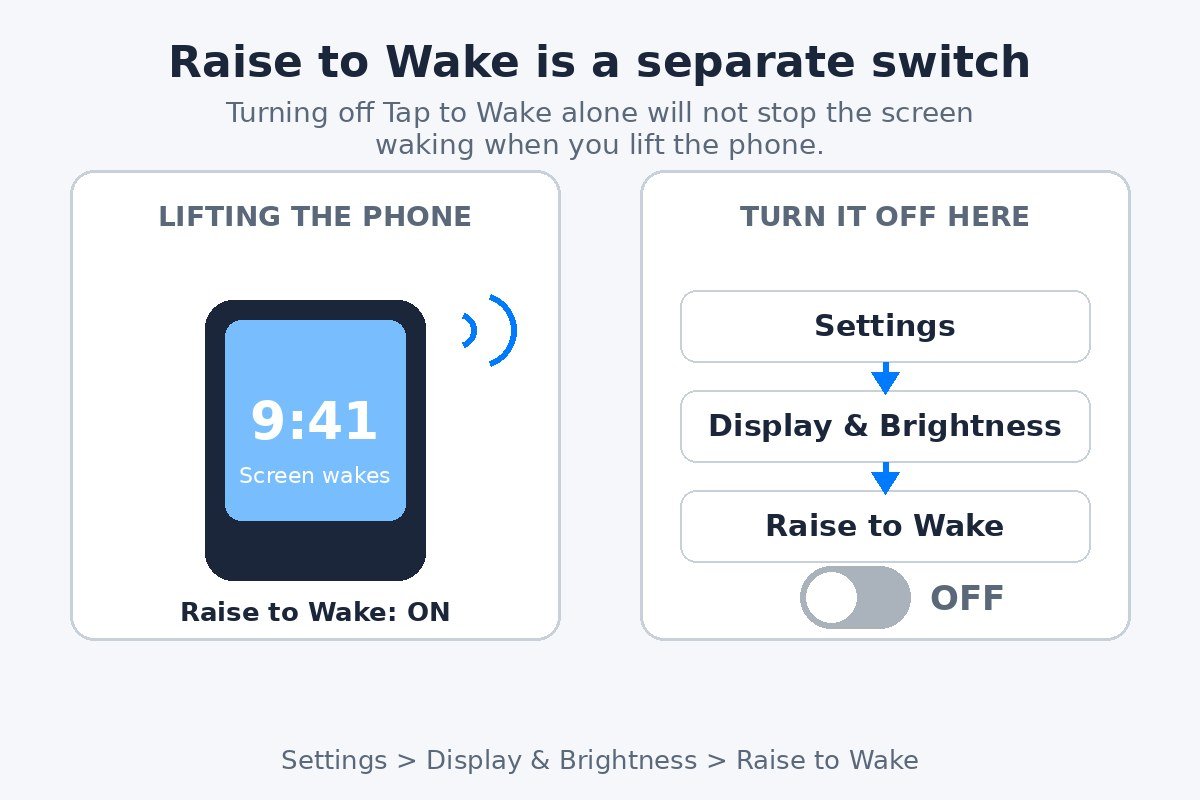
Keeping Raise to Wake on while Tap to Wake is off is a reasonable middle ground. The screen will not wake from a brush against fabric in a pocket, but it will still light up when the phone is picked up on purpose.
Stop notifications and Always On Display from lighting the screen
Even with both wake gestures off, the screen can still light up on its own. Two more settings are responsible.
Notifications
A new message, email, or app alert can light up the Lock Screen even when Tap to Wake is off. That is normal behaviour, not a fault. To quiet the noisiest apps, open Settings, tap Notifications, pick the app, then turn off its Lock Screen alerts. Turning off Lock Screen alerts does not stop the app from sending notifications, it only stops them lighting the screen.
Always On Display
On supported Pro models, iPhone 14 Pro and later, the Lock Screen can stay visible in a dimmed form even while the phone is locked. This is Always On Display, and it is on by default on those models. It is not the same as the screen waking, but it can look like the phone never sleeps. To turn it off, open Settings, tap Display and Brightness, then switch off Always On Display. The same screen also has switches for showing wallpaper and notifications on the dimmed display.
Always On Display already turns itself off in several situations, including when the phone is face down, in a pocket, in Low Power Mode, or during Sleep Focus. If the screen still glows on a bedside table at night, turning the setting off is the sure fix. For a screen that feels too bright at other times, the steps to turn off auto-brightness on iPhone are a separate setting, since it controls brightness rather than when the screen wakes.
Screen still waking? Check the flashlight and charging
If every switch above is off and the screen still wakes, the cause is usually something touching the phone rather than a setting.
| What wakes the screen | What triggers it | Where to turn it off |
|---|---|---|
| Tap to Wake | A tap on the sleeping screen | Settings, Accessibility, Touch |
| Raise to Wake | Picking the phone up or tilting it | Settings, Display and Brightness |
| Notifications | A new message or app alert | Settings, Notifications, per app |
| Always On Display | The Lock Screen staying dimly visible | Settings, Display and Brightness |
The most common surprise is the flashlight. The Lock Screen has a flashlight button at the bottom left, and it turns on with a firm press and hold. A screen that keeps waking inside a pocket gives that button far more chances to be pressed by accident, and a warm glow in a pocket is often the first sign the screen has been waking. Turning the wake gestures off removes most of those chances. If the flashlight still switches on, remove the case for a day and see if the case is pressing the screen.
Charging can also light the screen. When an iPhone charges while lying on its side, supported models can show the StandBy display, with the clock and widgets in large type. That is a feature, not a fault, and it stops when the phone is picked up or laid flat. A loose charging cable that connects and disconnects can also wake the screen each time it reconnects, so try a different cable if the screen wakes in a regular pattern while charging.
Turn Tap to Wake back on
To turn it back on, follow the same path in reverse: Settings, Accessibility, Touch, then switch Tap to Wake on so it turns green.
Whether to keep it off is a matter of habit. Keeping it on is handy for a quick glance at the time or a notification without reaching for the side button. Keeping it off saves battery in small amounts, since every accidental wake lights the screen, and it stops the phone waking in a pocket or a bag. For a phone that spends most of the day in a pocket, off is the calmer choice. For a phone that sits on a desk, on is more convenient.
Tap to Wake is a small setting with an outsized effect on how often the screen lights up, and it is easy to blame when the real cause is a different switch. Work through the four wake sources one at a time and turn off the ones that do not fit how the phone is used.

- How to Turn Off Edge Lighting on a Samsung Galaxy Phone - November 16, 2026
- How to Turn Off Tap to Wake on iPhone - November 15, 2026
- How to Turn Off iPhone App Library (and What to Do Instead) - November 14, 2026