
A screen saver that starts every few minutes is annoying, especially when it also asks for a password each time it ends. The good news is that turning it off takes less than a minute, and the setting is the same on every current Windows 11 PC.
Open Settings, go to Personalization, then Lock screen, then Screen saver. In the window that opens, choose (None) from the dropdown and select OK. That is the whole fix. The rest of this guide untangles the three things people mix up with the screen saver, so the fix you pick matches the problem you have.
Turn off the screen saver in Windows 11
The screen saver lives in an older-style window tucked away at the bottom of the Lock screen page, which is why most people never find it. Follow these steps and it will stop starting altogether.
- Press Windows key + I to open Settings.
- Select Personalization in the left column, then select Lock screen.
- Scroll down and select Screen saver under Related settings. A separate Screen Saver Settings window opens.
- Open the Screen saver dropdown and choose (None).
- Select OK to save the change.
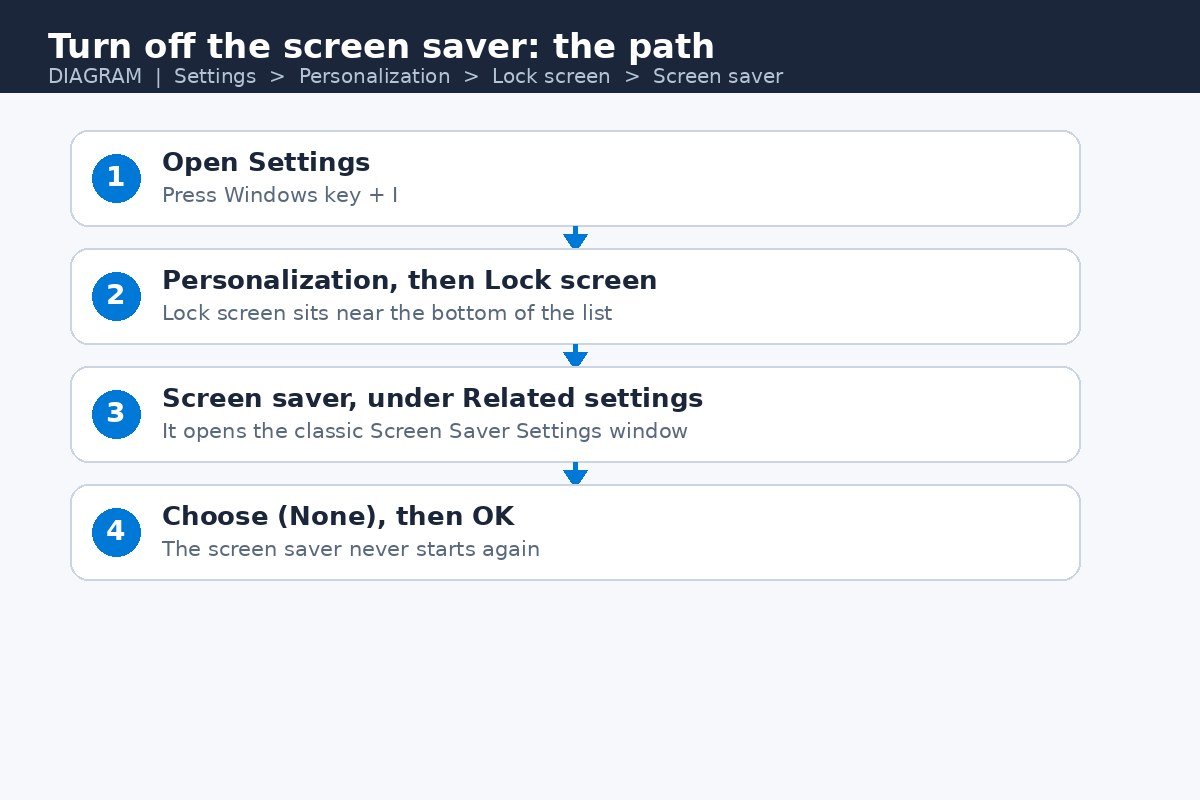
Once the dropdown shows (None), Windows has no screen saver to start, so nothing appears no matter how long the PC sits idle. The change applies to your own account, so anyone else who signs in keeps their own choice. Microsoft describes this same path in its own guide to configuring a screen saver in Windows.
If the dropdown already shows (None) and something still appears after a few idle minutes, the screen saver is not the cause. What you see is probably the screen turning off or the PC going to sleep, covered in the comparison further down this page.
Stop the password prompt without turning off the screen saver
Many people want to turn off the screen saver for the wrong reason. What bothers them is not the animation, it is the password prompt that appears every time the screen saver ends. That prompt comes from one checkbox, and turning it off leaves the screen saver itself untouched.
In the Screen Saver Settings window, look for the checkbox labelled On resume, display logon screen. Checked, it sends you to the sign-in screen when the screen saver ends. Unchecked, moving the mouse or pressing a key returns you straight to the desktop.
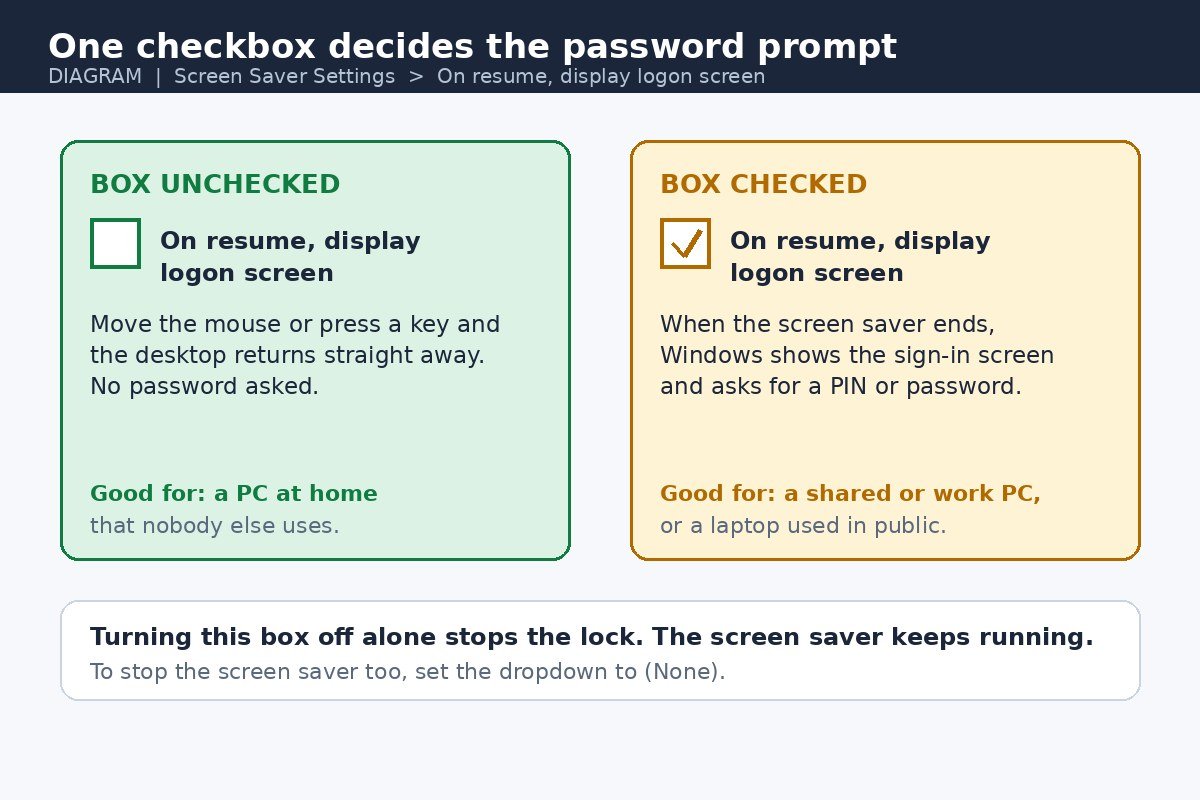
- Open the Screen Saver Settings window using the steps above.
- Clear the checkbox labelled On resume, display logon screen.
- Select OK.
Use this option with care. With the box unchecked, anyone who walks past can wake the PC straight to your open desktop, with no PIN or password in the way. On a PC at home that nobody else touches, that trade-off is usually fine. On a shared, public, or work PC, keep the box checked and set the screen saver to (None) instead.
The screen saver, the lock screen, and sleep are three different things
Most screen saver confusion comes from settings that all change what the screen does when the PC is idle. They sit in different places and trigger at different times, and changing the wrong one never fixes the problem.
| Setting | What it does | Where to change it |
|---|---|---|
| Screen saver | Shows an animation or a blank screen after the PC sits idle | Personalization, Lock screen, Screen saver |
| Lock screen | Shows a picture, the time, and the sign-in prompt when the PC is locked | Personalization, Lock screen |
| Screen timeout | Turns the display off after a set idle time, while the PC stays on | System, Power and battery, Screen and sleep |
| Sleep | Puts the whole PC into a low-power state | System, Power and battery, Screen and sleep |
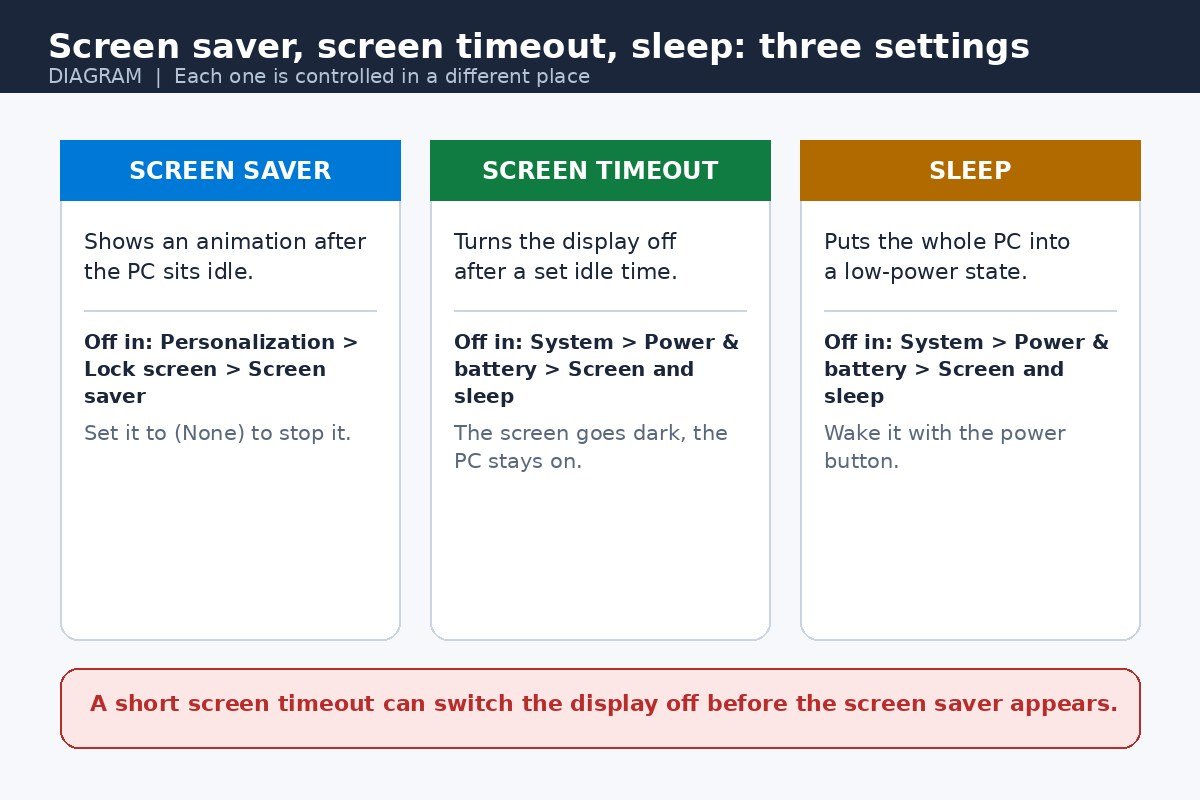
The lock screen and the screen saver only meet at that checkbox. The lock screen appears when you lock the PC or wake it from sleep, while the screen saver appears while the PC is idle and unlocked. The checkbox is what connects them, by sending you to sign-in when the screen saver ends.
Screen timeouts cause a different mix-up. If the screen turns off after 5 minutes and the screen saver waits 10, the display goes dark before the saver ever starts. The fix is not in the screen saver settings at all, so follow our guide on how to change the lock screen timeout in Windows 11 to set screen and sleep times that suit you.
The lock screen itself can also be the annoyance. Its picture, widgets, and rotating tips are separate from the screen saver and stay as they are when you set it to (None). If that content is what bothers you, see our guide on how to turn off the tips and fun facts on the lock screen.
Why is a screen saver running at all?
On a fresh Windows 11 setup, the Screen saver box normally shows (None), so no screen saver is set and none will start. If one is running on your PC, something turned it on, and knowing what set it helps stop it coming back.
- An old user profile. A PC upgraded from Windows 10, or an account carried over from an older PC, can bring a screen saver chosen years ago along with it.
- An app that came with the PC. Some PC makers include utilities that set a branded screen saver or photo slideshow during first setup.
- A work or school policy. On a managed PC, an administrator can set the screen saver and lock the setting so it cannot be changed on the PC itself.
Look at the dropdown first. If it names an animation such as Bubbles, 3D Text, or Photos, that is the screen saver running, and setting it to (None) stops it. If it already shows (None), nothing in that window causes what you see: the cause is a timeout or sleep setting from the previous section.
When the setting is greyed out or keeps coming back
Sometimes the fix does not stick: the dropdown is greyed out, or the screen saver returns after a restart. Each cause differs, so work through them in order.
- Check the Wait time. It sets how many idle minutes pass before the screen saver starts, so a Wait of 1 minute makes it feel constant even though the setting works as intended. Set a longer time, or (None) to stop it entirely.
- Check for a PC maker app. If a utility from the PC maker re-applies its own screen saver at startup, changing the setting once will not hold. Turn off its screen saver option in the app, or uninstall the utility if you do not use it.
- Accept a managed PC. If the settings are greyed out on a work or school PC, an administrator policy enforces them. No setting on the PC overrides that policy, so ask the IT team to change it.
Do not look for a registry edit to force the setting. On a managed PC it will not survive the next policy refresh, and on a personal PC the dropdown already does the job.
Keep the screen saver or let the screen sleep?
Screen savers were invented to stop old CRT monitors burning a static image into the screen. Modern LCD and LED screens do not have that problem, so a screen saver is now about taste and security, not protection. Microsoft recommends putting the display to sleep instead, because sleep uses far less power than running an animation for hours.
| Your situation | Best choice |
|---|---|
| PC at home, nobody else uses it | Set the screen saver to (None) and let the screen turn off |
| Shared family PC or laptop used in public | Keep a screen saver with the sign-in box checked, or lock the PC with Windows key + L when you walk away |
| Work PC | Leave the managed setting alone and lock the PC when you leave the desk |
| OLED display | Keep a moving screen saver or a short screen timeout, since static images can mark OLED panels over time |
| Laptop running on battery | Set the screen saver to (None) and use a short screen timeout to save battery |
Microsoft lists turning off the screen saver among its energy recommendations, since a sleeping display uses far less power than one running an animation. See Microsoft’s energy recommendations for Windows 11 to trim power use further. The one real exception is an OLED display, where Microsoft notes a moving screen saver can help prevent static images marking the panel.
Turning off the screen saver comes down to one dropdown: Settings, Personalization, Lock screen, Screen saver, then (None) and OK. If a password prompt was the real annoyance, clearing the On resume, display logon screen box fixes that on its own. And if the screen still goes dark or the PC still locks, the cause is almost certainly the screen timeout or sleep setting, not the screen saver, so check those next.

- How to Turn Off the Screen Saver in Windows 11 - November 16, 2026
- How to Turn Off Tap to Click on Mac - November 15, 2026
- How to Fix Laptop Keyboard Backlight Not Working in Windows 11 - November 14, 2026