
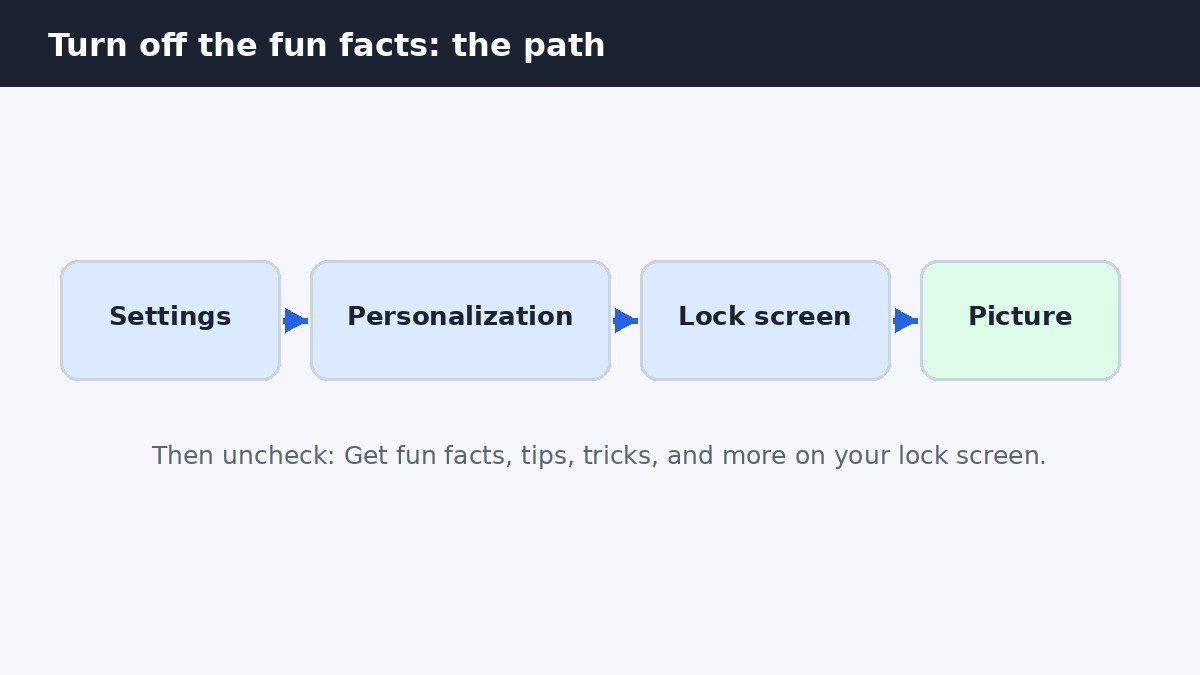
The tips, fun facts, and tricks on your Windows 11 lock screen come from one checkbox, but that checkbox only appears when your lock screen background is set to Picture or Slideshow. If you use Windows Spotlight, the facts are built in and there is no checkbox to uncheck, so the fix is to switch the background first. Open Settings, go to Personalization, then Lock screen, set Personalize your lock screen to Picture, and uncheck Get fun facts, tips, tricks, and more on your lock screen. The facts stop right away, and your background stays exactly as you set it.
Turn off the fun facts in four steps
- Press Win + I to open Settings.
- Select Personalization in the left menu, then Lock screen.
- Open the Personalize your lock screen drop-down and choose Picture or Slideshow.
- Uncheck Get fun facts, tips, tricks, and more on your lock screen.
- Press Win + L to lock the PC and check that the tips are gone.
If the checkbox is already visible while Spotlight is still selected, simply uncheck it where it stands. Some current builds show the checkbox with Spotlight left on, while most builds only reveal it after you switch to Picture or Slideshow. Either way, the checkbox is the same control, and unchecking it stops the extra text. You do not need to restart the PC, and you do not need to change anything else on the page.
Why the checkbox is missing on your PC
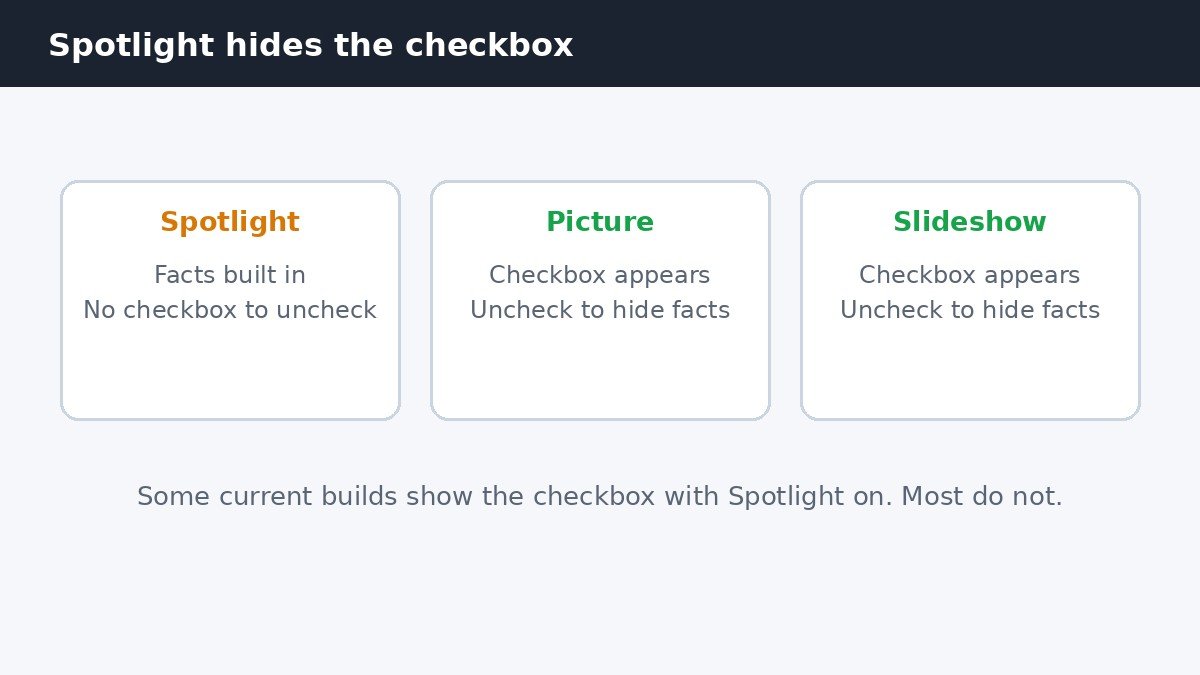
Spotlight is the default background on most Windows 11 PCs, and it bundles the fun facts with the rotating photos. Microsoft treats the facts as part of the Spotlight experience, so the Settings page does not offer a separate switch for them while Spotlight is active. That is why so many guides seem to disagree: the writer who found the checkbox was using Picture, and the reader who cannot find it is using Spotlight. Switching the background is not a workaround, it is how the setting is designed to appear.
| Background | Fun facts control | What you see |
|---|---|---|
| Windows Spotlight | Usually no checkbox, facts built in | Rotating photos plus tips and facts |
| Picture | Checkbox appears, uncheck to hide | One photo you choose, no extra text |
| Slideshow | Checkbox appears, uncheck to hide | Your own photos in rotation, no extra text |
If you love the Spotlight photos and only dislike the text, the trade is real: there is no supported way to keep the rotating Spotlight photos and remove only the facts on builds where the checkbox stays hidden. Picture with a favourite photo, or a Slideshow of a folder of photos, is the closest match. A Slideshow pointed at a folder of landscapes or travel photos gives you the same daily variety without the extra text.
Remove the weather and more block as well
The fun facts checkbox does not control the weather, stocks, and sports strip that sits on many lock screens. That block is a separate control on the same Settings page. Find the Lock screen status drop-down and set it to None to remove the block entirely. On newer builds the same page may show individual widgets instead of one status drop-down, in which case remove each widget from the list until none remain.
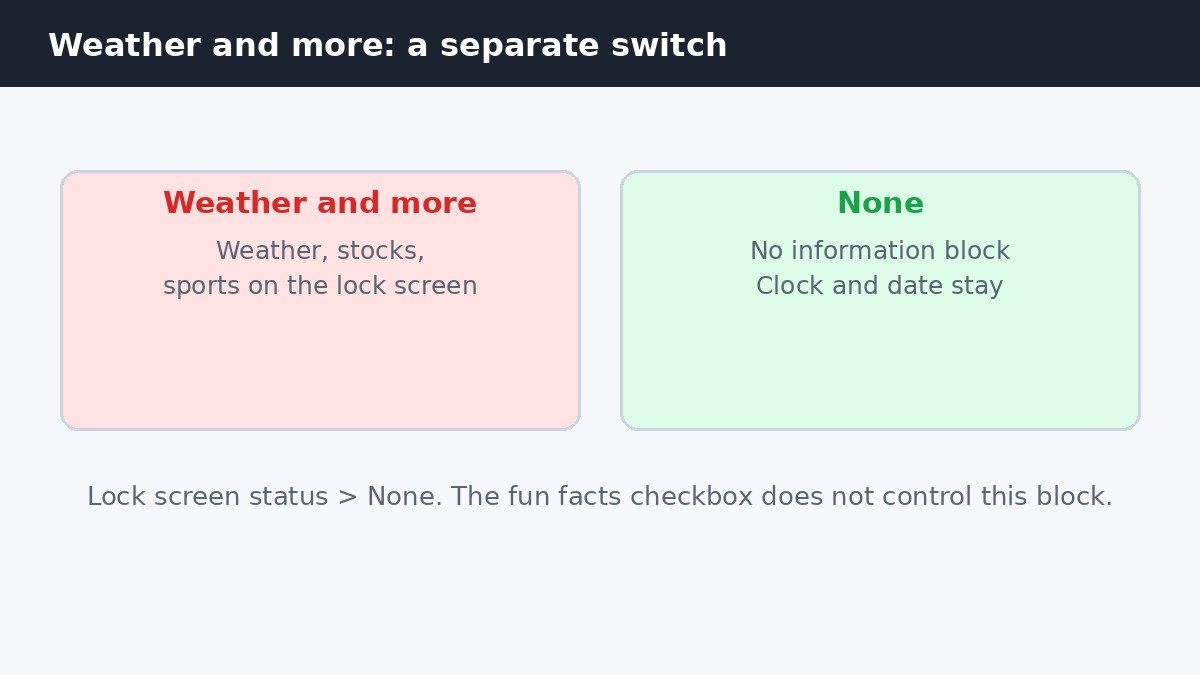
Removing the block also stops the lock screen from showing scores and market figures that update through the day. The clock and date stay, because they are part of the lock screen itself and have no switch. If you only want the weather gone but like the rest, there is no middle setting on most builds: the status block is all or nothing, so None is the only way to clear it.
What stays on the lock screen after the change
Turning off the facts changes nothing about signing in. Your PIN, password, fingerprint, or face sign-in works exactly as before, and the clock, date, and notification previews stay where they were. The background you picked stays too, and the sign-in screen keeps using the same picture if you have that option turned on. The facts are gone but the screen still wakes and sleeps on its own schedule, which is a separate setting: if the screen itself turns off too quickly while you are reading, our guide to changing the lock screen timeout in Windows 11 covers that control.
If the checkbox is greyed out or missing
On a work or school PC, the lock screen settings may be managed by your organisation, and the checkbox can be greyed out or absent entirely. In that case no Settings change on the PC will bring it back, because an administrator policy is overriding it, and the IT helpdesk is the only route to a change. The same applies to a PC signed in with a managed account where the personalisation page shows a message about some settings being managed by your organisation. Microsoft documents the lock screen page and its options on its customize the lock screen support page, which is worth checking if your page looks different from the steps above, since the layout changes between Windows builds.
A quiet lock screen is a small change that makes the PC feel like yours again. Pick the background you actually want to see, uncheck the one box, and set the status block to None if the weather strip bothers you too. The whole job takes under a minute, and the next time you lock the PC you will see a photo and a clock, and nothing trying to sell you something.

- How to Turn Off Lock Screen Tips in Windows 11 - November 5, 2026
- How to Turn Off Snap Assist in Windows 11 - November 4, 2026
- How to Turn Off Game Mode in Windows 11 - November 3, 2026