
If a light brush of your finger keeps opening links, moving files, or selecting text on your Mac, Tap to click is the setting behind it. With this setting on, a gentle tap on the trackpad counts as a click, so there is no need to press down at all. Turning it off takes less than a minute, and it changes exactly one thing: from then on, only a real physical press counts as a click.
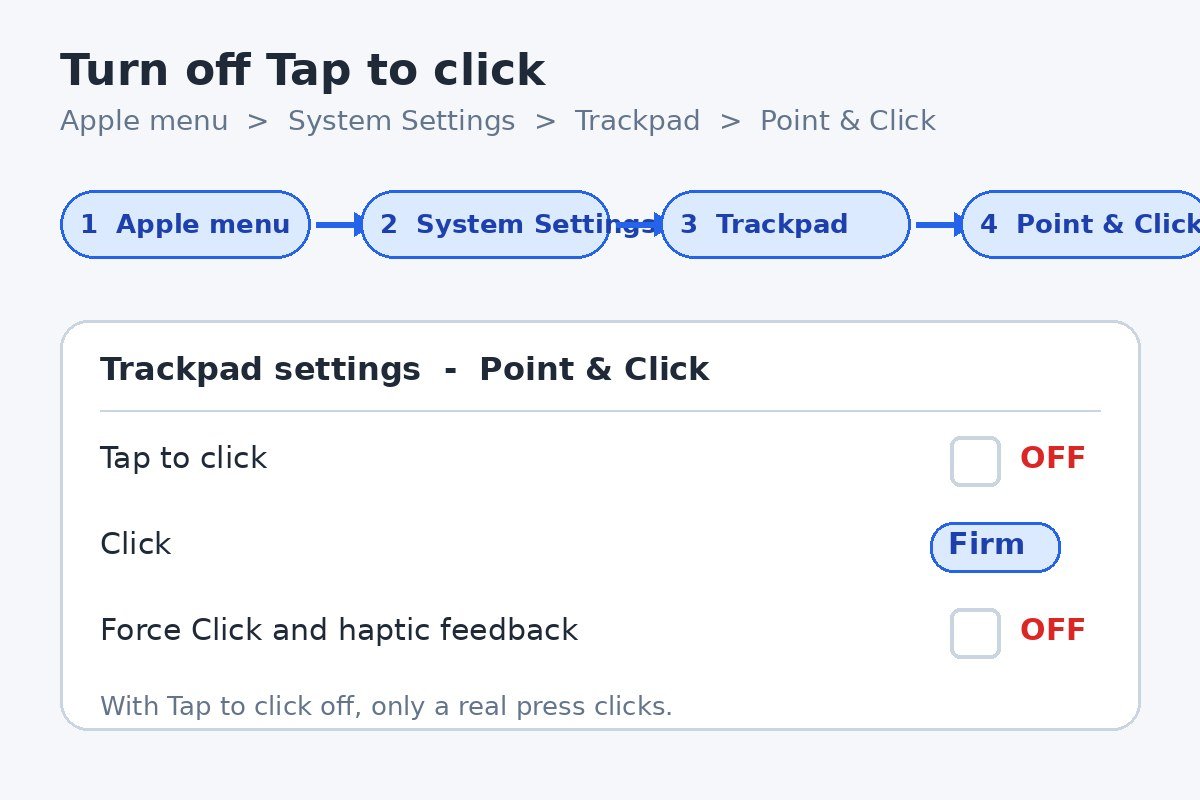
Open System Settings, go to Trackpad, stay on the Point & Click tab, and switch off Tap to click. That is the whole fix. The rest of this guide explains what changes, how to make clicks firmer as well, and what to do if stray clicks keep happening anyway.
Turn Off Tap to Click in Three Steps
The setting lives in the Trackpad panel of System Settings. Tap to click is usually off on a new Mac, so if taps are clicking things, it was switched on at some point during setup or by accident. On a Mac running an older version of macOS, the same window is called System Preferences, and the steps are the same.
- Click the Apple menu in the top left corner of the screen, then choose System Settings.
- Click Trackpad in the sidebar. If you cannot see it, scroll down the sidebar until it appears.
- Stay on the Point & Click tab and switch off the checkbox beside Tap to click.
Close System Settings when you are done. The change applies right away, with no restart and no need to save anything. Try a light tap on the desktop: nothing should happen now. Press the trackpad down until you feel the click, and the click works as normal. Apple’s trackpad settings guide lists every option in this panel, including tracking speed and secondary click, if you want to review the rest while you are here.
What Changes When You Turn It Off
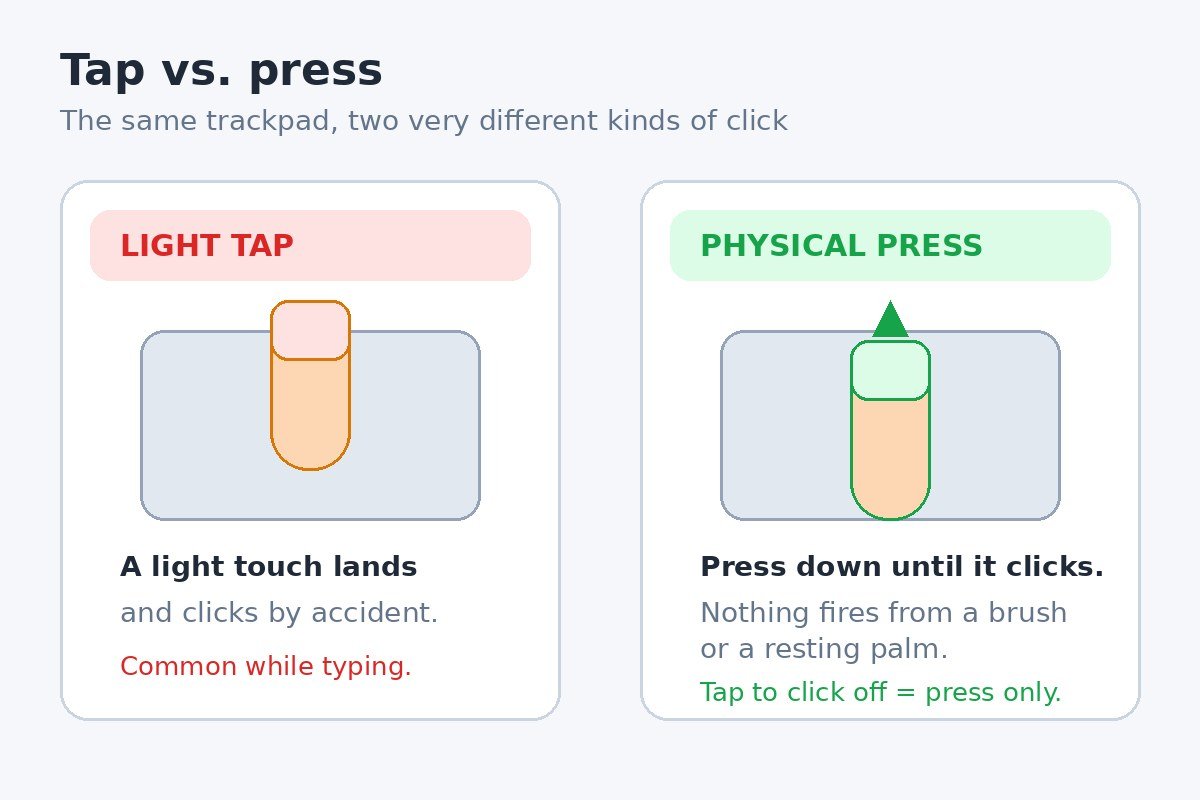
Tap to click and a physical click do the same job, but they feel very different in daily use. With tapping on, the trackpad treats a quick touch as a click, which is fast and light on the fingers. It also means any finger that lands on the trackpad while you think, type, or rest your hand can click something you never meant to touch.
With tapping off, the trackpad only listens to pressure. A finger can rest on the surface, slide across it, or brush it lightly without doing anything at all. Clicking, double-clicking, and dragging all still work, but each one starts with a deliberate press.
| Setting | Light tap | Physical press |
|---|---|---|
| Tap to click on | Clicks | Clicks |
| Tap to click off | Does nothing | Clicks |
Most people adjust within a day. Pressing takes slightly more effort than tapping, and that is the point: the extra effort is what stops the accidental clicks. If pressing feels tiring after a long session, that is a sign to look at the click pressure setting in the next section rather than switching tapping back on.
Make Clicks Firmer So Light Presses Stop Firing
Turning off tapping fixes taps, but a very light press can still fire a click if the trackpad is set to its lightest pressure. The same Point & Click tab has a Click control with three choices: Light, Medium, and Firm. Firm asks for the hardest press before anything happens, which gives your fingers the most room for error.
- In System Settings, open Trackpad and stay on Point & Click.
- Beside Click, choose Firm.
- Test it on the desktop for a minute before you decide whether to keep it. If Firm feels too stiff, Medium is a fair middle ground.
There is one more control in the same panel worth knowing about. On Macs with a Force Touch trackpad, Force Click and haptic feedback adds a second, deeper click when you press firmly on something, which can open a preview or look up a word. If deep presses keep triggering things you did not ask for, switch that off too. The option only appears on Macs with a Force Touch trackpad, so do not worry if your Mac does not show it. Apple explains how Force Click works and where the setting lives.
Silence the Built-in Trackpad at a Desk
If you work at a desk with a mouse, there is a stronger option: let macOS ignore the built-in trackpad completely while the mouse is connected. Your palms can rest wherever they like, because the trackpad stops listening until the mouse goes away.
- Choose the Apple menu, then System Settings.
- Click Accessibility in the sidebar, then click Pointer Control.
- Switch on Ignore built-in trackpad when mouse or wireless trackpad is present.
The moment you unplug the mouse or switch it off, the built-in trackpad starts working again, so this is safe to leave on. One warning from Apple: some third-party mouse software can interfere with this setting, so if it seems to do nothing, check whether your mouse maker offers its own settings app.
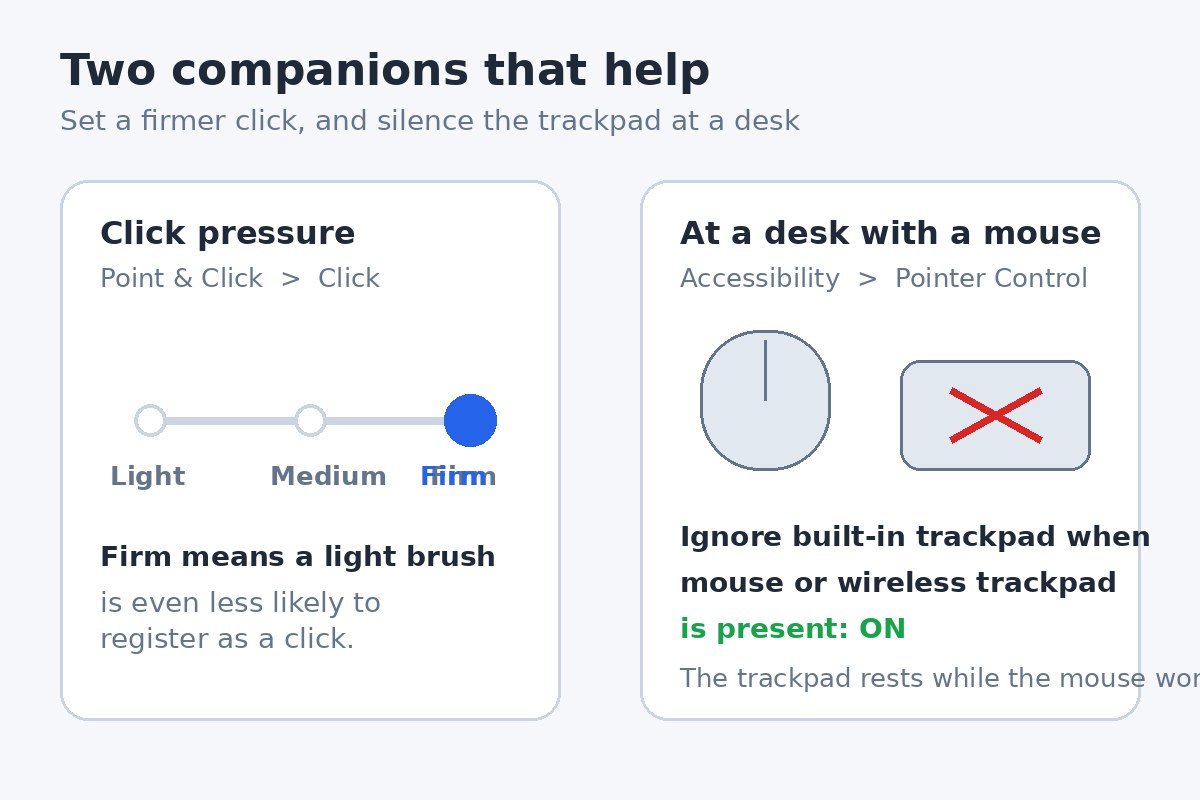
This setting suits a desk setup. If you use the MacBook on your lap as often as at a desk, the firmer click setting from the previous section is the better everyday choice, because it protects you in both places.
If Clicks Still Happen After You Turn It Off
A setting that is off should stay off, but stray clicks have a few other causes. Work through this list in order.
- Reopen the Trackpad panel and confirm Tap to click is still off. If a macOS update or a settings sync changed it back, switch it off again.
- Restart the Mac. A restart clears any stuck input state, and it is the fastest way to rule out a passing glitch.
- Check for a connected mouse or a second trackpad. A Magic Trackpad has its own Tap to click setting, which you change in the same Trackpad panel while it is connected, so check that panel with the external trackpad in use.
- Look at what is actually clicking. If the pointer moves on its own, or clicks happen when your hands are nowhere near the trackpad, that points to a hardware or accessory problem rather than a setting, and a visit to Apple Support is the next step.
In most cases, though, the story ends at the checkbox. Once tapping is off and the click pressure suits your hand, the trackpad only reacts when you mean it to.
How to Turn Tap to Click Back On
Tapping is a genuine convenience, and some people miss it once it is gone, especially if they found pressing tiring. To bring it back, follow the same path: Apple menu, System Settings, Trackpad, Point & Click, then switch Tap to click back on. There is no penalty for changing your mind, and you can switch it on and off as often as you like.
The same habit works for other Mac features that act without being asked. Handoff, for example, moves work between your Mac and iPhone on its own. If that bothers you too, our guide to turning off Handoff on Mac walks through the same kind of one-switch fix.
Accidental clicks are a small annoyance with a small fix. One checkbox stops the taps, a firmer click adds a safety margin, and the desk setting keeps the trackpad quiet while a mouse is in charge. Pick the combination that matches how you use your Mac, and the trackpad will stay out of your way until you press it on purpose.

- How to Turn Off Tap to Click on Mac - November 15, 2026
- How to Fix Laptop Keyboard Backlight Not Working in Windows 11 - November 14, 2026
- How to Turn Off Require Sign-In After Sleep in Windows 11 - November 13, 2026