
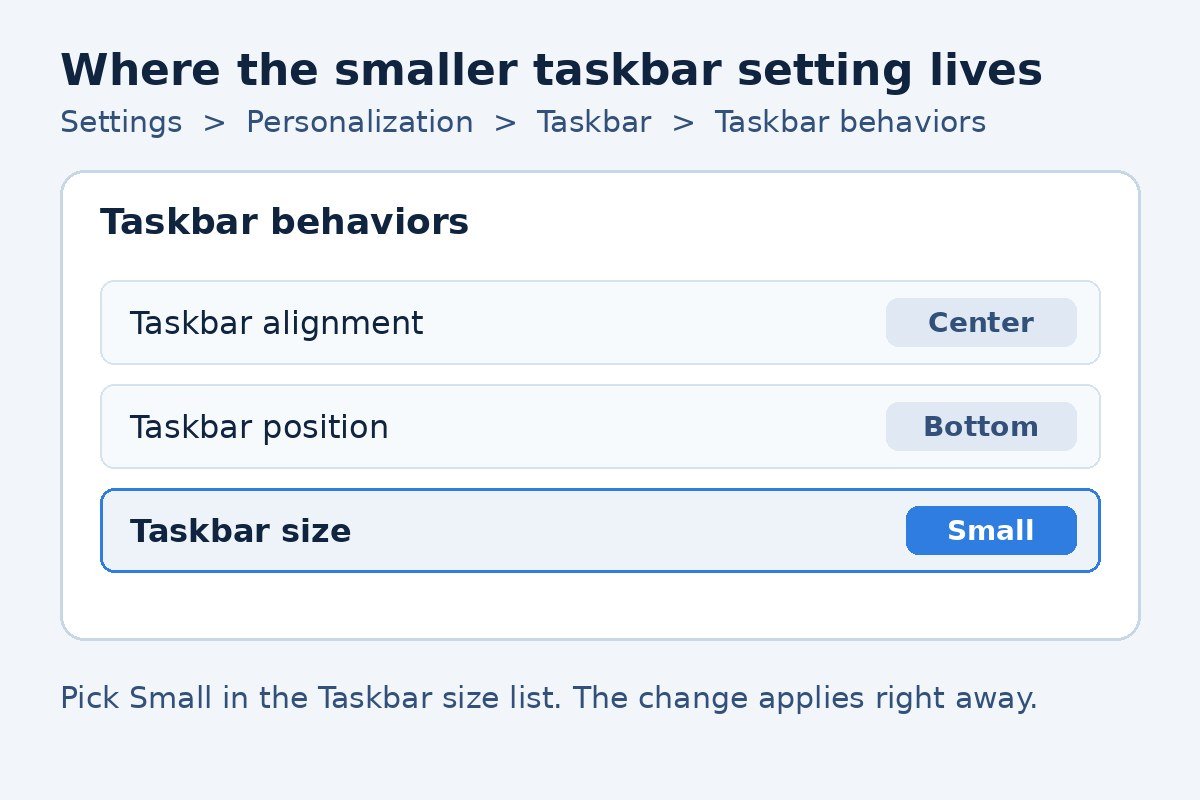
Yes, Windows 11 now has a built-in way to make the taskbar smaller. Open Settings, go to Personalization, then Taskbar, expand Taskbar behaviors, and set Taskbar size to Small. The icons shrink and the bar itself gets shorter, so your open windows gain a little extra room. The change applies the moment you pick it, and you can switch it back just as fast.
There is one catch to know before you start looking for the setting. Microsoft is sending it out in stages, so it may not be on your PC yet even if Windows Update says you are up to date. If the Taskbar size list is missing, your PC has not received this part of the update yet.
Before you start: check your Windows version
The smaller taskbar arrived with Windows 11 version 26H2, and Microsoft is also delivering it to version 24H2 and 25H2 PCs through regular monthly updates. That means two PCs can both be fully updated and still show different taskbar settings, because the rollout reaches machines in waves rather than all at once.
To see which version your PC runs, open Settings, select System, then select About. If the version reads 26H2, the setting should be there. On 24H2 or 25H2, it appears once the monthly update carrying it has reached your PC. Microsoft first described the feature in its release notes for Experimental Preview Build 26300.8493.
If your PC is on an older version, such as 23H2, run Windows Update and install the feature update first. The taskbar size setting does not exist on those older versions, and no toggle inside Settings can bring it back.
How to make the Windows 11 taskbar smaller
Follow these steps, and check the diagram below if you want to see where each control sits on the page.
- Right-click an empty part of the taskbar and select Taskbar settings. Settings opens on the Personalization, Taskbar page.
- Scroll down to Taskbar behaviors and select it to expand the section.
- Find Taskbar size and open the list next to it.
- Select Small. The taskbar shrinks right away, with no restart and no Apply button to press.
- To go back, repeat the steps and select Default instead.
If the right-click menu does not respond, press Windows key plus R, type ms-settings:taskbar, and press Enter. That opens the same Taskbar settings page directly. Microsoft Support documents the taskbar settings page and the options on it, which is a useful cross-check if a label on your PC reads slightly differently from the steps here.
What the small taskbar changes, and what it does not
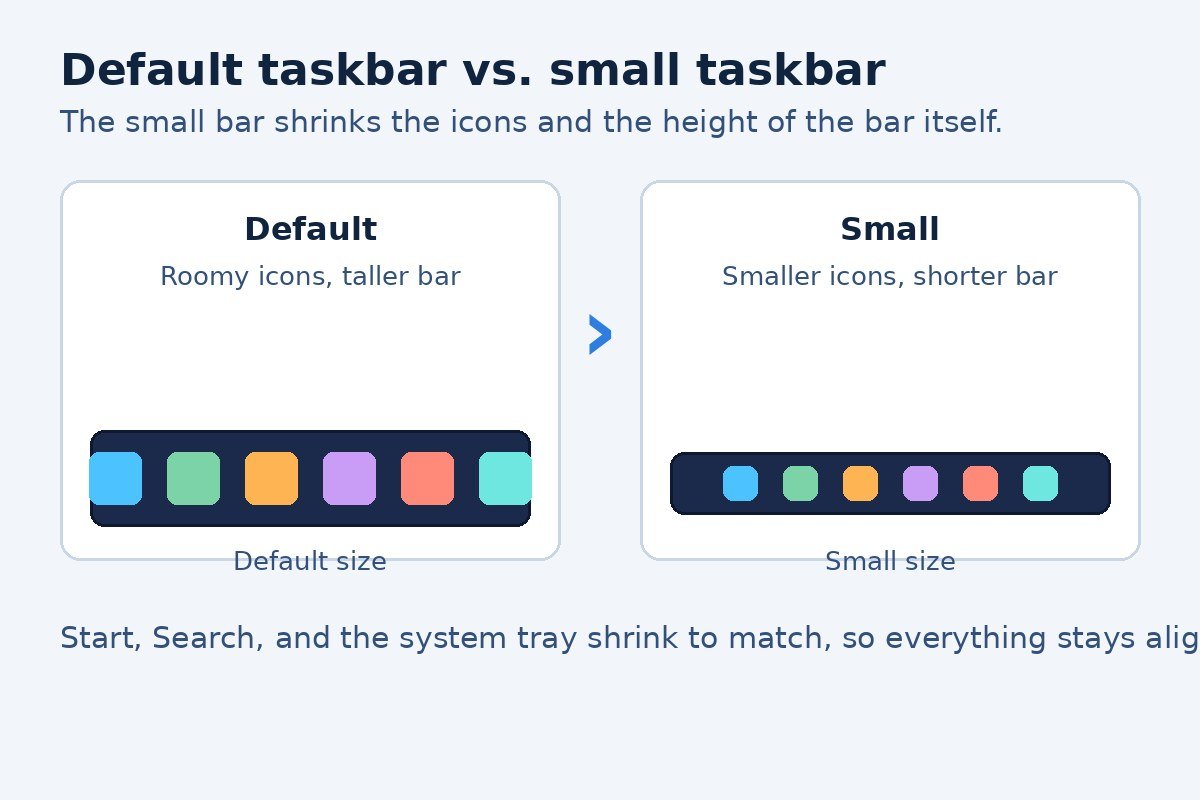
The small taskbar is a preset, not a slider. You get two sizes, Default and Small, and nothing in between. When you pick Small, the app icons get smaller and the height of the bar drops with them, which frees a strip of screen space along the edge where the bar sits. Start, Search, and the system tray shrink to match, so the bar still looks balanced instead of having one oversized element left behind.
| What changes | Default taskbar | Small taskbar |
|---|---|---|
| Icon size | Full size | Smaller |
| Bar height | Standard height | Shorter |
| Start, Search, system tray | Full size | Scaled down to match |
| Works at which edges | Any edge | Top or bottom |
What it does not do is just as useful to know. It does not hide the taskbar, and it does not move your pinned apps. If your real problem is that the taskbar keeps covering part of a window, the auto-hide option in the same Taskbar behaviors section is the better fix.
The three settings other guides mix up
Most of the confusion around this topic comes from three different settings that sound alike. Here is how they differ, so you change the right one.
First, the size control itself has had two names. On the earliest builds that received it, the control was labeled Show smaller taskbar buttons, and you set it to Always. On current builds, the same control appears as a Taskbar size list with Default and Small. Both labels control the same thing, so if your PC shows the older wording, follow the same steps and pick Always instead of Small.
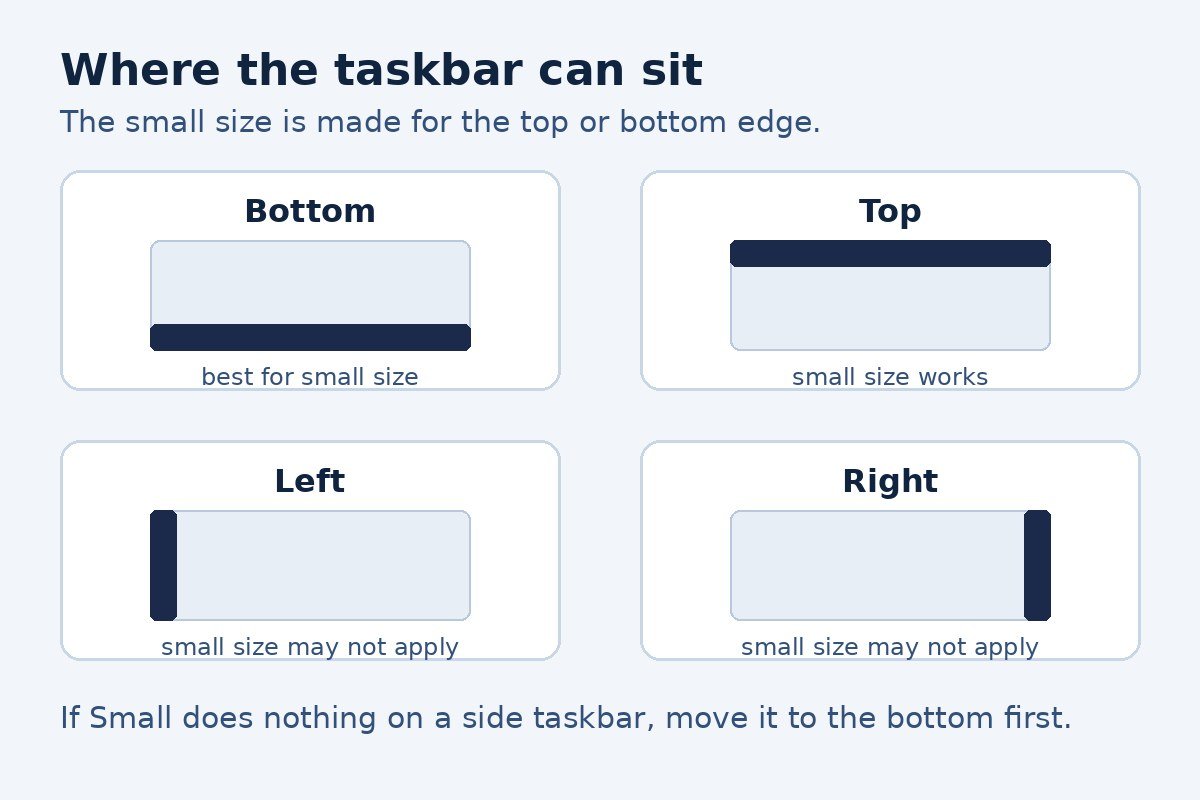
Second, Taskbar position is a separate setting in the same section, and it decides which edge of the screen the bar sits on: Bottom, Top, Left, or Right. Moving the bar does not make it smaller, and shrinking it does not move it. The two settings work together, though, because the small size is made for the top or bottom edge.
Third, Combine taskbar buttons and hide labels is about grouping, not size. It decides whether each open window gets its own labeled button or whether windows from the same app collapse into one icon. Setting it to Never makes the bar wider and busier, which is the opposite of what most people want when they are trying to save space. Leave it on Always unless you specifically want to see every window label.
If the setting is missing or does nothing
A missing Taskbar size list is almost always a rollout question, not a broken setting. Start with Windows Update: open Settings, select Windows Update, select Check for updates, and install anything offered. Then restart the PC and look again. Because the feature arrives in waves, a PC can need a few more days after the update before the setting appears.
If the list is there but picking Small changes nothing, check where the taskbar sits. As noted above, the small size is built for the top or bottom edge, so a taskbar docked on the left or right may ignore the change. Set Taskbar position to Bottom, then try Small again.
On a work or school PC, an administrator may manage taskbar settings through policy, which can hide or lock the size list. In that case the setting will not appear no matter how many updates you install, and only the IT administrator can change it. The same applies if the Taskbar behaviors section itself is greyed out.
One more thing to check is auto-hide. Microsoft noted in the preview release notes that auto-hide does not work yet when the taskbar sits away from the bottom edge, so if you moved the bar to the top and it no longer hides, that is a known limit of the current version rather than a fault on your PC.
Tidy up the rest of the taskbar while you are here
A smaller bar helps, but a crowded bar still feels crowded. The same Taskbar settings page holds the switches that clear the most clutter. Under Taskbar items, you can turn off Widgets and Task view if you never use them, and you can change Search from a full box to an icon, which hands back a useful stretch of space on smaller screens. Our guide to hiding the search box walks through each Search option, so you can pick the layout that fits how you actually use the bar.
The Start menu deserves the same tidy-up, because a slim taskbar next to a noisy Start menu still feels untidy. If the Most used list keeps surfacing apps you would rather not see, you can switch it off in the Start settings, and our guide to turning off the most used apps in the Start menu shows the exact toggle. Between the smaller taskbar, a slimmer Search area, and a quieter Start menu, the whole bottom of the screen feels calmer without installing anything.
For now, avoid third-party tools that promise a fully resizable taskbar. Older registry tricks and shell replacements were built for earlier Windows 11 versions, and they can break after a monthly update. The built-in Small size covers the common case, and it survives updates because Microsoft maintains it.
The small taskbar is a modest change, and that is the point. Pick Small, give it a day of normal use, and switch back to Default if the smaller icons feel cramped or harder to hit with the mouse. On a laptop or a small monitor, the extra strip of screen space is often worth it.

- How to Make the Windows 11 Taskbar Smaller - November 15, 2026
- How to Disable the Touch Keyboard Popup in Windows 11 - November 14, 2026
- How to Turn Off Nearby Sharing in Windows 11 - November 13, 2026